
- Hosting an HTML game for free in 2026: the short version
- 1. Export the game as HTML
- 2. Zip the game folder with index.html at the top
- 3. Upload the ZIP to Tiiny Host
- 4. Send the game’s link to players
- 5. Update the game without changing the link
- 6. Embed the game on your website or course page
- Why does my HTML game show a black screen after uploading?
- When a game needs its own link
- Tiiny Host features for sharing a browser game
- How much does Tiiny Host cost for HTML game hosting?
- Before you send the game
- Questions about hosting browser games
Whatever engine made it, an HTML game can go online for free once you zip its folder, with index.html sitting at the top, and drop the ZIP onto Tiiny Host, which gives the game its own link as soon as the upload finishes.
I’m the founder of Tiiny Host, and I’ll show you the whole process, from exporting the game to sending the link and updating it after feedback.
Twine stories, Construct and GDevelop exports, Phaser projects, Godot and Unity web builds, and single-file games written with ChatGPT or Claude all go online through the same upload.
Hosting an HTML game for free in 2026: the short version
To host an HTML game online for free in 2026, run your engine’s web export, zip the files so index.html sits at the top level of the ZIP, and upload the ZIP at tiiny.host. The game opens at its own tiiny.site link, free for one live project of up to 3 MB, with paid plans from $5 a month for bigger builds.
The six steps below take a game from your computer to a link people can play:
- Export the game as HTML: each engine has a web or HTML5 export.
- Zip the files: index.html goes at the top of the ZIP.
- Upload the ZIP to Tiiny Host: choose the link’s name and click Publish.
- Send the link: players open it in any browser, phones included.
- Update the build: new files go up under the same link.
- Embed the game: an iframe code puts it on your own website or course page.
1. Export the game as HTML
Every browser game ends up as an index.html file plus the scripts and assets that page loads, and each engine has its own way of producing that folder:
- Twine: Publish to File saves the whole story as one HTML file.
- Construct: the Web (HTML5) export produces the game’s files with index.html at the top.
- GDevelop: the manual HTML5 export saves the game to a folder on your computer, as GDevelop’s local export guide shows.
- Godot: the Web export preset builds the game, and naming the exported file index.html saves a step later.
- Unity: the Web build target produces a folder with index.html, a Build folder and a TemplateData folder.
- Phaser or hand-written JavaScript: the project folder you’ve been testing is already the export.
- AI chats such as ChatGPT or Claude: the code they write is usually one complete HTML file, which you save as index.html.
Before going further, I’d open the exported game through a local server or test it in Chrome with the steps in our guide. A build that fails there will fail online too. For a single-file game, pasting the code into the HTML tester is a quick way to see it run.
Writers working in Twine can start from our guide to building a text game with Twine, and the list of free text adventure games shows what finished ones look like.
2. Zip the game folder with index.html at the top
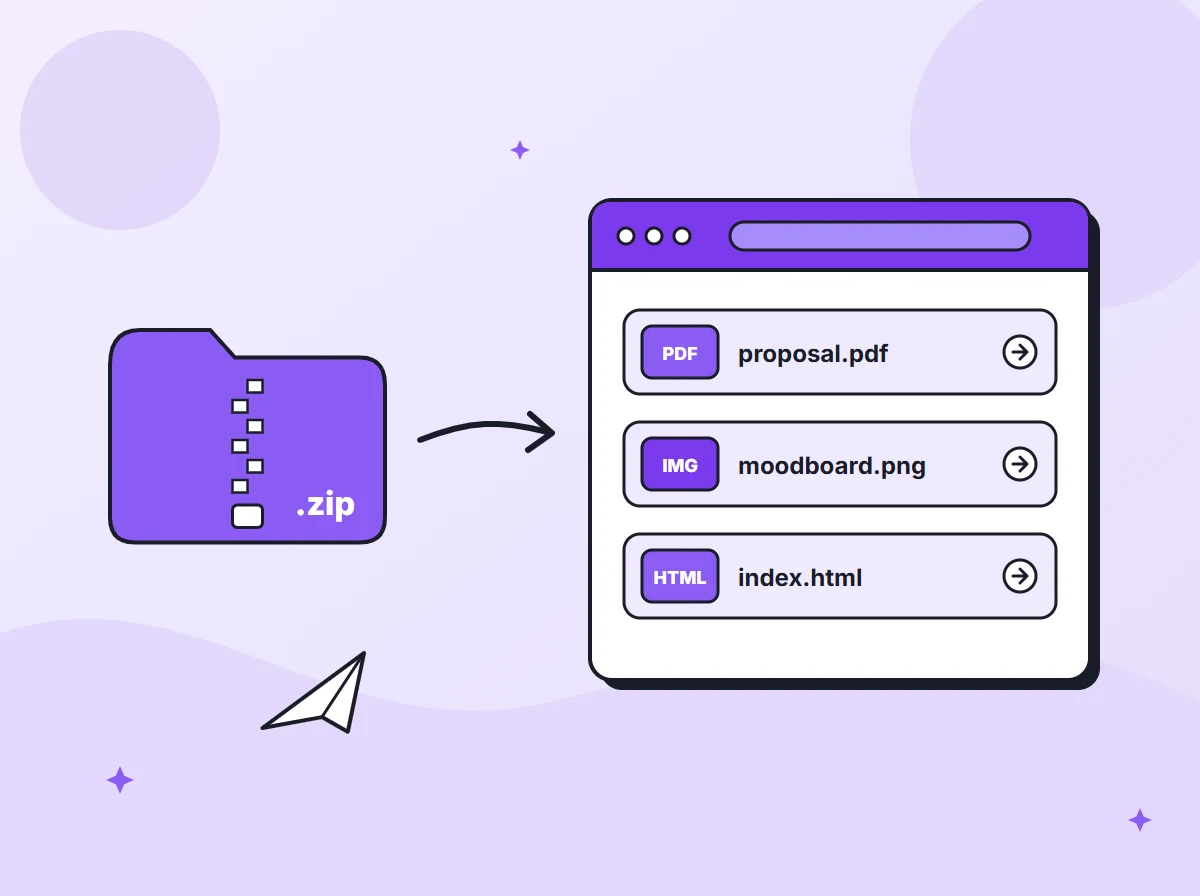
Tiiny Host looks for index.html at the top level of the ZIP, so the way you compress the folder decides whether the game loads.
Select everything inside the export folder and compress that selection. Zipping the folder itself puts the whole game one level down, at my-game/index.html, and the link opens without the game.
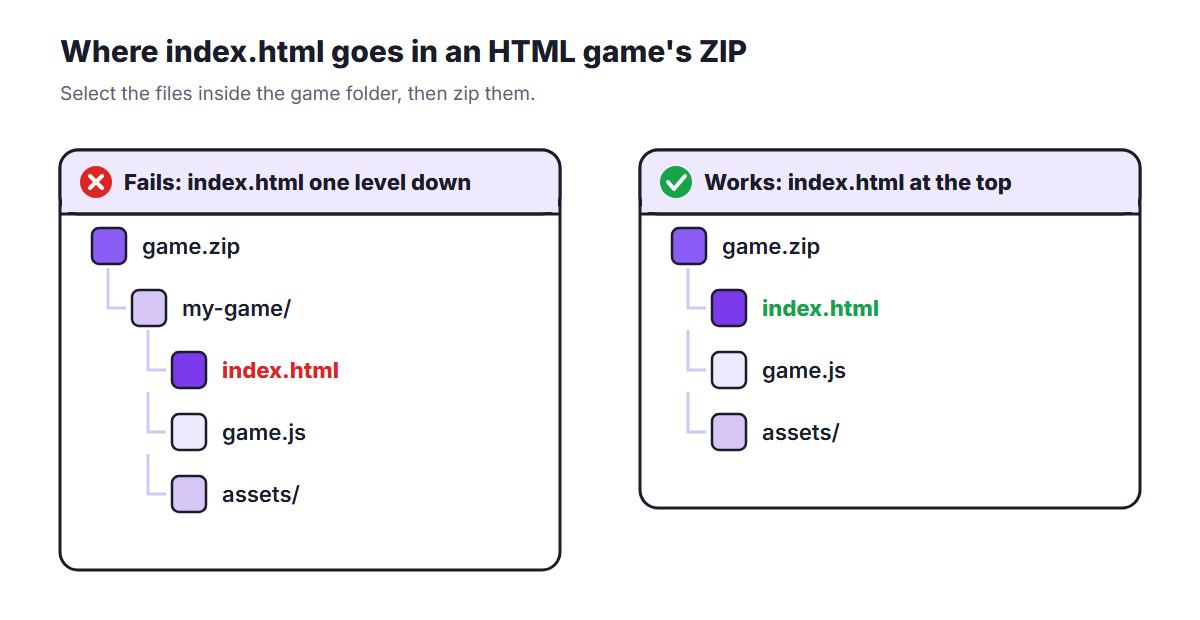
The same game zipped two ways. Only the right-hand ZIP opens straight into the game.
The compress menus are shown step by step in our Windows zip guide and our Mac zip guide. A single-file game from Twine or an AI chat can skip the ZIP entirely, as our guide to uploading an HTML file explains.
3. Upload the ZIP to Tiiny Host
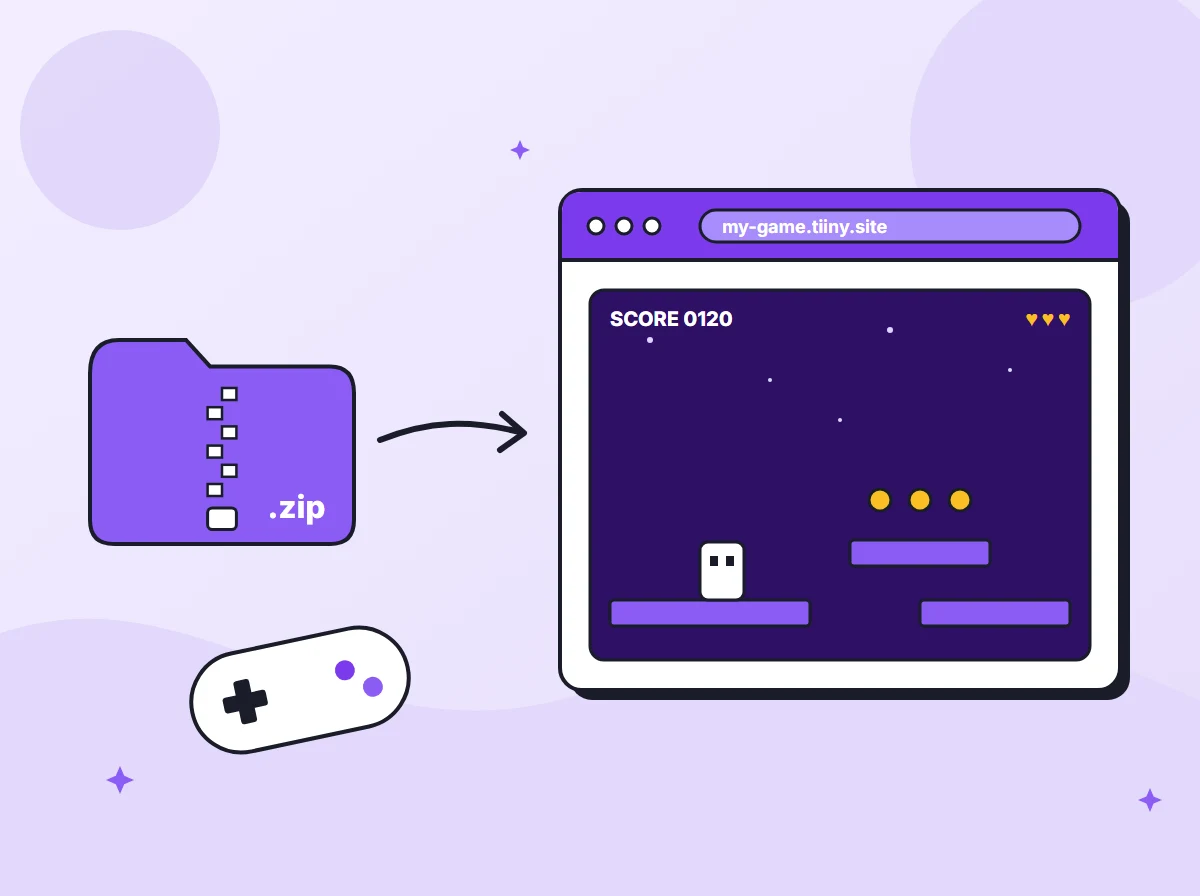
Tiiny Host turns the ZIP into a game that opens at its own tiiny.site link, with no store page or comment section around it.
To upload an HTML game to Tiiny Host:
- Drop the ZIP or HTML file into the box on the tiiny.host homepage.
- Type a link name using letters, numbers and hyphens, such as space-runner.
- Click Publish, and verify your email address if Tiiny Host prompts for it on a first upload.
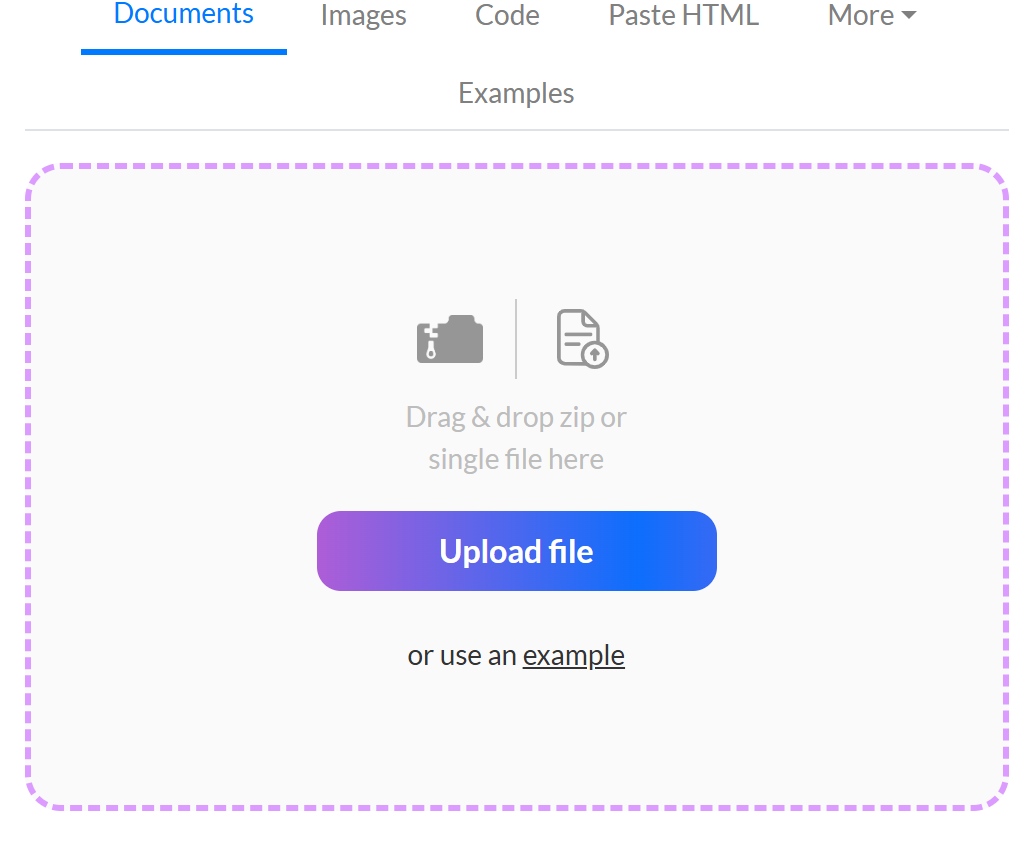
A game’s ZIP or a single HTML file goes into the same upload box.
Without paying, you can keep a single game online at up to 3 MB, upload 3 times a day, and serve 5,000 visits and 5 GB of bandwidth each month. Bigger builds need a paid plan: the Tiny plan takes 25 MB, the Solo plan 75 MB per project, and the Pro plan shares 10 GB across the account.
Two kinds of game content publish as one-hour previews on cheaper plans: a game with a video file inside it on any plan below the Pro plan, and a page with a password field, such as a login screen, on the free plan. Based on my experience, it’s best to leave cutscene videos out of the first upload, or to plan for the Pro plan if they’re part of the game.
Builds with many files are covered in more detail on the zip site hosting page, and a prototype made on CodePen exports to the same kind of ZIP, as hosting a CodePen project explains. The same upload also puts a full website online, as our guide to hosting a website shows.
4. Send the game’s link to players
The tiiny.site link opens the game in any browser, so players start on the first click with nothing to download or install.
You’ll want to send the link wherever your players already are: a message to friends, an email to a client, a class page for students, or a CV for a hiring manager. On a paid plan, View QR code in the project’s three-dot menu adds a QR code for posters and classroom screens.
A Solo or higher plan can put the game on a domain you own, such as play.yourstudio.com, which looks better on a portfolio or a pitch deck.
5. Update the game without changing the link
Update files, under the pencil icon on the project, replaces the game’s files while the link stays the same, so anyone holding the link always reaches the newest build.
The Tiny plan and above also keep a version history of the last five uploads, which lets you roll back if a build breaks the game. I’d normally upload a new build after each round of playtest notes, since testers never have to ask which link is the current one.
Changing the link name is a different action, done in Customize project, and that one does break the old address, along with any printed QR codes.
6. Embed the game on your website or course page
Each project’s three-dot menu has an “Embed this link” option on every plan, and it produces iframe code ready for a website or a course platform page.
Because the iframe loads the game from Tiiny Host, every page carrying the snippet plays your latest upload. Our guide to adding JavaScript to HTML explains where code snippets go in a page.
Why does my HTML game show a black screen after uploading?
An HTML game that loads as a black or blank screen online usually can’t reach one of its own files. Pressing F12 and opening the Console tab shows which file failed or which error stopped the game.
These are the causes in the order I check them:
- index.html sits inside a folder in the ZIP: re-zip the files inside the folder, as step 2 shows.
- Paths point at your own computer: an address like C:\Users\you\game\player.png or localhost:8000 works only on your machine. Relative paths such as assets/player.png load anywhere, as our guide to linking JavaScript to HTML shows for script files.
- A file name’s capitals don’t match: Windows treats Player.png and player.png as the same file, while web servers usually don’t.
- A Godot 4 export has Thread Support switched on: the Godot web export documentation says threaded builds need special cross-origin isolation headers from the server. Exporting with Thread Support off avoids that requirement.
- A Unity build is compressed without Decompression Fallback: Unity’s deployment guide explains that compressed builds rely on server settings, and that Decompression Fallback (Edit > Project Settings > Player > Web > Publishing Settings) removes the need for them, at the cost of a bigger loader and a slower start.
When a game needs its own link
A game needs its own link when it’s made for particular people, such as a client, a class, a handful of playtesters or a hiring manager. Those audiences tend to run into the same problems:
- A zipped build won’t go by email: the attachment bounces, or the person receiving it has to unzip folders and work out which file to open.
- Playtesters end up on an old build: each round of fixes means another file to send and another message telling testers which one to open.
- Feedback arrives scattered: notes come back through email threads and screenshots, and nobody can tell which menu or level they refer to.
- A portfolio link should start the game: a hiring manager who clicks from a CV or a student portfolio expects to be playing within seconds.
- A client demo gets lost among other pages: a busy client wants to open one link and play, without searching for the right build.
- A classroom game shouldn’t be public: a quiz built for one class shouldn’t turn up for anyone who searches online.
Tiiny Host handles that whole list from one upload. A finished ZIP becomes a link that starts the game on the first click, and the remaining problems are covered by feedback mode for playtest notes, version history for new builds, a password for private games and an embed code for course pages.
Tiiny Host features for sharing a browser game
Each Tiiny Host project gives a browser game its own tiiny.site link, plus tools for collecting playtest feedback and keeping builds private.
A tiiny.site link that opens straight into play
Visitors to a Tiiny Host link land in your game itself. Free projects carry a small Tiiny Host banner, which paid plans remove.
The same upload also suits 3D work built with three.js, a common choice for interactive portfolios, and our collection of three.js examples shows how far browser 3D can go.
Playtester comments pinned to the page
In feedback mode, a playtester clicks any spot on the page and types a note, and nobody needs an account to do it. It’s available on the Tiny plan and above, and the setting that turns it on is called Enable comments. The feedback mode page shows how reviewers see it.
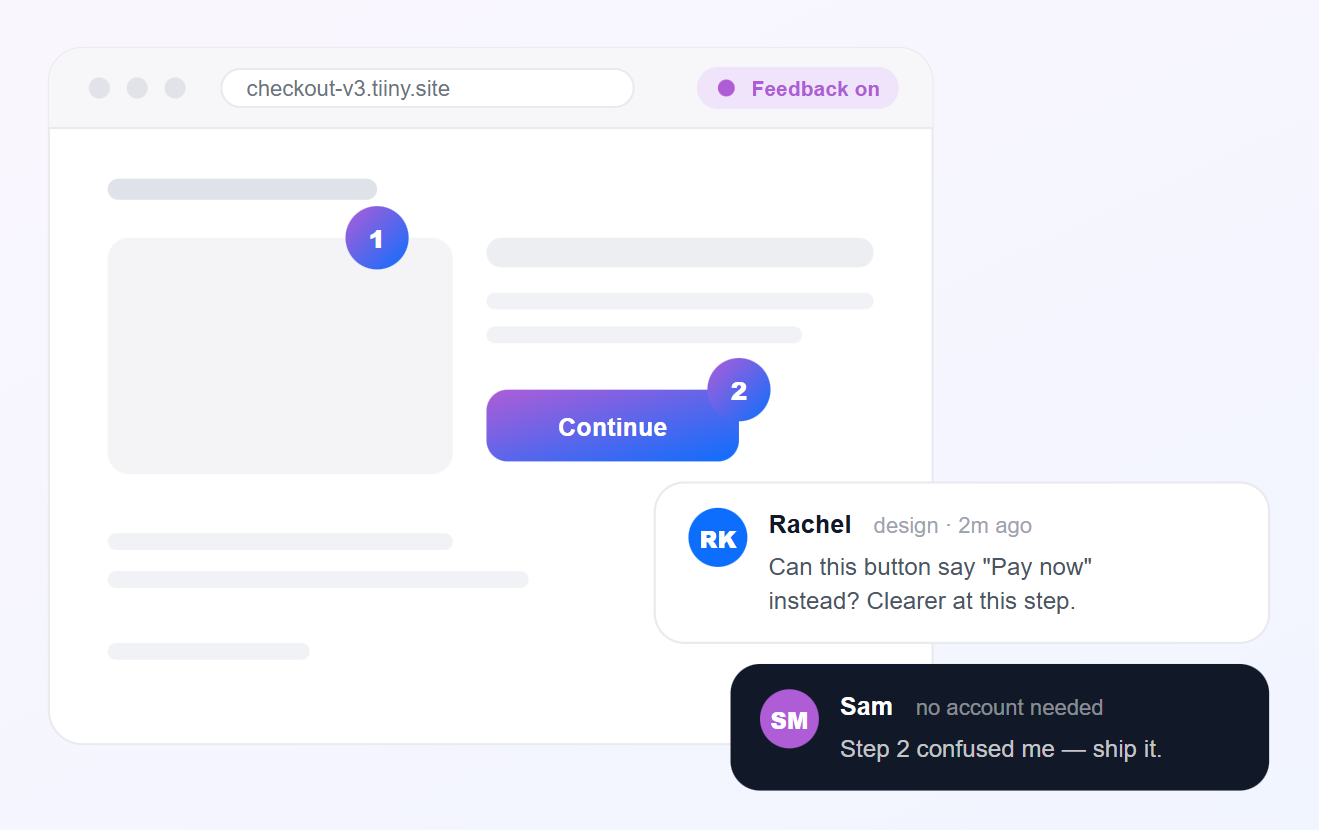
Feedback mode, with comments pinned to the page they’re about.
Pins suit menus and HUD layouts best, since a moving canvas looks different every time someone opens it.
Password protection for unreleased builds
Solo and higher plans can lock the game behind a password with password protection, which keeps a pre-release build or a class quiz away from anyone who stumbles on the link.
Running a Node.js server for multiplayer prototypes
Static uploads can’t run a game server, though any paid plan can run a Node.js app from a ZIP that contains a package.json, as the help center describes. Apps get their own .tiiny.io address, so try a real-time multiplayer prototype there with a few players before any public launch.
How much does Tiiny Host cost for HTML game hosting?
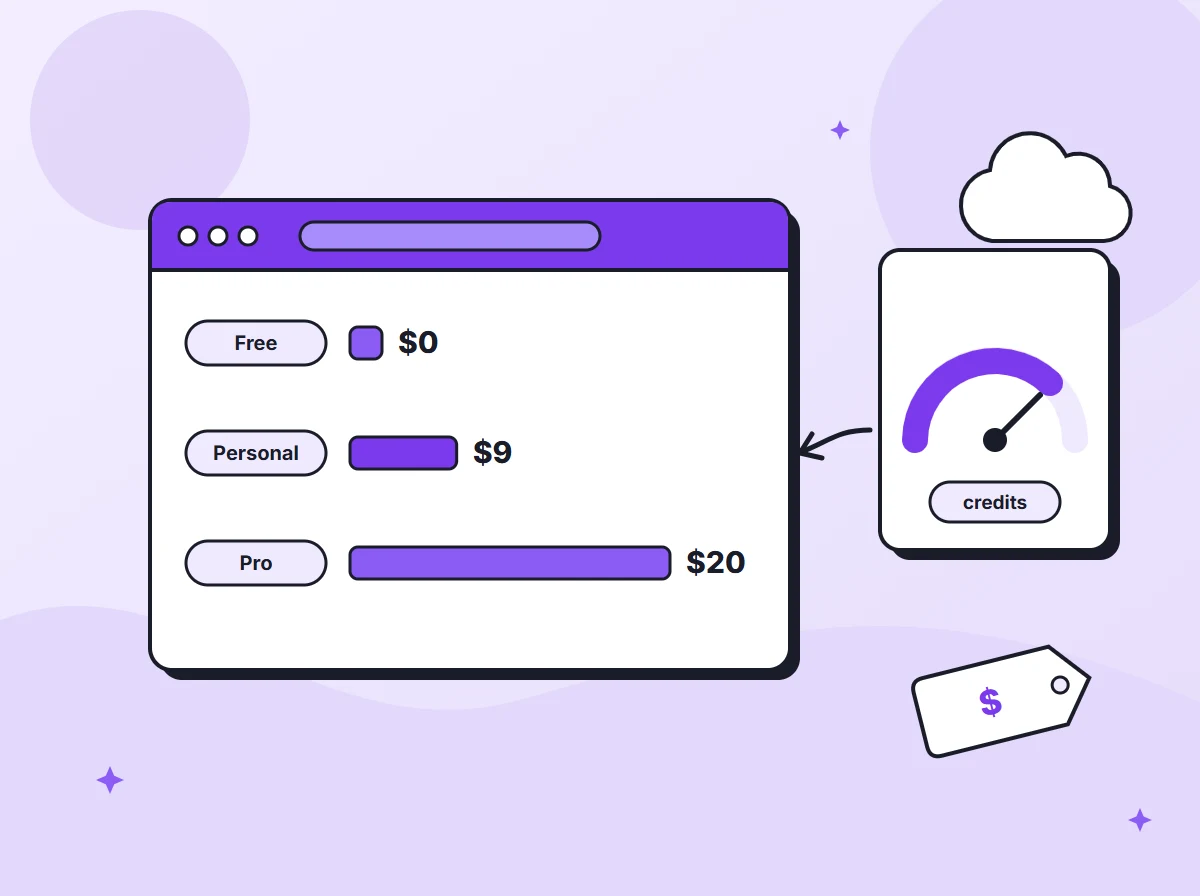
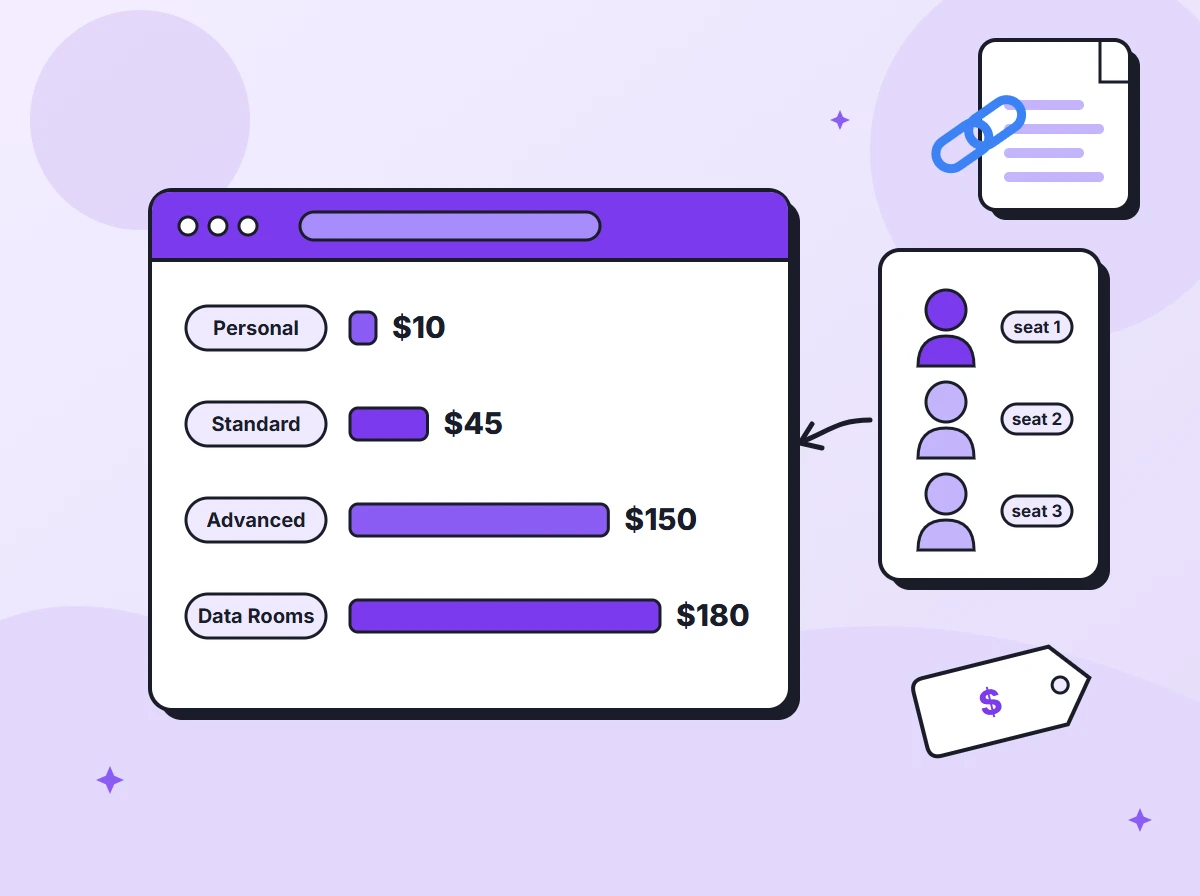
Tiiny Host charges nothing for one live game of up to 3 MB. Builds of up to 25 MB need the Tiny plan, at $5 a month on yearly billing or $9 paid monthly.
The figures below come from two Tiiny Host help articles, plan limits explained and pricing plans, as they read in November 2026:
| Tiiny Host plan | A month, billed yearly | Billed monthly | Game size limit |
|---|---|---|---|
| Free | $0 | $0 | 3 MB, 1 live project |
| Tiny | $5 | $9 | 25 MB, 1 live project |
| Solo | $13 | $18 | 75 MB per project, 5 projects |
| Pro | $31 | $38 | 10 GB across 15 projects |
| Pro Max | $74 | $89 | 2 TB, unlimited projects |
Monthly bandwidth is 5 GB on the free plan and 10 GB on the Tiny plan. Tiiny Host’s help center estimates bandwidth as visits multiplied by project size, which means a 3 MB game reaches the free plan’s 5 GB after roughly 1,700 plays.
Small browser games, such as a Wordle clone or a Twine story, usually fit within the free plan’s 3 MB, so it’s ideal to begin without paying. Engine exports with music and sprite sheets tend to need more room, and I’d recommend the Tiny plan once a build passes 3 MB, moving to the Solo plan when you’re hosting several games or want a password on them.
Before you send the game
A quick check before the link goes out saves a round of “it doesn’t load” messages:
- Open the game from its tiiny.site link on your own laptop and phone.
- Play past the first level or screen, so every asset has had a chance to load.
- Switch on feedback mode if testers should leave notes on a paid plan.
- Keep the link name short and readable, since changing it later breaks the old address.
Steps and limits checked against Tiiny Host’s help center and the Godot and Unity documentation on 25 November 2026.
Limits can change, so confirm them before a large release.
Questions about hosting browser games
Can I put a game made with ChatGPT or Claude online?
Yes. An AI chat usually writes the whole game into one HTML file, and Tiiny Host accepts that file without zipping it.
Save the code as index.html and open it in your browser to check it runs before uploading. Our guides to making a website with ChatGPT, coding with Claude and Claude Artifacts go through the export step, and the custom Wordle tutorial builds and publishes a word game from start to finish. For longer projects written by prompting, see our guides to vibe coding and building a web app with Cursor.
How do I share an HTML game with friends?
Upload the game to Tiiny Host and send the tiiny.site link in a message. Friends open it in their browser with nothing to install, and a QR code on a paid plan gets the game onto phones in a room.
Is Tiiny Host free for HTML games?
Yes, for a single game up to 3 MB. The free plan includes 5,000 visits and 5 GB of bandwidth a month, and the game page shows a small Tiiny Host banner. Paid plans start at $5 a month on yearly billing.
How do I host a Unity WebGL game for free?
Switch on Decompression Fallback before building, then upload a ZIP of the build folder’s contents. Small Unity builds rarely fit in 3 MB, so most need a paid Tiiny Host plan: 25 MB on the Tiny plan, 75 MB per project on the Solo plan, and 10 GB across the account on the Pro plan.
Can I host a multiplayer HTML game?
The game’s files host like any other upload, while the server that connects players needs to run as an app. Tiiny Host runs Node.js apps on the Tiny plan and above, which can hold a small game server for a prototype.
Will my HTML game work on phones?
It will if the game has touch controls and scales to a small screen. Open the Tiiny Host link on your own phone, or scan its QR code, before sending it to players.