- How do Claude Artifacts work?
- What’s New with Artifacts in 2026
- Creating an Artifact in Claude
- Types of Artifacts You Claude can Create
- Sharing your Artifacts
- Artifacts in Claude Code
- Live Artifacts in Claude Cowork
- Artifacts vs the Tools People Confuse Them With
- Alternatives to Claude Artifacts in ChatGPT, Gemini, Notion and other AI Apps
- Artifacts Are More Than a Preview Pane
- Frequently Asked Questions
- Can you use Claude artifacts for free?
- Does ChatGPT have artifacts like Claude?
- What is the difference between Claude code and Claude artifact?
- What are the artifacts in the Claude teams?
- Can I remix someone else’s Artifact?
- Are Claude Artifacts, Projects and Claude Code the same?
- Why can’t I see my Artifact in the sidebar?
- Do people need a Claude account to view my artifact?
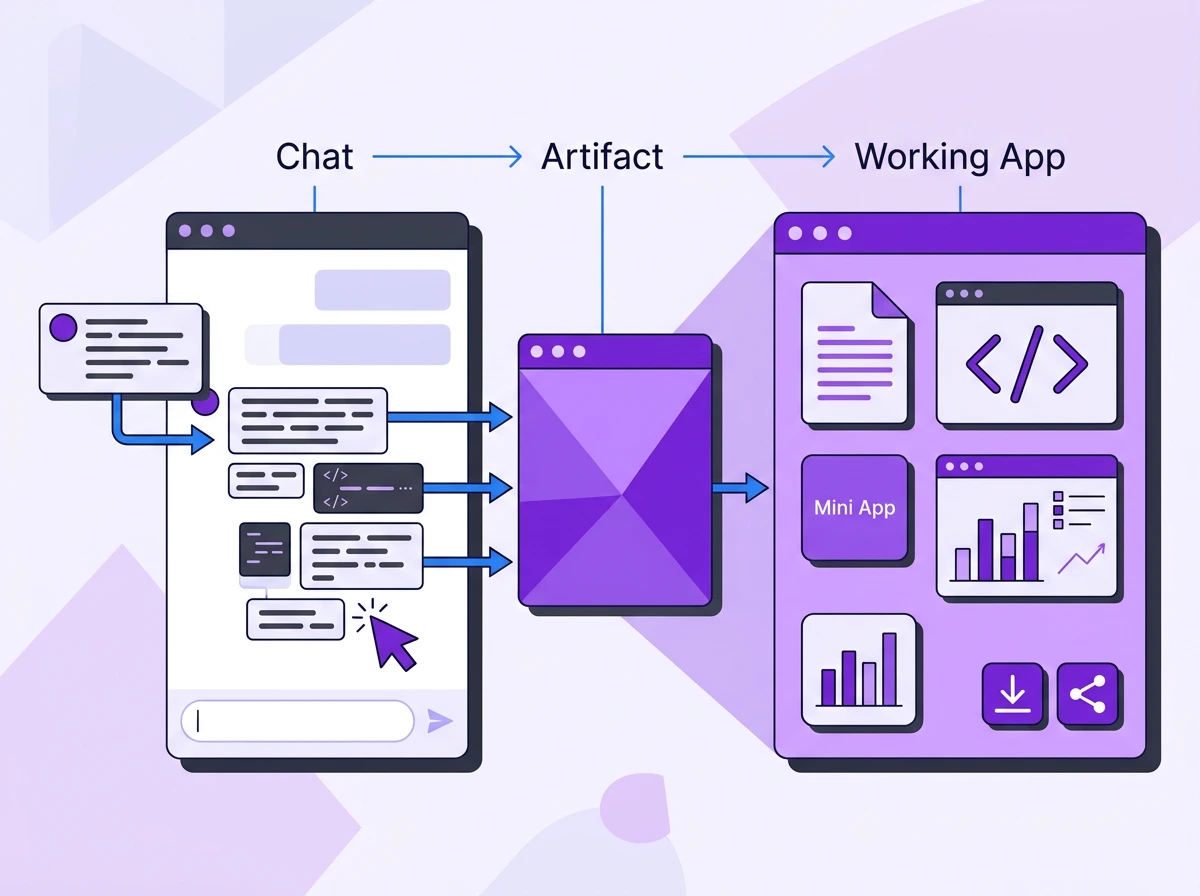
A Claude Artifact is a live panel that opens next to your chat and runs what you asked for. Ask for an app, and you get a working app in the panel. Ask for a document, and it renders there, ready to be published or downloaded. Ask for the changes in the chat, and it renders the output for you.
If you’ve asked Claude to make a document or an app and suddenly a pane on the right opened up, that is the artifact.
Claude used to give you code or reply in the chat itself. So you had to copy and paste the content each time. With artifacts, you don’t have to copy-paste to see the results anymore.
In 2026, Artifacts can call Claude without an API key, connect to your apps through MCP, and remember data between visits.
In this guide, I will show you what makes Claude open an artifact, how to build an artifact yourself, ten different types of artifacts you can test out and how to share them safely.
How do Claude Artifacts work?
Claude opens an artifact for you when it matches the following criteria:
- The content is substantial and self-contained, which usually runs for more than 15 lines.
- You might want to change it in future. This is something you would edit, iterate on or re-use once you download it from the chat.
- It is a standalone piece of work. It is a document, page or application that people can understand without having to look at the chat.
- It is something you might refer back to later.
If Claude thinks the content doesn’t match these, it would not open an artifact for you. But you can always ask in the chat to create an artifact, and it would. If you do not want an artifact for something, you can ask to get the reply in-line rather than opening an artifact.
If you are chatting with Claude and you ask to fix a line of your Python script, it will just reply in-line if the error is small. You can just fix that, and you will not reuse it. Also, nobody would understand just “a fixed line” without the context of the conversation.
But, if you ask to make a calculator, it will open an artifact. You might just download the artifact and make it live, or you will probably rework it to iterate on it. If not either, you will probably use it later. That is why you will get it as an artifact.
Claude also has a public gallery, Made with Claude, that showcases examples of different artifacts you can create.
What’s New with Artifacts in 2026
In June and July 2026,Anthropic launched Fable 5 and Opus 5 for Claude. These better models allow you to create artifacts in fewer words. Fable now runs on usage credits and is not included in your plan. Opus 5 was created to provide performance close to that of Fable 5 with fewer usage limits.
While Opus 5 uses fewer limits than Fable, it still uses more than Haiku, Sonnet, and older Opus models. If you are keeping limits in check, you can create artifacts with other models, too.
Only models are not getting upgraded in 2026, though. AI-Powered Artifacts were added this year. Another addition was the MCP integration and Persistent Storage.
AI-Powered Artifacts
You can now build applications that call Claude while they run. Your artifact just became an app in itself. When you create an AI-powered artifact, anyone who uses your artifact gets an instance of the app on their own Claude.
Usually, if you want to use Claude in your apps, you have to use API Keys. For AI-powered artifacts, you don’t need to configure API keys. And you don’t pay when someone else uses your artifact either. Instead, Claude uses the usage limit of the person currently using the instance of the artifact.
Whenever the artifact is executed, the API is called automatically through the user’s own Claude account.
MCP Integration
Artifacts can now communicate with other tools connected to your Claude using the Model Context Protocol (MCP).
With MCP, you can connect Gmail, Asana, Notion, Google Calendar, and many more custom apps. The newest update lets artifacts read and write data to apps using MCP connectors.
Everyone who gets the artifact must connect their own accounts for the connected apps. The MCP integration runs on Pro, Max, Team and Enterprise on web and desktop.
Persistent Storage
With Persistent storage, even when you reload the chat or your app, your data won’t be lost. Persistent storage lets you store data in an artifact that can help you build tools.
Anthropic has also added Shared Storage, where people viewing or using the artifact use the same storage. They see the same output and make changes to it together.
If only a single person uses a dashboard, they can use persistent storage. If there is a team dashboard, they can use shared storage.
We will see some examples of this in the next section!
Creating an Artifact in Claude
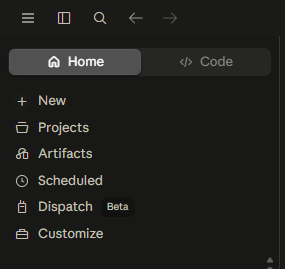
We will be trying to create or prompt the creation of different types of artifacts. When you open a new conversation and give details, Claude opens the artifacts on its own. But, you also have an option on the sidebar labelled as “Artifacts” where you can see published artifacts.
Enable Artifact Creation from Settings: Turn on the “Code Execution and File Creation” Toggle
But before we start, for Claude AI to make Artifacts for you, you need to turn on some of these settings. Usually, they are on by default, but it is worth checking! Here’s how you can enable Artifacts in Claude
For Individuals:
- Click on Customize from the sidebar (or click your profile in the lower left and go to Settings)
- Go to Capabilities
- Check for the Code execution and file creation, and turn it on.
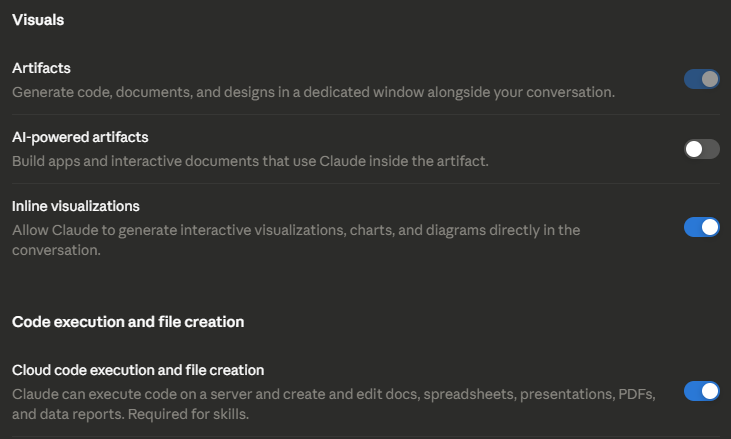
Earlier, you just had to turn on “Artifacts,” but now you have to toggle “On” for Code Execution and file creation to get artifacts. When you turn it on, “Artifacts” also gets automatically turned on.
On Team or Enterprise:
- Sign in as an Owner
- Click your initials or name in the lower left corner.
- Go to Organization settings > Capabilities
- Turn on Code execution and file creation.
If you are on the team plan and your artifacts aren’t working, check once with the admin.
Generate Artifacts in Claude in Chat or Cowork
Open a new instance of chat or cowork and write your task. Once the task is written, Claude will open the Artifacts on its own.
Generate Artifacts Manually
You don’t have to worry if Claude doesn’t open an artifact on its own. You can ask in the chat directly to open an artifact. Alternatively, you can go to the “Artifacts” tab and create a new one from scratch.
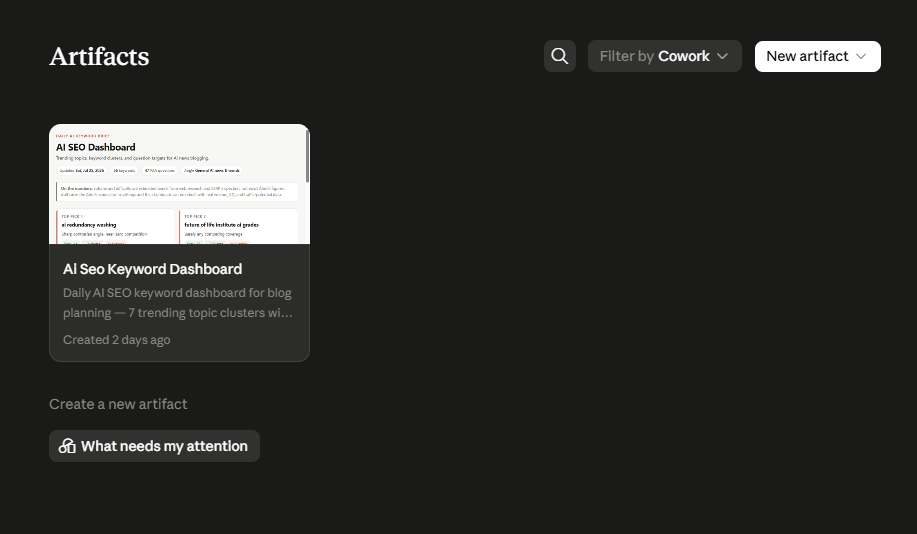
Under Artifacts, you see all the published Artifacts. In the same panel, you will see the “New artifact” button on the top right.
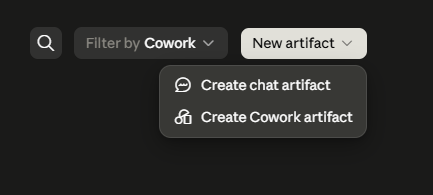
Clicking on that button will open the options for you to create a new Chat artifact or a new Cowork artifact.
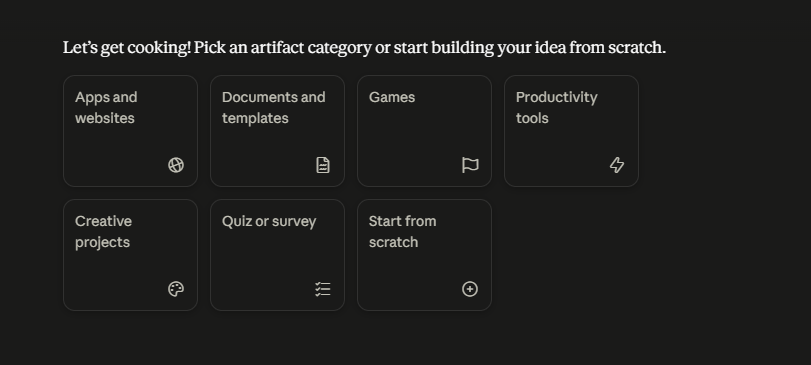
You can see some ideas that Claude will already present to you for different types of artifacts. You can also make something new or start from scratch.
Now that you know how to create artifacts, we will create several different types.
Quick Troubleshooting:
If Claude doesn’t open your artifact on its own:
- Check whether the Code execution and file creation toggle is off.
- On the Team or Enterprise plan, check with your admin once.
- If the artifact opened but gave an error, click on the “Try fixing with Claude” button next to the error. Claude will try to fix the error itself.
Types of Artifacts You Claude can Create
When prompting Claude for anything, give simple tasks at a time. When you get the output, iterate slowly, rather than giving very long prompts that would take up more tokens; work on simpler versions so you can test them alongside.
1. Documents
We will start with the simplest one. In documents, you can create Markdown files, Word documents, data files (CSV, xlsx and more) and presentation files. If you have research papers, blogs, create datasets, make presentations with diagrams and charts or just share a brief overview of a document, you can do all of this.
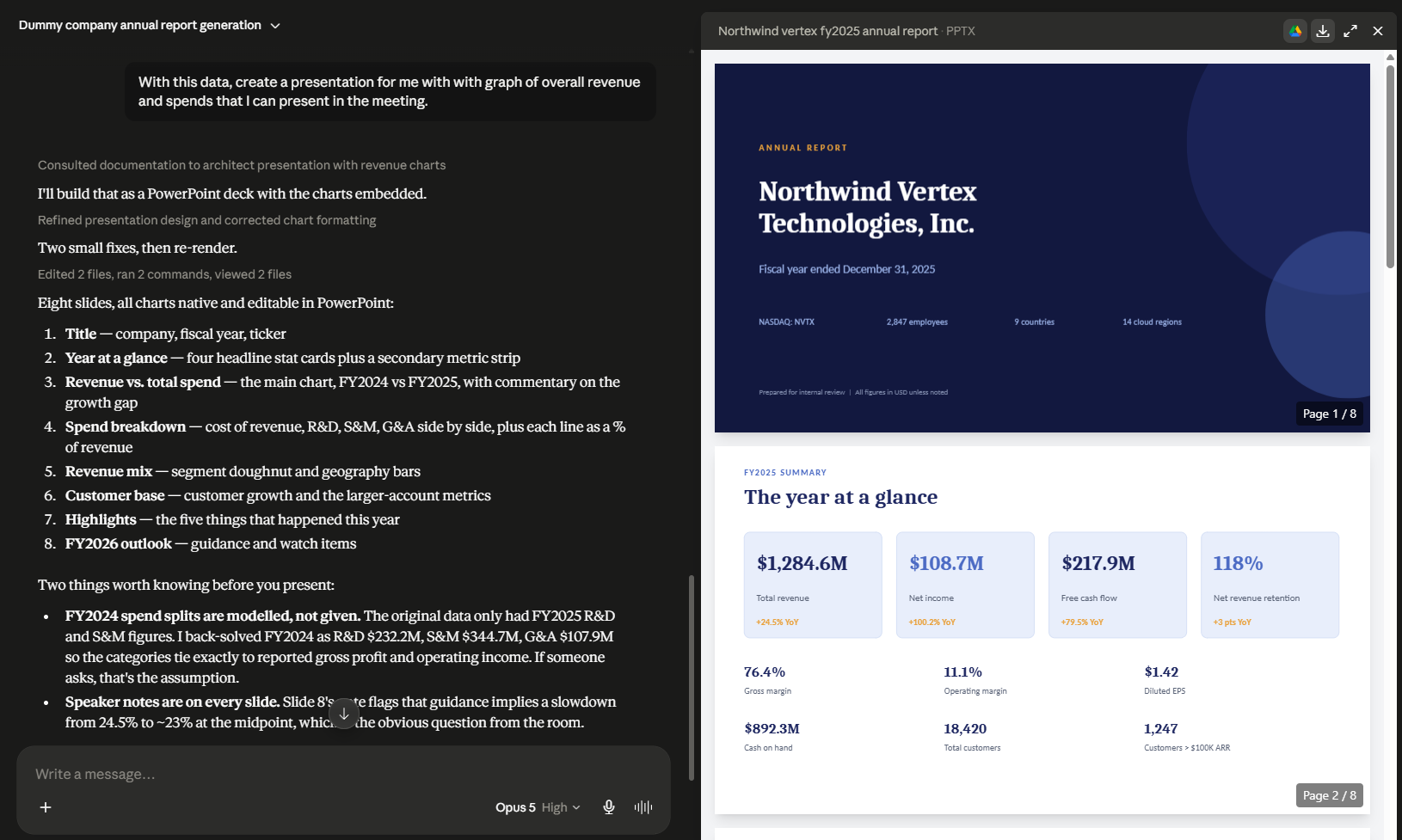
I created a set of sample data with Claude, and then with the same data, I told Claude AI to create a presentation for me.
You can give the datasheet or connect the tool where analytics are recorded, and then ask Claude AI to generate the report for you.
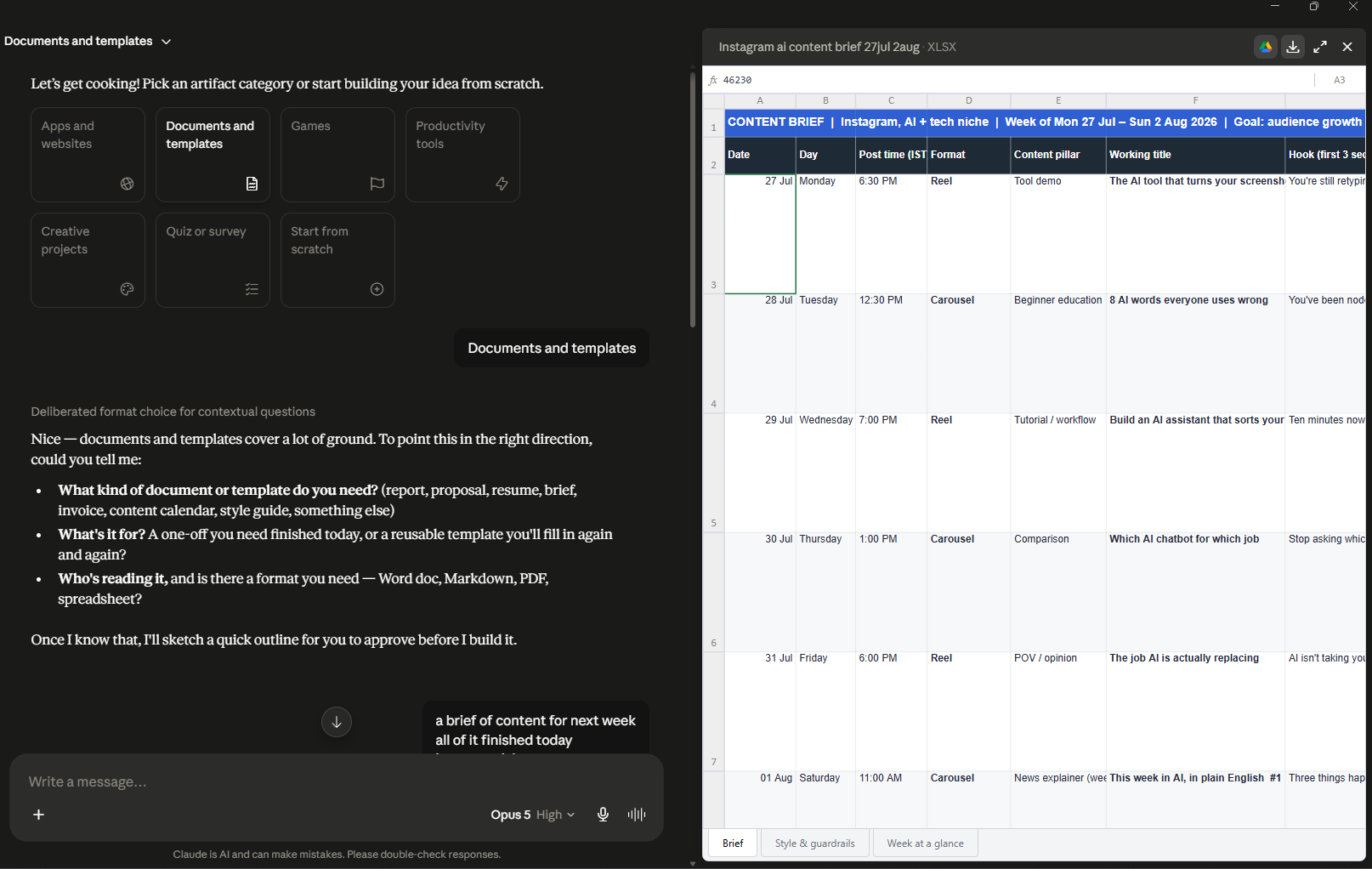
Here is another example of a spreadsheet where I instructed the AI to create a content brief for a week for an Instagram creator who wanted to grow. For this one, I opened a chat through the “Artifacts” option in the sidebar.
2. Code Snippets
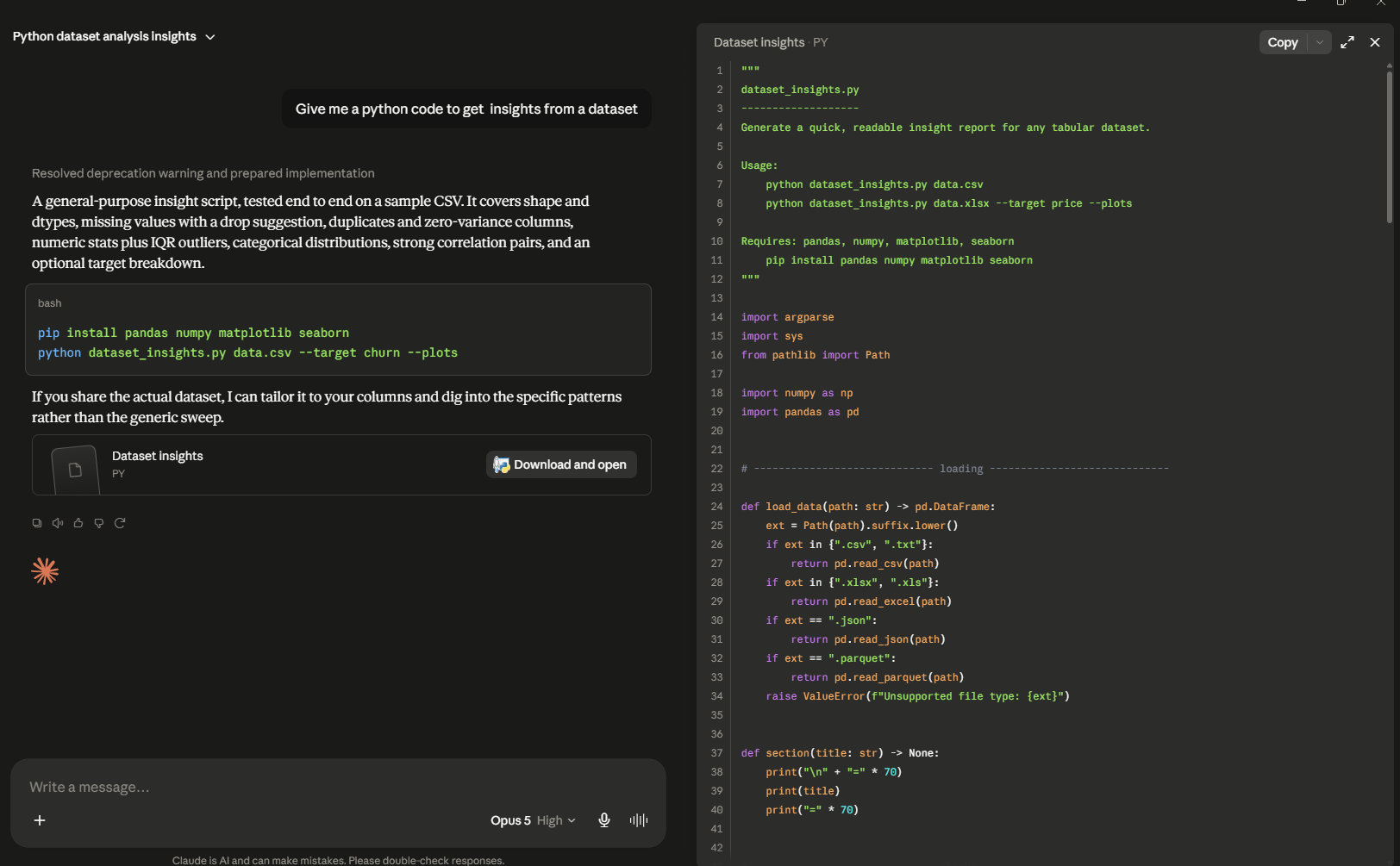
Claude Artifacts can be used to create code snippets, scripts, or build test cases. If you have an HTML website or simple snippets, Claude will provide a preview and a code view.
Here, I generated a generic Python script that would help find insights from the dataset. You can copy this snippet and use it anywhere needed.
3. Single-page HTML Websites
You can create single-page applications and HTML websites using Claude.
I created an HTML page for an Instagram creator to have all the links in one place. You can create landing pages, portfolio websites, forms and much more.
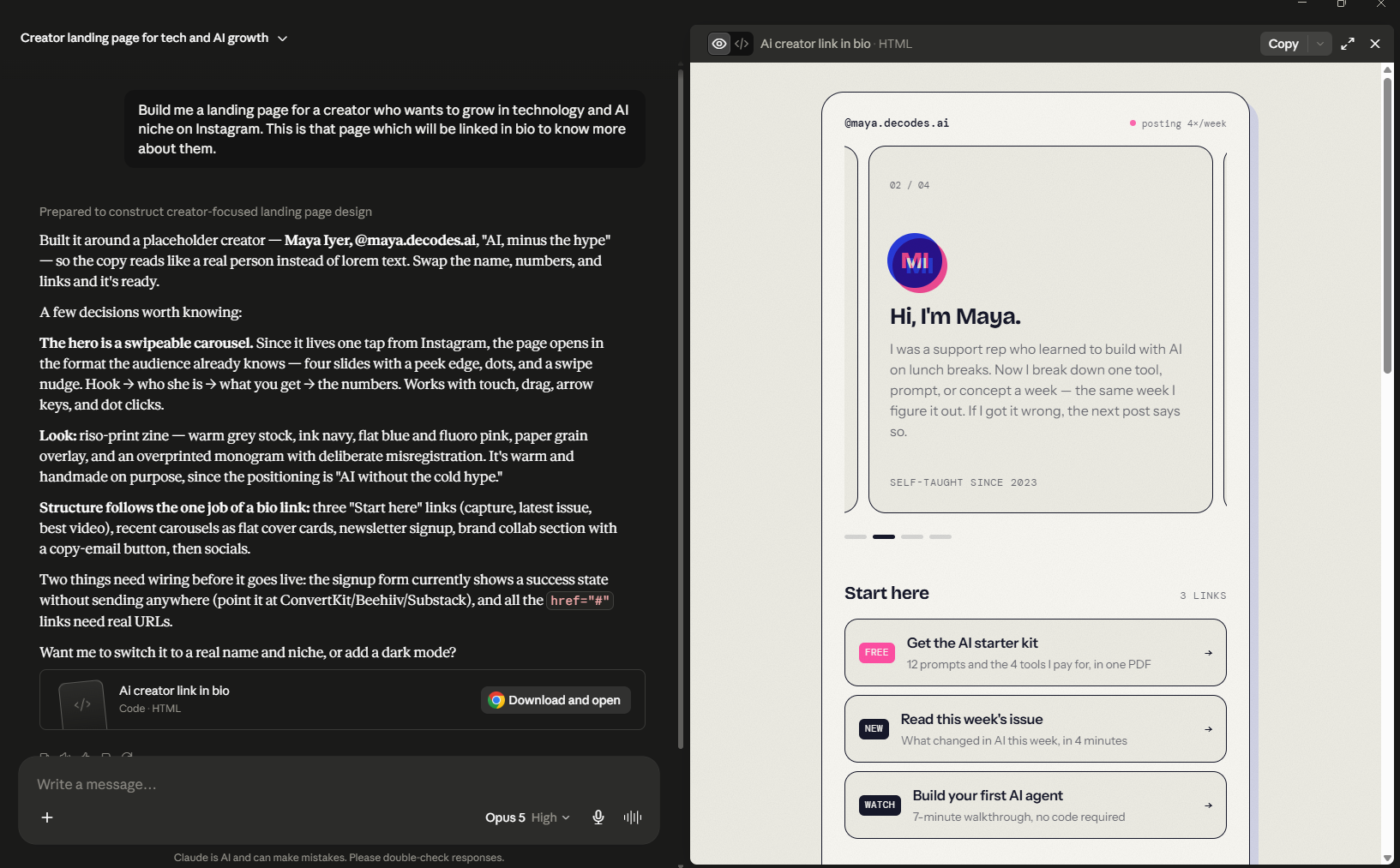
In the left corner of the artifact pane, you can see the option to see Preview and Code. You can copy the code and paste it into your code editor and then host the website online.
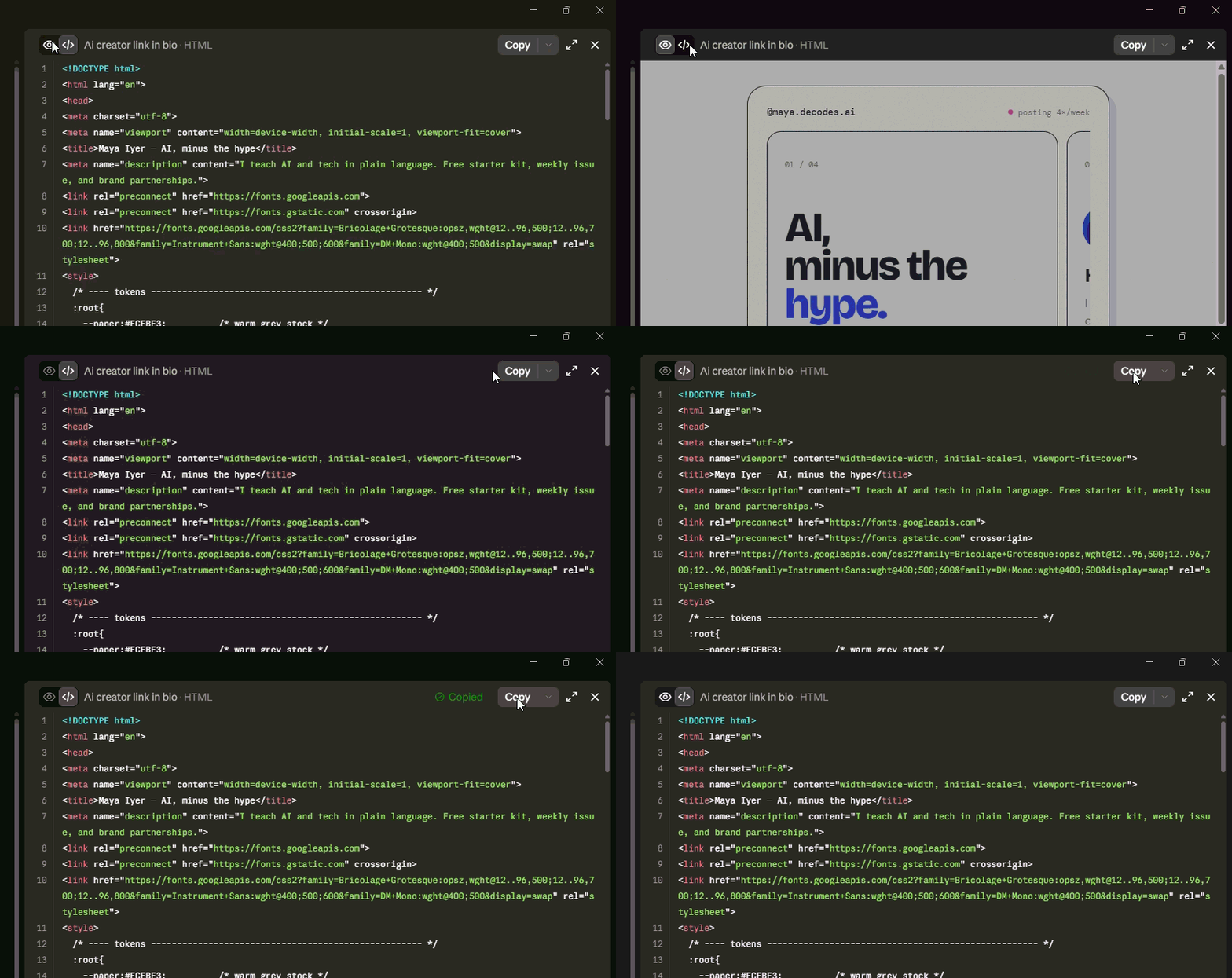
You can connect Tiiny Host’s MCP to Claude as well to deploy on the web directly and share the link anywhere needed.
4. SVG Images
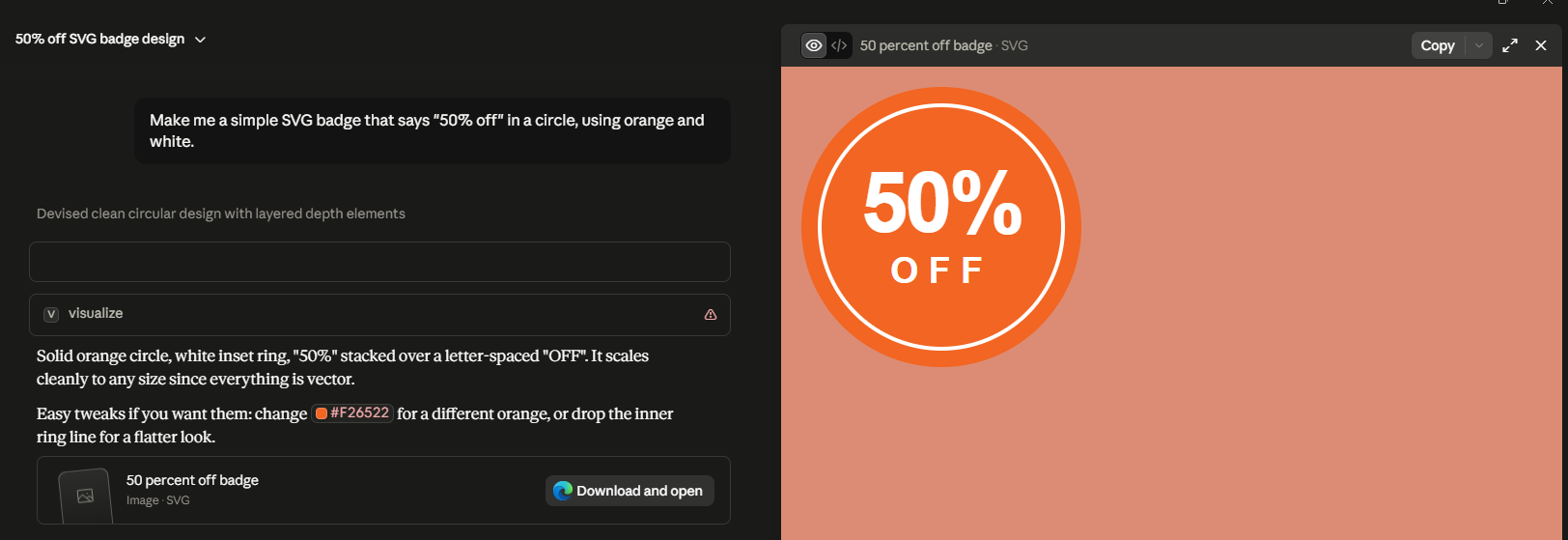
Claude can create simple graphics in SVG format for you. These SVG images can be used as design assets on your designs and websites. You can edit them as text as well.
Here is a simple SVG badge I made that I can use in any designs where I’m offering a discount.
5. Diagrams and Flowcharts
Claude can generate diagrams, flowcharts and Mermaid diagrams too. These can be effective for doing data analysis and creating reports for your personal brand or company.
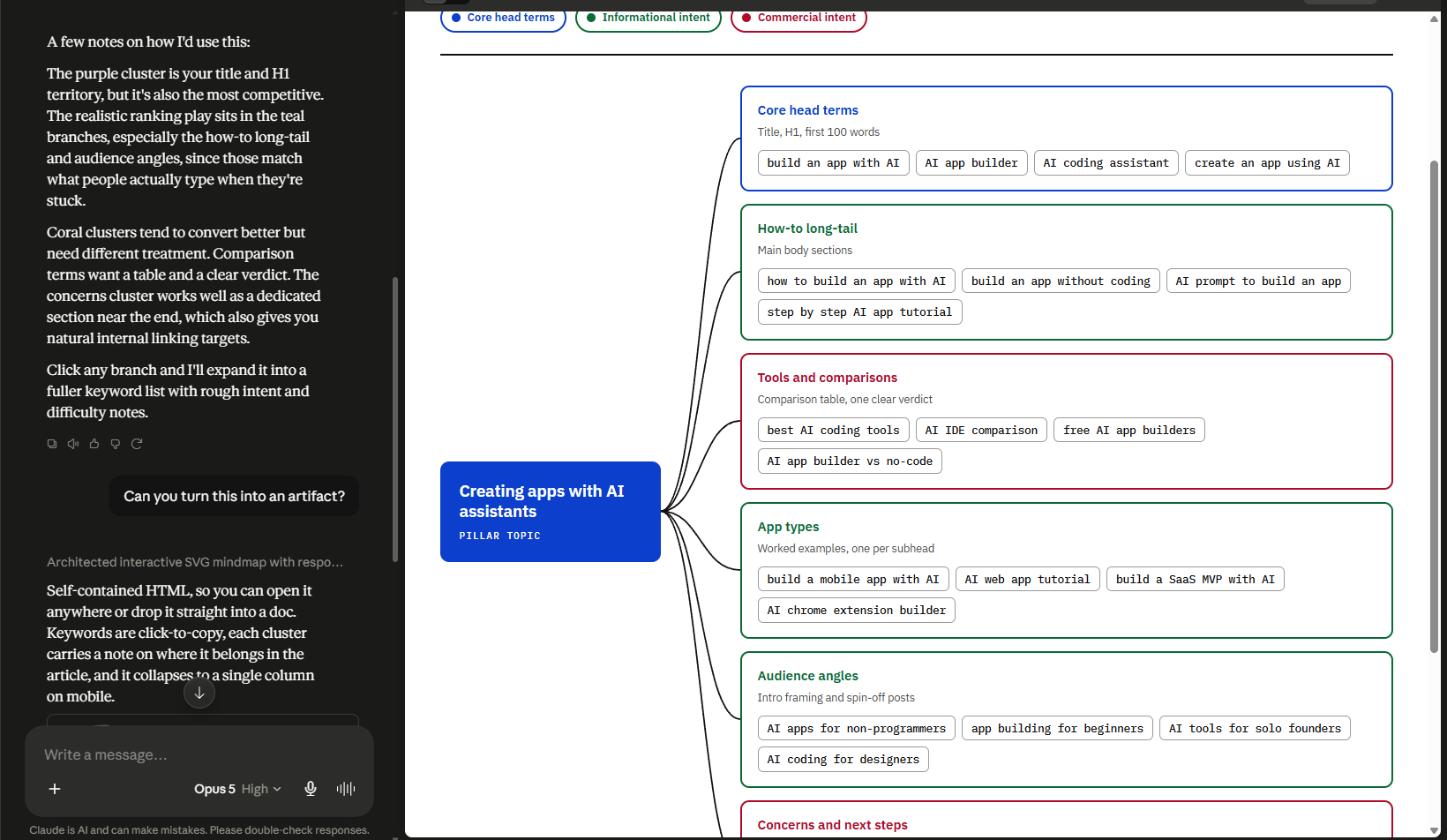
A funny thing happened while I was building this diagram, though. I asked Claude to create a mindmap for me, and it generated an SVG image, but placed it inline instead of as an artifact.
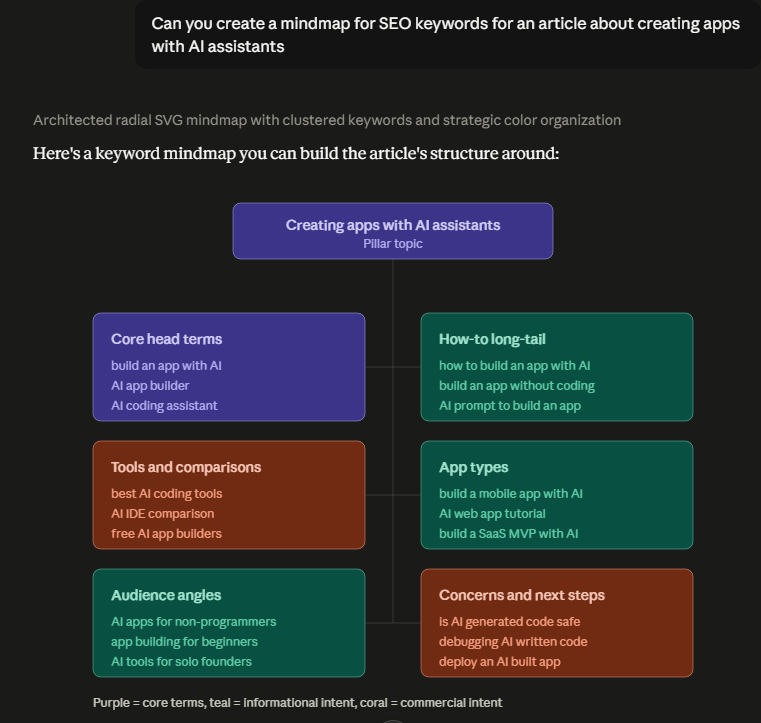
A lot of you might have faced this, too, when you request something, and it doesn’t come out as an artifact. You can just ask Claude to make it an artifact here if it doesn’t execute the request as one.
It built the artifact in colors similar to what it made in-line, which wasn’t easy to read. To make changes to my file, I gave another prompt to revise the colors and present the file to me.
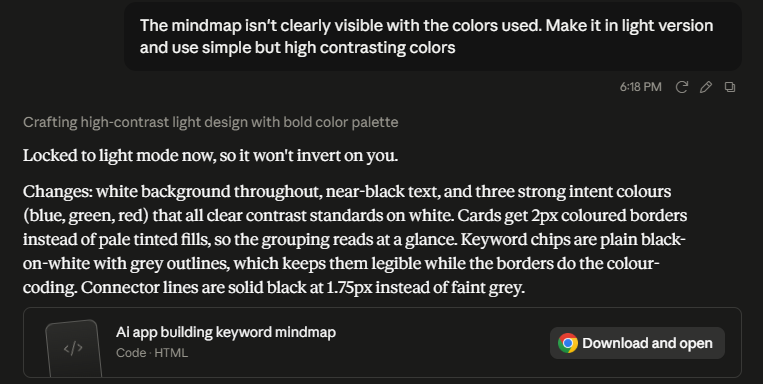
The final flowchart looked something like the image below.
6. Interactive React Components
Till now, we have created content that was built by Claude and presented to us. We just took this content and shared it. Now, let’s see interactive components as well.
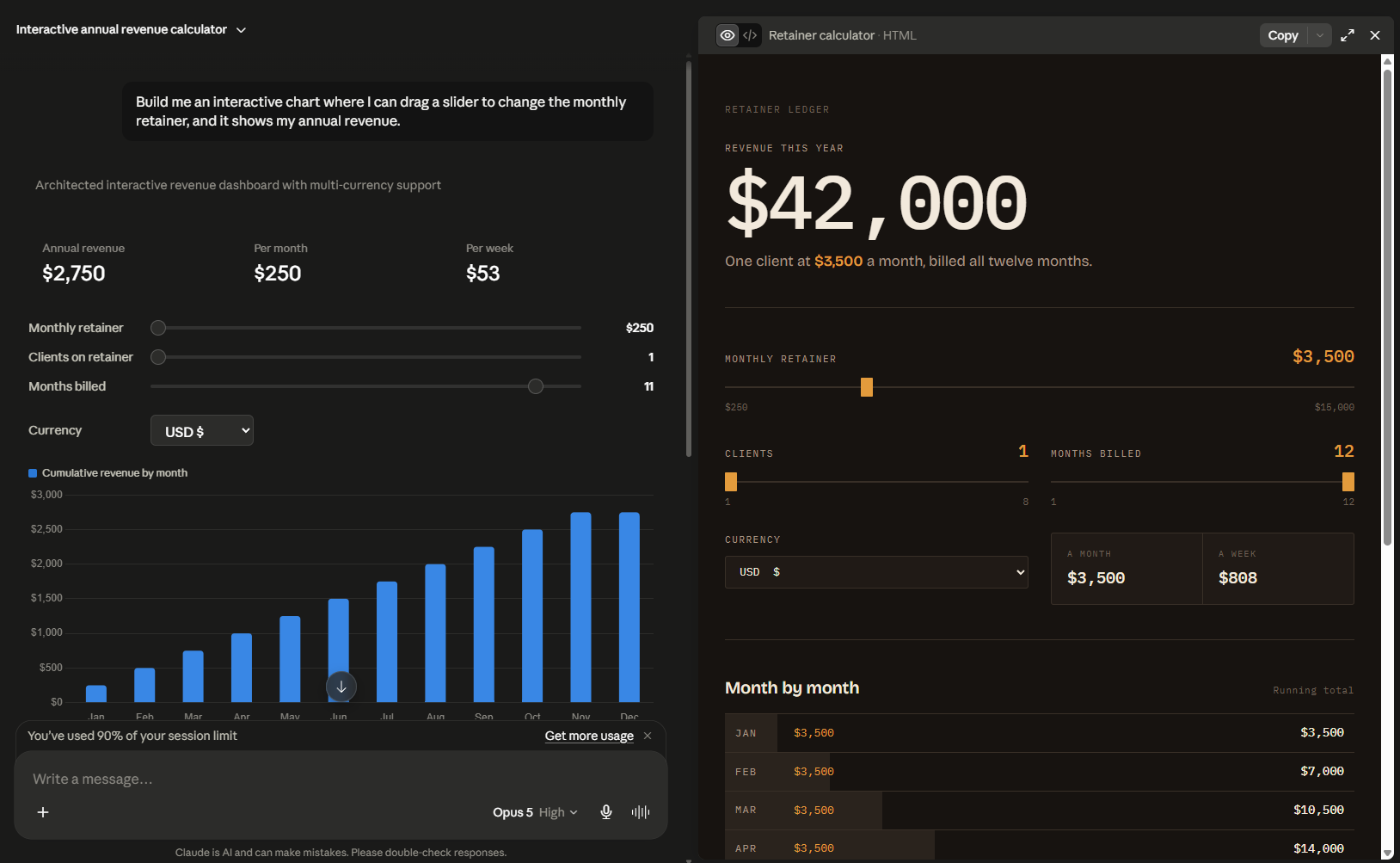
For this, I created a chart that showed annual revenue. It builds an inline component, which would let me calculate revenue. Since I wanted it as an artifact, I prompted it again, and it built the app in the pane.
7. Mini Applications
With Claude, you can build applications and tools that work. You can also make fun games and applications with that, too.
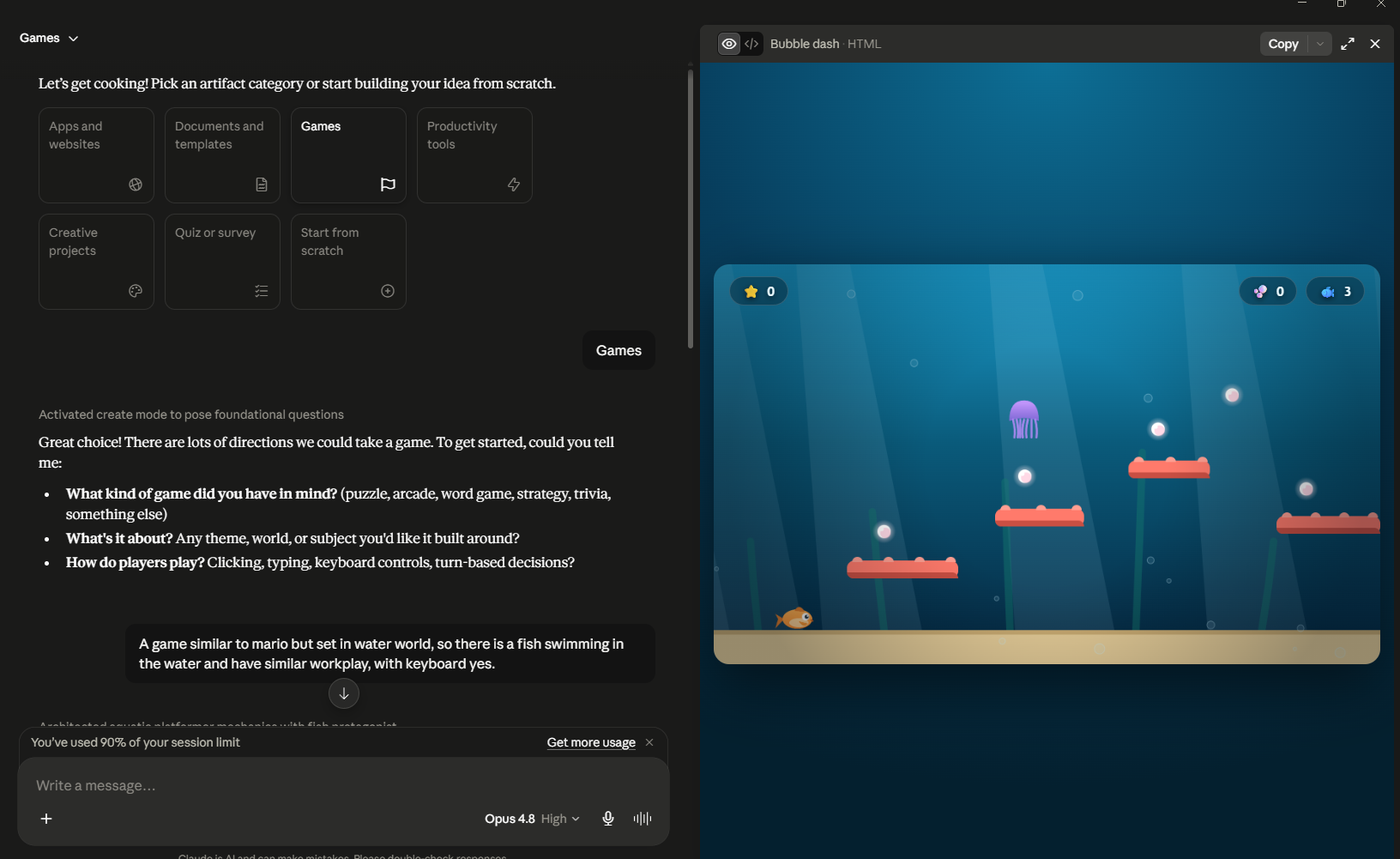
For the live interactive application, I decided to make a fun little game. This game is similar to Mario but set in an underwater world.
I just described the game in one line, and Claude generated the whole game interface for me.
You can make quiz bots, question decks and games with Claude now and share them with your friends.
Live applications would also be good to execute initial ideas as a developer and share them with people.
8. AI-Powered Artifacts
With AI-powered artifacts, it can act as a live chatbot, but without you having to manually configure any changes. If you have made a team bot or a live app, you can share it with everyone. With AI artifacts, every individual who uses the artifact will use an instance of it and thus their Claude usage will be counted against limits and not the creator’s (yours).
For example, I created this bot for a classroom where the teacher can share it with the students. They can get references and answers for research, but the bot would not generate full-length answers.
“Build me a Q&A bot for teachers to share with their students that answers questions about English literature.”
Inside the artifact itself, when shared, it will use Anthropic’s endpoint to generate the replies without you needing any API key. If you take the application out of the artifact, you will need the API key and will have to configure it.
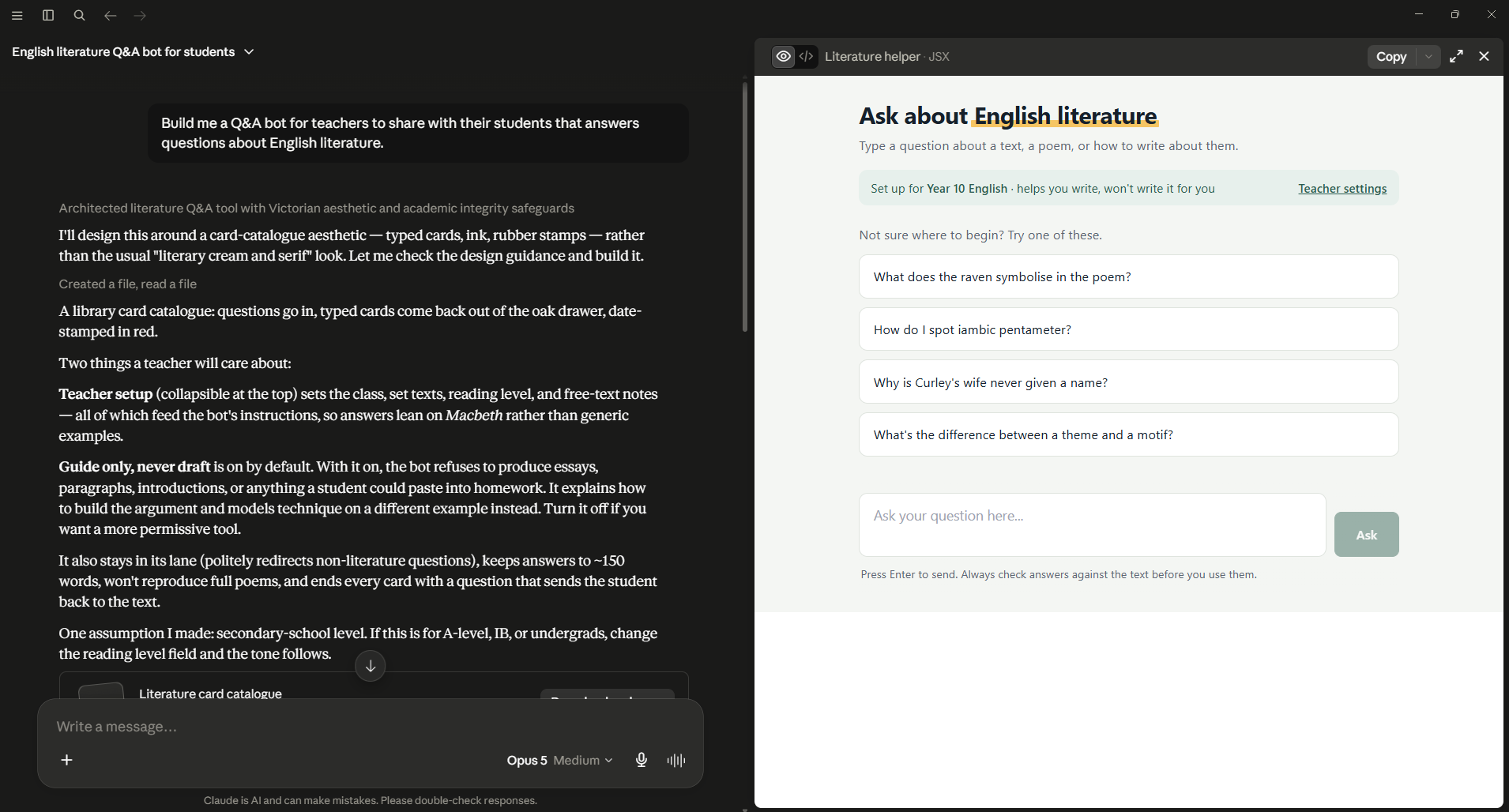
The AI-powered artifacts, specifically those that work like a chatbot, do not come with persistent storage. So you should make a note of the answer. Each time it is reloaded or opened, a new instance is triggered.
9. Artifacts with Storage
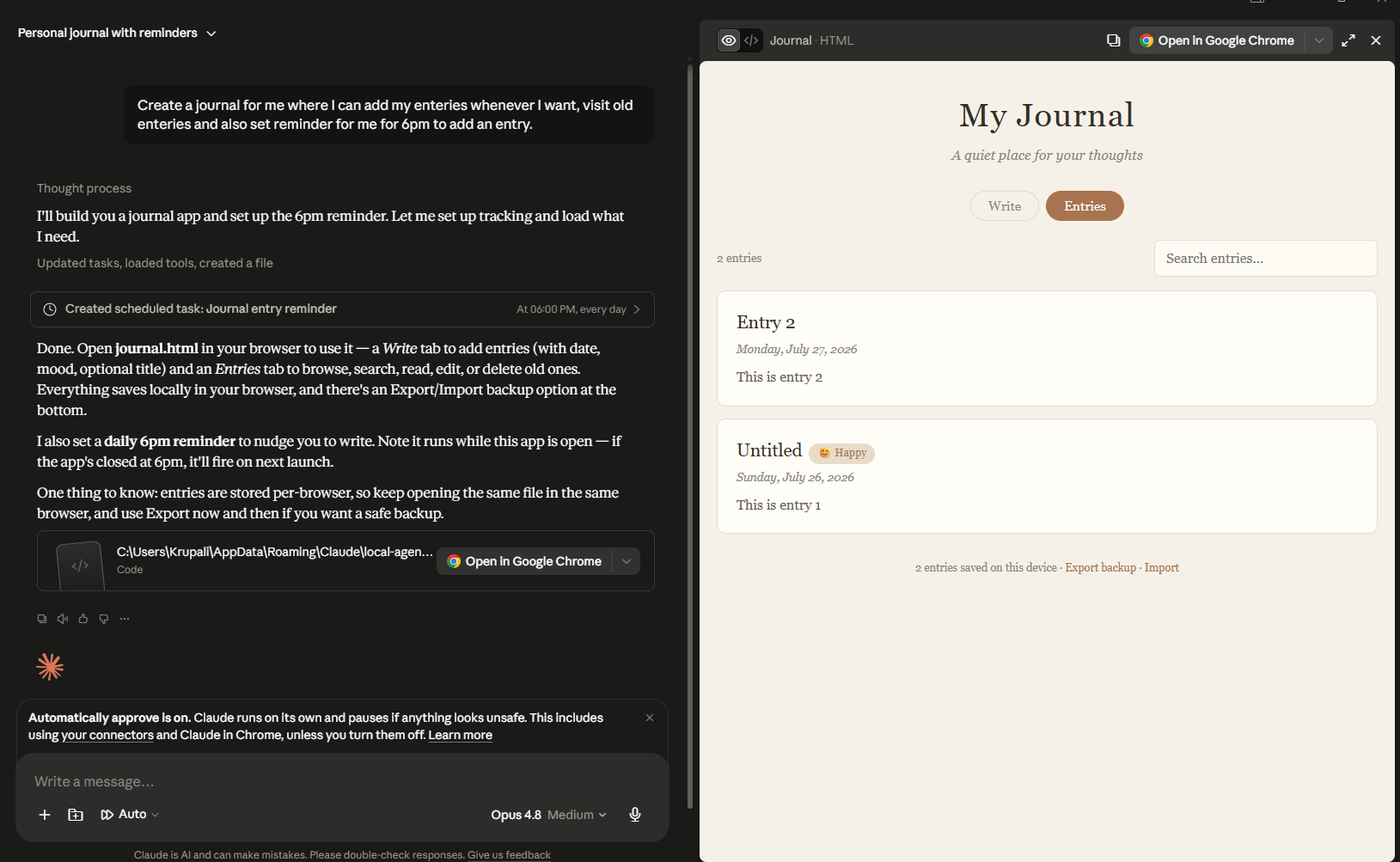
With persistent storage for artifacts included in Claude’s new update, the Artifact in itself has some storage. Applications made in artifacts can now save data between visits. You can create journals, habit trackers, and AI-powered dashboards.
The live artifact will live inside your Claude and can run on its own using Claude Cowork. Here is one example of an SEO Dashboard for keywords specifically in “Artificial Intelligence”. I have not connected any MCP here, so it generates data.
This is the prompt I used to create my dashboard:
“Make an SEO dashboard for me that brings me top keywords to target in the field of Artificial Intelligence every day. I am going to write a blog on trending AI topics.
Include keywords, similar searches, PAA questions, and other words to rank for.”
If you connect Ahrefs or another SEO tool to Claude, it can give you a dashboard for that tool.
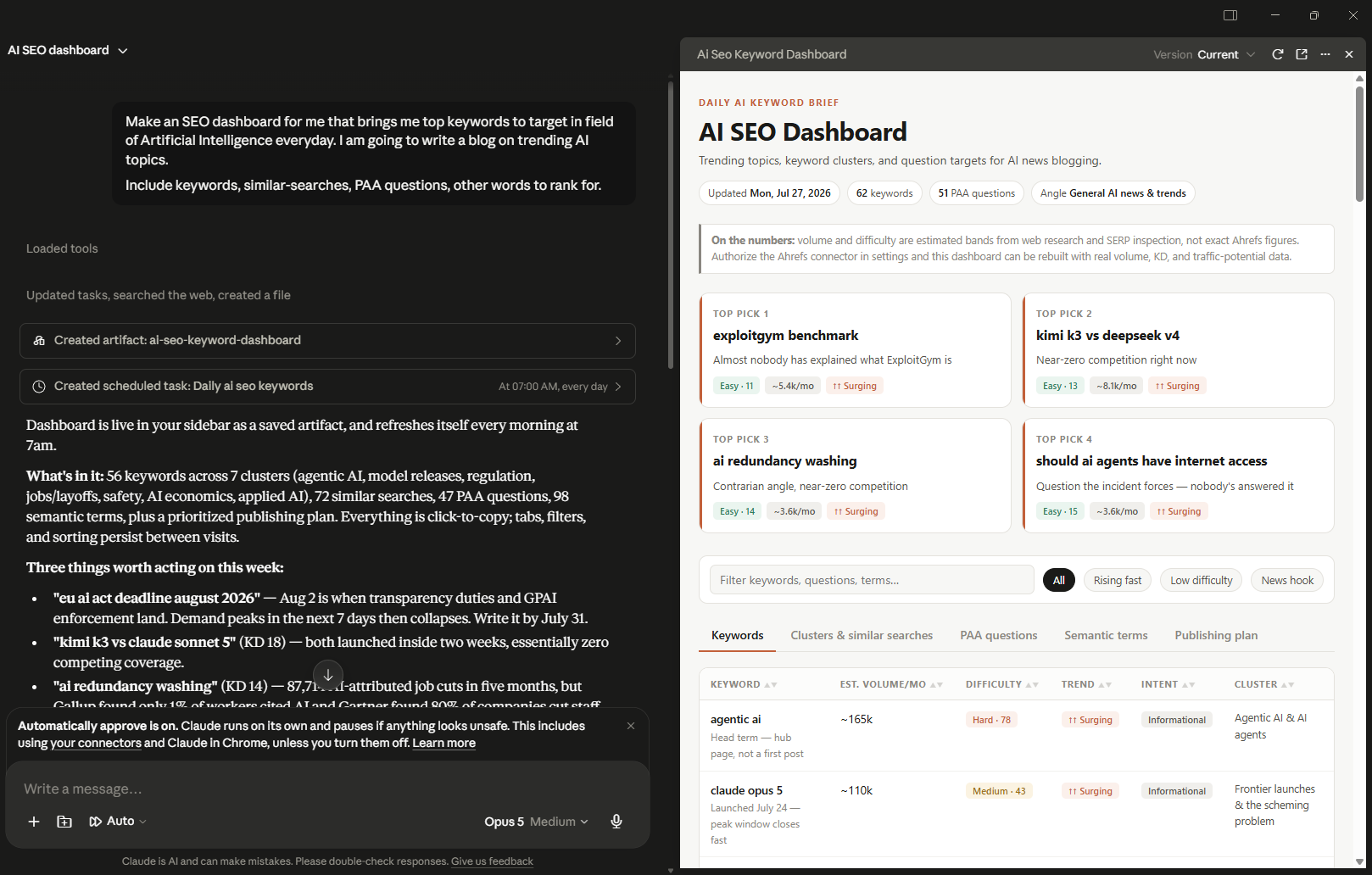
Another app I tried creating was a journal app. It creates a live artifact where I can write entries and view old ones.
These artifacts, particularly those that use persistent storage, have some limitations:
- 20 MB limit per artifact
- Text only, so no images or files
- Storage only works once the artifact is published
- Unpublishing an artifact permanently deletes all the stored data, personal or shared.
If you work on Claude Code, you can share only publicly with the personal plan. On team and enterprise plans, artifacts remain private only. The owner of the organization has to enable public sharing on these plans.
10. Artifacts with MCP integration
With the MCP connection, you can pull data from apps you already use. As I mentioned in the example above, you can use connectors from Ahrefs and other tools to get your dashboard.
You can then also connect Excel or Sheets to push the dashboard online. So you get the dashboard on your own document every day.
For my application, I connected my Notion to Claude. Here I created a simple dashboard that pulls all the tasks that are yet to be finished. Once the task is done, I can check them in the dashboard directly and it will be updated on notion.
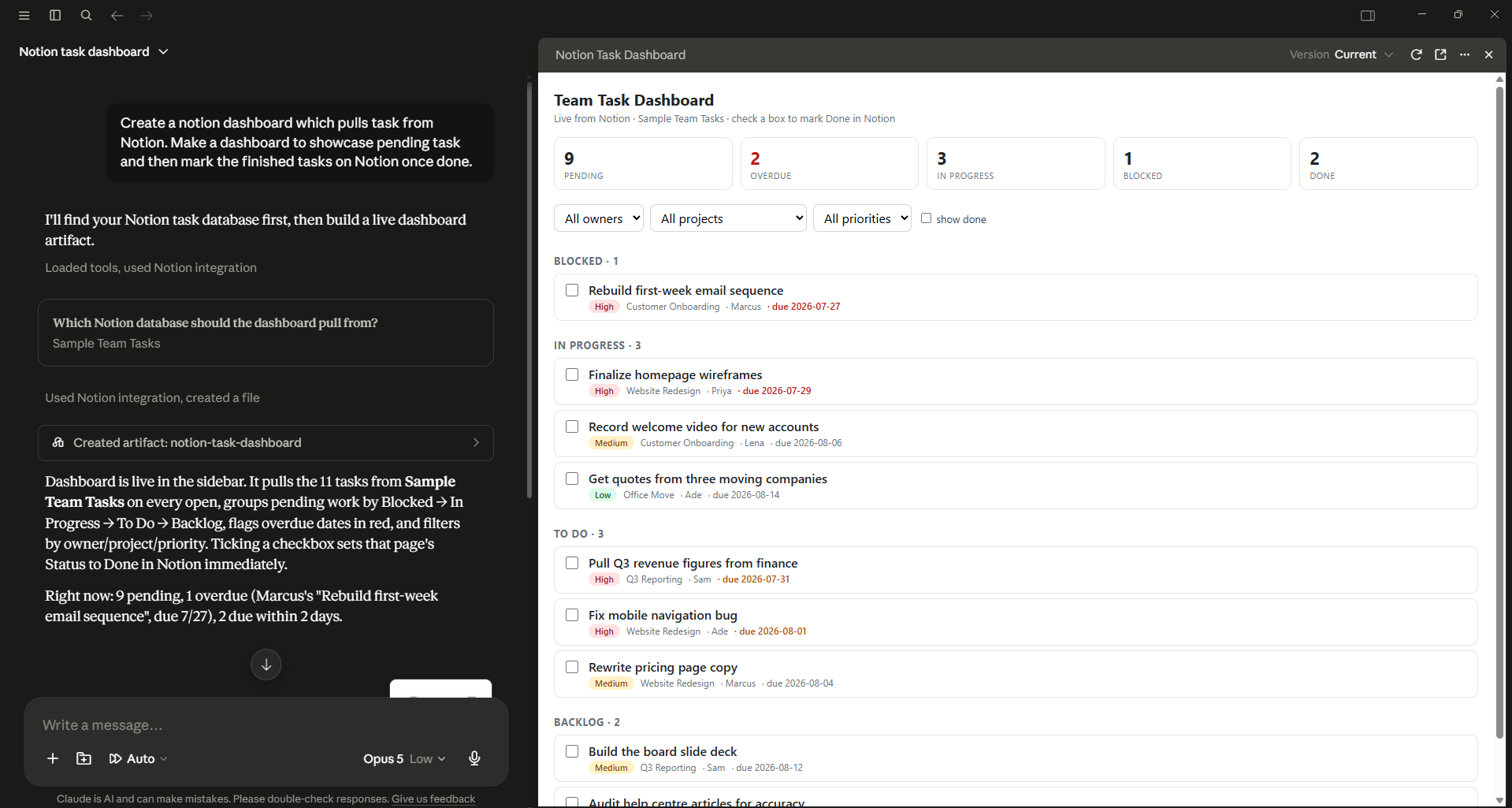
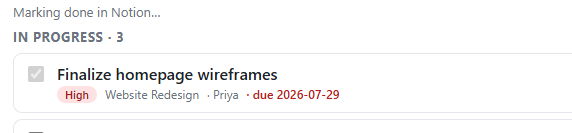
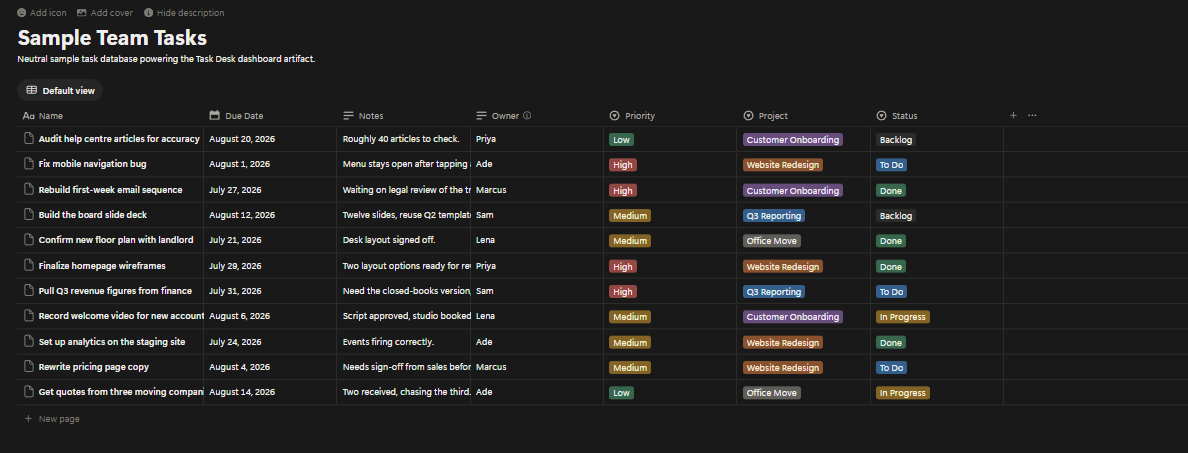
A thing to note is that if your team is using the artifact or you are using someone else’s published artifact, you have to authenticate and use your own MCP.
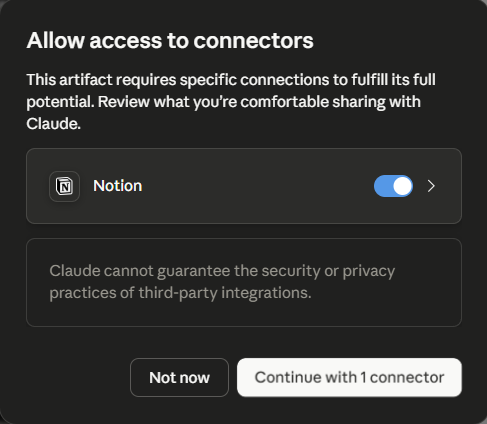
Sharing your Artifacts
Once your Artifacts are created, you can start sharing them with people. Share it with your team to check the MVP of an app or share a game or chatbot with your friends.
Publishing Your Artifact in Claude
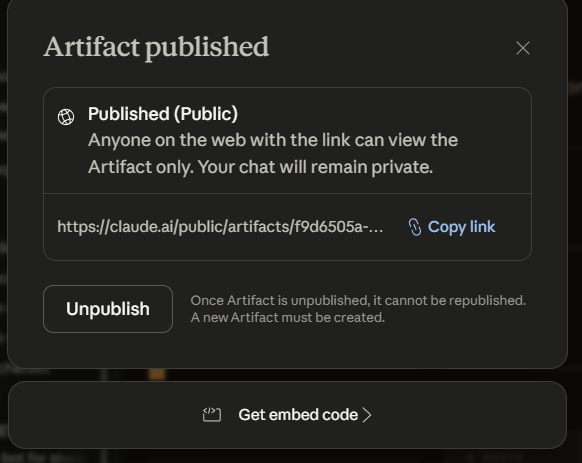
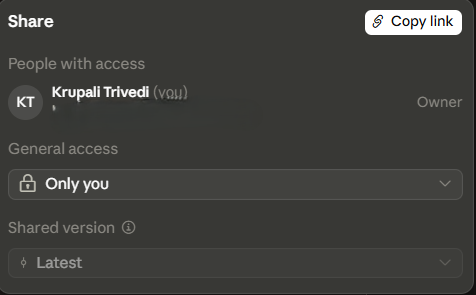
To share the artifacts in Claude AI, you have to first “Publish the Artifact”. When you do that, your artifact becomes public, and anyone can see it on the internet. Here’s how you can share your Artifact:
- In your artifact window, locate the “Copy” button on the top right.
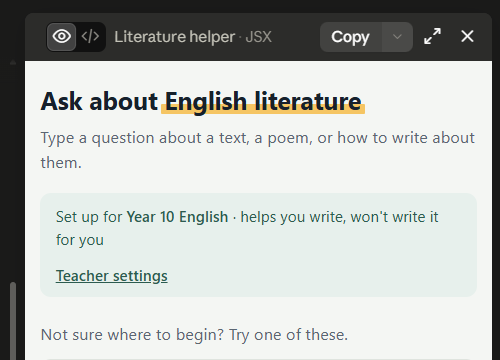
- Click on the arrow beside Copy to see the options. You will see an option to “Download”, and another would be “Publish artifact”.
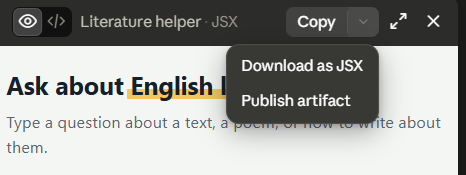
- Click on “Publish artifact”. You will see a pop-up to make the artifact public.
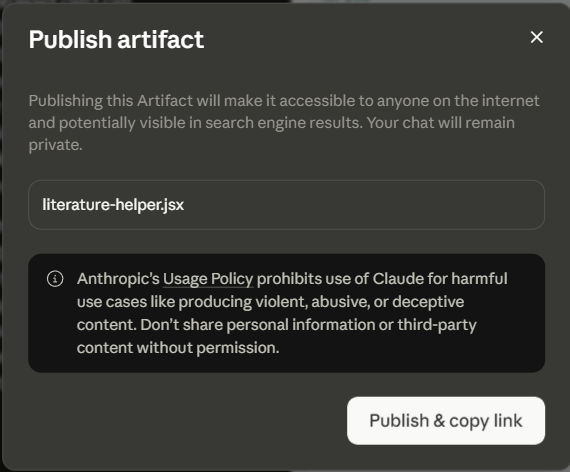
- Click on “Publish & copy link” or “Share & Copy link”, and your artifact will be ready to be shared.
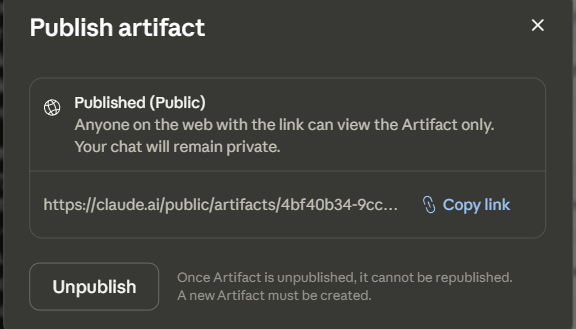
Now you can share the link with anyone you want to share the artifact with. On the team and enterprise plan, artifacts cannot be shared publicly. Any viewers who visit the link have to authenticate with an organization account.
On personal plans, when artifacts are shared, anyone on the internet can access them. In organisation plans, people who have been given access will be able to see them. If it is a Claude Code artifact, public sharing is off until the Owner enables it for the organization.
Version Selector in Claude Artifact
When you create an artifact and make changes, the iteration you make is saved as a new version. You get a version selector to switch between versions. If something breaks, you can always move to the older version.
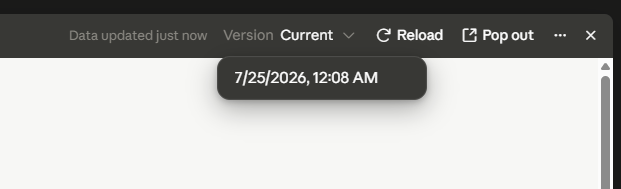
Make sure you select the correct version while publishing because that one will be public. If you switch versions, it won’t be reflected in the public link. You have to republish the artifact manually.
Concerns that come with Publishing an Artifact
-
Privacy Concerns with Publishing an Artifact
As of July 2026, there have been concerns amongst users regarding public artifacts. People published artifacts containing data they didn’t realise would be reachable, and then it turned up in search results.
Claude’s pop-up warning already states that when artifacts are made public, they can be indexed and visible to people.
A big issue with this is that some non-technical workers or people who are new to Claude might not understand that things shared might have risky data going out.
This could be an issue for companies as well. If someone from the team makes a public artifact, it could lead to exposing the company’s data to the world. It is a good practice to share things internally with the team in a way that keeps data safe.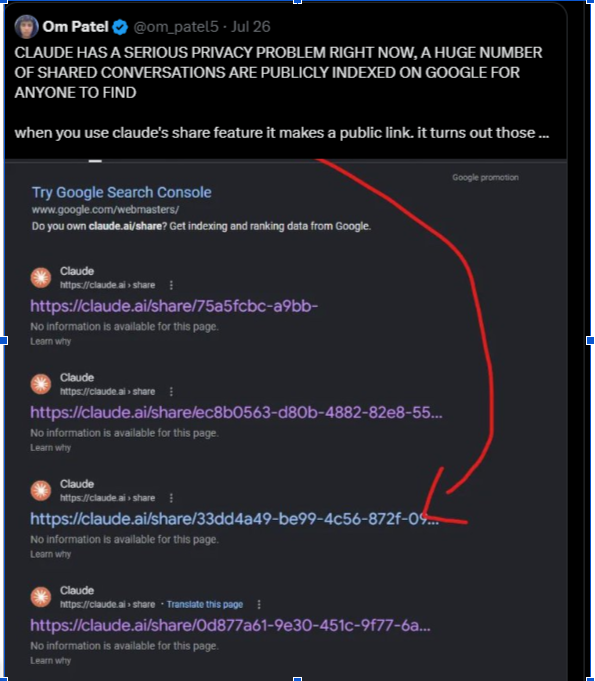
source: X (formerly Twitter)If you have shared a conversation online and are worrying about privacy, you can check and undo it. Go to Settings -> Privacy -> Shared Chats, and you can see all public conversations. You can revoke the links from there.
-
Usage Concerns with Publishing an Artifact
If you decide to unpublish an artifact, it cannot be republished. If you made an app and have worked with it for a while, and you decide to unpublish it, you cannot republish the same artifact. It also deletes all the associated data, personal and shared. A new artifact will have to be made if you want to publish it again.
Publishing Your Claude Artifact Safely
When you build something, you want to share it with your team or friends, and Claude’s publish button gets your data out on the internet.
When you publish using Tiiny Host, you can:
-
Keep out of search results: Turn on the no-index option and your page won’t appear in search results.
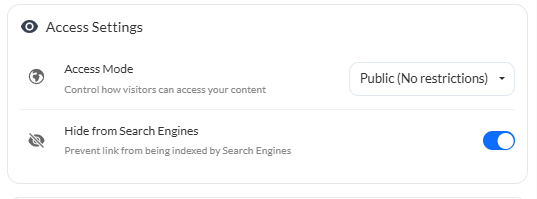
- Password-protect your file: Another level of safety can be achieved by password-protecting the file, so only people with the password can access it.
- Keep work files internal: There are team plans and features that allow internal files to be uploaded online while remaining within the organisation.
- Share files you get in output: You can share HTML, Markdown, DOCX, PPT, and static websites.
- Get a custom subdomain: You can get a custom name in your link instead of the claude.ai link, or you can connect a domain you own to your site too.
Publish artifact using Tiiny Host MCP
Connect your Tiiny Host MCP with your Claude. Then you can prompt in your Claude chat to “Host the Claude Artifact”.
- In Claude, navigate: Settings → Connectors → Add → Add custom connector.
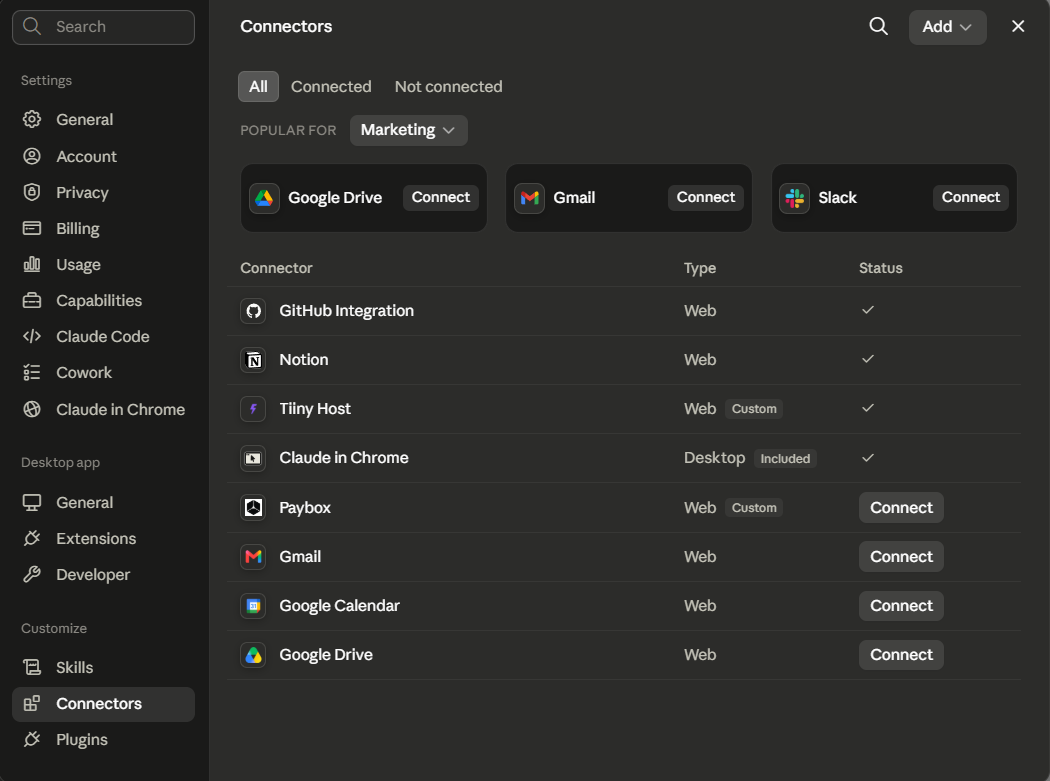
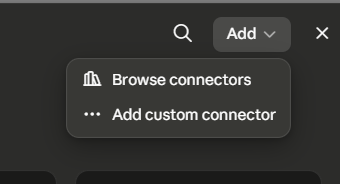
- Name the connector as “Tiiny Host”
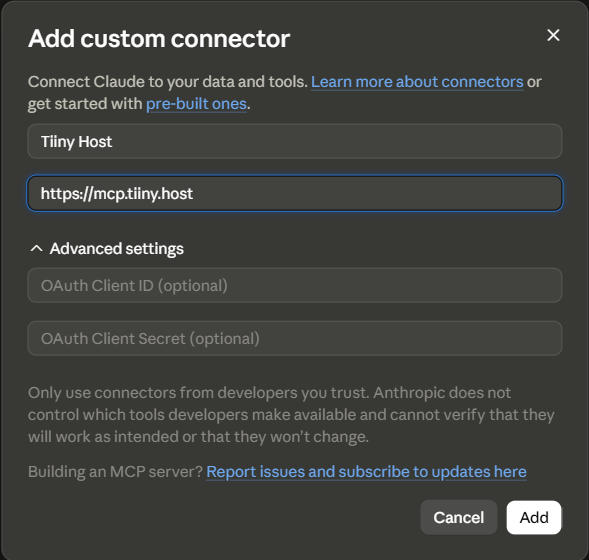
- Enter the server URL: https://mcp.tiiny.host
Once connected, you can publish, update, and delete Tiiny Host projects directly from the chat.
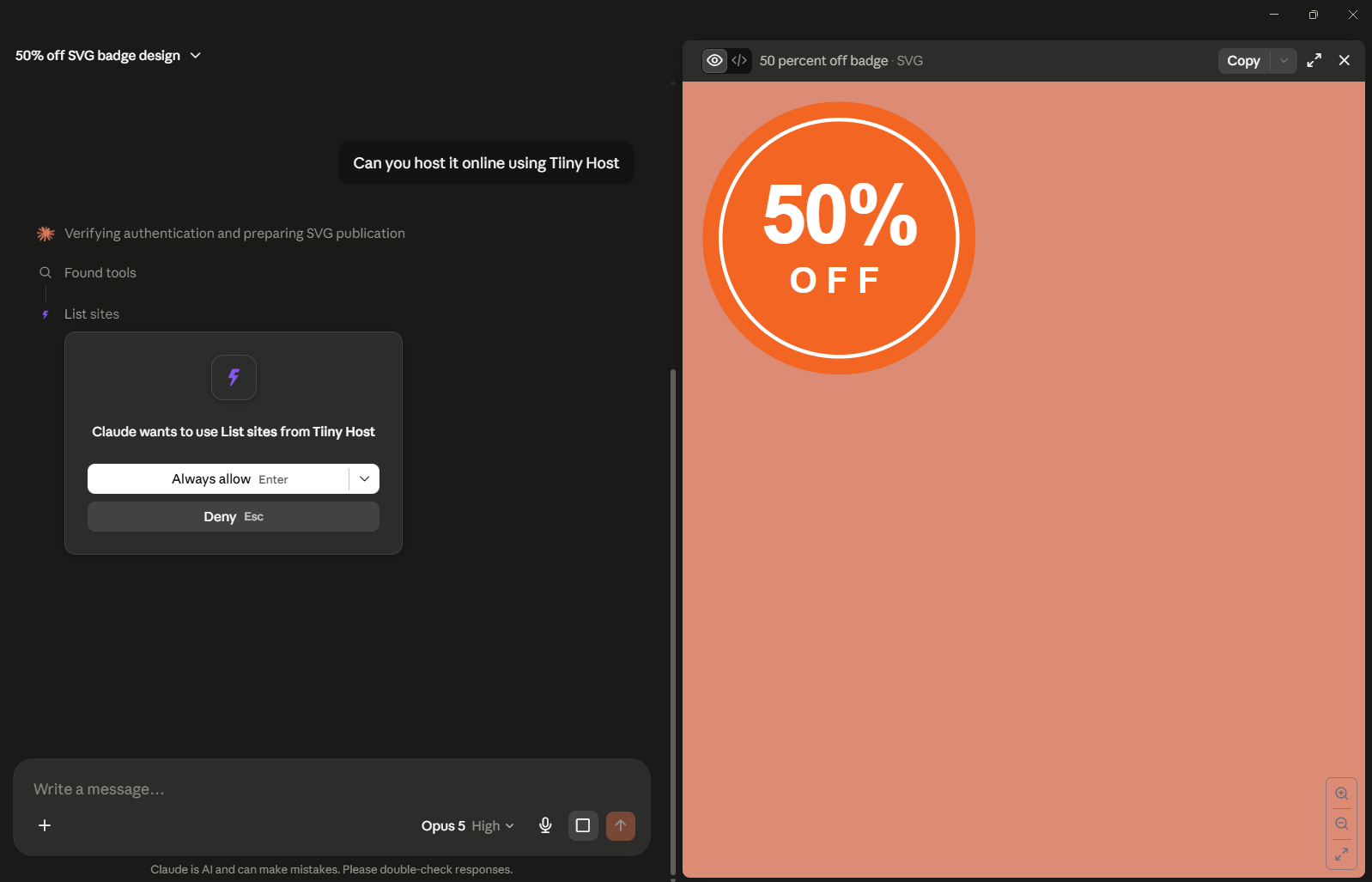
When you use any connector, you will need to set up permissions the first time.
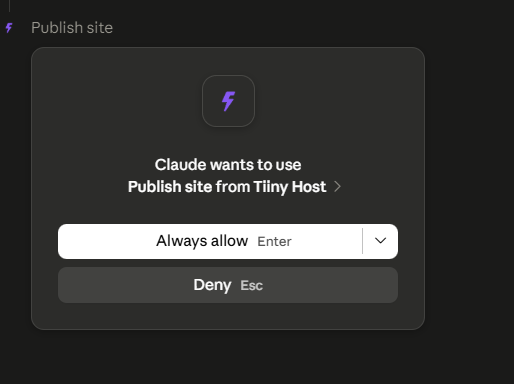
And once the permissions are given, Claude will be able to access the app and your app will be live.
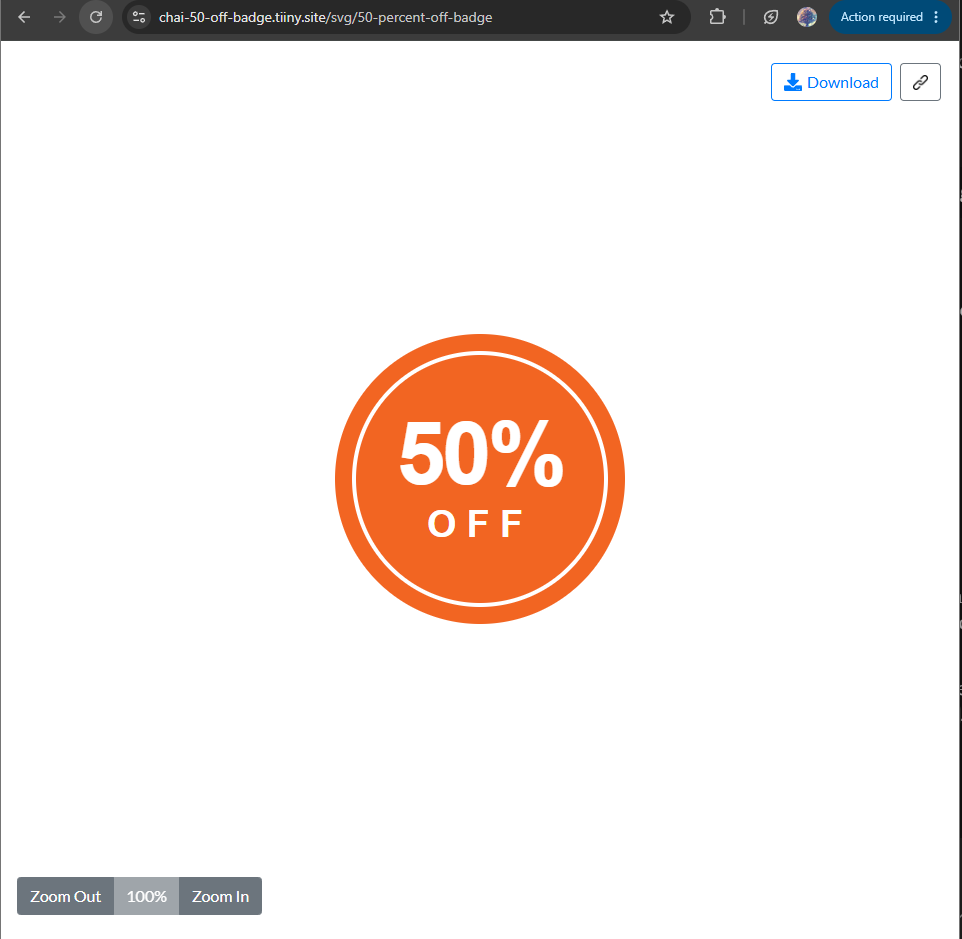
Here is the live artifact on hosted online.
Host your artifact through Tiiny Host Dashboard
- Download your artifact to your machine.
- Visit Tiiny Host and sign up
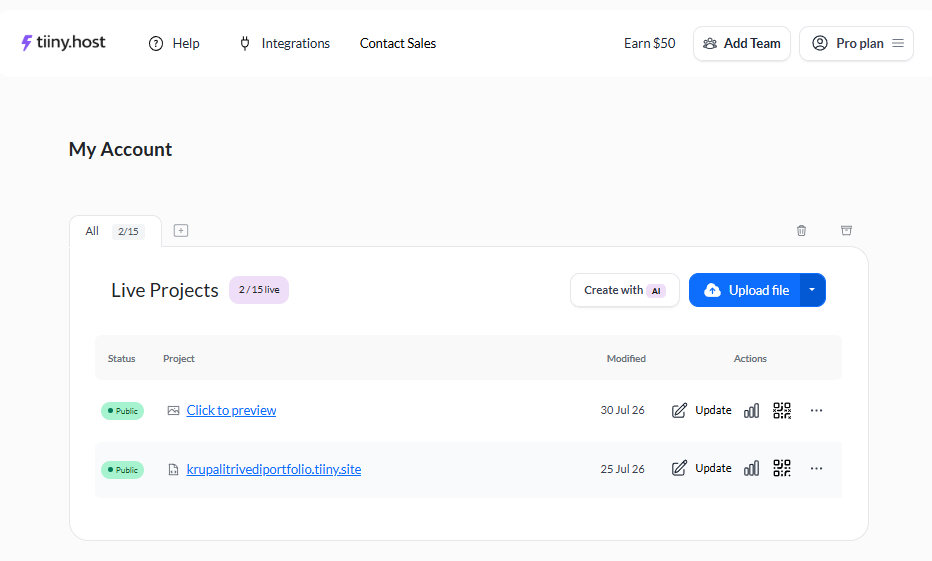
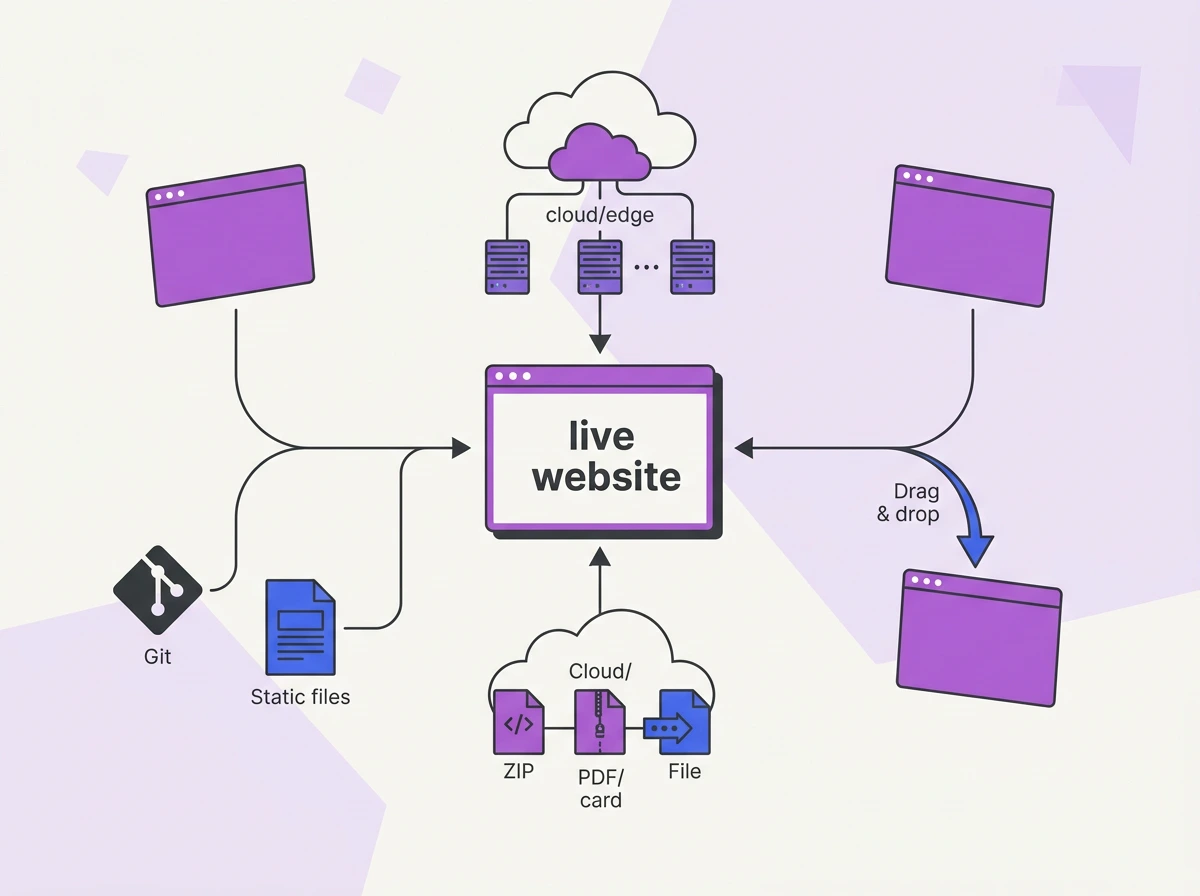
- Once you get to the dashboard, just upload or drag and drop your artifact
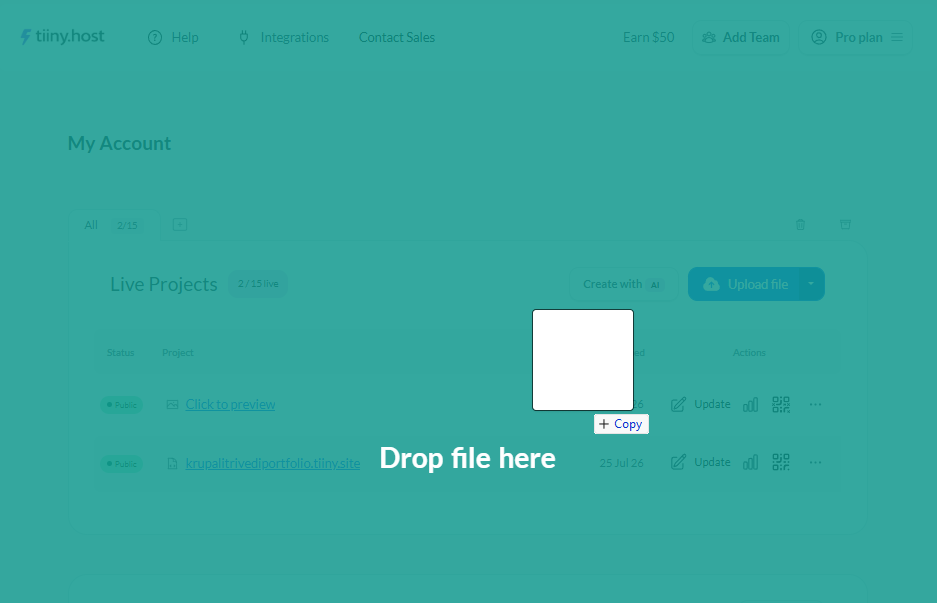
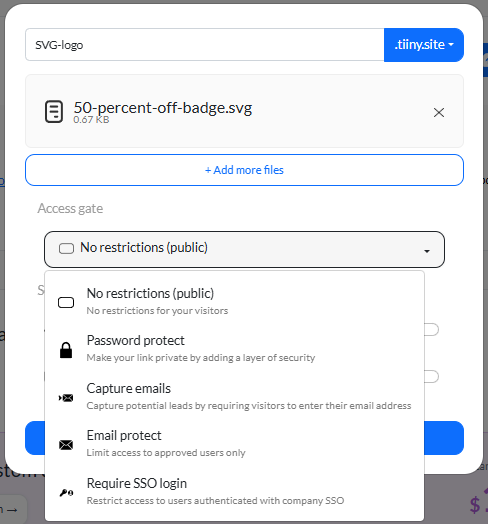
- Change the access settings as per your needs.
- Set up a password if necessary.
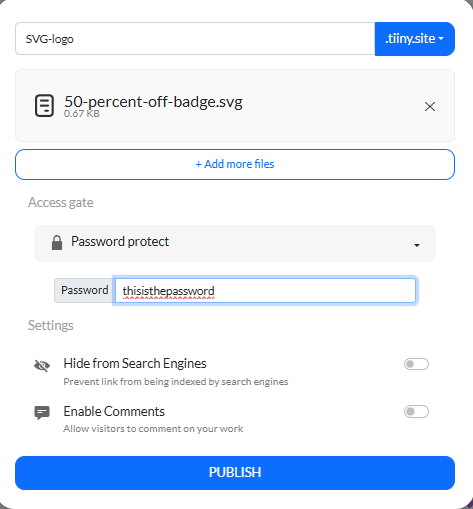
- Give a custom link name.
- Hit publish
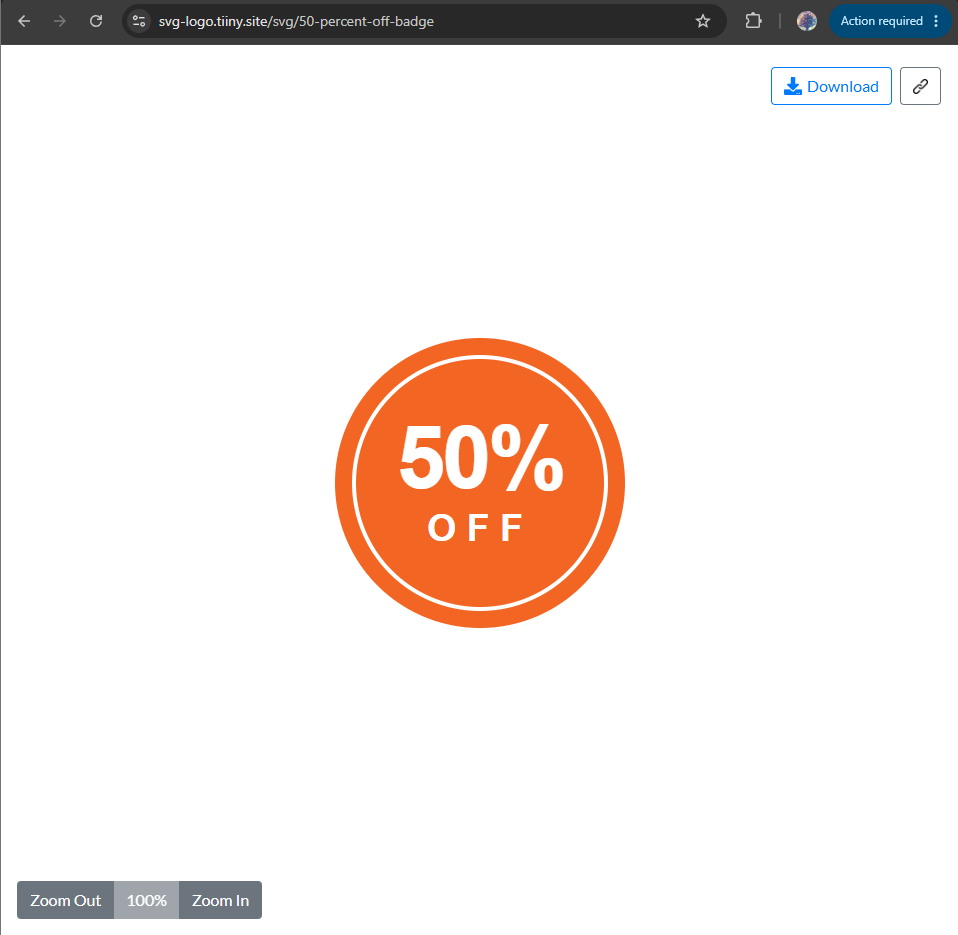
Your artifact is now published. You can share it safely with your team members or friends, or you can make your games or websites live and share them on social media.
Embedding an Artifact
You can embed an artifact on your website or apps. This can be done whether you publish an artifact in Claude or share using Tiiny Host.
In Claude:
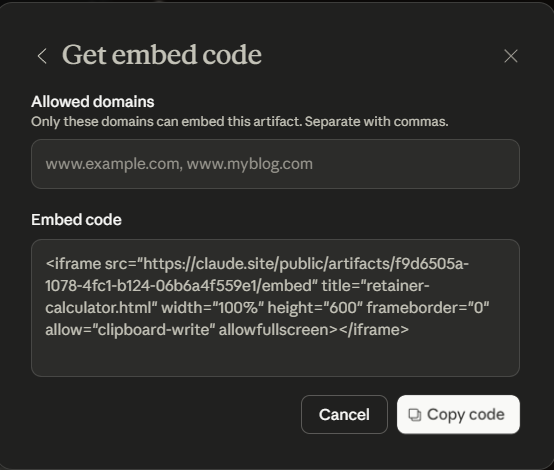
- Once your artifact is published, you get an option to “Get Embed Code”.
- Add websites you want to allow embedding to in “Allowed domains”
- You get an iframe snippet which you can use to embed on your website.
When using Tiiny Host:
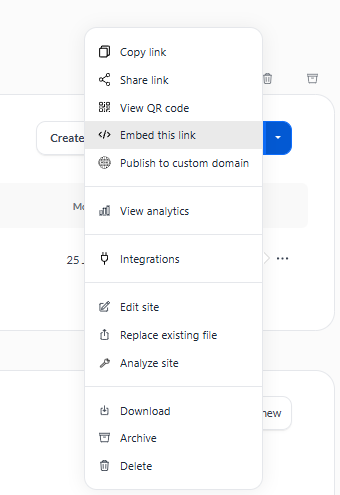
- Go to the dashboard, select the three dots and select “Embed this link”
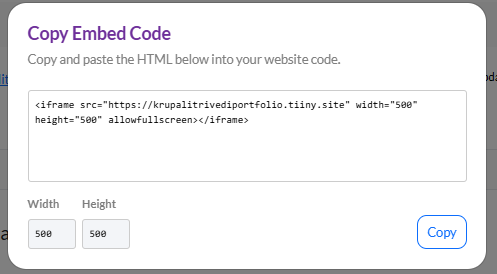
- Copy the code you get, and you are ready to embed it on your website.
Artifacts in Claude Code
Usually, you work with artifacts in Claude Chat. Claude Code can also publish the work from your session as an artifact. With your session context, the codebase, connected tools and your conversation, you can create an artifact, such as making a walkthrough for a pull request.
This can also update in real-time, so anyone who sees the artifact can also see the progress in real time.
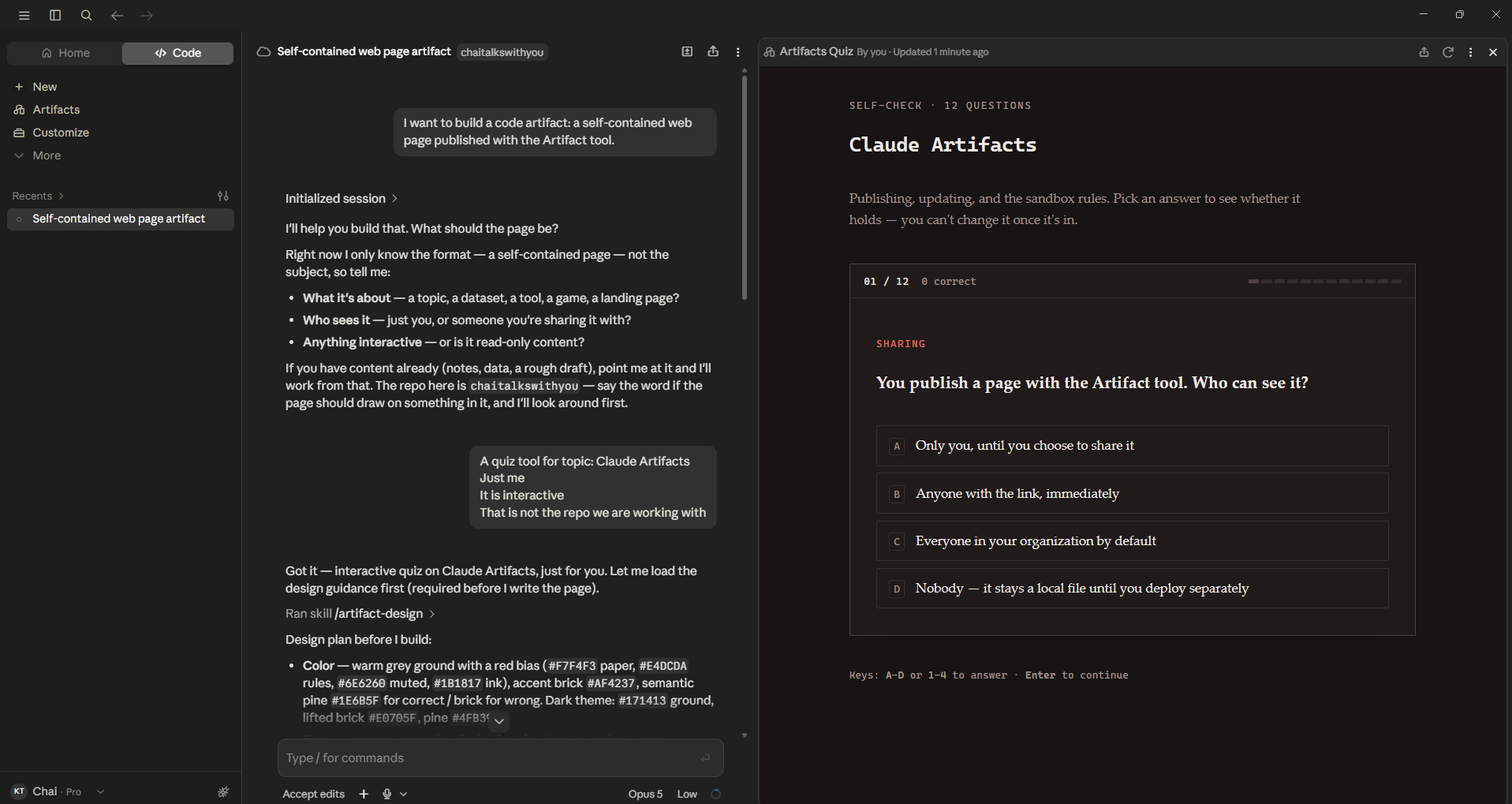
In Claude Code, you can use artifacts for the following:
- A dashboard built from session data
- An incident timeline
- A release checklist that gets ticked off as work gets done
Whenever the code for the artifact is updated, the URL stays the same, showing the output of the latest version. Artifacts in Claude Code are private by default,
Live Artifacts in Claude Cowork
After the 2026 updates, Claude Cowork supports live artifacts, which are interactive and can update in real-time. They are designed to build dashboards and apps that help you automate repetitive tasks.
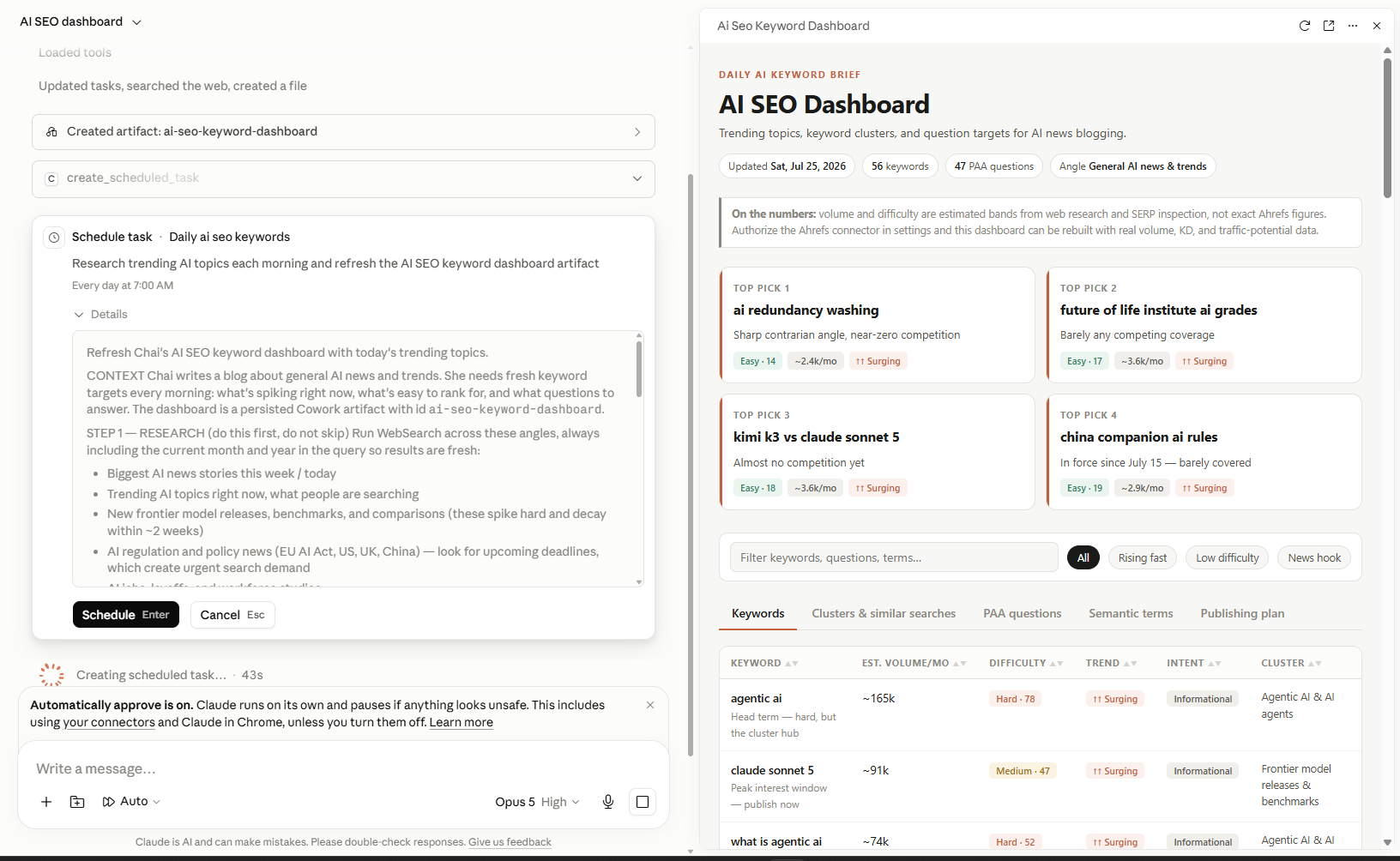
You can create a weekly metrics dashboard, a weekly to-do tracker, an SEO tracker, a brief that updates your content calendar every day, and a dashboard for all pull requests in your organization’s GitHub.
With the new MCP support, you can connect various apps to get real-time data and have it updated.
There are some limits to Live Artifacts now:
- Live artifacts are available only on desktop right now.
- They are live on your machine and are not synced remotely.
- Sharing them is only available on the Team and Enterprise plans.
- Once you give approval to MCP, the artifact can keep calling the connected app without asking for permission again.
- If unpublished, the artifact will be destroyed along with its data.
Artifacts vs the Tools People Confuse Them With
People often confuse different tools present in Claude AI. There are artifacts, Claude projects, and Claude Code, and all three of them are different. Let’s see a quick comparison between all three of them.
| Artifacts | Projects | Claude Code | |
| What it is | A live panel for standalone content | A container for files, instructions and history | An agentic coding tool |
| Best for | Apps, docs and diagrams you will reuse | Ongoing work that needs shared context | Editing a real local codebase |
| Where it lives | Its own panel, one file | A project workspace | Your terminal, IDE or desktop app |
| Viewer needs an account? | No, for published artifacts | Not shared this way | No |
| How you share it | Publish a public link (Free, Pro, Max) or share in your org (Team, Enterprise) | Invite people to the project | Keep private, share with your org, or publish a link (Pro upwards) |
Alternatives to Claude Artifacts in ChatGPT, Gemini, Notion and other AI Apps
You might be looking for an alternative to artifacts in other AI applications.
ChatGPT has introduced Canvas, which works much like Artifacts. In May 2026, Canvas was removed from GPT-5.5 Instant and Thinking.
Writing and coding happen directly in the chat using OpenAI’s writing blocks and code blocks. Paid users can use Canvas with legacy models until the older models are sunset. GPT 4.5 was sunset on June 27th, 2026, and the o3 model is set to retire on 26th August 2026.
Gemini also has Canvas, which provides an interactive pane for drafting documents and code. You also get live previews for any web projects you make.
Notion AI also generates outputs when you prompt it to. Rather than opening a new pane, Notion AI generates the output directly in your working document.
Artifacts Are More Than a Preview Pane
Artifacts started as a nicer way to preview your code. Now, it can have working apps, live dashboards, tools for your teams and fun little games too.
- Artifacts are executed when the content can be reused and will probably be edited.
- In 2026, artifacts got a lot of upgrades: AI Artifacts, MCP integration and persistent storage.
- Publishing your artifact makes it public and is indexed on a search engine on personal plans. On team and enterprise plans, the owner has to give permission to share publicly.
It’s time to open your Claude, turn on Code execution and file creation and start creating artifacts. Then publish and share it safely using Tiiny Host.
Frequently Asked Questions
Can you use Claude artifacts for free?
Yes, Claude artifacts are available on the free plan. As long as you turn on Code execution and file creation, artifacts are available on every plan. Some new artifact features like MCP integration and persistent storage are only available on Pro, Max, Team and Enterprise plans.
Does ChatGPT have artifacts like Claude?
ChatGPT used to have ChatGPT Canvas, but it has been sunset now. Instead of Canvas, ChatGPT now has Writing Blocks and Code Blocks, which come as an output inline in the chat of the AI assistant. On Claude AI, the output comes in an additional pane that pops out.
What is the difference between Claude code and Claude artifact?
Claude artifact is a type of output. It is created when you ask for documents, code snippets, HTML applications, SVG files and interactive components. Claude Code is a coding tool by Anthropic, which runs in your terminal, IDE or the desktop app. Claude Code can generate code for you in external coding applications like VS Code and help you deploy apps. Claude Code can create an artifact for you if you need, but developers mostly use it to develop applications, debug and test their ideas.
What are the artifacts in the Claude teams?
Artifacts on Claude teams are the output pane that Claude opens in the chat. The difference is that artifacts are private or accessible only to the company on Team and Enterprise plans. Your admin controls whether artifacts can be created at all through the org-wide Code execution and file creation settings.
Can I remix someone else’s Artifact?
Claude artifacts do not have a remix button as of July 2026. So you can no longer remix anyone’s artifacts. Instead, you can copy any published artifact’s code and paste it into your chat to build it.
Are Claude Artifacts, Projects and Claude Code the same?
No. Artifacts are outputs Claude opens in a panel beside your chat. A project is a folder holding context and instructions for ongoing work. Claude Code edits codebases and helps you make production applications and more.
Why can’t I see my Artifact in the sidebar?
All artifacts created by Claude are not automatically saved in the Artifacts tab. You have to open the artifact in the chat and Publish them to see it in the tab.
Do people need a Claude account to view my artifact?
For most published artifacts, an account is not needed. Anyone with the link can open and check it out. AI-powered artifacts cannot be run without connecting a Claude account, as it uses an individual’s usage limit.