
- What is HTML File Hosting?
- Which are the Best HTML File Hosting Services in 2026?
- Tiiny Host: Best for Publishing an HTML File or ZIP without Code
- Netlify Drop: Best for Quick Static Sharing
- Vercel Drop: Best for Static Projects that Would Turn Dynamic
- Cloudflare Pages: Best Free Plan for Static Sites That Might Grow
- GitHub Pages: Best for Portfolios Already on GitHub
- Neocities
- Surge
- Static.app
- How to Upload an HTML File to a Website
- Advanced Tips for HTML Website Hosting
- What’s Changed in HTML Hosting Recently
- Get Your Website Live Now
- Frequently Asked Questions
Creating HTML websites and apps has become easier. With Claude, ChatGPT or other coding assistants, you can make websites in less than five minutes. Even someone with zero web development experience can do it. When you click on the file on your system, it opens in your browser, but then you get stuck when you have to send it to someone.
A lot of website hosting tools have developer-centric onboarding; they require Git, configuring build settings, and dealing with technical dashboards. It shouldn’t be that hard. You need simple HTML file hosting, and today I’ll show you the best web hosting options for it.
In this guide, I’ve reviewed the best HTML hosting providers of 2026 based on who each one suits the best, so you can choose one without testing all of them.
TL;DR
- Tiiny Host is the best pick for non-developers who want to turn an HTML file into a link.
- Netlify Drop and Vercel Drop are quick drag-and-drop options but with developer-centric dashboards.
- If you already use GitHub for a portfolio or documentation website, choose GitHub Pages.
- If you have a static HTML website which is going to grow into a full-stack app, consider using Cloudflare Pages.
- Surge suits anyone who uses the terminal frequently; Static.app is a good pick if you need built-in forms and are okay paying from day one; and Neocities is a good choice if you want to host personal static HTML sites.
What is HTML File Hosting?
HTML file hosting means putting your HTML file on a web server so anyone can open it with just a link.
When your HTML file is on your system, you can double-click it and open a local version. This version opens in your browser, but the link shows the file path. Your website is only visible to you.
If you are testing it out, opening an HTML file in Chrome to preview it locally is fine because you are still making the changes. When you want to share your HTML file, you should look for a web host.
When you host your HTML file, your website lives online, and you get a link that you can share. You don’t need your own server for this. The host stores your files, serves them at that link when someone opens the URL, and in most cases also handles the SSL for you.
Which are the Best HTML File Hosting Services in 2026?
| Tool | Best for | No-code upload? | Free plan | Paid from |
| Tiiny Host | HTML file or ZIP to a live link in seconds | Yes: drag and drop an HTML file or ZIP | 1 site, 3 MB uploads | $5/month |
| Netlify Drop | Quick static drops | Yes: drag and drop a folder or ZIP | 300 credits a month | $9/month (Personal) |
| Vercel Drop | Drag-and-drop projects that need a build | Yes: drag and drop an HTML file, folder or ZIP | Hobby plan, personal use only | $20 per seat/month |
| Cloudflare Pages | Busy static sites that might turn to full stack apps | Yes: dashboard upload, or Git | 500 builds a month, unlimited bandwidth | Starts at $5/month for Workers and $20/month for Pages Pro plan. Paid Cloudflare plans add more builds |
| GitHub Pages | Portfolios already on GitHub | No: needs a GitHub repo | Free for public repos, not for e-commerce sites | A paid GitHub plan for private repos |
| Neocities | Hand-built personal sites | Yes: browser upload and editor | 1 GB storage, 200 GB bandwidth | $5/month (Supporter) |
| Surge | Command-line fans | No: terminal only | Unlimited publishing | $30/month (Professional) |
| Static.app | Paying from day one | Yes: upload a file or ZIP | No free plan, a 7-day trial | $5/month (Starter) |
I tested every tool above in October 2026 by uploading a sample HTML file and publishing it. Here’s what I considered while testing these:
- Ease of use for non-developers
- The experience on the dashboard once you upload the HTML file
- Built-in analytics and privacy controls like password protection
- How it handles HTML files from AI tools, and ways to connect AI tools with the hosting tools.
Tiiny Host: Best for Publishing an HTML File or ZIP without Code
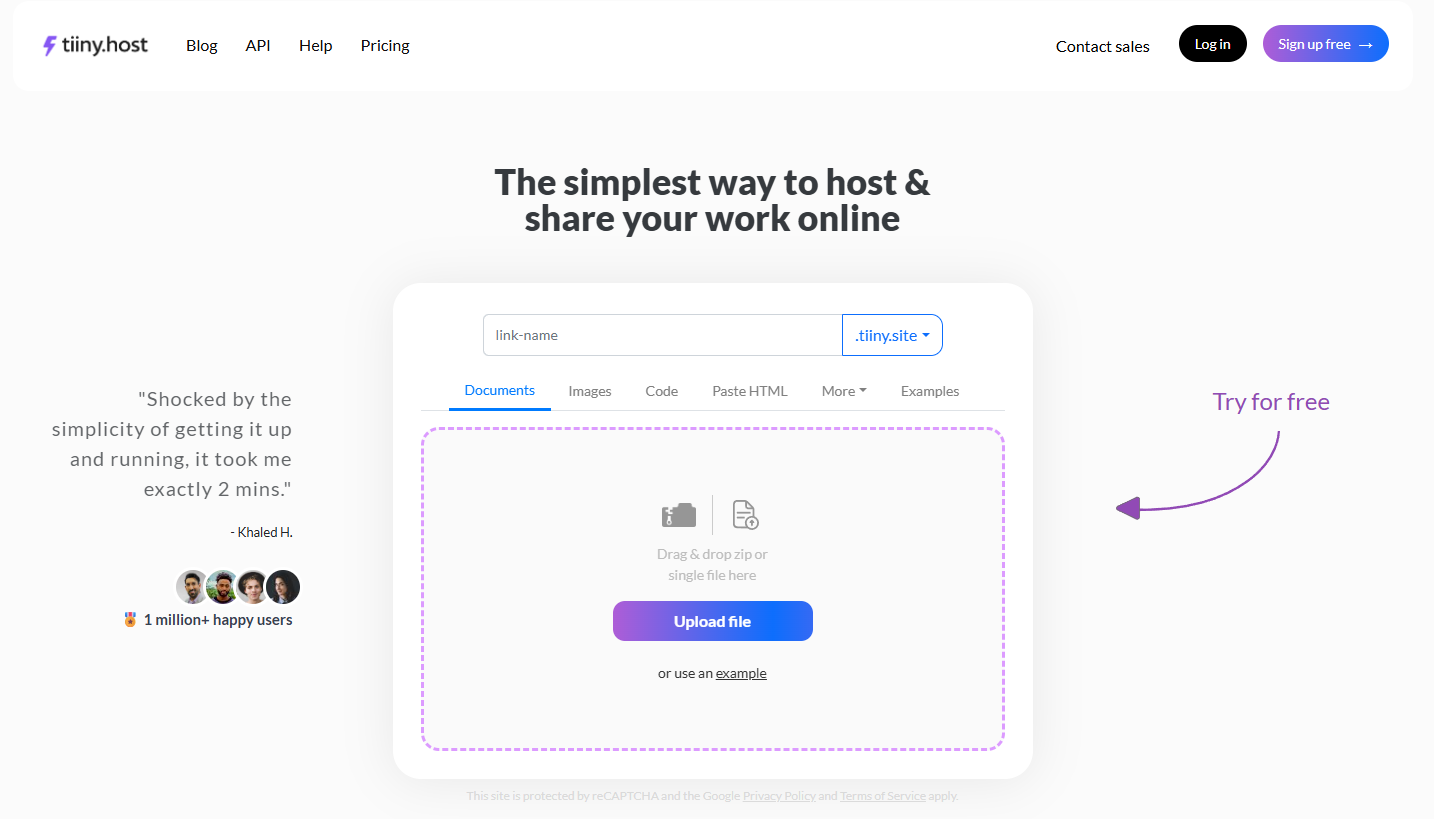
Tiiny Host is the easiest way to host your HTML website without any technical setup. You drag and drop your file, and you get a live link for your HTML in seconds. If you have a site with HTML, CSS, and JS files, you can ZIP them together and upload it to Tiiny. You do not need a Git connection, a terminal or any build step.
Tiiny Host works well for:
- Freelancers, individuals, and students building their portfolio website.
- Marketers building their campaigns and landing pages
- Developers building prototypes or client previews
- Small businesses making their business site
- Static sites created using Claude, ChatGPT or other coding assistants
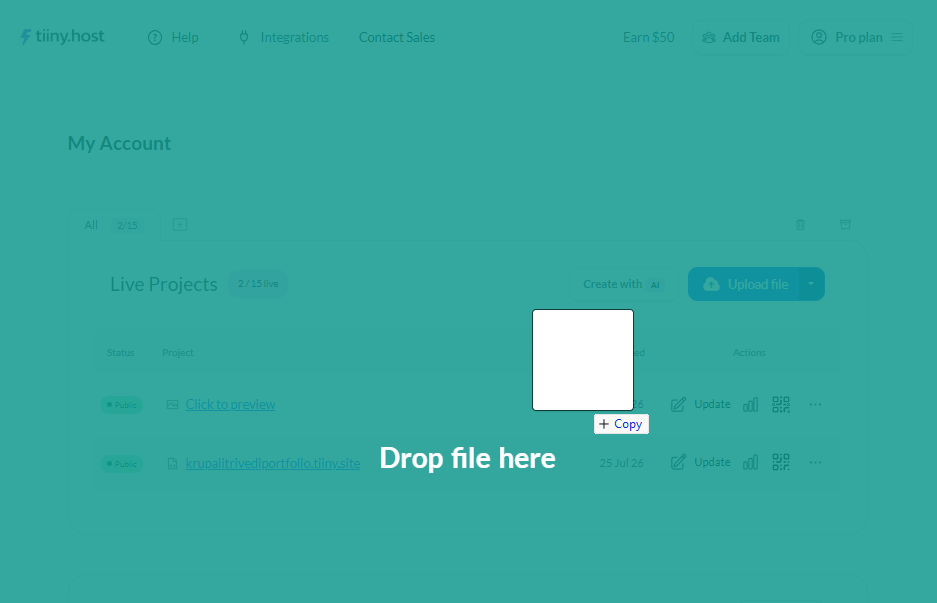
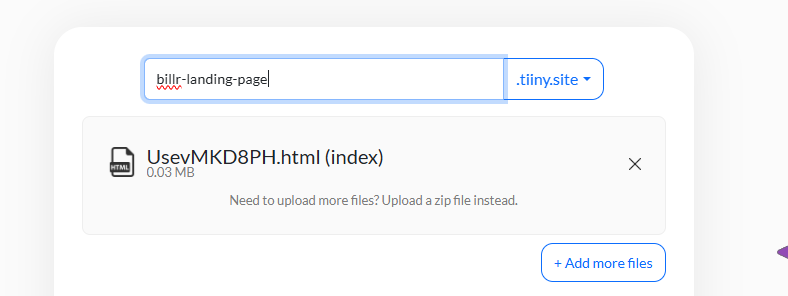
It only takes three steps to upload your file to Tiiny Host: You drag and drop your file, give a custom link name, and hit publish. In seconds, you will have a link with a custom subdomain that looks professional when shared.
Here are some features that stand out:
Non-developer-friendly dashboard
Unlike the control panel of a traditional web hosting provider, the dashboard is much more friendly for everyone on Tiiny. You do not have to worry about searching for settings you don’t know about in the dashboard. It will help you upload, edit, update and delete your projects.
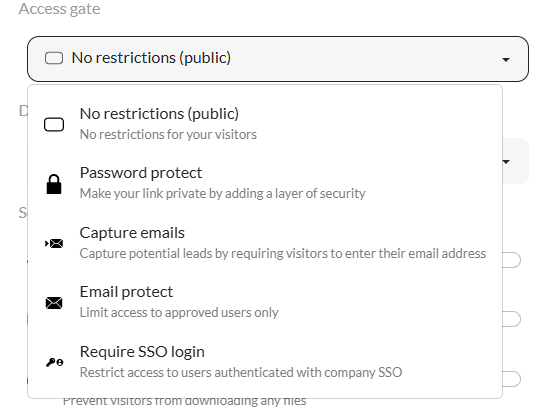
Access Control: Password Protection, Email Approvals, Capture Emails and SSO Login
If your website is in testing mode or you want to share it with only a few people, you can use different access controls.
- Password Protection for your website: You can make your link private and share the password with only trusted individuals to open the site.
- Capture visitor emails: If you want to verify who has visited and accessed the website, you can enable this.
- Email-protected URL for HTML: You can pre-approve limited numbers of emails and only approved users will be able to access the website.
- SSO login: Access is provided to only users authenticated with the company SSO.
Built-in Analytics
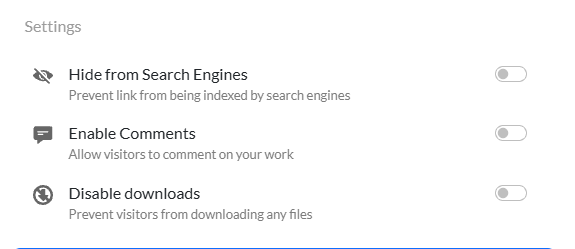
You don’t have to add third-party integrations or other scripts to track analytics for your HTML website. With built-in analytics, they are tracked directly and are visible through the dashboard.
In-browser Editor
If you want to make changes to your HTML file or website, you can do it without having to go back to your code editor. You can do it directly in the browser through Tiiny’s dashboard. You get three different options to edit:
- Edit the code manually: You can see the code in the left pane and the preview on the right side in theHTML Viewer, and edit code by typing.
- Edit code using AI Assistant: Our AI Assistant can help you edit the HTML file directly. You can write the type of change you want, and it is done.
- Upload edited files: You can upload CSS files or other images and files needed to edit or update your website.
Tiiny Host MCP
If you use any AI Assistants, you don’t even need to visit the dashboard to get your HTML files live. You canconnect Tiiny Host MCP with your AI Assistant like Claude or ChatGPT and get your website live from the chat directly.
Tiiny Host Create
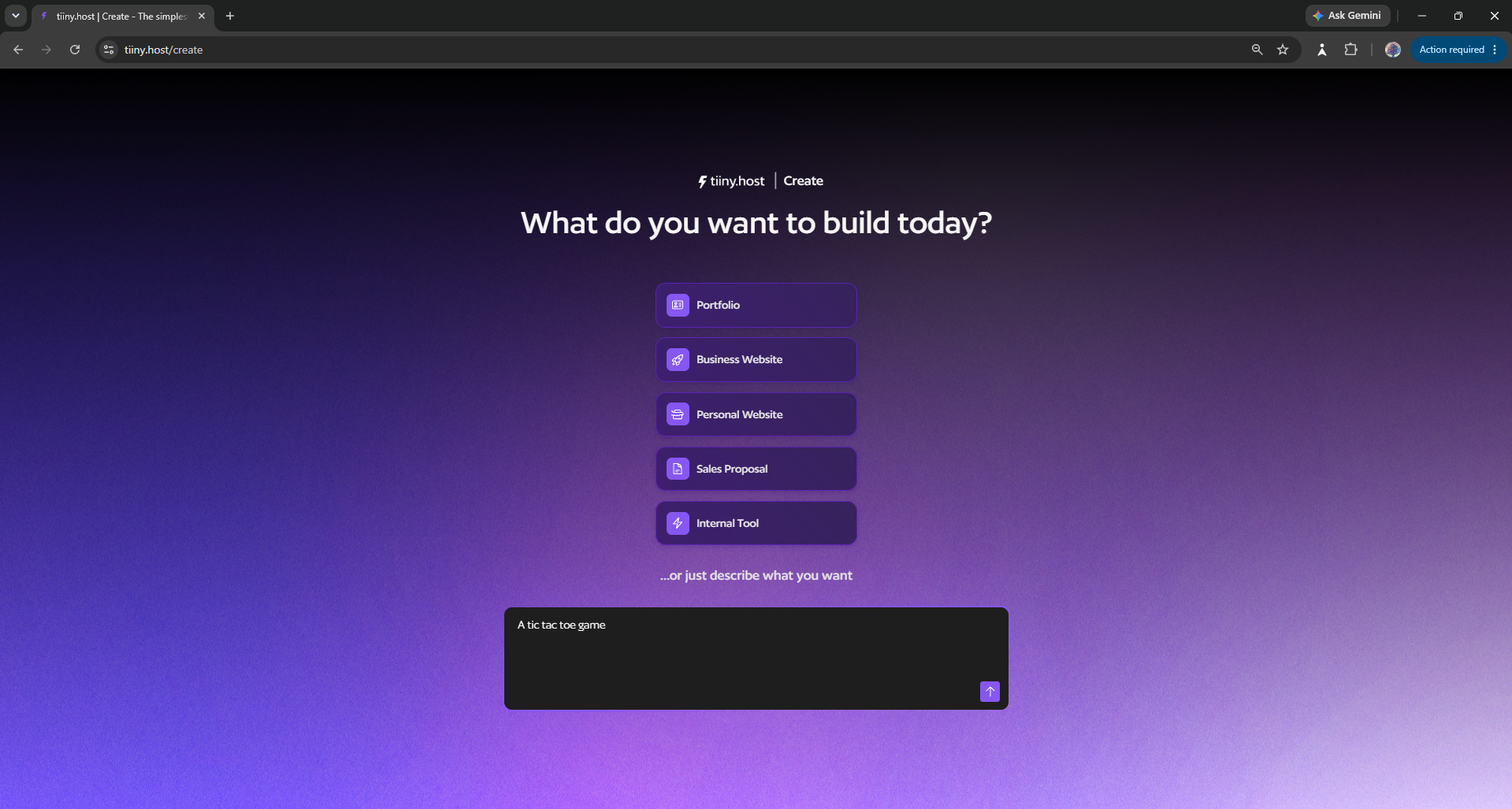
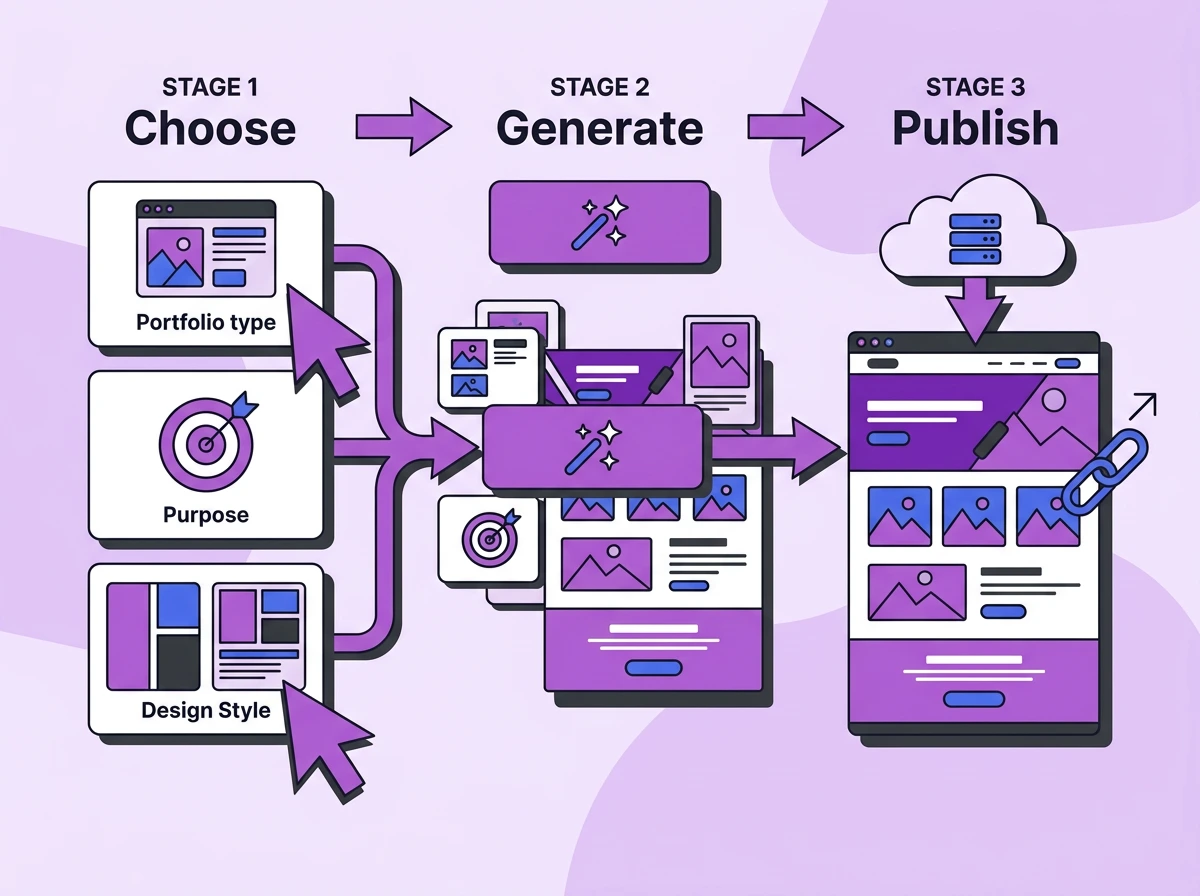
If you don’t have an HTML website yet, you can build your website using Tiiny Host Create. It is a website builder that lets you create the website without writing any code or prompts. You pick from a few options and the AI builds the website for you.
If you are a small business, you can build your business website directly with the AI. It is also great for hobby projects, portfolio websites, and campaign websites.
Pricing
The free plan lets you host one website for free, with which you can test out most features. Your link stays live as long as your account is active, so you don’t have to worry about your website vanishing even without a paid hosting plan.
- Tiny plan ($5/month): 25MB uploads, unlocks built-in analytics, turn links into QR codes, get PHP support and feedback mode.
- Solo plan ($13/month): Everything in the Tiny plan, and you get 5 sites, 75MB uploads, custom domains, password protection and an online editor.
- Pro ($31/month): With the Pro plan, you get 15 sites, 10GB uploads, and email capture.
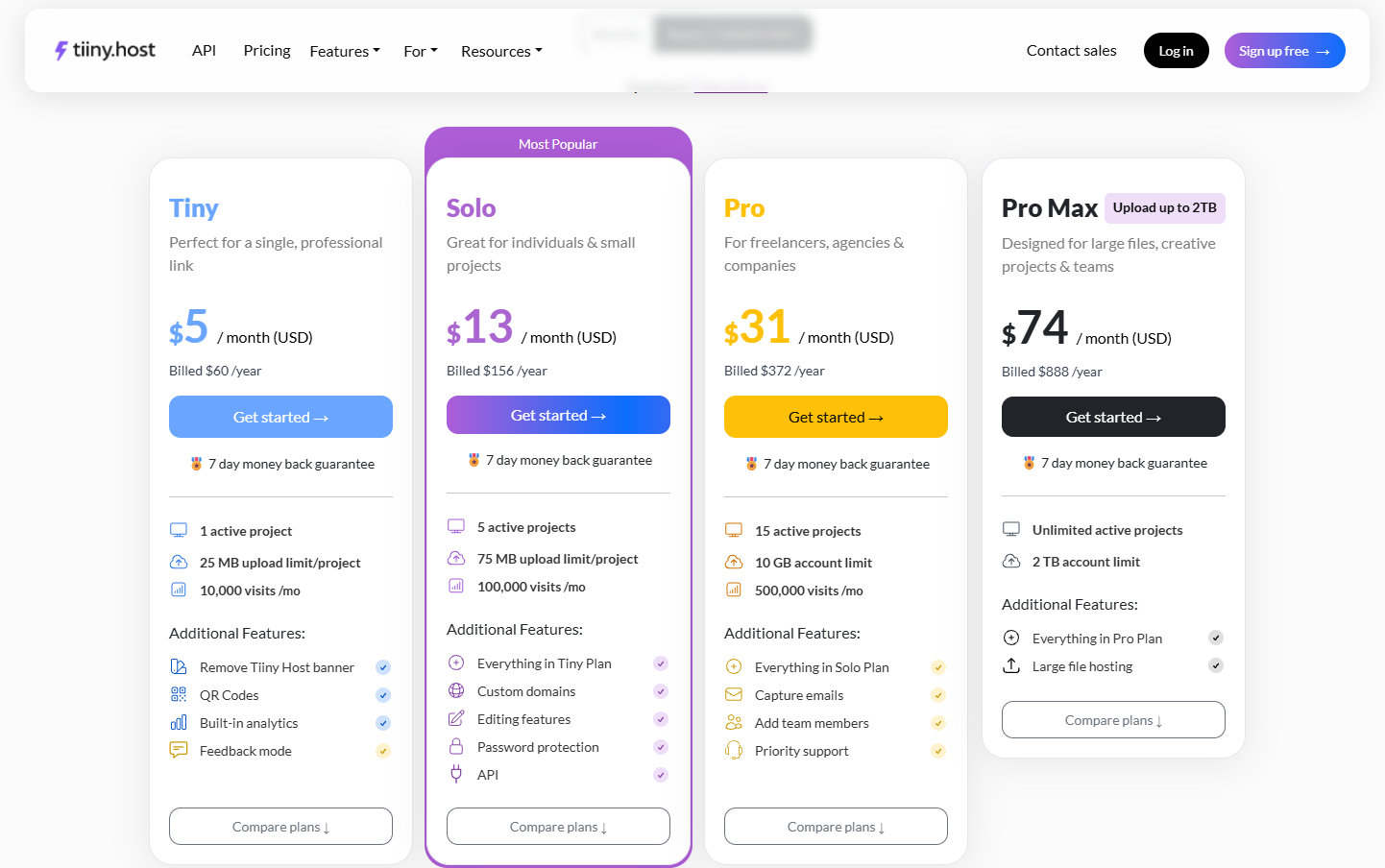
There is also a Max Pro plan for larger teams and enterprises, but for marketers, freelancers and students, the Tiny and Solo plans would work without any issues.
Pros
- No Git, build step or command-line interface. Good for both developers and non-developers.
- If you upload any file other than HTML, like a PDF, Excel, Word doc, or any other, you won’t face an error page but will get a link for your file.
- Your website includes a free SSL certificate.
- All the websites have built-in analytics without you having to download any third party integration.
- You get a custom subdomain and also get to attach your own domain name if needed.
- You keep the same URL even through all updates.
- Lets you edit the code with an in-browser code editor or with AI Assistant.
Cons
- It doesn’t run databases and doesn’t have support for server-side rendering.
- Not for anyone who wants to start with a static site and move to a dynamic website in the short term.
Netlify Drop: Best for Quick Static Sharing
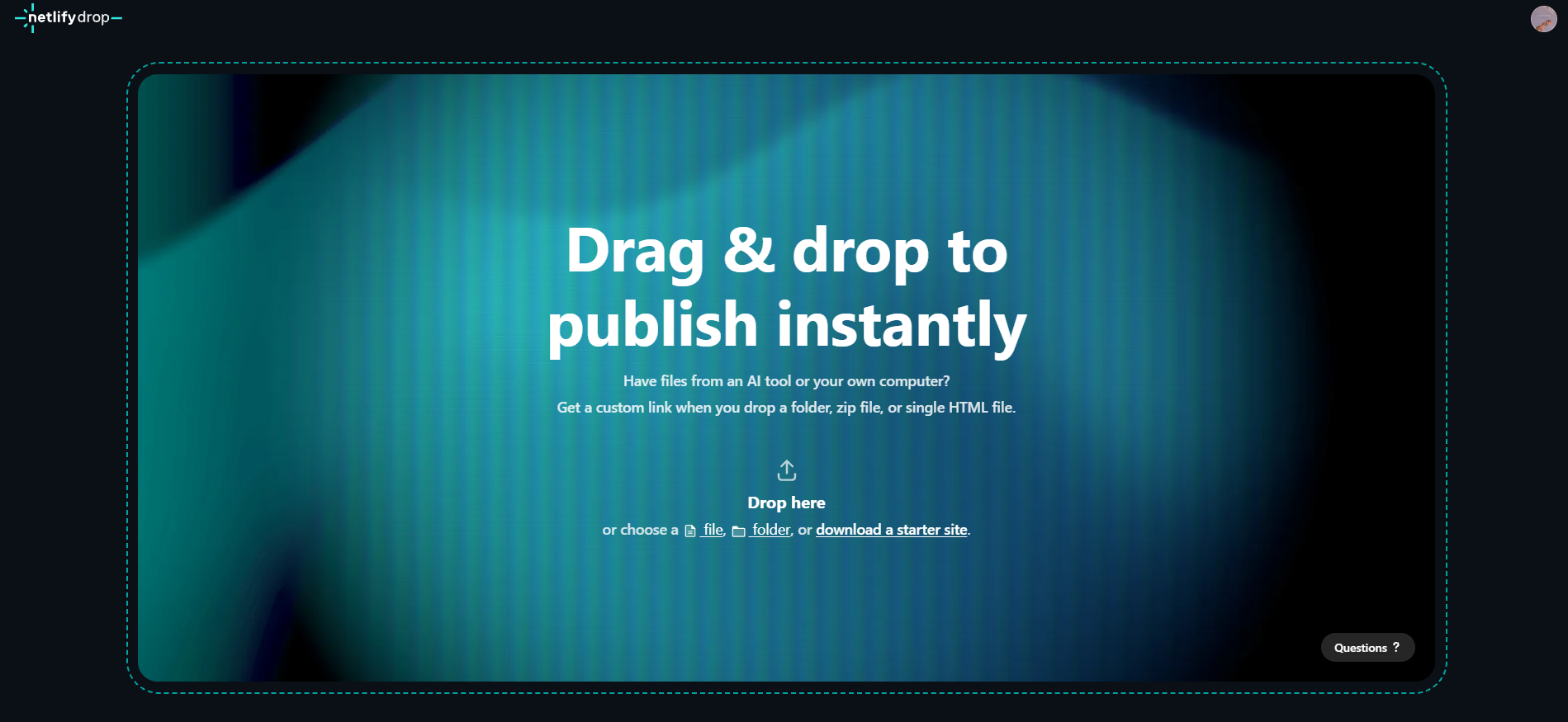
Netlify Drop is the file drag-and-drop for static websites on Netlify. You can upload a HTML website or ZIP file for your website to get a link.
While you can upload a file without an account, the URL doesn’t become public till you create or log in to your account. With Netlify Drop, you get into the Netlify ecosystem. The dashboard, once the files are uploaded, is a little more technical.
If your file is larger than 50MB, you might have trouble uploading it through Netlify Drop because they recommend using CLI for files that size.
Pros
- You get access to the full Netlify platform when you upload.
- You can publish without creating an account and claim the site later.
- You can connect your custom domains and also get free SSL.
Cons
- Sites created without an account are password-locked and expire quickly.
- Folders under 50MB work the best
- If you run out of credits on the free plan, every project on your account pauses until next month.
- There is no password protection or access management for live sites on any affordable plans, it starts on Pro plan ($20/month).
- If you upload a single file that isn’t HTML, like a PDF, it won’t be published as a link.
- The full Netlify dashboard has a lot to learn if your only aim is uploading a static site.
Pricing
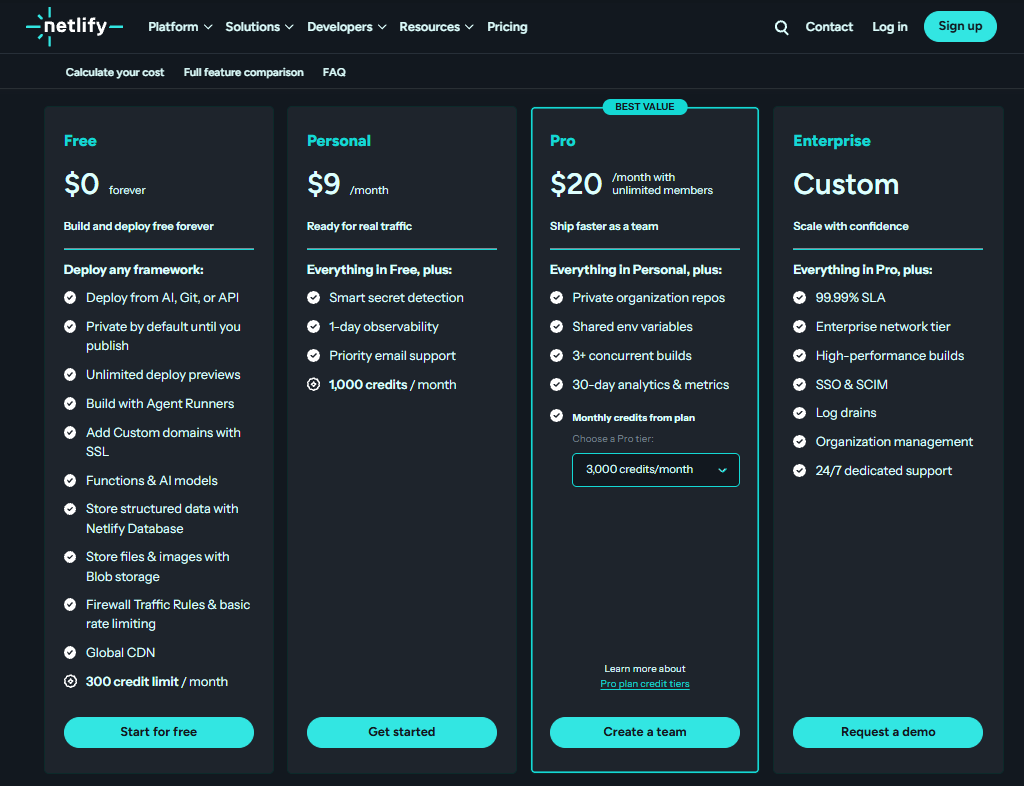
- The Free plan has a 300-credit monthly limit, and each production deploy uses 15 credits, and bandwidth uses 20 credits per GB, so it can get used up quickly.
- Personal plan costs $9/month for 1000 credits.
- Pro plan starts at $20/month with unlimited team members.
Vercel Drop: Best for Static Projects that Would Turn Dynamic
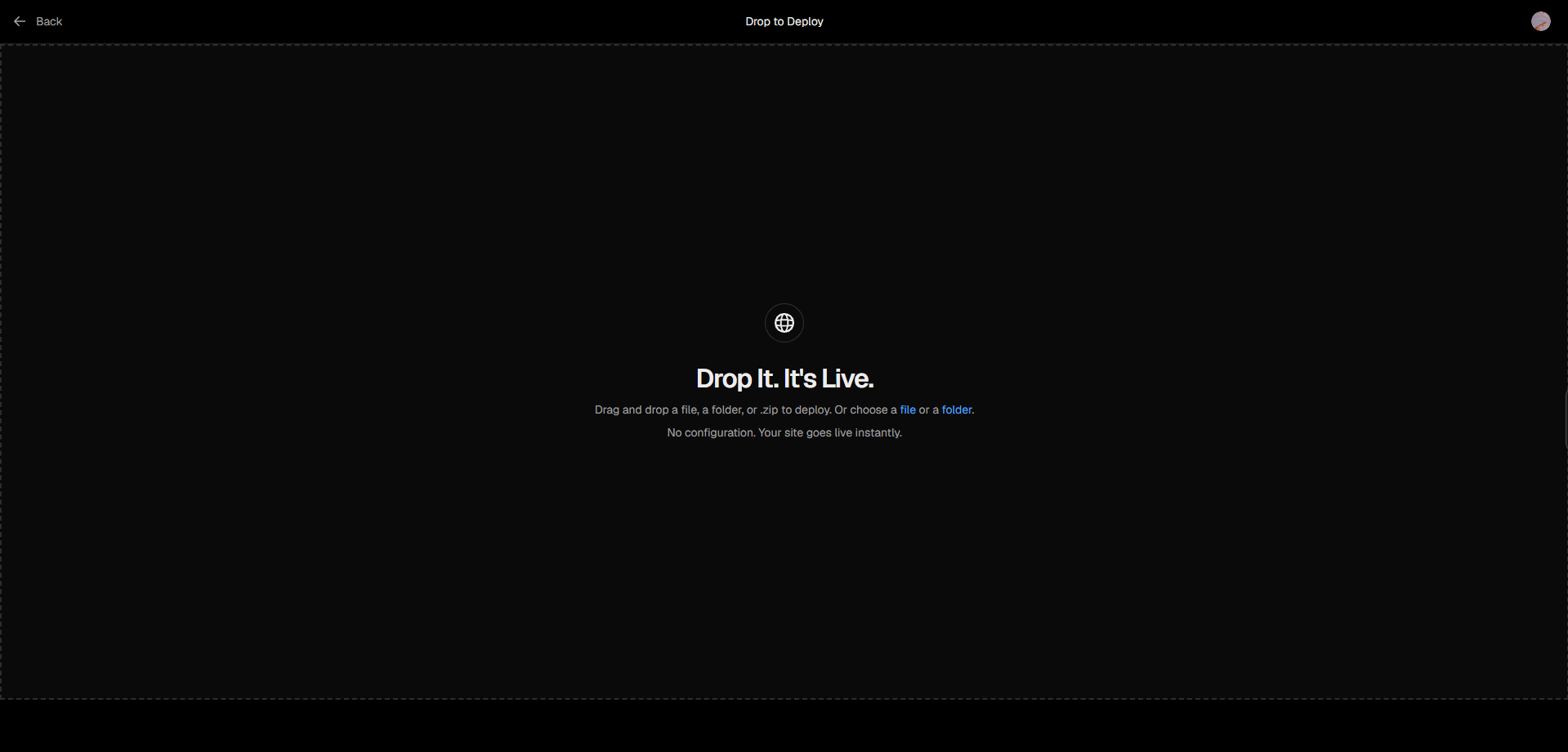
Vercel Drop is Vercel’s quick way to deploy your website. You need a Vercel account but the free plan can help you to know features of the tool. You can drag and drop your HTML file or folder, choose a team and a project name and hit Deploy.
Vercel Drop has support for framework projects, so if you are going beyond a static website, you can check it out. Vercel detects the framework and builds it for you automatically.
Vercel Drop also gets your project into the Vercel ecosystem. Vercel’s dashboard is again a little bit more developer-centric. Once the website is live, you might have to browse around a bit to make changes or check analytics.
Pros
- Vercel Drop builds framework projects like Next.js for you.
- You can connect Git later for automatic deploys.
Cons
- Each drop on the Drop page will create a new project. To update, you have to go the dashboard, find the project and drop the new files for new build.
- The free plan is for personal use only. You cannot use it for anything commercial.
Pricing
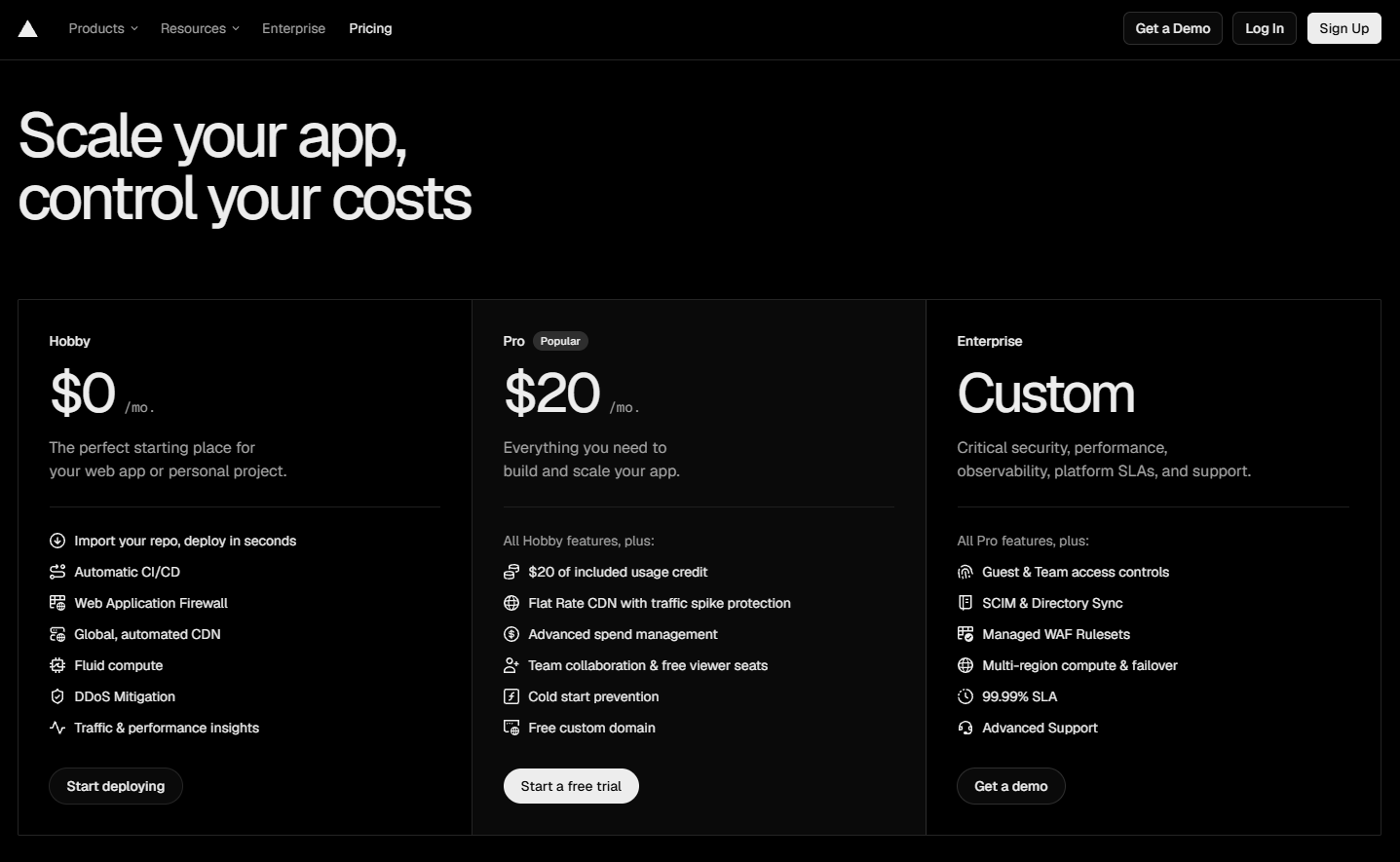
- It is free on the Hobby plan for personal projects.
- Commercial projects need a Pro version and start at $20 per developer seat per month.
- To keep updating the same site, you have to connect to Git or use Vercel CLI.
Cloudflare Pages: Best Free Plan for Static Sites That Might Grow
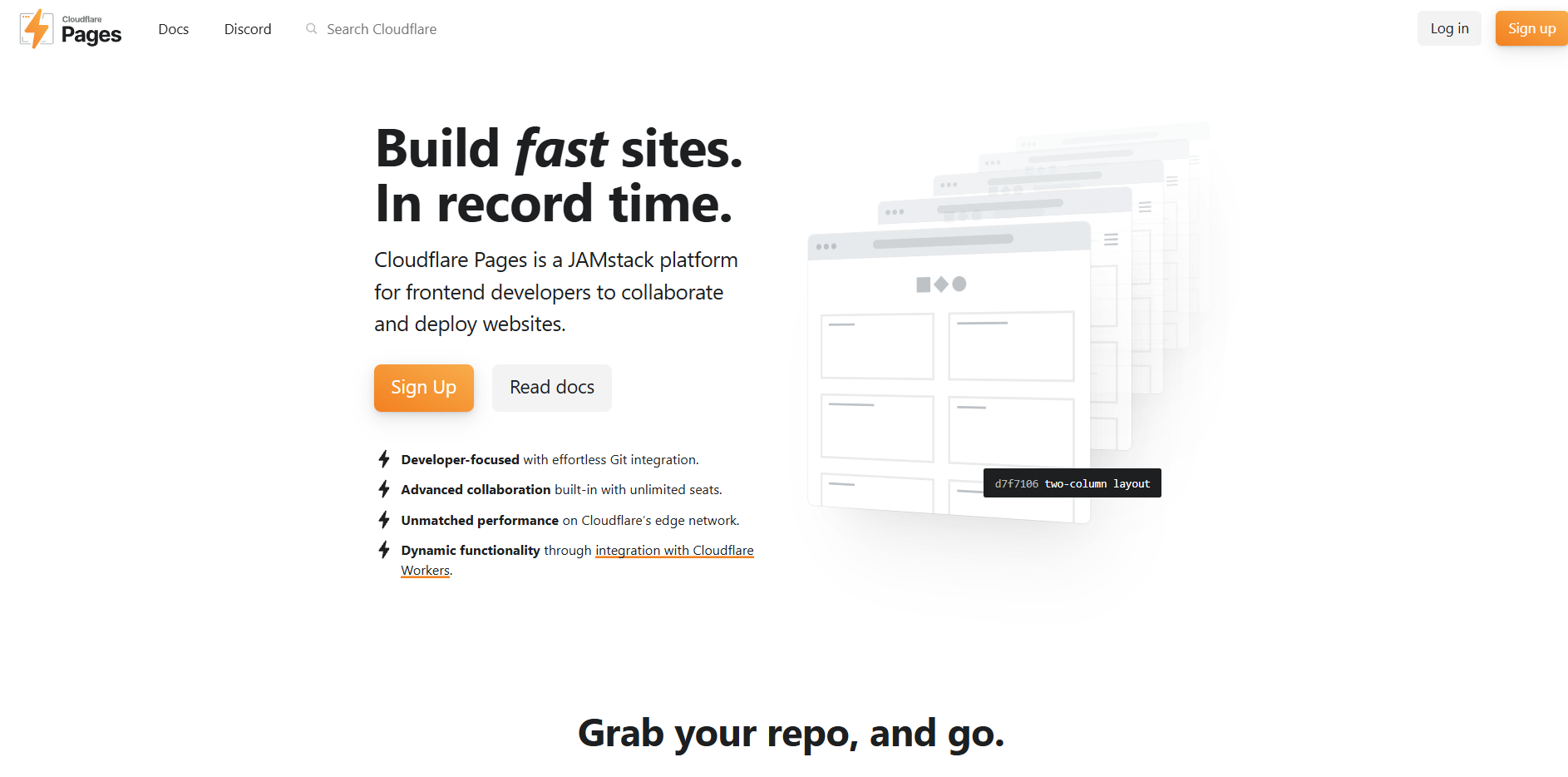
Cloudflare Pages publishes static sites from a Git repo, dashboard upload or the command line. It has been a go-to option for teams that build dynamic apps and websites. If your team is already using Cloudflare, Cloudflare Pages might be a good option for you. Its free plan has unlimited bandwidth, which is why a lot of teams start with Cloudflare for their projects.
Cloudflare has slowly moved its focus to Workers and now recommends that you start on Workers. Pages is still supported, but when you check the dashboard, it is not easy to find.
The dashboard has a lot of options and can get complicated to find which Cloudflare tool you are actually trying to work with. If you upload directly on Cloudflare, though, you cannot switch to a Git-based system or vice versa.
Pros
- Unlimited bandwidth on the free plan and unlimited preview deployments.
- Instant rollbacks to earlier production deploys
Cons
- The dashboard isn’t beginner-friendly.
- A drag-and-drop project can’t be switched to Git later.
- If you decide to work with Workers, you have to add additional code for some websites.
- Each file has to be under 25MB. If one is too large, you might have to re-upload the whole project.
Pricing
- The Free plan has unlimited bandwidth and has generous limits.
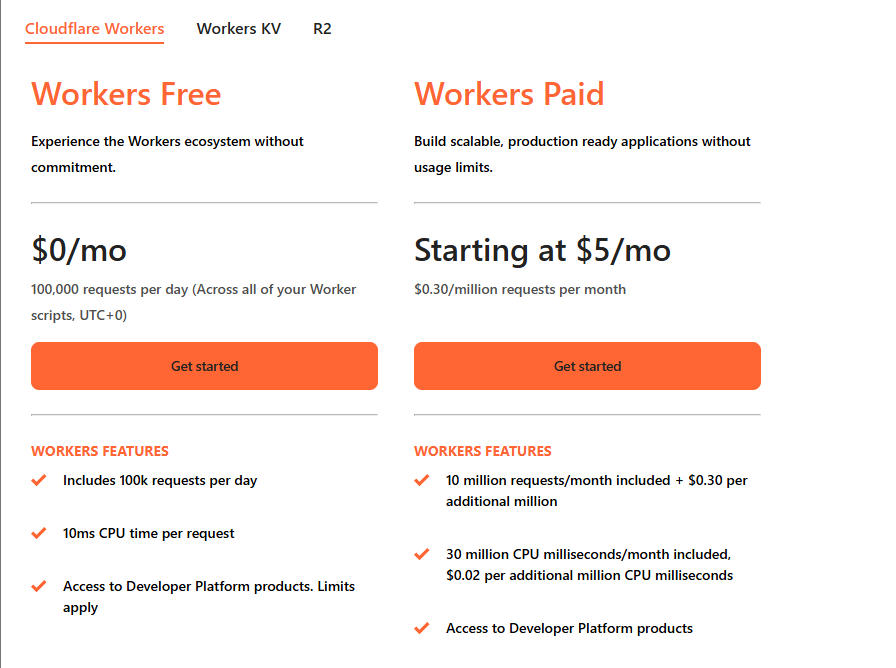
- The Pro plan costs $20//month and raises builds to 5000 a month. If you move to Workers, Workers Paid starts at $5/month.
GitHub Pages: Best for Portfolios Already on GitHub
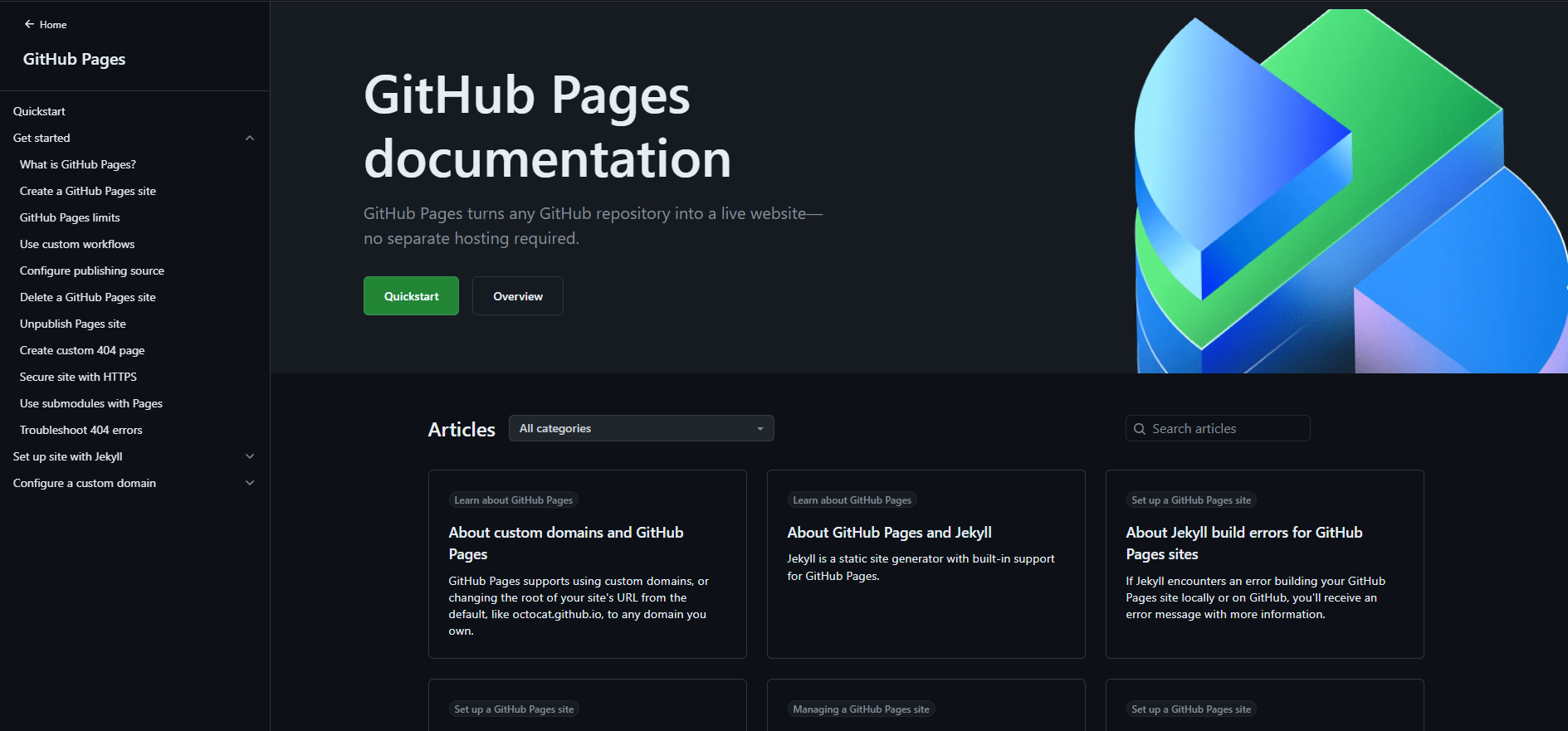
GitHub Pages is a good option if you already use GitHub a lot. GitHub publishes the site directly from your repository and gives you a github.io address.
Unlike other tools in the list, GitHub doesn’t allow you to drag and drop your files to publish a website. If your documentation or simple sites are already on GitHub, Pages might be your choice. If you use static site generators, GitHub Pages has support for them too.
You can publish from any branch, a docs folder or through a GitHub Actions workflow. You can only publish from a public repository on the free version. Also, GitHub doesn’t allowPages to be used for running online business, e-commerce site or SaaS, even on paid plans.
The route for GitHub Pages is a little time-consuming. Once your files are on GitHub, you have to go through Pages and find the settings to get your HTML page live.
Pros
- Supports static site generators like Jekyll for an instant build, and others work through GitHub Actions.
- Great for documentation and portfolios that need updating often.
Cons
- You cannot publish from a private repository on the free plan.
- You cannot use it for online businesses, e-commerce or for SaaS.
- The tool does not have password protection or any analytics.
- You can only have one user site per account, and deployments time out after 10 minutes.
- It is a complicated process of uploading and then publishing it.
Pricing
- Free for public repositories.
- If you want to publish from a private repository, you need to upgrade to a paid plan like Pro ($4/month) or Team.
Neocities
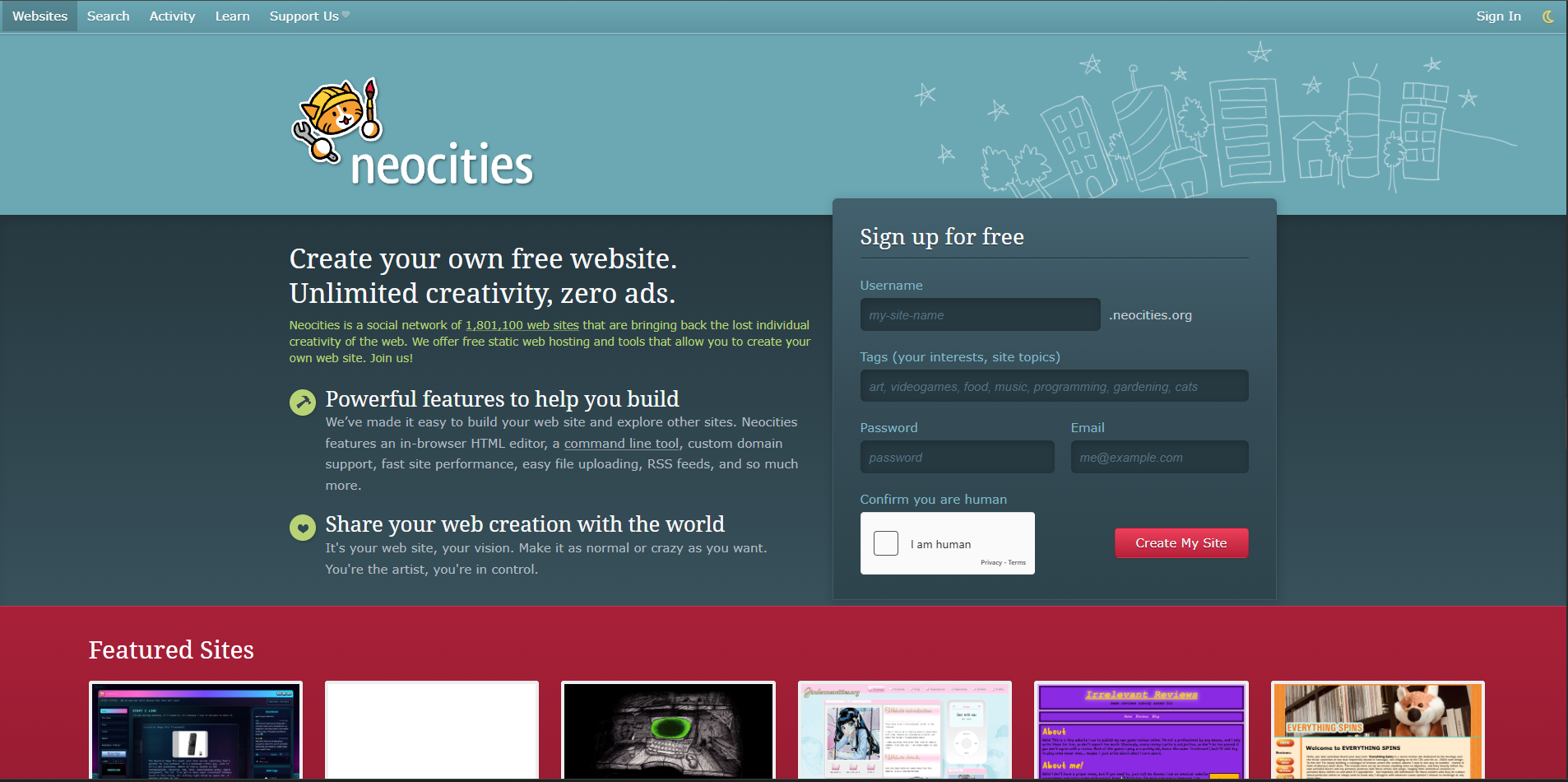
Neocities has taken inspiration from the free personal-website host of the early web, GeoCities. The tool is funded by supporters and through donations. It is a good tool for personal sites. It is one of the tools that lets you upload files and edit them in your browser directly.
If you are learning HTML or have some hobby sites, you can check out Neocities.
Pros
- Has an amazing community and supports site tags, follows and an RSS feed.
- Has an in-browser editor
Cons
- You can work with static sites only, no PHP or any other server code.
- There are no templates, so you’ll need to write your own HTML and CSS.
- You cannot link your files from other websites on the free plan.
Pricing
- Free for 1GB of storage
- Supporter costs $5/month for 50GB of storage, 3000 GB of bandwidth and custom domains.
Surge
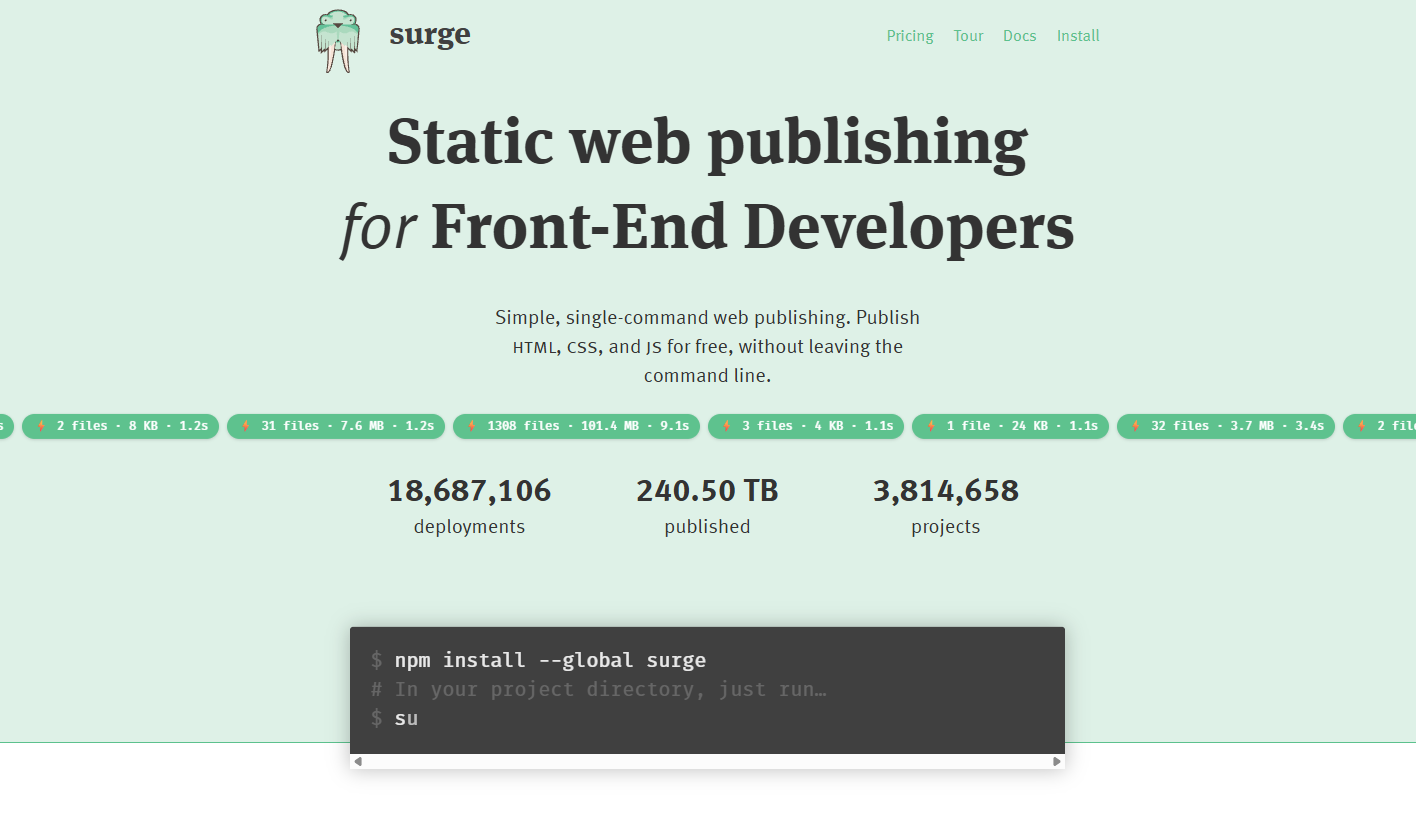
Surge is built for developers and people with some technical knowledge because it has no dashboard. Surge works only using the CLI. You install it on your computer with npm, then run the ‘surge’ command from your project folder to get your file live.
For non-developers, there is a steep learning curve to work with it. The tool works well for quick demos and static builds from static site generators. It has no dashboard, though, which you can check if something goes wrong during deployment.
Pros
- Free custom subdomain
- Fits easily into developer workflows
Cons
- You need to install Node.js, npm and Surge on your system locally.
- Everything works only in the terminal.
- SSL on your own domain is a paid feature
- No built-in CI/CD like other tools in the list
Pricing
- Free with unlimited publishing
- Surge Professional costs $30/month to add custom SSL, redirects and password protection.
Static.app
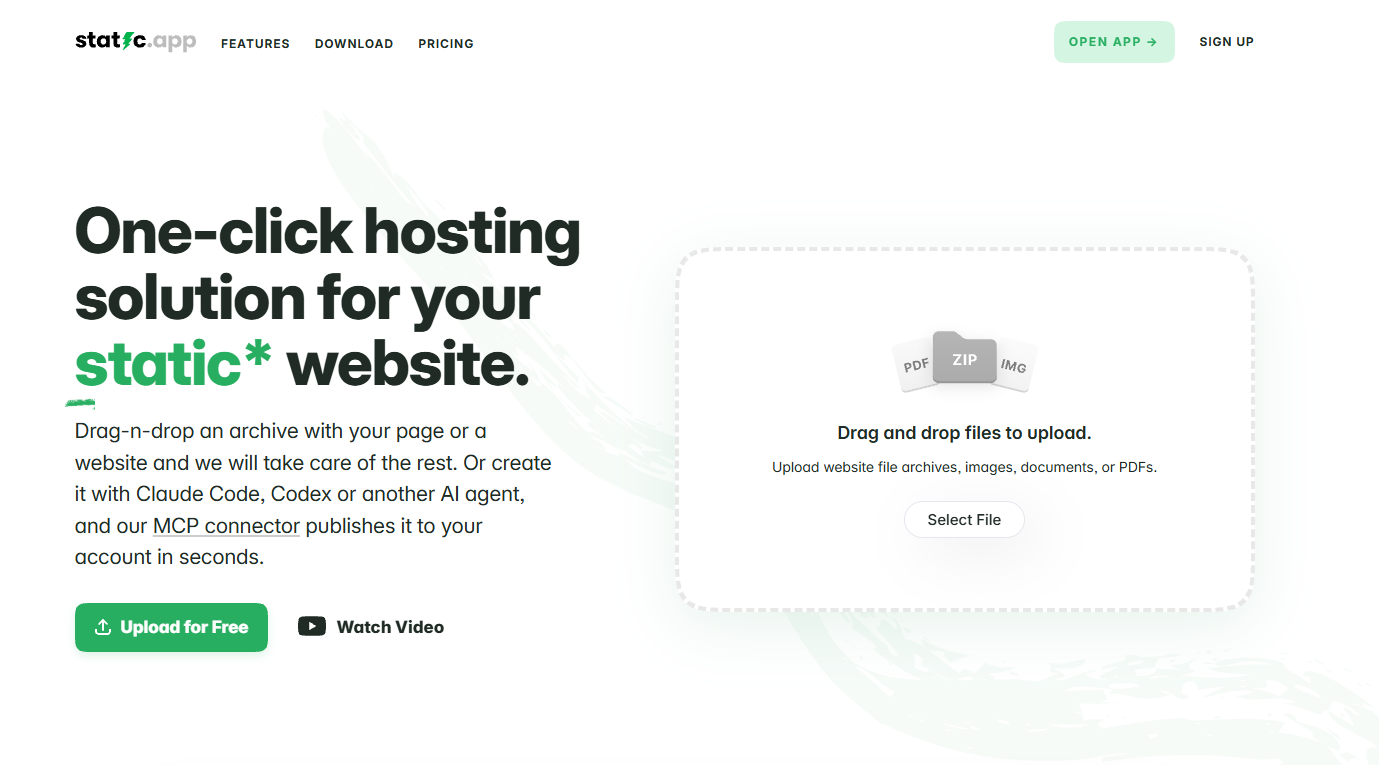
Static.app lets you upload a file or ZIP or publish from the Mac desktop app.
The app is made by Designmodo and is aimed at people who want a simple static host. Paid plans come with built-in forms, analytics and workspace and the Large plan adds backups. It also connects to AI assistants through their MCP.
Pros
- Up to 1GB per file on paid plans
- Support for QR codes, MCP server for all plans
- Has workspaces for different clients
Cons
- There is no free plan; you only get a 7-day trial to check out the features.
- Backups are included only on the Large plan. On other plans they cost $5/month a slot.
- It supports only static files.
Pricing
- Free trial: 7 days, 1 site and 50MB of storage.
- Starter ($5/month): 2 sites, 500MB of storage, forms and analytics.
- Medium ($10/month): 7 sites and 3GB of storage.
- Large ($15/month): 30 sites, 10GB of storage and 3 backup slots.
How to Upload an HTML File to a Website
Now that you know all the HTML hosting tools, let me quickly walk you through how you can upload your HTML file as a website and share it as a link.
Step 1: Get your files ready
If you have written the code yourself, name the main page as index.html, and if you have HTML, CSS and JS files, you can combine them in a ZIP folder. If you have used AI coding assistants to create your website, download the HTML file or the ZIP file.
Check the paths for images, videos, audio or any other assets. A path from your computer, like C:/Users/…, will break once the page is online, so use relative paths like images/photo.png instead.
Step 2: Preview it locally
If you have only an HTML file, click on it to open it in a browser and check. If you have ZIP files or a website build, you can use HTML viewer tools to check your code and preview.
Step 3: Upload your files online
You can now upload your files to the tool. For Tiiny Host, you can:
- Open tiiny.host in your browser
- Drag and drop your HTML file or ZIP file.
- Type a link name to get a custom subdomain.
- Click publish!
That’s it! Your page is live and can be shared with anyone.
Step 4: Test your Website
Before you share your website with the public, you should test the website on desktop and mobile browsers. Check all the buttons, links and assets on your website. Check for any animation you have included and check for scripts you have added.
If something looks wrong:
- Blank page or 404: Make sure your main file is named index.html. If you have upload a ZIP, the HTML file shouldn’t be nested in other folders inside.
- Missing images of styles: check that your paths are relative and your assets have been added to the folder with correct names.
- Errors in AI-generated file: If the file has JSX or something doesn’t render well, ask the AI tool to convert it to HTML or point out what hasn’t rendered well and it will be fixed
Step 5: Add access controls if needed
For any client work or test deployments, you can add password protection to share it with clients or colleagues.
Step 6: Share the link publicly
Once you have tested out your files and added necessary controls, you can share them with anyone you want.
Advanced Tips for HTML Website Hosting
Hosting AI-generated HTML
There are many tools out there, like Tiiny Host Create, Claude and ChatGPT, that give you HTML files or ZIP files for static websites. These files usually work on any static host as they are.
Sometimes tools might give you JSX code which browsers do not run directly. If you upload it as it is, you might get an error. You can always ask the AI tool to convert the website file into an HTML file.
Custom Domains
If you are sharing your files professionally, I highly recommend getting custom domains and attaching them to your website. Your portfolio link would look cleaner, clients will see branded links, and it makes your personal brand stronger.
To use your domain, you add DNS records from the tool you bought it from. There’s also a CNAME record that points to your host. Your host usually has instructions to show you what to add.
Once you add these records, it can take a while for the change to show up sometimes, so give it time.
Keep secrets out of public pages
Anything in a public HTML file can be read by anyone who opens it. Make sure you never put any API keys, passwords or private data in the code. GitHub also says Pages sites shouldn’t be used to build systems for sensitive transactions like sending passwords or card numbers.
What’s Changed in HTML Hosting Recently
- Platforms like Netlify and Vercel didn’t have their Drop features before early 2026. Netlify Drop and Vercel Drop was launched earlier this year that let you deploy your static sites without Git or CLI. Both of these tools lead people to a slightly technical dashboard though.
- Cloudflare has started moving to Workers. Cloudflare Pages has been used by people for the longest time for their static website but now Cloudflare has been promoting Workers and wants new individuals to use it. Pages still works and is active but the focus has shifted a bit from the team’s side.
Get Your Website Live Now
Most HTML file hosts do the same job, taking your HTML files live and giving you a shareable link but the right one comes down how you work. If you already use Git, give GitHub Pages and Cloudflare Pages a chance. If you live in terminal, try Surge. If you just want to drag and drop a file and get a link for your static site, do it with Tiiny.
- Just drag and drop your files and get the live link in seconds.
- To share client work, you can add access restrictions on your files.
- The link remains the same whenever you update the file.
If your file is ready, get it live with Tiiny Host.
Frequently Asked Questions
Can I host an HTML file for free?
Yes. Tiiny Host, Netlify Drop, Cloudflare Pages and Neocities all have free plans where you can host your HTML for free. Each of them have associated limitations, but the free plans are good if you just have a small file to host or if you are just testing out the perfect platform for you.
How do I host an HTML file without Git?
Tiiny Host, Netlify Drop and apps like Static.app let you upload the files directly to their website without having to worry about Git or the terminal at all.
Do I need to name my file index.html?
Yes, on most hosts you have to name your main page as index.html so your link opens it automatically when someone clicks it. If you upload a ZIP file, keep index.html at top level and not inside an other folders.
Does JavaScript work on a static host?
Yes. JavaScript runs in your visitor’s browser, so a static host can serve it like any other file. Some static hosts cannot help you with server-side code. On Tiiny Host, you can publish PHP files when you upgrade to the Tiiny plan.. With some other tools like Netlify Drop or Vercel Drop, you can deploy fullstack apps too, but the dashboard can become a bit difficult to work with.
Can I password-protect a hosted HTML Page?
Yes, and you should use the feature to gate important websites for certain people. Some tools allow password protection at lower plans, and others require higher paid plans. GitHub Pages requires you to upgrade to the enterprise plan.
Does GitHub Pages allow commercial use?
If the site’s main job is running a business, GitHub Pages might not be for you. GitHub doesn’t allow Pages as free hosting for online businesses, e-commerce sites, or SaaS platforms. If you have documentation or a portfolio page, you can still use GitHub Pages.
Are static HTML hosting and shared web hosting different?
If you have seen tools like InMotion or Bluehost, they sell shared web hosting. A shared hosting plan puts the site on a web server alongside many other websites. They also have website tools like a control panel, PHP, databases, and email. So most of them are for dynamic websites. HTML website hosting is simpler; you don’t have to configure a hosting environment.