
- Tiiny Host Create
- Build your Website with Tiiny Host Create (Without Any Prompts)
- Build your Website with Tiiny Host: Create with Custom Prompts
- Three Ways to Edit Your Website Once It Is Generated
- What Happens After You Generate The Website
- FAQs: Tiiny Host Create
For a long time, only people who could write code could create websites. That meant that anyone who wanted a website and didn’t know how to write code had to hire a web developer and maybe even a designer. Then, we got AI assistants, and over time, tools like Claude, ChatGPT, Lovable, Bolt, and so many more apps could create websites for you just by writing.
And then Tiiny decided to make it even simpler. We wanted to help you save even more time and get your portfolios and MVPs shipped faster by just selecting a few options. You don’t have to worry about taking code from another platform and then worrying about how to get the code online; Tiiny Host Create will create and host for you from the same platform.
Introducing Tiiny Host’s Create for You!
Tl;dr
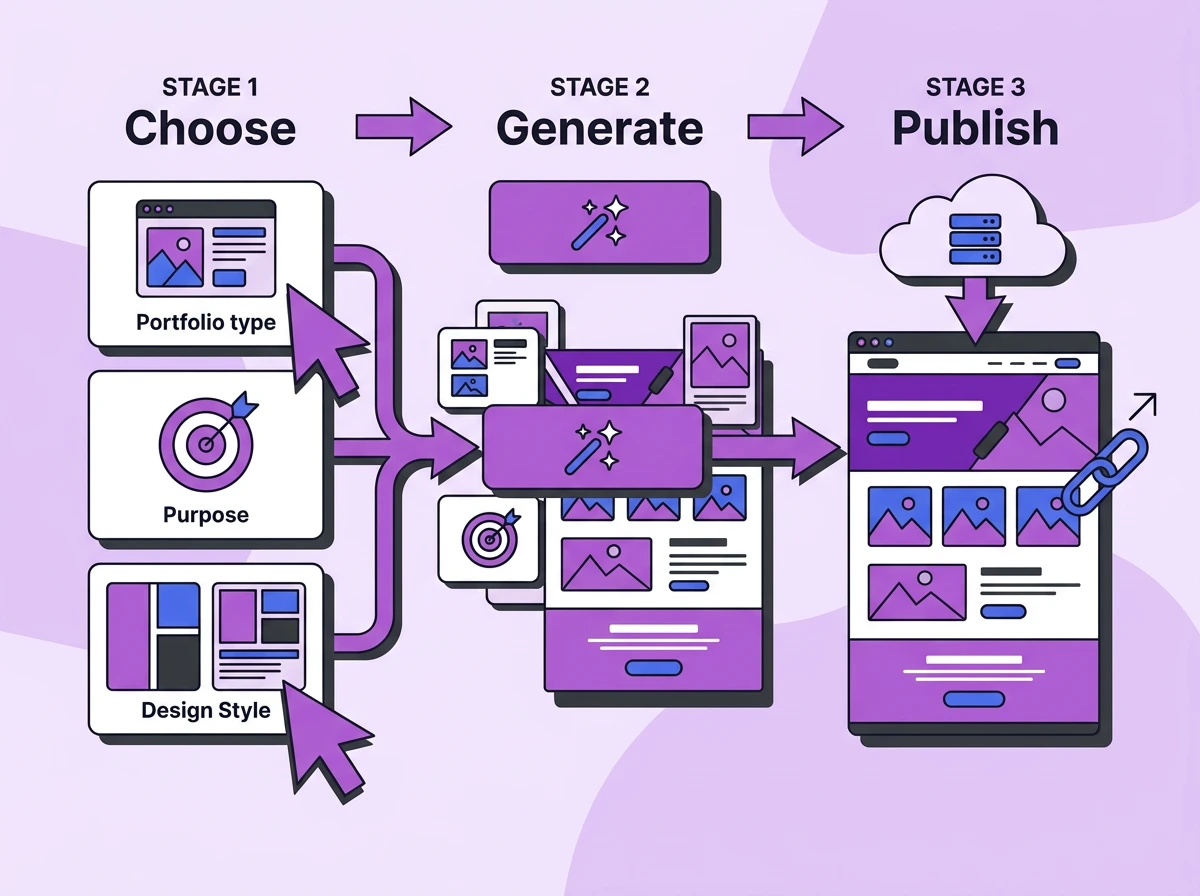
Tiiny Host Create is a guided AI website builder that can help you create a website by picking a website type, what it is for, and choosing a style and a color palette. Once you choose these, you click Generate Website, and you get your website.
You can also edit the site directly in-browser by clicking the text, asking AI, or using the code editor. Once the site is built, publish it directly using Tiiny Host.
Tiiny Host Create
Tiiny Host Create is a recently published feature by the Tiiny team that allows individuals, teams, brands, and businesses to create websites or projects in a few clicks. It is an AI-guided way to create your website by choosing from given options or mentioning your own needs.
It only takes 5 clicks to get your website. The website is fully editable by selecting with AI or by editing code. That’s how Tiiny Host Create becomes the simplest way for everyone to create their next project, website, or app.
Who is Tiiny Host Create built for?
Tiiny Host Create is built for anyone who needs a website and a static app. They can select answers to a few questions, and their site gets ready to be hosted. Here are some examples, though:
- Marketers: Marketers can plan out their campaigns and can easily build campaign websites without any code in seconds. You can also create a website for case studies and analytics to showcase your experience in an innovative format. They can also build marketing internal tools to help them and others in the company.
- Social Media Managers: If you have to create landing pages to share a PDF or share a long form video with your audience, you can create a website within seconds using Tiiny Host Create.
- Students: If you are a student building your portfolio or making a website for your project, you can use Tiiny Host Create to make the portfolio with only a few clicks. You can focus on your projects while Tiiny takes care of your website for you.
- Small Business: If you are a small business, a website for your business can elevate the discovery of your business. You don’t have to worry about any complicated methods to create it. You can just give a little information about your project, and your website will be ready quickly. You can use this website on your Google Business Page, on Instagram, and on other social media so people can always find you.
- Developers: Developers can build websites for their MVPs, or they can build internal tools for themselves or the company they work with.
- Freelancers: You can build your freelancer portfolio to share with potential leads and clients. You can create a website for your clients using Tiiny Host and share it with them.
Build your Website with Tiiny Host Create (Without Any Prompts)
I will quickly walk you through the steps on how you can build your website without writing any code or prompts. In the next section, I will also walk you through some prompts you can add for more customization of the website. Let’s get started!
- Visit tiiny.host/create
- Select the website type
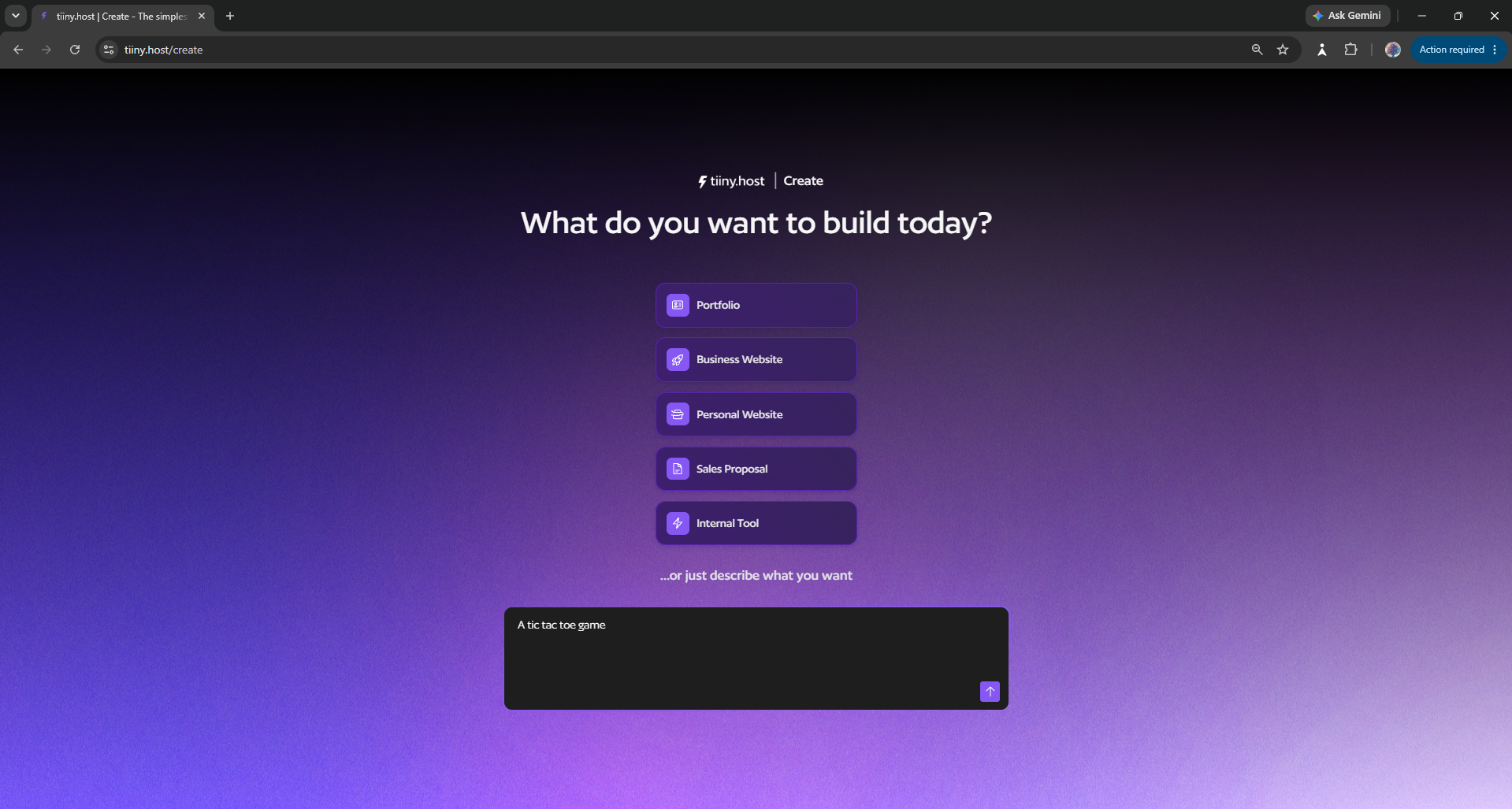
On the homepage, you will see different options for the type of website you want. You can choose one from the existing options, which would cover the needs of most people.
- Share description
Give some information about you, your business, or the tool to build the context around the website that you need.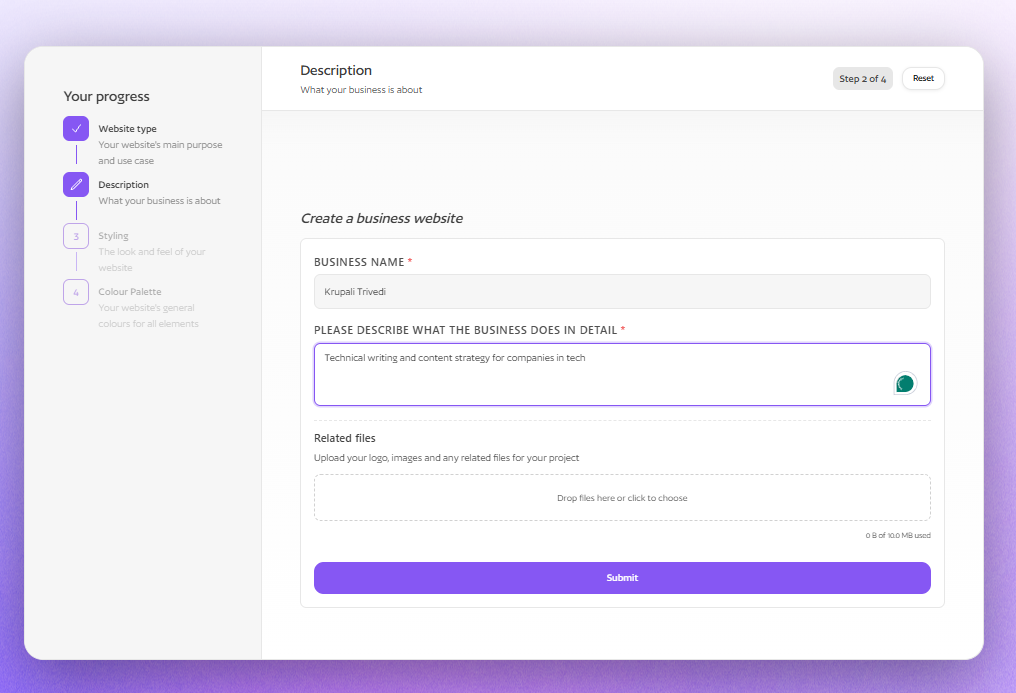
If you are confused about what to write, you can answer the following three and write that in the box:- Who it’s for: Describe who the target audience can be. It can be coffee lovers, developers, or students studying at university.
- What visitors should do: If you want your website to have a CTA, mention it beforehand. It could be: Book a Call, Download a PDF, or Get in Touch.
- Something about you or the business: Describe your story or your specialty that would allow better customization for your website.
After you add your description, you can upload a logo, images, and other files to be used on your website.
-
Choose your style
Once you choose the type of website and give some information about the business, you will get some styling options. Here you can select if you want a formal vibe, tech or startup focus, or a minimalist one. Of course, you can also describe a different kind of vibe.
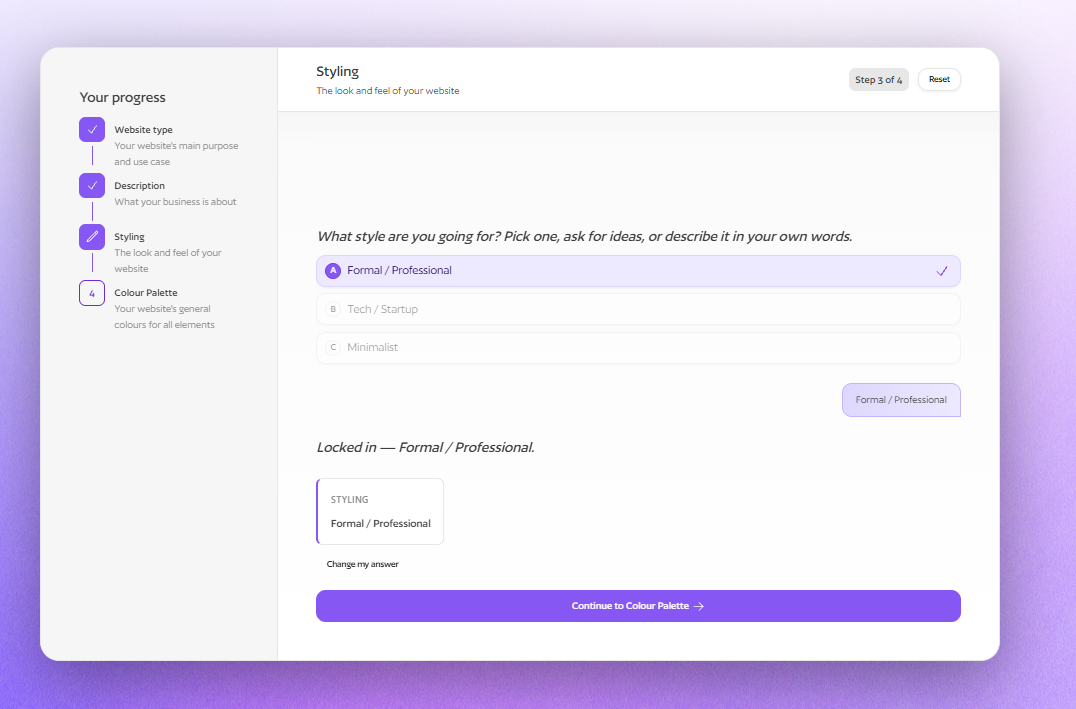
- Choose the color palette
You get some options for pre-built palettes for you according to the business description and styling option you have chosen.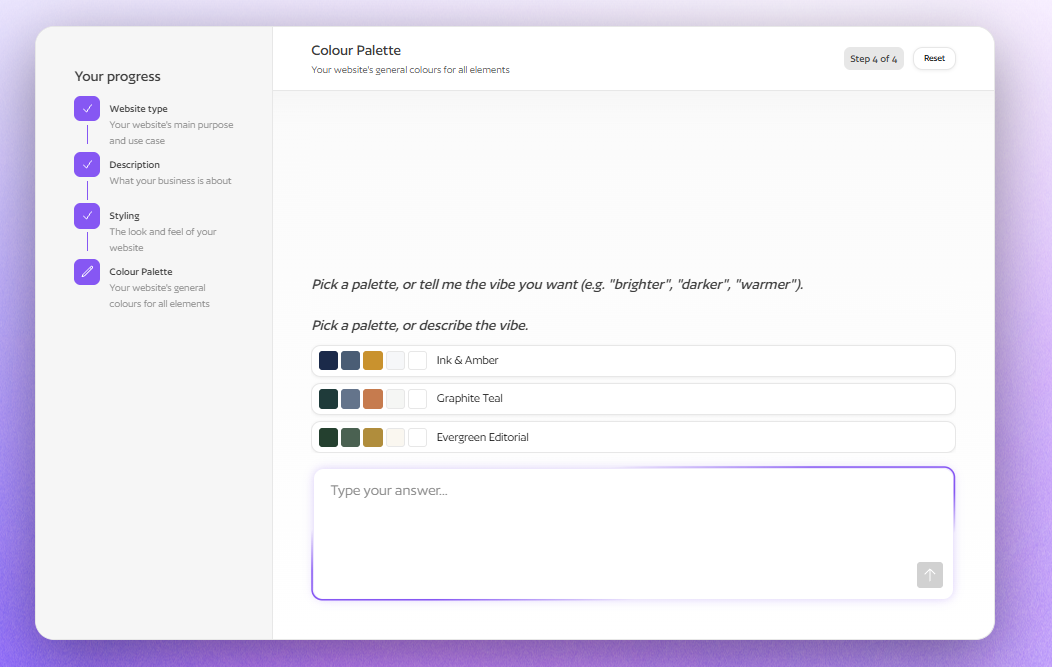
-
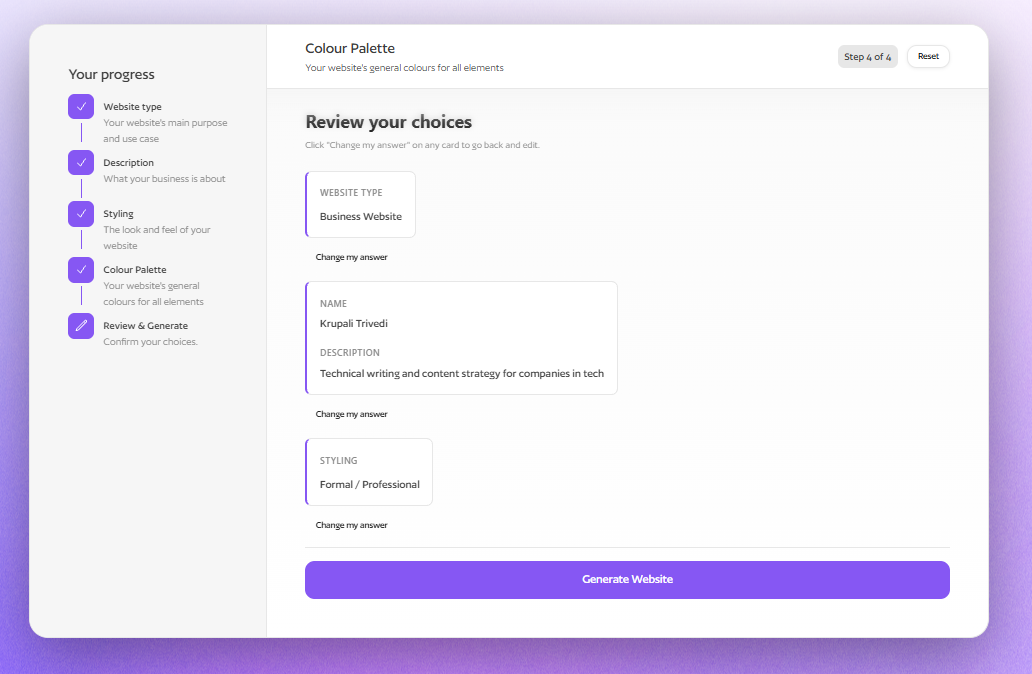
Confirm your choices
Whatever you have chosen will be given to you as an overview; you can make changes to any answers here and click on Generate Website.
-
Your website is ready!
You get a website that you can publish directly. In the top right corner, you can click on Accept and Edit.
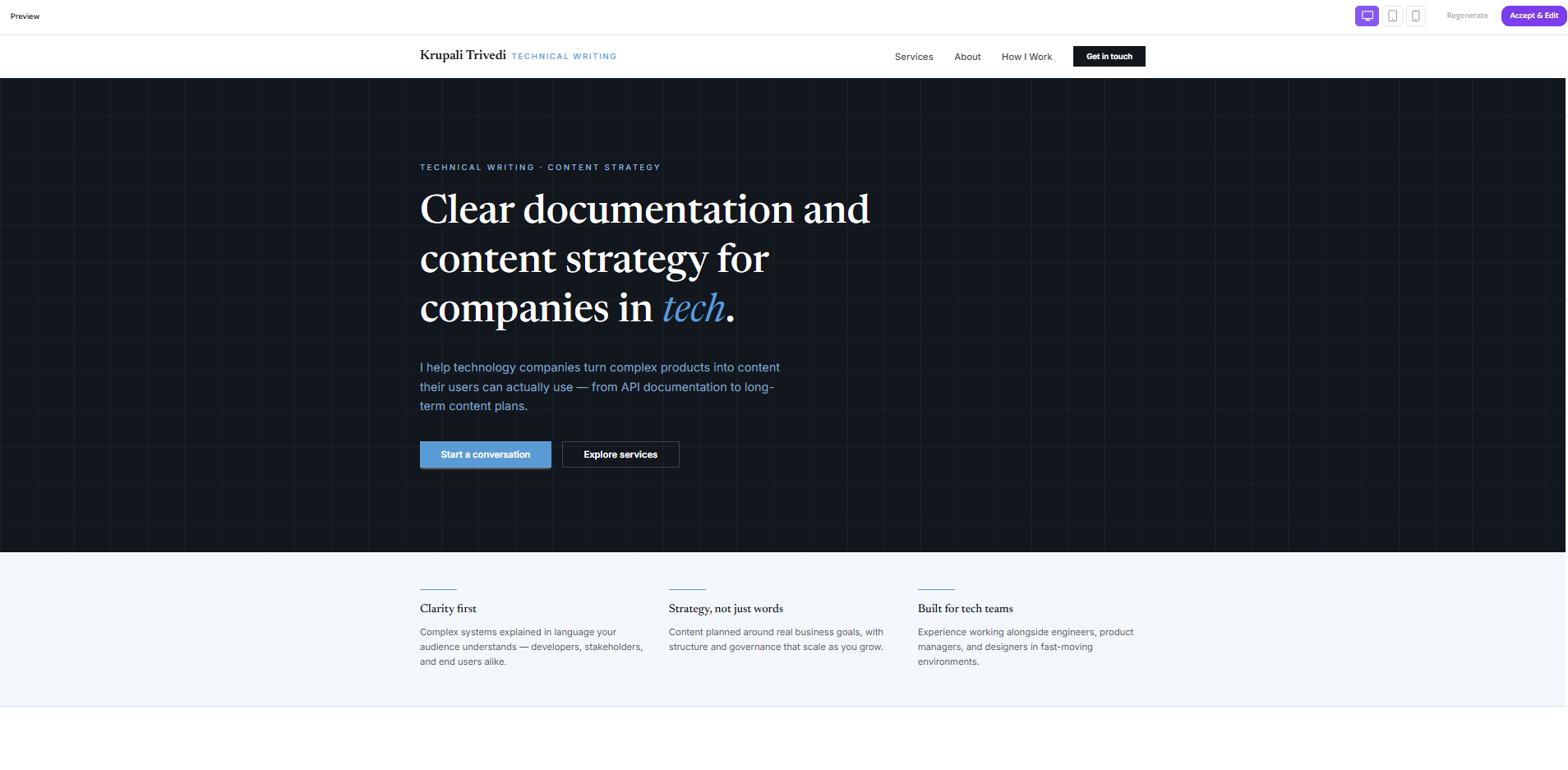
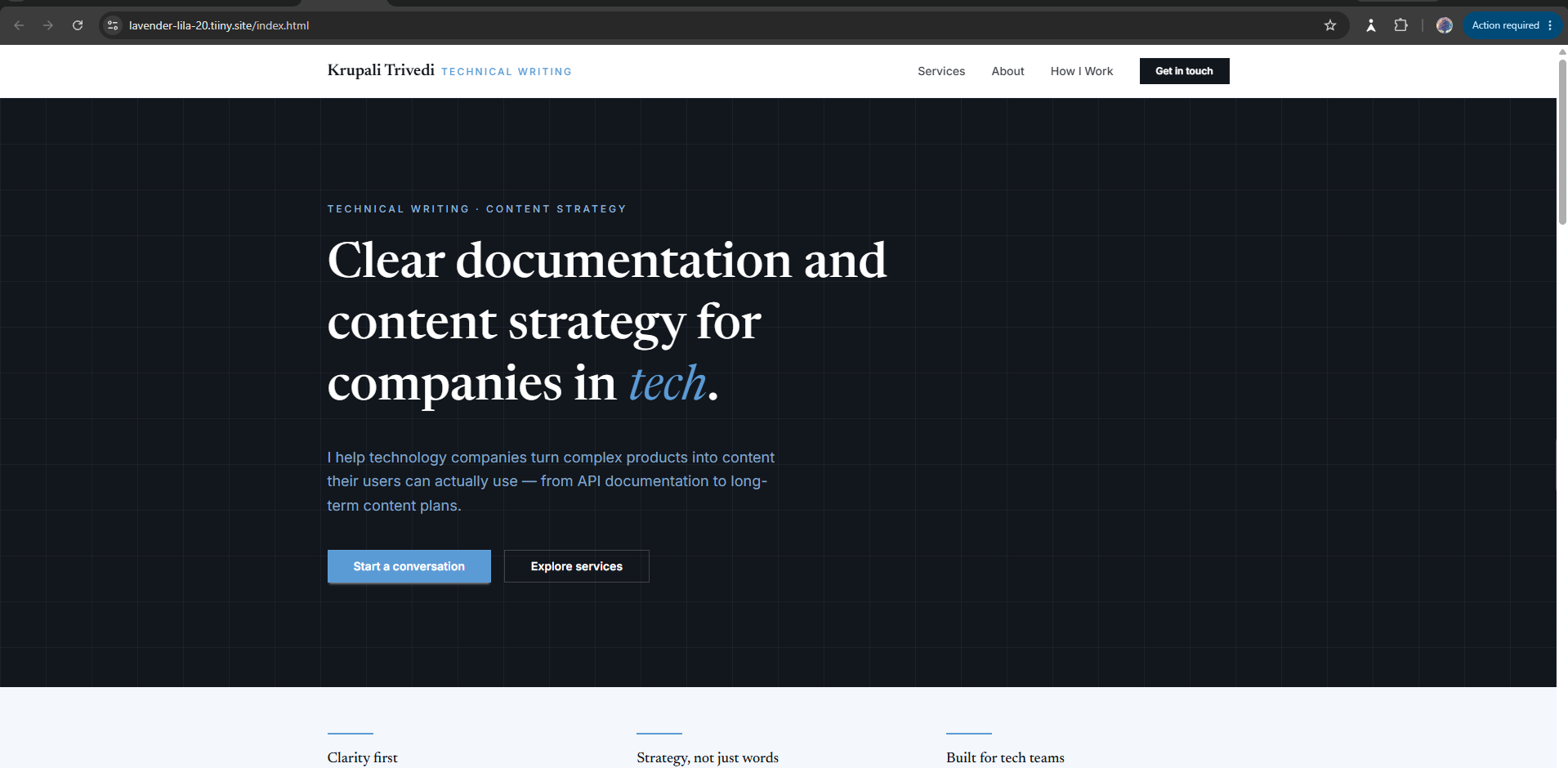
- When you “Accept & Edit”, you will be able to edit your website by selecting, using AI, or using the online code editor. You can click on “Publish,” and your website will be live to be shared with everyone.
Build your Website with Tiiny Host: Create with Custom Prompts
Now you know how you can create a website by clicking some options and getting a website that is specifically for you. Now, I also want to help you out with more customization from the start.
You do not need to work with only minimal or the same colors every time you create a website with AI. So, I set up a mission for myself to make a colorful and bright website. But I still wanted to keep the website very simple.
We will do some customizations, but not something where you have to write paragraphs.
- Visit tiiny.host/create
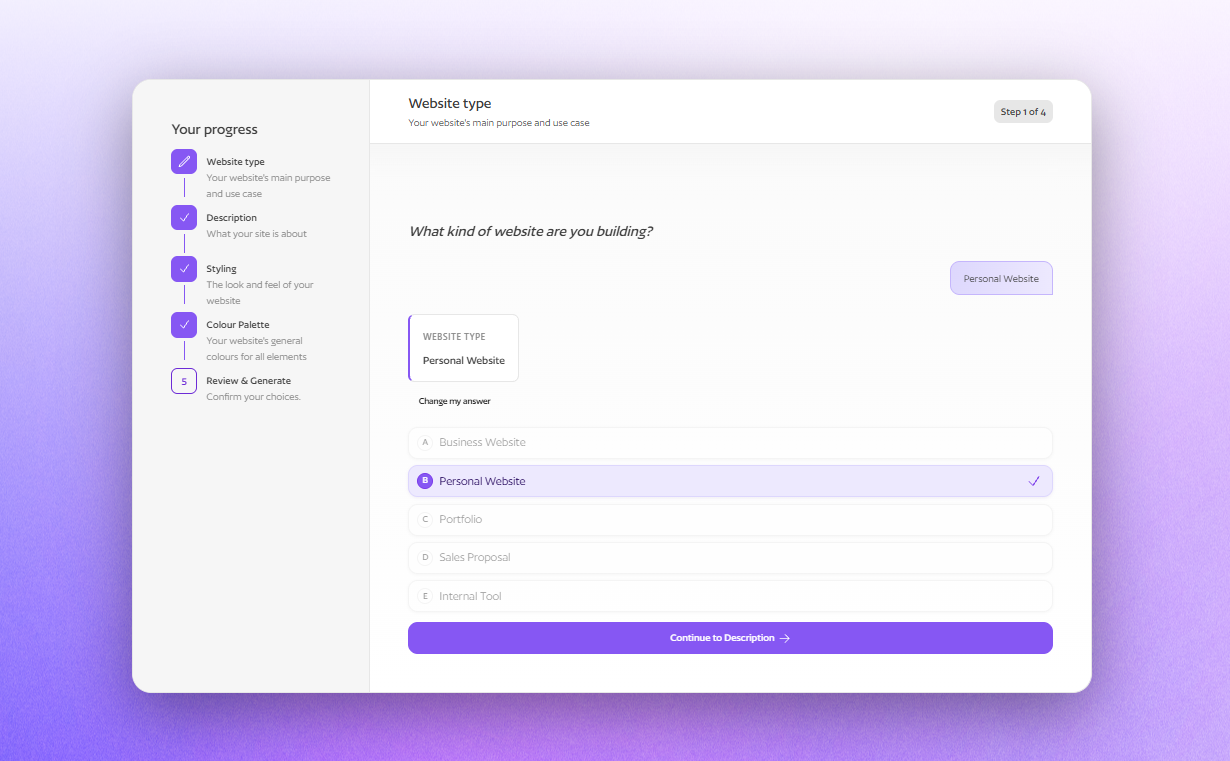
- Select the type of website you want to create. I chose the Personal Website option for this one.
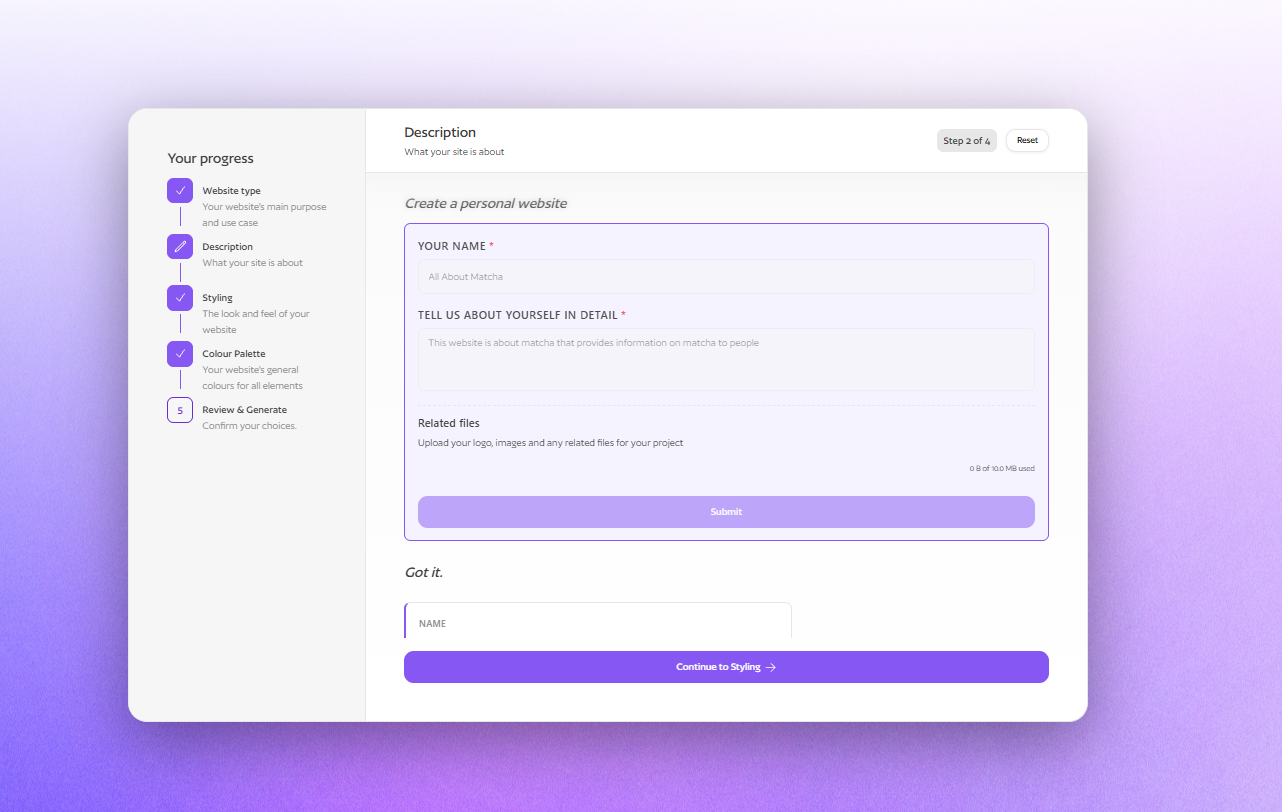
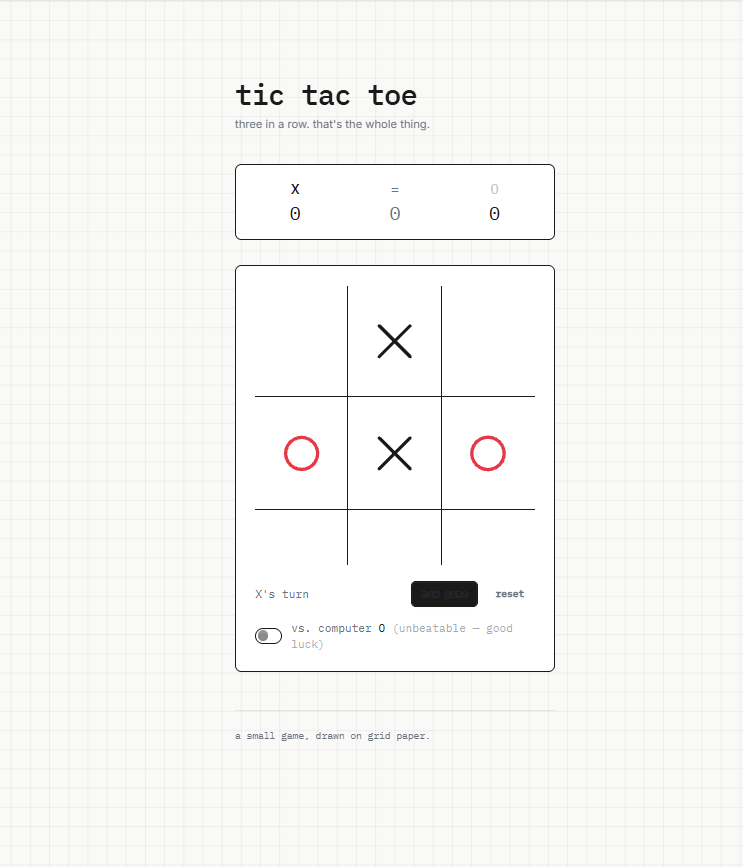
- I wanted to create a website about Matcha, so that’s why I filled in the name and description. Instead of a matcha website, you could create a game like tic-tac-toe or a website giving information about coffee, or maybe create your personal blog.
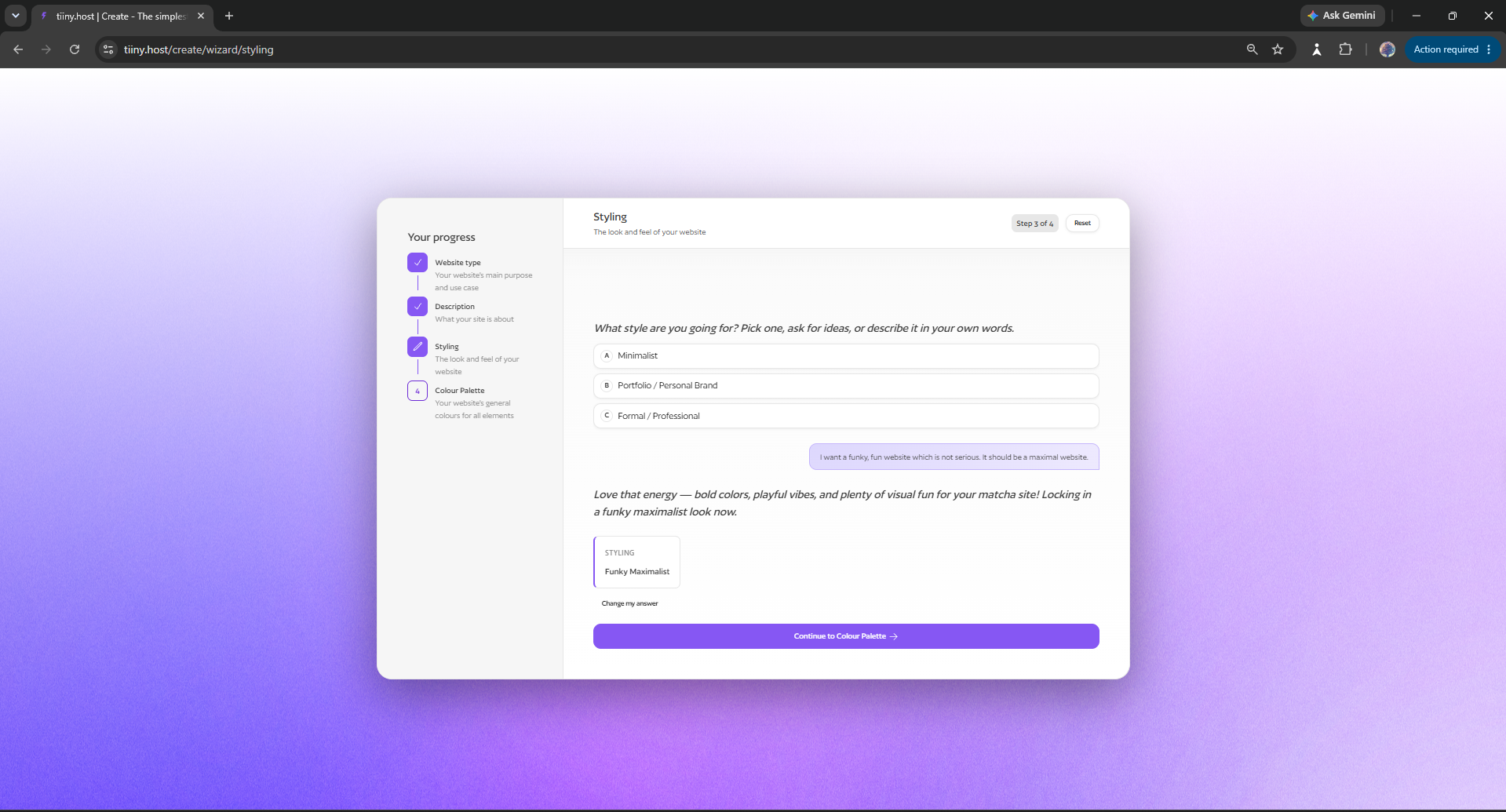
- In styling, I decided to go for a different vibe than what was in the options, so I opted for a maximal website. And with that, I wanted a funky vibe which would have bigger fonts and a lot more colors.
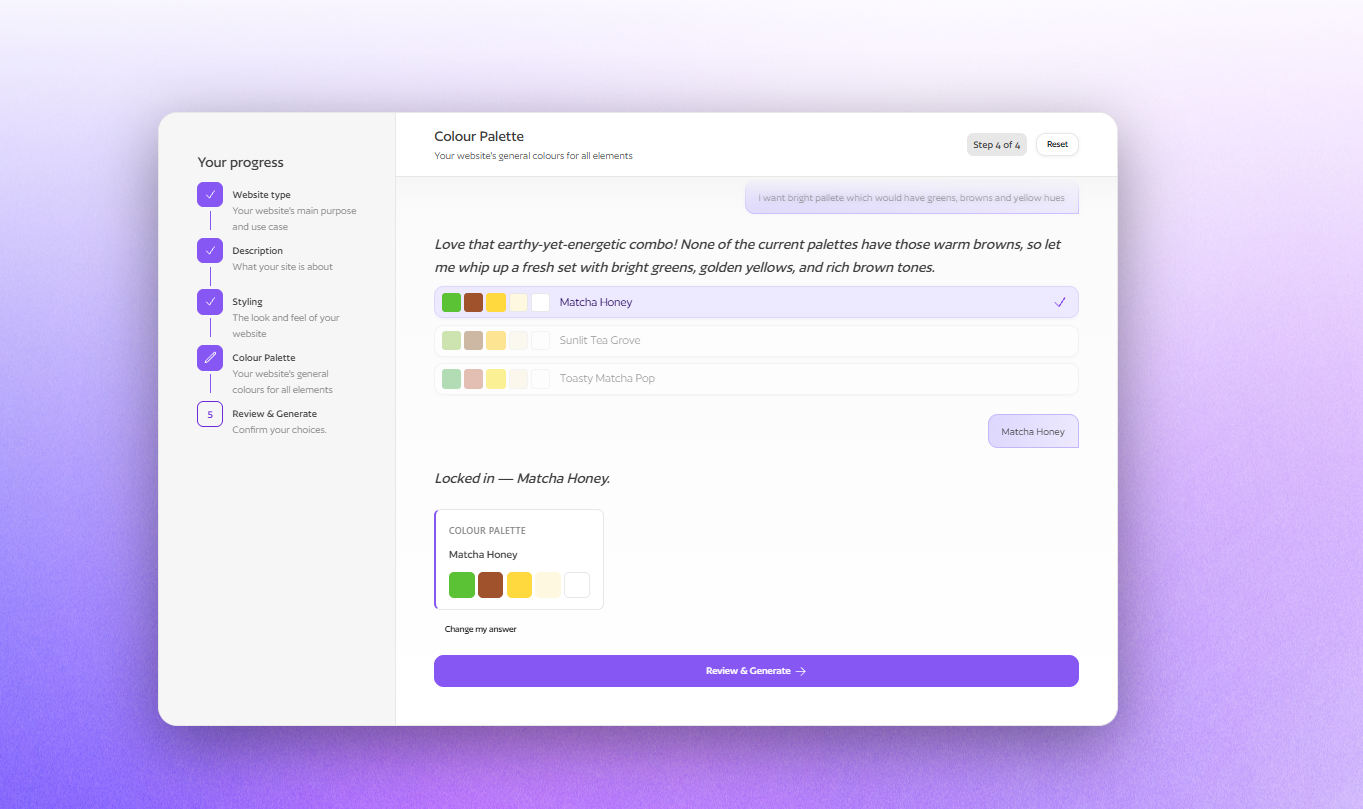
- According to the description I gave, I got some pretty good funky colors for the website pre-designed. But I decided to give my input there too, as I wanted some woody tones with greens and yellow.
- And I got the website that I actually liked a lot. The fonts were fun and attractive, and so were all the colors. It had a moving banner animation too.
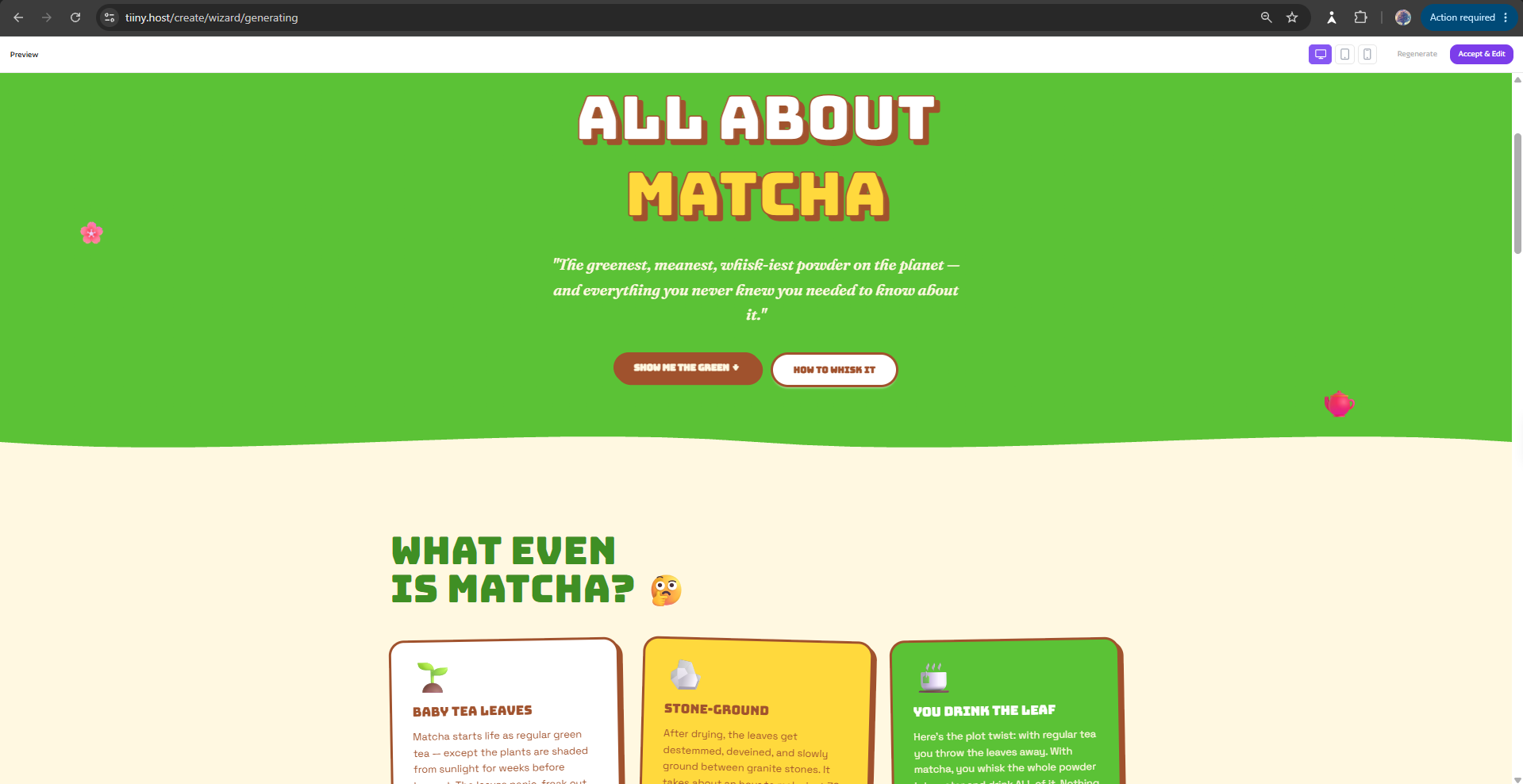
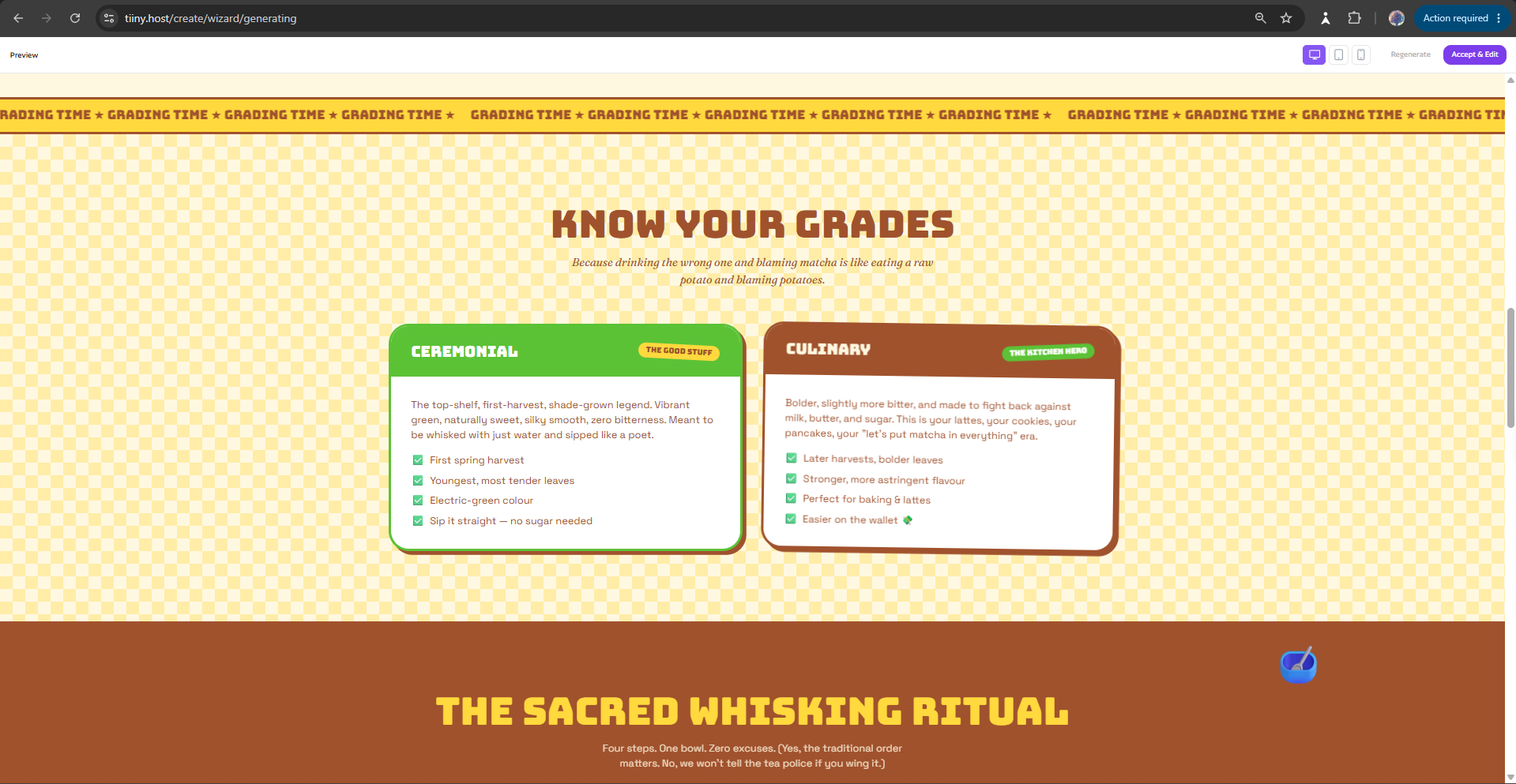
You can customize your website however you like. You can create websites, tools, and apps without any limitations. You just saw how I did it in just a few sentences. Here’s a tic-tac-toe that I made as well!
Three Ways to Edit Your Website Once It Is Generated
Once your website is ready from the wizard, you can edit it before publishing it. There are three different ways to edit the website now.
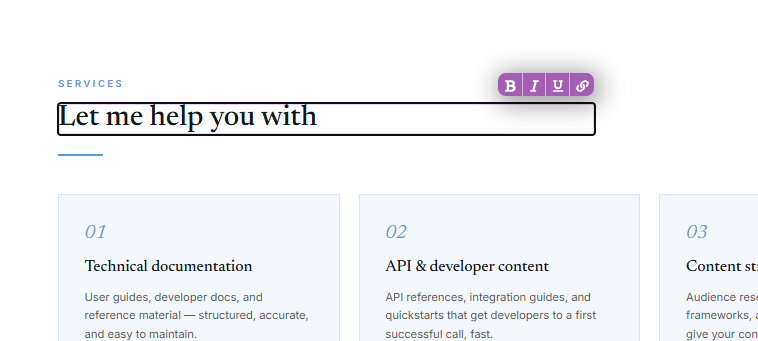
Edit by Selecting the area
Any text that you have on the website can be clicked on. You can then select and edit the text right there. This way, you do not have to touch code or AI to make changes to any website copy you have.
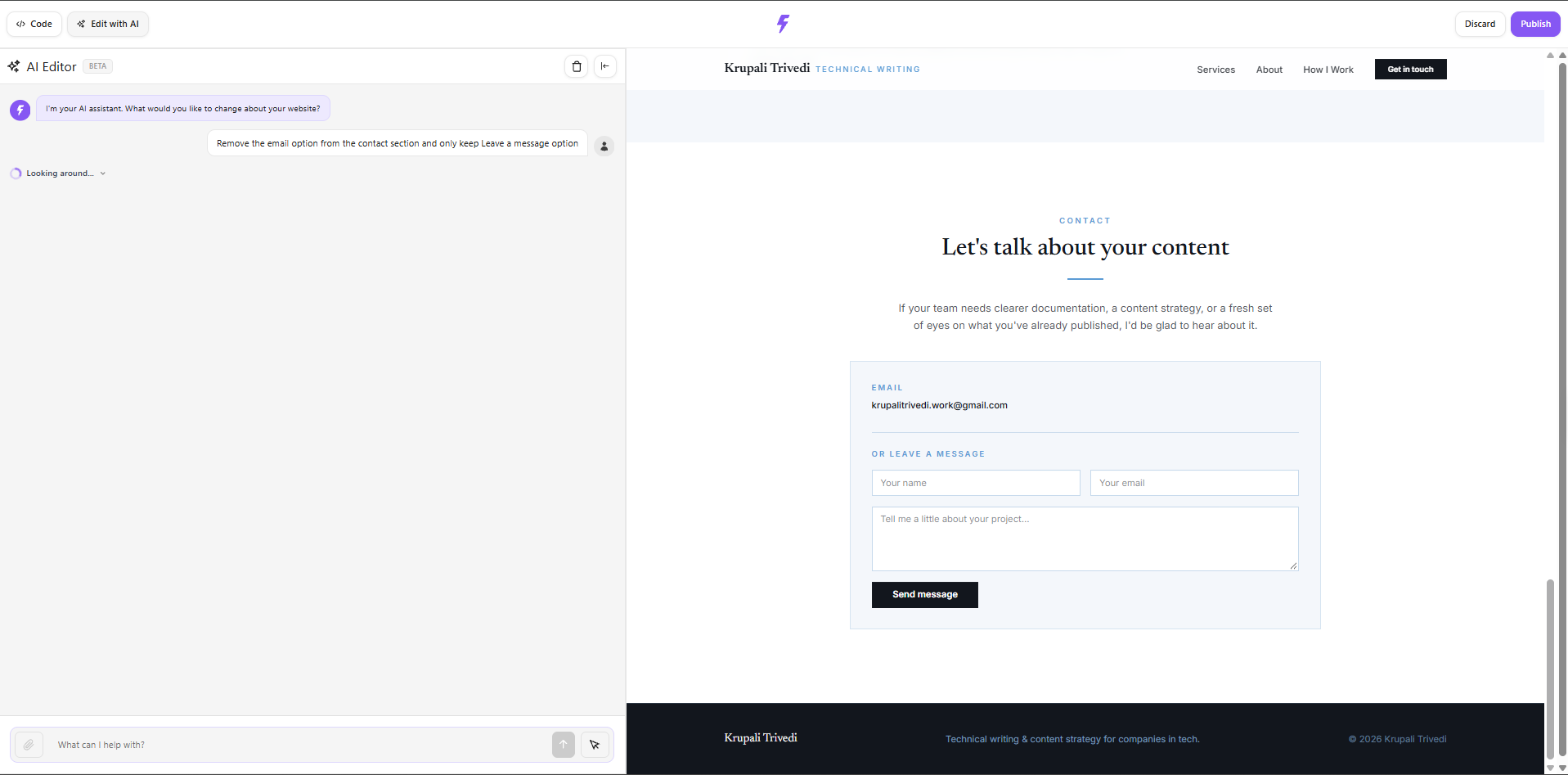
Edit using the AI
If you want to add a new section, change the layout, or try a different color scheme, you can open the AI Assistant chat and ask for the change. For example, “Add contact section at the bottom” or “Change the color of the buttons to green.”
Edit using in-browser code editor
If you are comfortable with code, you can open the code editor and make the changes by yourself. This gives you full control over every detail of the website.
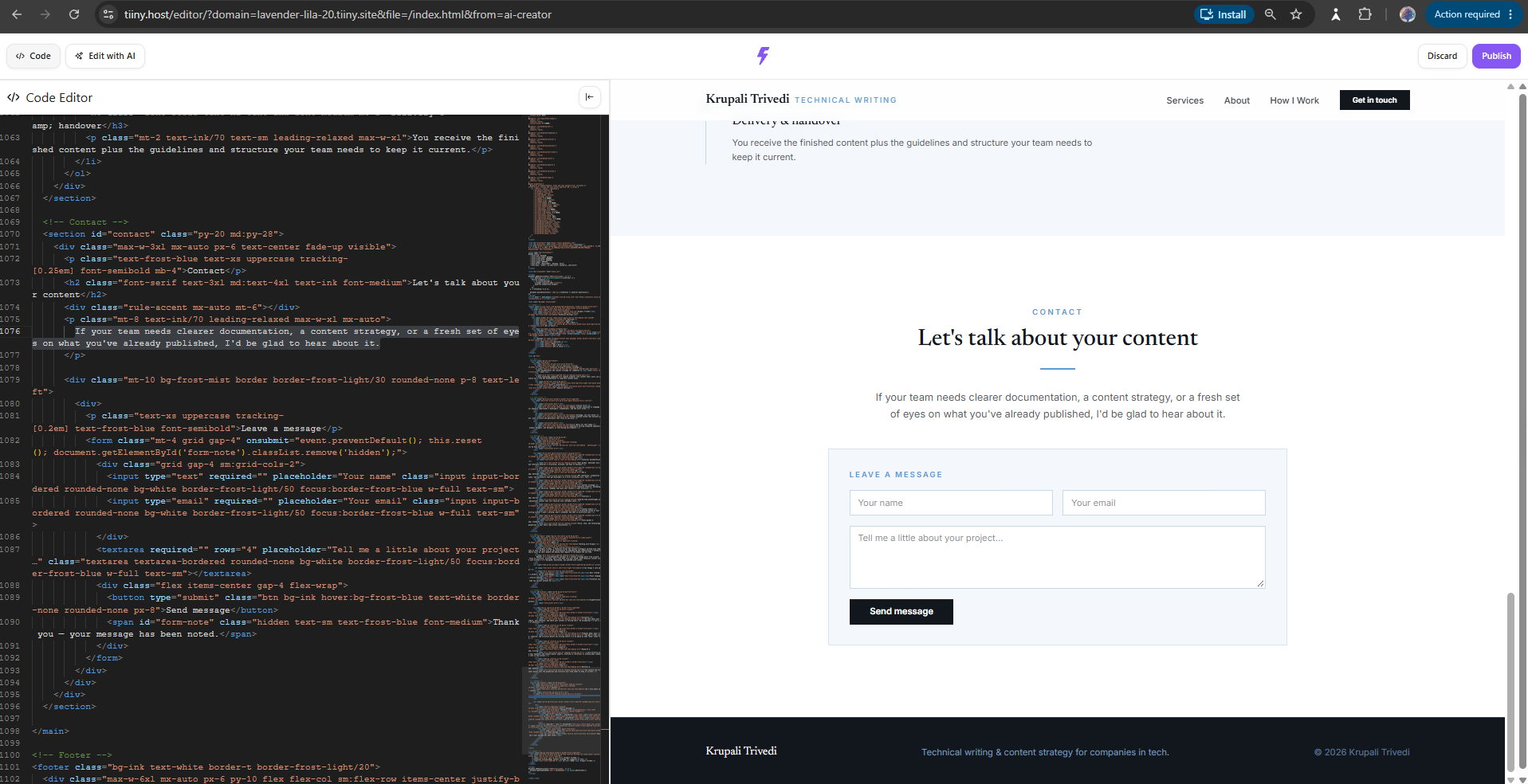
Along with the flexibility of creating by just clicking options, you can also have granular control over your website and files. You can edit everything on the website you create.
What Happens After You Generate The Website
Once your website is generated and you click Publish, your website is ready to be shared publicly. Your website will have a subdomain with a ‘sitename.tiiny.site’ address, which you can change later. You can connect a custom domain to your website as well.
You can now share the link anywhere. You can share your campaign links with followers on social media or on your business website with your potential clients.
When you publish with Tiiny, you already get free SSL, so your site is already secured. You can also add password protection to your website to make it private and control access.
You can also use our link tracking feature to create UTM links and share trackable links. All websites also have built-in analytics, so you do not have to connect any third-party integrations to the website.
FAQs: Tiiny Host Create
Is Tiiny Host Create free?
Yes, Tiiny Host Create is a free website builder for everyone. You can create a website by selecting a few options. Once your site is created, you can host it on the free plan and then switch to the Pro plan.
Do I need to write prompts to create my website?
You do not need to write long prompts to get your website when using Tiiny. You can just fill out a few questions to get the website. You can be less descriptive or give more information as needed to customize the website as per your needs.
Can I edit my website after it has been generated by AI?
Yes, once the website is created, you can edit it by selecting any text, Edit with A,I or using the code editor itself. You can even re-generate the whole website from scratch if needed.
Can I use custom-domain for the website I created using AI?
Yes, you can add any custom domain that you own or purchase custom domains to connect to your website.