
- What is an RDP file?
- Is an RDP File Safe?
- Why RDP Files Got a Lot More Scrutiny in 2026
- How to Open an RDP file?
- How to Create an RDP file
- How to Share RDP Files Safely
- Conclusion
- Frequently Asked Questions
- Tools, Resources and Next Steps
In October 2024, a state-linked group sent phishing emails carrying .rdp files to attack more than 100 organisations. With one click, the victim was connected to the attacker’s server. Normally, it is a harmless file.
RDP files save your connection settings so you can access a remote desktop just by double-clicking. If you are using work desktop at home or working on your system while travelling, you’re probably relying on Remote Desktop.
For a file that can connect you to another computer, it is important to make sure it’s safe. And in April 2026, Microsoft changed how Windows handles RDP files to make them safer to open.
This guide gives you a detailed overview of what an RDP file is, how to create one, open it securely and share it without landing in spam.
In short:
An RDP file is a text-based configuration file that stores Remote Desktop Connection settings.
- Uses the .rdp extension
- Opens with Remote Desktop Connection (mstsc.exe) when double-clicked
- Does not contain your files or desktop
- Can connect you to another computer
What is an RDP file?
An RDP file is a plain-text configuration file that stores settings for a Remote Desktop connection. It stores the address of the computer to connect to, username, screen size and which local resources to share. When opened, it launches Remote Desktop Connection and reconnects using those saved settings.
RDP (Remote Desktop Protocol) allows two computers present anywhere in the world to connect over a network. It was built by Microsoft in 1998.
The client widely used on the Windows operating system for RDP is Remote Desktop Connection (mstsc.exe). When an RDP file is opened, it launches the connection through this program. For your system too, you can make an RDP file using the same client. An RDP file is not a connection. You can consider it as a file that has all the information to make the connection. It is similar to when you want to call your friend, and you open the Contacts app, the contact number is saved there, but you click it, and then your phone carrier makes the connection for you.
The client we talked about, mstsc.exe or RDC, reads the settings here and starts the connection for you. If there were no RDP file, you would have to configure the connection yourself.
RDP files are widely used in offices that have remote and hybrid work cultures. Businesses that need virtual machines or connect to remote servers also use these files. Often, IT admins would hand over RDP files to remote workers to access their systems from anywhere else. These help the employees make their systems cloud desktops, and the employer can choose what information should be shared with remote systems.
You’ll also come across .rdp files without the admin ever making one. Cloud desktop services like Azure Virtual Desktop and Windows 365 give out pre-configured RDP files. Larger organisations route connections through RD Gateway so staff can reach machines from outside.
What is client and server in RDP?
A lot of articles mention server connection and client connection in their definitions. The client is your own system, the one in front of you and connecting from. The server or host is the machine you’re connecting to. This is where all your resources are. Using RDP, you link both of them and you reach the server from your client.
What does an RDP file look like?
RDP files are plain text files and you can view them in Notepad or any other text editor to see the settings. Opening it in text editor doesn’t start a connection though.
Here is an example of what an RDP file looks like when opened in Notepad. This is the one generated through the Remote Desktop Connection client on my system to start a remote session.
full address:s:computer.test.com      ← the computer you're connecting to
username:s:abcd                        ← the account you'll log in as
desktopwidth:i:1920                    ← screen width of the remote session
desktopheight:i:1080                   ← screen height
redirectclipboard:i:0                  ← share clipboard? 0 = no, 1 = yes
redirectprinters:i:0                   ← share local printers?
redirectsmartcards:i:1                 ← share smart cards?
drivestoredirect:s:                    ← which local drives to share (empty = none)
authentication level:i:2               ← how strictly the server's identity is checked
prompt for credentials:i:0             ← ask for password each time? 0 = no
Here is a simpler version of the file to understand it better. Every line has three parts split by colons. First is the setting name, followed by a letter that defines the type of value, and the value.
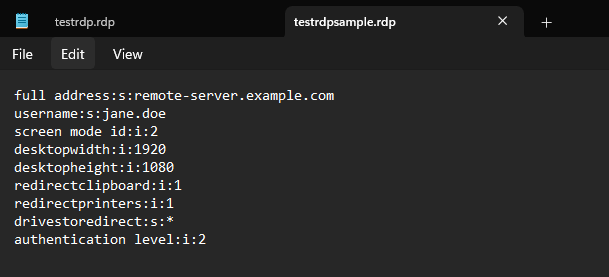
The setting will generally be the name of the item to be shared, like full address or username. You can also see settings like desktopwidth and desktopheight, which state the resolution to be shared. Then there are redirect options which include the clipboard, printers and drives to share these resources.
The letter can only be of three types in the RDP file:
- String (s)
- Integer (i)
- Binary (b)
You will see string and integer used the most, while binary is often written by the system. The integer used for redirects would be 0 or 1, which acts like a toggle switch, turned off and turned on.
You do not need to remember these, as you do not actually have to write the file; it is auto-written through the graphical user interface. We will dive a little deeper into this in the How to Create an RDP file section.
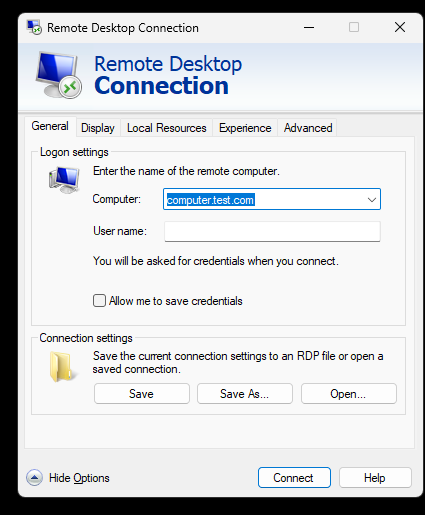
There are other settings too, which can be configured from the RDC dialogue box or by manually configuring them.
Notice that there’s no password line here. If you choose to save your password, Windows encrypts the password and ties it to your specific account and device. So if it is opened anywhere else, it won’t work.
Is an RDP File Safe?
Usually, yes it is. The only condition is you know who sent it and that it was sent in a safe way.
If you made the file yourself or it came from your IT administrator, it is safe to open. If it came remotely from someone you do not trust, it can be a phishing attempt. If someone you just got introduced to sends you an RDP file, it might become part of a larger scam.
An RDP file saves settings so your computer can connect to another one. If the other computer belongs to an attacker, opening the file connects your system to their server. In 2024, a state-linked malicious actor sent .rdp files to target people across more than 100 organisations. We break down how it worked in the next section.
The rule is simple: don’t open an .rdp file that arrives randomly through an email or any other channel which isn’t verified.
Why RDP Files Got a Lot More Scrutiny in 2026
A major security fix was made to Remote Desktop in April 2026. Before 2026, whenever an RDP file was run, the connection was made directly without any warning. That absence of warning laid the groundwork for malicious actors to take advantage. In 2024, a state-linked phishing campaign used .rdp files to breach more than 100 organisations.
Exploitation of RDP files: Midnight Blizzard (October 2024)
An RDP file isn’t malware. It carries no code that can run on your machine. A malicious RDP file can only help the attacker when it is run successfully on the victim’s computer. The attackers might write RDP files that connect victims to their own servers.
In 2024, a threat actor attributed as Midnight Blizzard (also identified as APT29, Cozy Bear and UNC2452 by various security vendors) launched a spear-phishing campaign on more than 100 organisations in government, defence and academia. These emails were created to look like they were associated with Microsoft, AWS, and the government. The files looked like harmless configuration files and also came with a Let’s Encrypt signature.
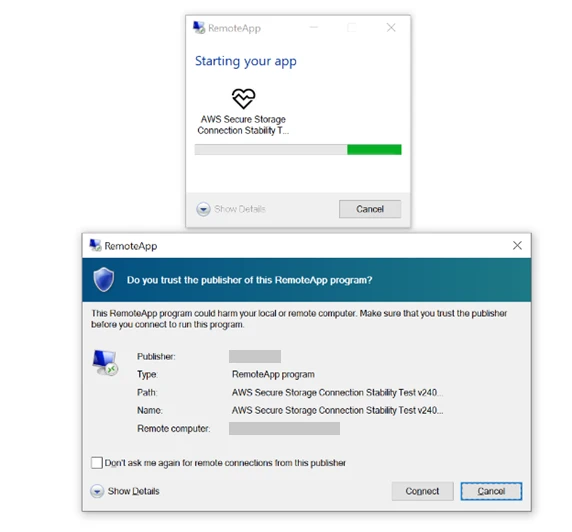 Source: Microsoft’s report on Midnight Blizzard’s phishing attack
When opened, the victim’s system got connected to attacker-controlled servers. The attackers’ motive was to redirect local resources such as local drives, clipboards, printers, microphones and folders.
This incident was covered by Microsoft, Amazon, Google and CERT-UA as well, depicting the severity of the incident.
After the incident, the US Cybersecurity and Infrastructure Security Agency, CISA also advised governments to restrict outbound RDP connections. The advisory also mentioned that the RDP files being sent through email should be stopped as well.
The April 2026 Windows Security Update
The April 2026 Security patch changed how Remote Desktop Connection handles every RDP file. On Windows 11, the changes were shipped as KB5083769 to address CVE-2026-26151. The security patch was also shipped to Windows 10 as KB5082200 as part of the Extended Security Updates program, as Windows 10’s standard support was revoked in October 2025. Under this update:
-
Educational Warning for first-time users.
Whenever someone opened an RDP file for the first time, Windows displayed a dialogue box explaining everything about RDP. -
Every connection came with a security review.
The connection doesn’t happen without a warning anymore. Whenever an RDP file is opened, you can see:- The destination address
- Whether the file is signed
- Who signed the file
- Every local resource the file wants to share
-
Local resources are disabled by default.
When you try to make a connection, you explicitly have to check the box for the resources you want to redirect. -
Unknown publishers receive a prominent warning.
There is a distinction between signed and unsigned RDP files. Users can see a warning like:
Caution: Unknown remote connection
It also flags unknown publishers. These warnings do not particularly say that files are malicious, but they just indicate that the files are not signed by the creator. -
Signed RDP files show the publisher.
The signed RDP files do not come with a warning, but they come with the name of the publisher and a confirmation that the file hasn’t been modified since the last change.
In addition to this, Microsoft also added controls that let organisations categorise trusted RDP publishers using their Group Policy.
If the files are so sensitive, the way to open them (without running them) and share them should be secure too. Let’s look into that.
How to Open an RDP file?
There are two ways to open an RDP file.
- Double-clicking it (which shouldn’t be your immediate action, especially if the file is not from a trusted source).
- Right-click it and open it with Notepad.
When you double-click an RDP file, the Remote Desktop Connection app will start executing the file to establish the connection. If the connection is sent by a malicious attacker, your device may become prone to attack.
With the new security update for RDP files by Microsoft in April 2026, there are some warnings you get before the connection actually happens. Here’s what happens when you open an RDP file:
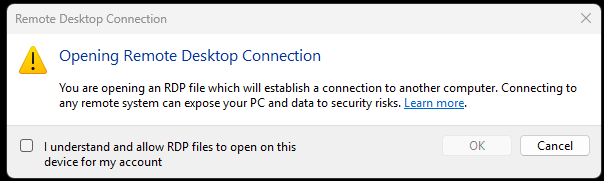
- When Windows launches the remote desktop connection, you get a warning pop-up. This pop-up gives you a warning on what will happen when you click on OK. If you want to open the RDP file, you have to click on the checkbox and then on OK.
- If the RDP you are opening is not digitally signed, you will receive a pop-up like below. As the RDP is not signed, there is no way to verify who sent the file or if it is legitimate. If you are sure who sent the file or you sent it to yourself, you can connect further.
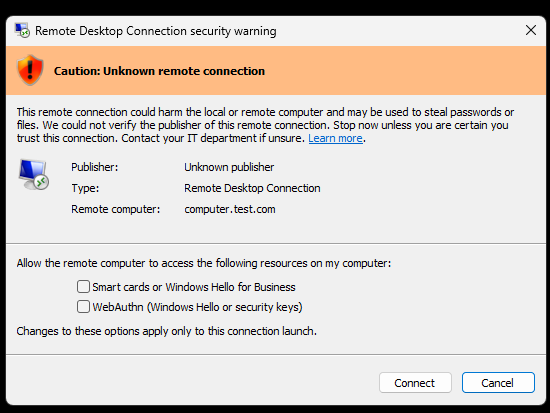
Also, the Smart cards, WebAuthn and some other settings are not shared by default anymore. You have to give permission manually for them to be shared. - If RDP has been digitally signed, you should always double-check the identity before going ahead. If it is by your company or IT cell, you can verify it with them.
- You can manually choose which setting or resource you want to share.
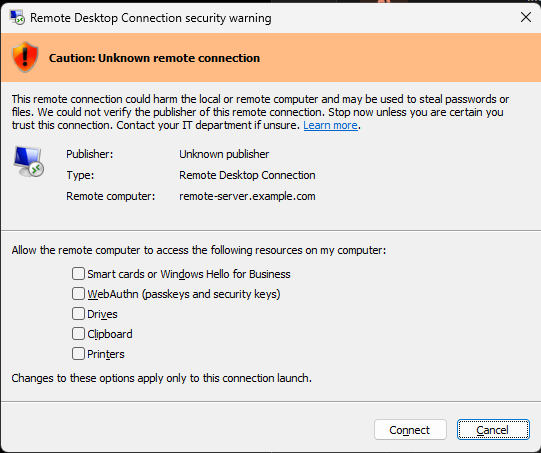
- Once you are done with the security prompt, it starts an encrypted connection.
- You will get prompted for credentials if needed. For the new Windows version, you need a username and a password. These are the ones you use to access your computer when you are in front of it or are provided by your IT admin.
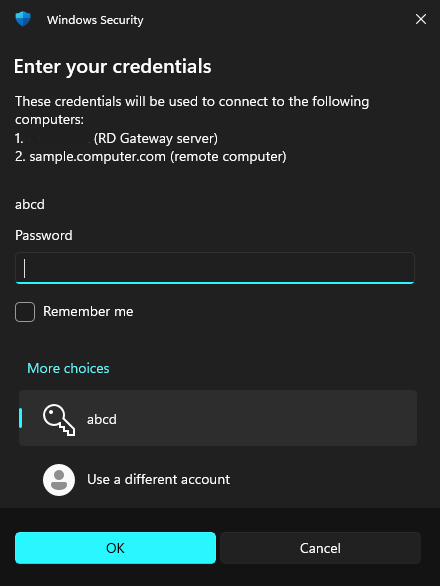
- Once it is entered, you will be able to connect to your remote computer.
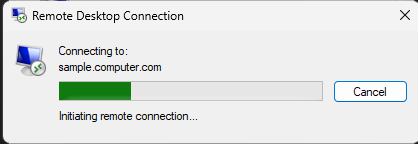
Most Windows devices have the Remote Desktop Connection application installed by default, so the files would open easily.
Opening an .rdp file on Mac
On your Mac, you can install the Microsoft Remote Desktop app from the Mac App Store. Once installed, you can double-click the .rdp file in the Finder or drag it in the Remote Desktop app.
Few Windows-only options will not apply when the file is opened on a Mac.
How to open RDP files without the Remote Desktop Connection software
If you are using Windows, RDC is the default program for opening RDP files. If you are not using Windows, though, you might wonder whether you can open an RDP file without RDC.
On other operating systems, you can install applications or use open-source software. Even on Windows, some people might choose other apps for desktop sharing.
Here are some options that you can use:
| Platform | Common RDP Clients | Supports .rdp files? |
| Windows | Microsoft Remote Desktop Connection (mstsc.exe) | Native support |
| Windows | Remote Desktop Manager (Devolutions) | Can import and launch .rdp files |
| Windows/macOS | Royal TS | Can associate with and import .rdp files |
| Windows | mRemoteNG | Supports RDP sessions and is commonly used to manage RDP connections (can import RDP settings through management workflows) |
| Linux | Remmina | Supports Microsoft RDP using the FreeRDP backend |
| Linux/Windows/macOS | FreeRDP (xfreerdp/wfreerdp) | Can use the settings stored in .rdp files and provides an open-source RDP implementation |
| Windows/macOS/Linux/iOS/Android | Devolutions Remote Desktop Manager | Cross-platform RDP client supporting multiple RDP engines |
Safety measures to take care of when opening an RDP file
- Always confirm who sent it before you download or open it: If you have not saved the file directly or the file wasn’t sent to you in your physical presence, it is always good to clarify with the sender if they sent it.
- Read the warning dialogue box: You get to see the destination address when you open the file. If the file is signed, you can see the publisher’s name. Check that it matches and then open. Always double-check that you are not giving access to “look-alike” addresses.
- If the file doesn’t open, don’t edit it: If your system shows that the file is corrupted or flags it, make sure you don’t open it. You can ask the sender to send another one instead.
- Don’t assume a valid signature is a safe connection: If the RDP file is signed, it gives no warning, and yet, it can be a fake name or a look-alike.
As long as you keep in check with the safety measures, you will be safe from any potential risks and scams.
How to Create an RDP file
There are two ways in which you can create an RDP file. One is by using Remote Desktop Connection (mstsc.exe) or by writing a text file. By using the RDC graphical interface, you can create the file without having to write anything manually, and it works most of the time. IT admins and companies might need to write some files because they have advanced configurations to set.
Keep in mind that creating a file doesn’t mean you are setting up a server or client. It just means you are creating a file.
- If you are an IT admin or have control of host computer, you might make RDP files for employees.
- You can create an RDP file at your office computer and carry it to your personal system. You can contact someone from the IT team as well to help you create it and take it home.
The .rdp file saves the instruction for reaching the destination computer. It doesn’t open the connection itself and the file is portable.
In this tutorial below, I will explain how you can create a server (remote computer) and then create an RDP file to share it later to reach to this remote computer.
Setting up the remote computer or Server
This is the machine you want to connect to, the host. You may have accessed this computer in your office. If you are already working remote, you do not need to set this up or need to create an RDP file at all. You can just check the steps on how to open it.
On the computer that you want to connect to (the host), do the following:
- Go to Settings -> System -> Remote Desktop
- Turn the Remote Desktop on and confirm. This allows the computer to accept the incoming connections.
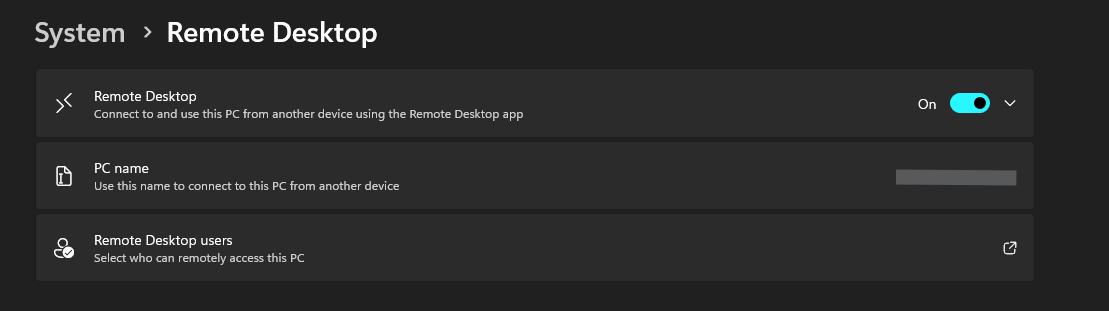
- Just below that, you can see the PC name that can help you connect with the PC. Note that down. You can also use your IP address to connect to this PC. To get your IP address, open Command Prompt and type ‘ipconfig’ and take the IPv4 address.
Setting up a remote desktop requires you to have Windows Pro, Enterprise or Education plan. You cannot get your computer to work as a “host” on the Home edition.
Note: If you use the PC name or the IPV4 address, it will only work if you are on the same network. If you need to reach the host from somewhere else, you usually have to use VPN to be on the same network. This also keeps your connection safe and private. Alternatively, companies set up Tailscale or ZeroTier for safe access.
For users who want to understand how consumer VPN services perform in real-world testing, cybersecurity resources like Cybernews cover VPN security and privacy topics, including Surfshark’s tested results that compare features, security practices, and performance considerations.
Your host computer has to remain powered on and reachable on the network, either on the same LAN/WIFI or over a VPN if you’re connecting from somewhere else.
Creating an RDP file using Remote Desktop Connection (mstsc.exe)
Once you have set up the host computer or if you want to share your desktop from work remotely, you can use .rdp file to save the connection settings and use it later whenever you want to access the computer. You can use the GUI of Remote Desktop Connection or write the file yourself.
- On your laptop, press Windows + R
- Once the dialogue box opens, type in
mstscand click “OK”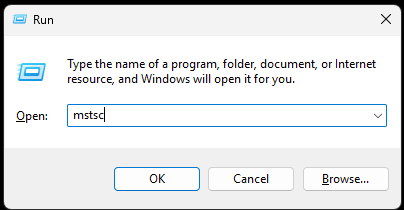
- This will open the RDC application.
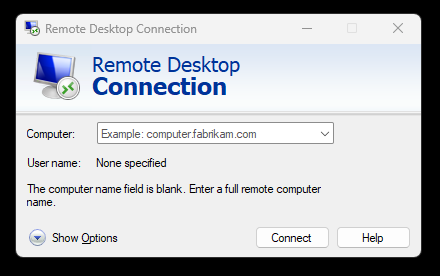
- Click on the “Show Options” button, and we will start entering the information now.
In the General Tab, you write the computer name. It can be IPv4 address and the PC name you find in your Settings.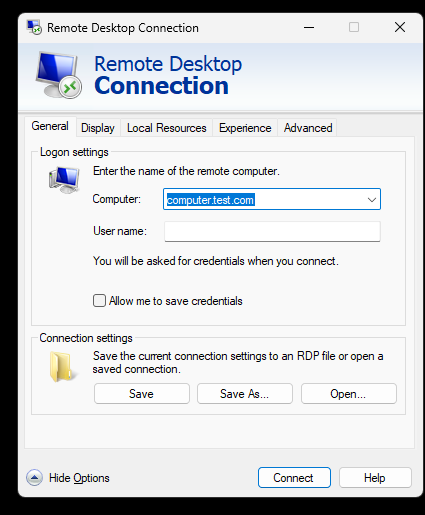
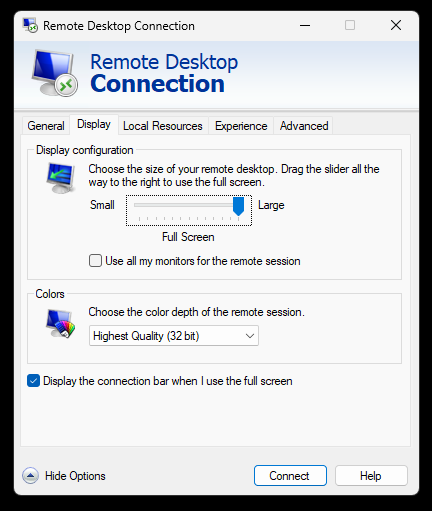
- You can then go to the “Display” tab to select the display configuration. This is the screen size in which your desktop opens when accessed remotely.
- In the “Experience” tab, you configure what the desktop will look like remotely according to the network.
Make sure the option of “Persistant bitmap caching” and “Reconnection” are turned on. That will help you have a smoother experience browsing on the remote machine.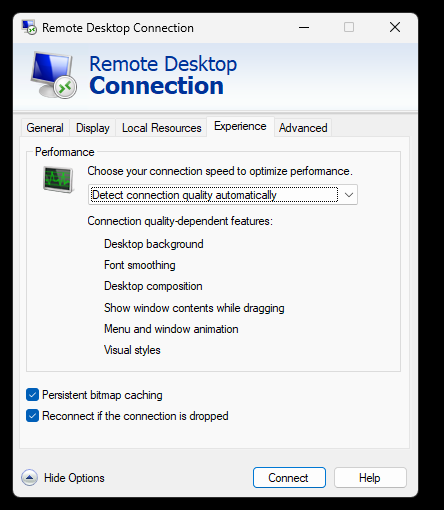
- Finally, go back to the “General” tab. From the “Connection settings”, choose Save As and save your RDP file.
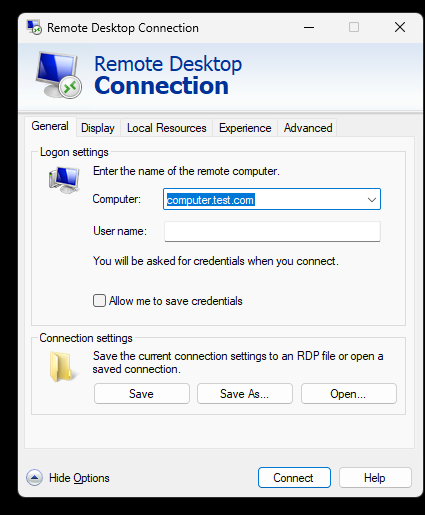
That’s it! You now have a file which you can share with your remote employees or share it with yourself to use later. The file stores the address and if you set one, the username but not a usable password. Each person who opens it signs in with their own login.
How to Share RDP Files Safely
After the incident of 2024 and a lot of reports with the Cozy Bear incident, most mail providers have been flagging .rdp attachments. The file usually ends up in spam. Organisations and businesses have stopped the practice of sending RDP files via email. If it bypasses the organisation’s filters, the email providers might flag them as suspicious.
If you send an RDP file, your file may not reach the recipient. Here are some other ways to actually share the files more safely.
| Method | Trust signal to the recipient | Password protect | Expire or revoke | Setup effort |
| Email attachment | None. Looks identical to an attack | No | No | Lowest |
| Chat upload (Slack, Teams) | Some, if the channel is already trusted | No | Limited | Low |
| Generic cloud drive link | Low. Unbranded, permission prompts | Sometimes | Sometimes | Medium |
| Signed file (IT-distributed) | High, but needs a certificate and process | N/A | N/A | High |
| Hosted, password-protected link | High. Branded URL, no surprise attachment | Yes | Yes | Low |
| Sharing through USB or physical transfer methods | High, if the USB or drive is handed in person | Sometimes | No | Medium |
The safest way to share an RDP file: Host it, don’t attach it
If you run IT at scale, the right move for you is to sign your RDP files so that the publisher name shows up cleanly for everyone. (Read more in For IT Teams section below) Also, your employees and receivers should know what the publisher name is exactly, so they don’t log into .rdp files with names that look similar.
There are a lot of small businesses and small teams who might want to use Remote Desktop Connection as well. They might not be able to get enterprise-level plans from Microsoft. When employees, outsourced contractors and freelancers have to get this file, they might worry about the security.
Email is the widely used way to share files in professional settings. It may be possible that your file doesn’t reach the receiver because of spam filters as you attach .rdp files. Even CISA suggested that .rdp files shouldn’t be sent over email.
And even if a raw .rdp reaches, the recipient has no way to tell the difference between a safe or malicious file. That was a part of how the Midnight Blizzard attack worked.
Hosting the file can become the answer to these problems. With platforms like Tiiny Host, you get a branded link and you also password protect it. Let me show what we can do here.
- Once you have your RDP file/s, go to tiiny.host
- When you sign up, you will reach the dashboard
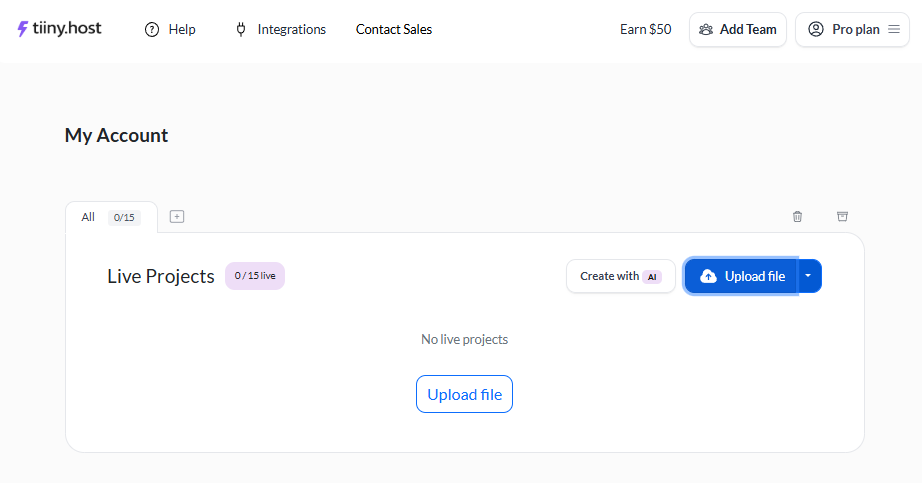
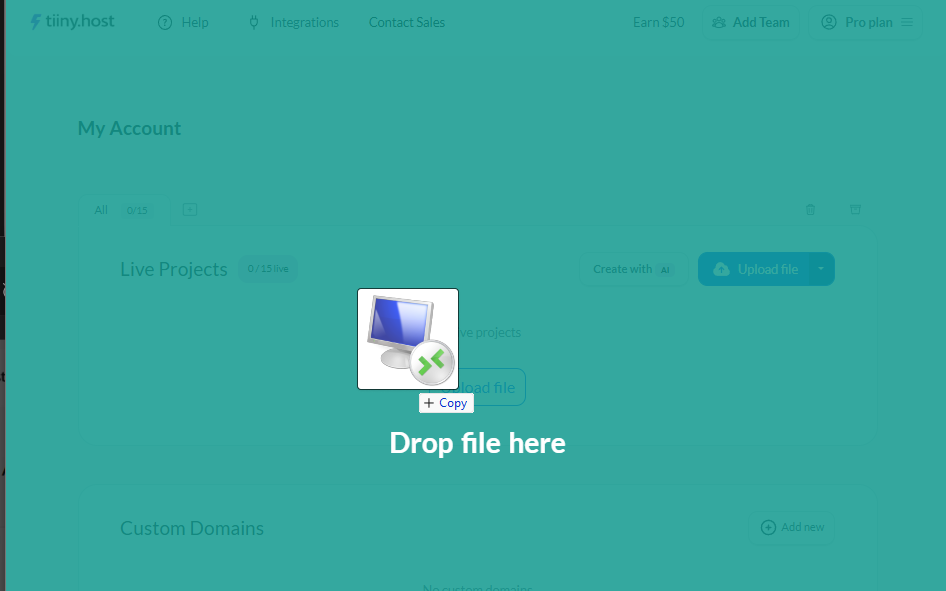
- You can drag and drop (or manually upload) your file here. If there are multiple files, zip them in one.
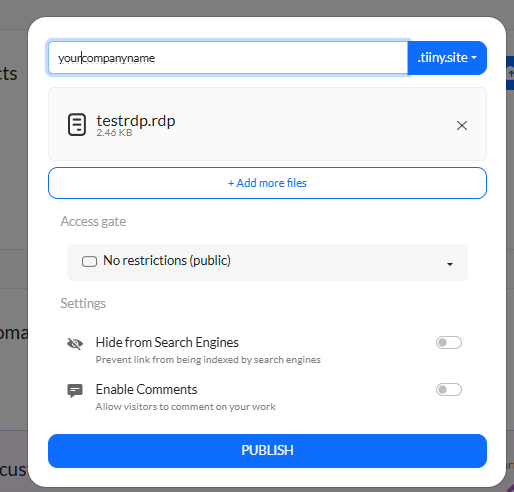
- Once uploaded, you can give a custom name for the link to get custom subdomain. You can also connect your custom domain name if you prefer.
- In the same dialogue box, you can also see “Access Gate”. When you open that, you can turn the file into a ‘password-protected’ file.
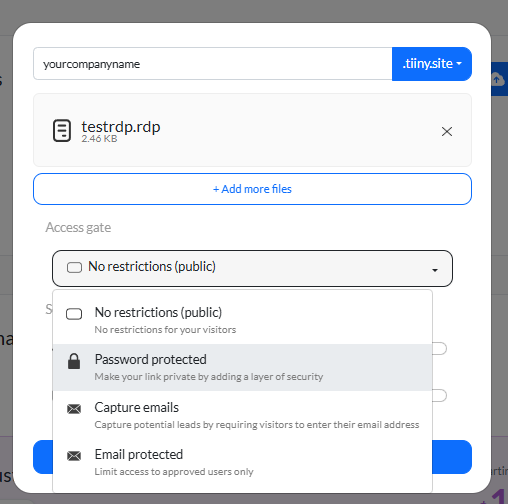
- Set a password you like which you can share with the recipient later.
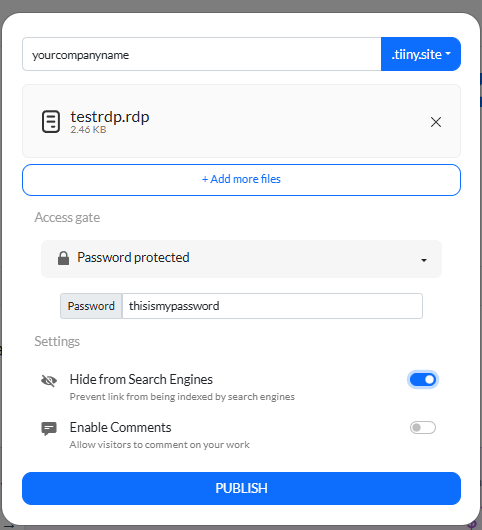
- You can just hit publish then and your files will be online.

The first signal of authenticity is the branded URL that you can share personally on chat or email, too. The recipient can open the URL on any device without having to download it.
Second, you set up a password for your file which is shared between only the sending and receiving parties. When they open the link, they will see a page like this.
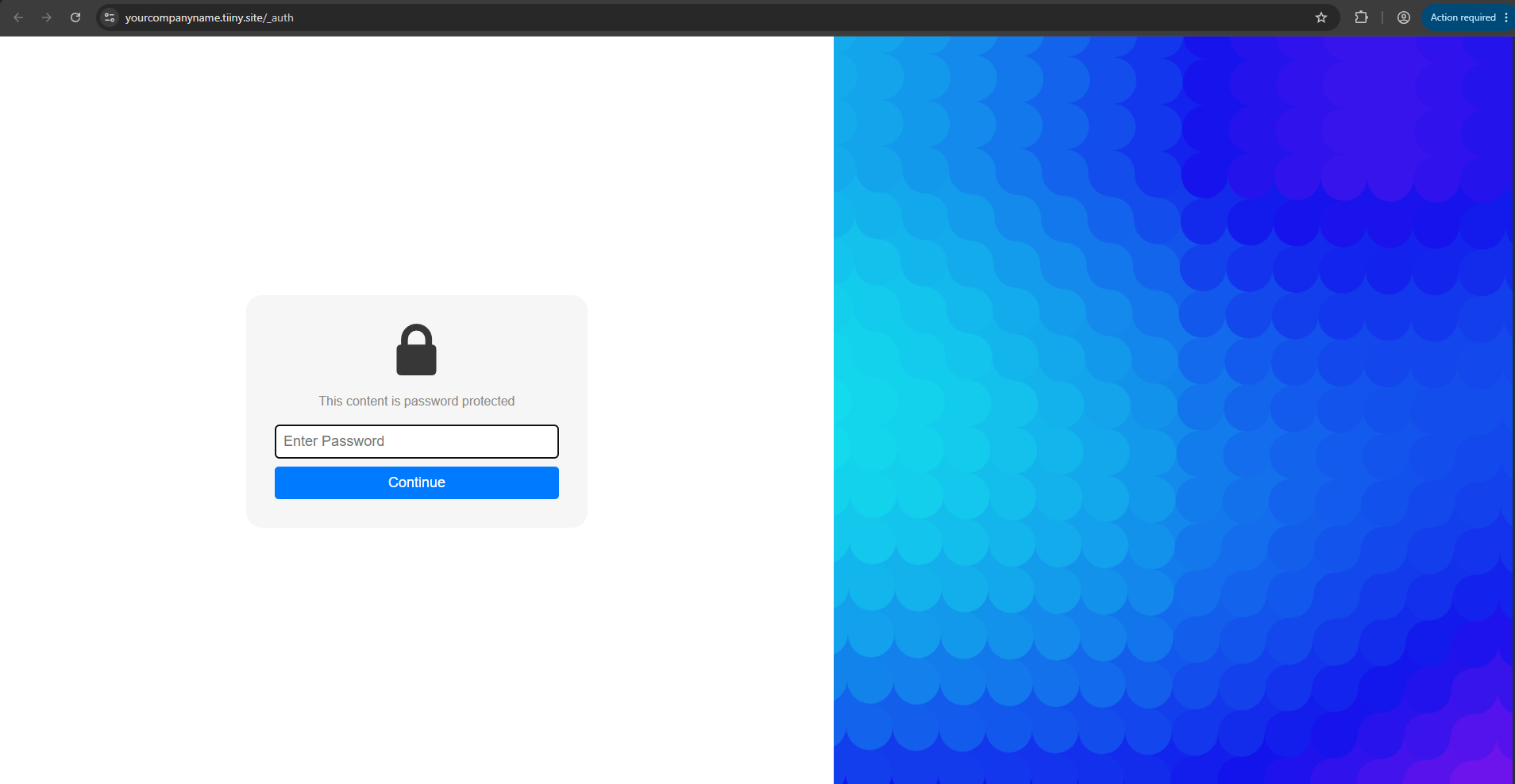
When they enter the password, the file doesn’t get automatically downloaded. They have to manually click and download it.
You can also revoke the access, take the file down or change the password, once the work is done. This way, even if someone tries to share the link again, they cannot access the file.
For IT Teams: Signing and Distributing RDP Files at Scale
If you hand out .rdp files without signing them, the April 2026 update will throw a warning which the receivers will have to click through. To sign your files, you need a code-signing certificate. You can obtain it from authorities like DigiCert or Sectigo. If you are only signing to share within your own managed computers, you can use a self-signed certificate.
A temporary fix to escape the warning is to bring back old dialogue box. You can do this by adding a registry value RedirectionWarningDialogVersion and setting it to 1 under HKLM\\Software\\Policies\\Microsoft\\Windows NT\\Terminal Services\\Client. Once done, you can push it out through Group Policy. Keep in mind though, this is just a temporary fix till you get your signature certificate.
Microsoft has already said that this setting will be removed in future updates, so this is not the best way.
The safest fix to this is to sign your files. Windows has a built-in tool called rdpsign.exe for this. Once you have a code-signing certificate, you can sign your files using:
rdpsign /sha256 <thumbprint> connection.rdp
(Ensure you remove spaces from the thumbprint otherwise it won’t work.
After signing the file, you deploy the certificate’s thumbprint to the Trusted Publishers policy through Group policy. When you deploy this, every managed computer trusts the files you have signed. Your users won’t see the warning and the publisher name shows up cleanly.
If you edit a signed file, the signature breaks and people will see the warning. So, always sign them at the end.
When a file is signed, it removes the issue of “Unknown Publisher” but it does not mean connection will be safe. So if you don’t know the publisher, you shouldn’t connect.
Conclusion
An RDP file is a really useful one for small teams, businesses, and even enterprises. It’s a small text file that saves you from typing connection setting every time you want to connect to your remote desktop.
RDP file was used in 2024 to carry out a major phishing attack and since then, Windows has been making Remote Desktop more secure. Since the April 2026 update, every unsigned file shows warnings.
- An RDP file stores its settings in plain text. If you feel suspicious about a file, you can right click and open it in Notepad, and it shows where it points.
- A digital signature gives you a name for the publisher but does not define it as safe. Attackers can sign files under names that mimic real companies.
- Always read through warning dialogue box instead of just clicking through.
- Sending an RDP file should be easy and safe. While you are sending it, you want the receiver to trust you as well. A branded link and password protected link can solve this.
If you regularly send RDP files, you should host them and password protect them instead of attaching it as an email attachment.
Frequently Asked Questions
Does an RDP file contain my password?
An RDP file stores connection settings such as the remote desktop’s address, screen resolution, and local resources. An RDP file can store a saved password but only in encrypted form. Windows ties the password to your specific account and device so it doesn’t work when the file is opened anywhere else. Everything else in the file is in plain, readable text.
Can I create an RDP file manually?
As RDP is essentially a plain text file, you can use the syntax to make the RDP file manually. There are a lot of settings you might have to write manually, which can lead to errors. It is usually recommended that you use mstsc.exe to create your files. It is much easier to make files this way.
Why is Windows suddenly showing an “Unknown publisher” warning on a file I’ve used for years?
This might be happening because of the April 2026 security update. With the update, the OS warns you every time you open an RDP file, whether new or old. It also flags any files that are unsigned. If the file is unsigned you can ask the sender to sign it and resend or verify with them before connecting.
Is sharing an RDP file the same as “remote desktop file transfer”?
No, it is not. The remote desktop file transfer means moving files during a live session. With an RDP file, you make a connection which starts the session.
Is it safe to open an RDP file someone sent me?
If you can contact the person and verify the origin, you can open it. A signature can confirm who it is sent by but not that the file is safe. Attackers might sign files with names that mimic the actual publisher closely. You can confirm with the sender through a message or any other channel before opening. Also make sure you read through warning dialogue box before opening.
Tools, Resources and Next Steps
- Remote Desktop Connection Application or mstsc.exe: It comes built-in for Windows and helps to open or create .rdp files.
- Microsoft Remote Desktop (Mac App Store): It is free to install on the App Store. You can open .rdp files on macOS using this app.
- VirusTotal or other AntiVirus Apps: It is good to have an antivirus app to scan any suspicious .rdp file before opening it.
- Rdpsign.exe: It is an inbuilt Windows tool for IT teams and Enterprises to sign files before they are sent out.
- Tiiny Host: For hosting your file online, creating a branded link and password protecting your file. This helps to share the files securely without your files ending up in spam.
Things to do next:
- Make a thorough audit on how your team currently sends .rdp files. Check how many of them go as email attachments. They might not be reaching the recipient.
- If you receive a file unexpectedly, always verify the sender instead of just clicking through.
- For the next file you send out, host it online and send it easily to people for a smoother experience.

)