- People are leaving Photoshop. Here’s why?
- AI Features Free Photo Editors
- Which Free Photo Editor Has Helpful AI Features
- Which Free Photoshop Alternative Should I choose in 2026?
- The Top Free Alternatives for Photoshop
- Common Mistakes to Avoid when Choosing a Free Photoshop Alternative
- Moving to GIMP before looking at other alternatives, as it is listed first on Every Listicle
- Making an Assumption that when a tool is advertised “Free”, it means everything is free
- Expecting the basic tier of tools to replace Photoshop’s AI Features
- Not testing the compatibility of PSD files if you are switching from Photoshop
- Expecting One Tool to do everything
- Not Backing Up or Saving your files properly
- Switching too frequently between tools
- Choosing the Right Tool Based on Your Work Style
- FAQs: Best Free Photoshop Alternatives For Beginners in 2026
- Is GIMP Really as Good as Photoshop?
- Can GIMP Open RAW Files?
- What Free Software Can Open and Edit PSD Files?
- What is the Best Free Photoshop Alternative for Mac?
- What is the Best Free Photoshop Alternative for Windows?
- Can You Get Photoshop Legally for Free?
- Is Affinity Actually Free Now?
- Which Free Photoshop Alternatives Have AI Editing?
- What Is the Best Free Photoshop Alternative for Beginners?
Adobe raised its Photoshop subscription price again in 2025 and this time, a lot of photographers, designers and content creators decided they were done. There have been a lot of tools have been released or gotten upgrade and now the best free alternatives to Photoshop are genuinely excellent.
So whether you are a photographer, a digital artist, a social media manager or just someone who does not want to pay Adobe’s prices anymore, there is a tool on this list for you and probably more than one.
This guide covers 11 tools in total and instead of handing out a list, we have a 4-question decision framework that will help you choose the best alternative for Photoshop. Once you answer the questions, there is a decision matrix where you can check the best tool you can test out.
We also have provided in-detail review for each of them too so you can make a decision before you leave the blog.
Let’s get answering!
People are leaving Photoshop. Here’s why?
Adobe Photoshop was released 35 years ago, and it has become quite popular since then. It was one of the first software programs that allowed you to edit your pictures and even helped add or remove objects.
So soon, it became so popular even amongst non-professionals that even now you hear the words, “the photo might be photoshopped” instead of “edited”.
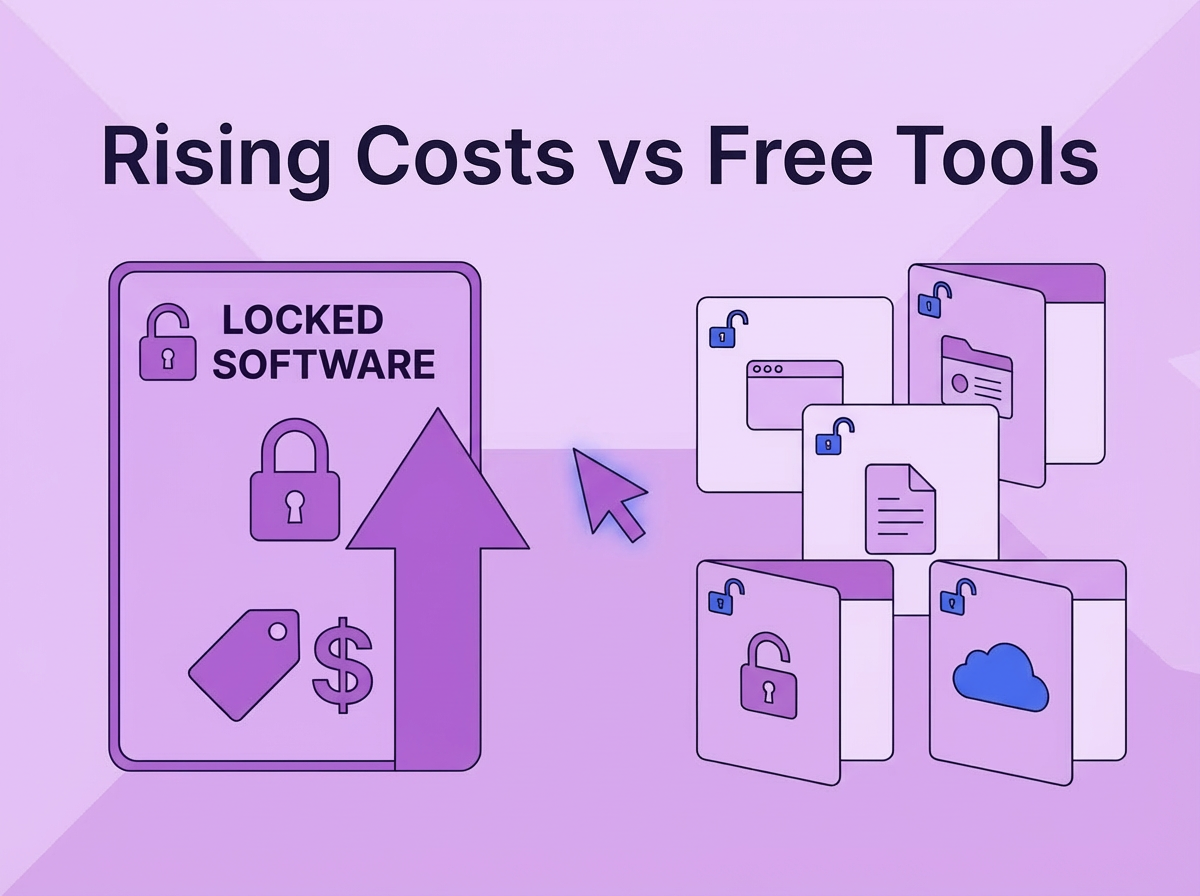
Last year, though, Adobe raised the price for Creative Cloud subscription again. All the features they provided since the beginning have been enhanced using AI in other tools as well.
Tools like GIMP, Canva, PhotoPea, Krita, and Pixlr are completely free and can help a lot. This made it easy for beginners and non-professional editors to make changes to their photos.
In March 2025, Canva acquired Serif, and in October 2025, they made Affinity completely free for everyone. It became much easier for everyone to just download and start working on photo editing, vector design or lage layout.GIMP released a major upgrade, version 3.0, in March 2025 and Krita also released versions 5.3 and 6.0 in March 2025.
AI features have been advancing in all editors too, and while Photoshop has been kinda forcing the AI upgrades to the users, other apps have kept it in the hands of users to choose.
Let’s understand all the features these tools provide to the users, and see which are the closest to being a perfect alternative to Photoshop.
AI Features Free Photo Editors
All the work you had to do manually using Adobe Photoshop can now be automated easily. Most of the tools will allow you to do all this editing using AI.
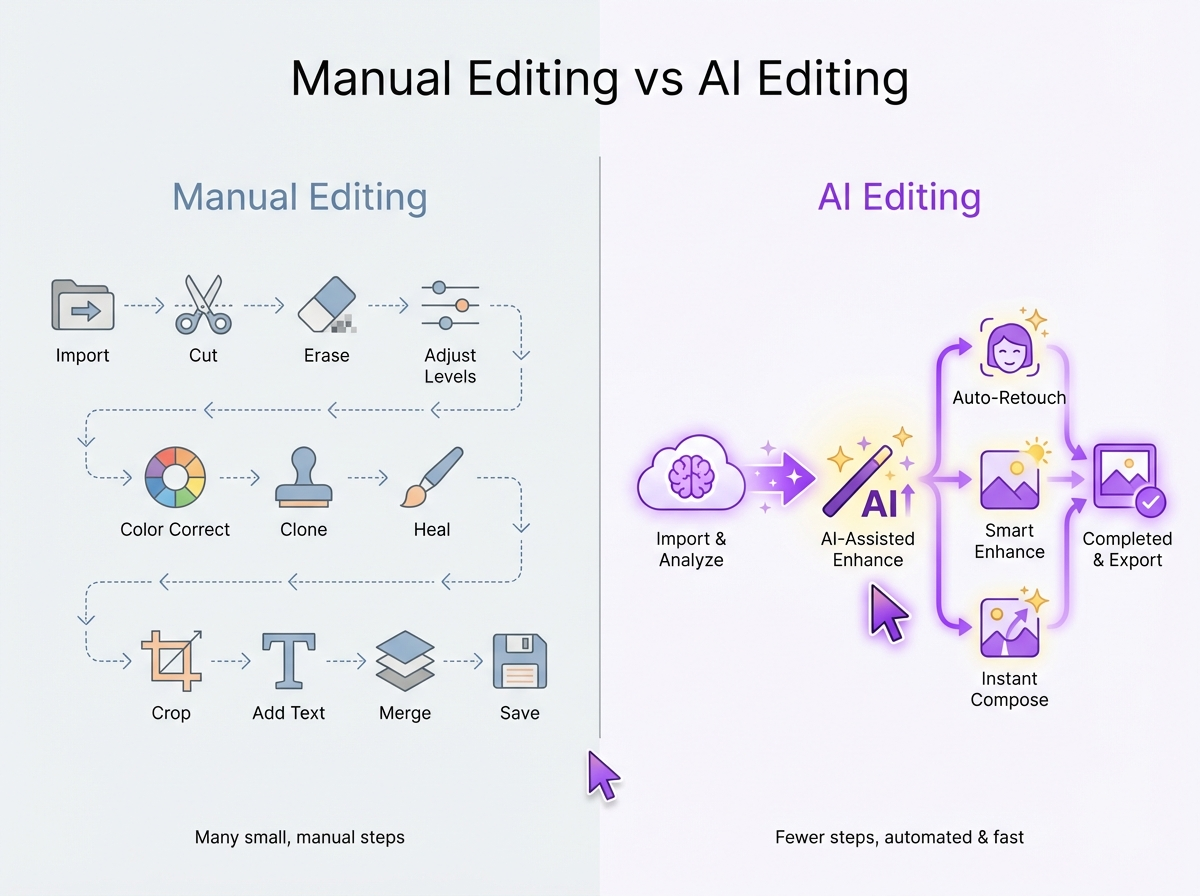
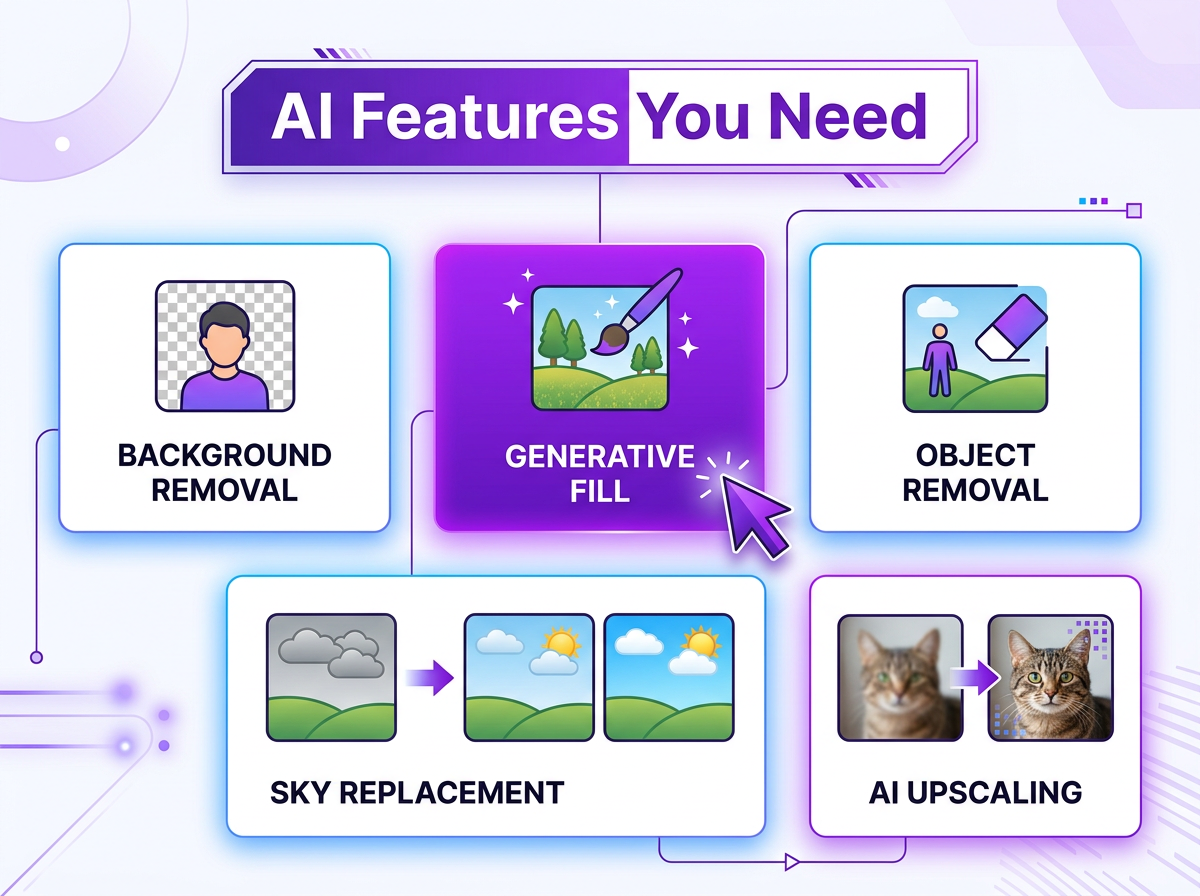
Here are some AI features that can help you:
-
Background Removal in Photos: This allows you to do one click isolation for your subject or get a clean PNG without a background.
It can be very useful for product photos, headshots, content creation and anywhere you would need stickers or cutouts. It is widely available feature in many tools out there. -
Object Removal/Healing: You can paint over or click any unwanted objects to remove them from the picture.
You can remove a wire, a stranger in the background or literally anything. This works best in smaller areas, and it might look patchy, especially if the AI is not very advanced in the tool. -
Generative Fill/Expansion: Fill in the little or large details by just describing them. You can imagine what you might want in a background, and write that to generate a background.
You can add an object like sandcastles in any beach photo, or you can extend a scene. Adobe Firefly is extremely good for the same, and that’s where it got its good reputation. Many tools haven’t reached that level. -
AI Upscaling: Takes low-resolution or small images and increases the resolution without visible pixelation or blur.
You can crop an image and scale it up to look like a whole image or even restore old images. - Sky Replacement: Some tools handle sky replacement, where it auto-detects the sky and swaps it out very clean, without changing the horizon or foreground.
- AI Retouching: Before, you had to spend time with selection tools and retouching for skin smoothing, eye brightening, facial adjustments or other retouching. But now AI is able to handle it much more effectively to make things look much more natural without any manual intervention.
Can any free tool match Adobe Firefly’s generative fill? Well, many tools have advanced with AI, and most of the tools out there have very good object healing and background removal as is.
There might be other generative features that might not have been integrated the best in some free tools, but there are other tools you can use them with, like GIMP, Affinity, Photopea, along with ChatGPT or Gemini.
You might want to checkout: How to View Your PNG files online
Which Free Photo Editor Has Helpful AI Features
| Tool | Background Removal | Generative Fill | Object Removal | AI Upscaling | Honest Verdict |
| Canva | Free (limited uses) | Paid only | Paid only | No | Best free AI for background removal only |
| Affinity | Manual only | Canva paid required | Basic inpainting | No | No native AI; Canva AI add-on is paid |
| Photopea | Basic | No | Content-aware fill | No | Content-aware tools exist; no generative AI |
| GIMP | Via plugins | No | Script-based | Via plugins | Open-source plugins exist but require setup |
| Pixlr | Paid tier | Paid only | Paid only | No | AI features largely paywalled in free tier |
| Pixelmator pro (Paid App) | Built-in | No | Built In | ML Super resolution | Strong built-in AI at no extra cost |
| Luminar Neo (paid tool) | Built-in | GenErase/GenSwap - Advanced Tools | GenErase | Built-in | Most powerful AI on this list |
| Krita, Darktable, PaintNet, Snapseed | No | No | No | No | These tools do not have native AI support |
These tools let you edit your photos for free, but higher-end AI features are paid. I mentioned before that there are more tools you can use alongside free photo editing tools. But, Canva’s paid plan (15$/month) is still less when compared to Adobe’s photography plan.
Which Free Photoshop Alternative Should I choose in 2026?
You can answer these four questions, and at the end, I will give you a decision matrix that will help you find the best tool you can choose.
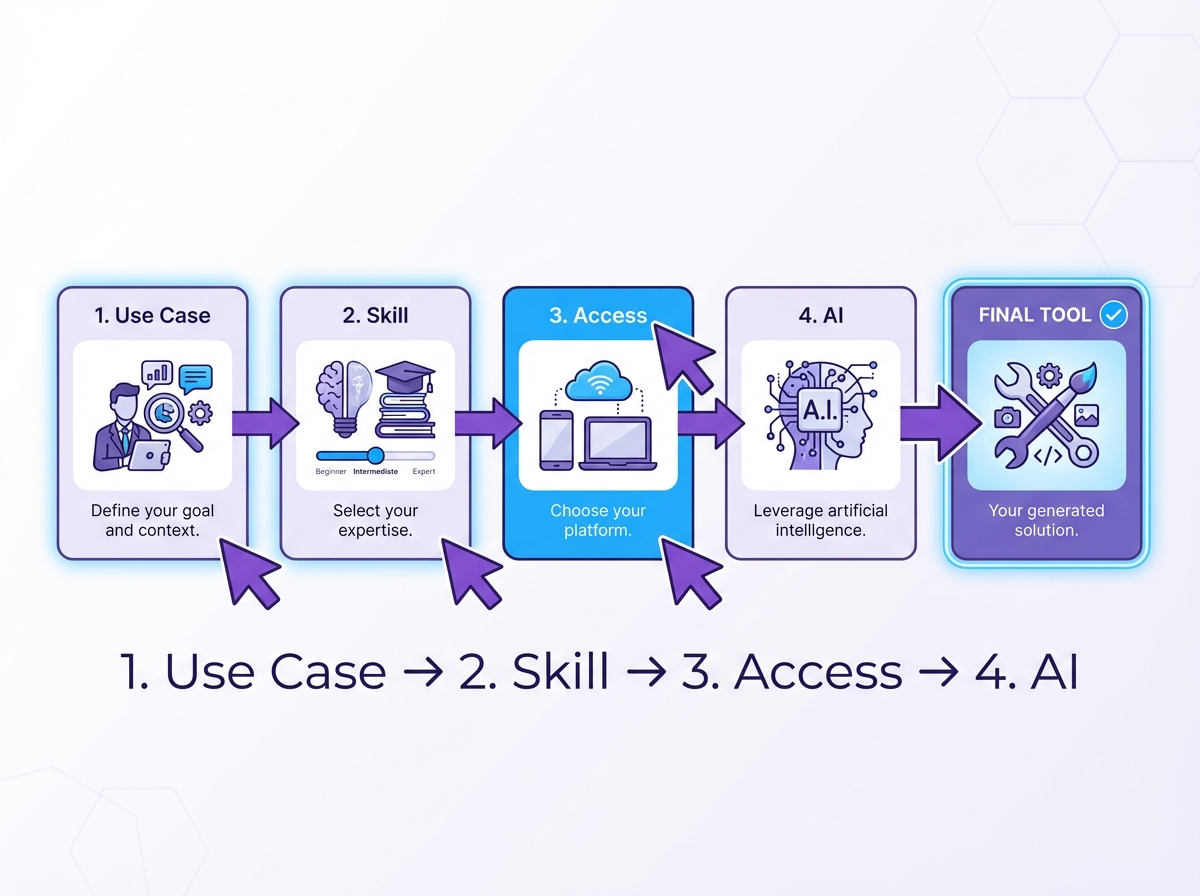
Q1. What’s Your Primary Use Case?
A) Photo editing, retouching, or RAW image processing
B) Digital art, illustration, or concept design
C) Social media graphics, marketing content, or templates
D) General graphic design, web/UI, or compositing
Q2. What’s Your Skill Level?
A) Beginner. You need some templates and tools which provide you with easy guides, too, and do not have a steep learning curve
B) Intermediate. You know basic photo editing, have some hands-on practice, but you are looking to learn much more.
C) Advanced/Pro. You already know Photoshop or professional-grade tools, but want to explore some better free alternatives.
Q3. How Do You Want to Access It?
A) Desktop app (Windows/Mac/Linux)
B) Browser-based (Chromebook or no install)
C) Mobile (iOS or Android)
Q4. Do You Need AI Editing Features?
A) Yes, AI is a must-have for my work
B) I just need the basic AI tools
C) I do not need AI tools, I can work manually on my projects
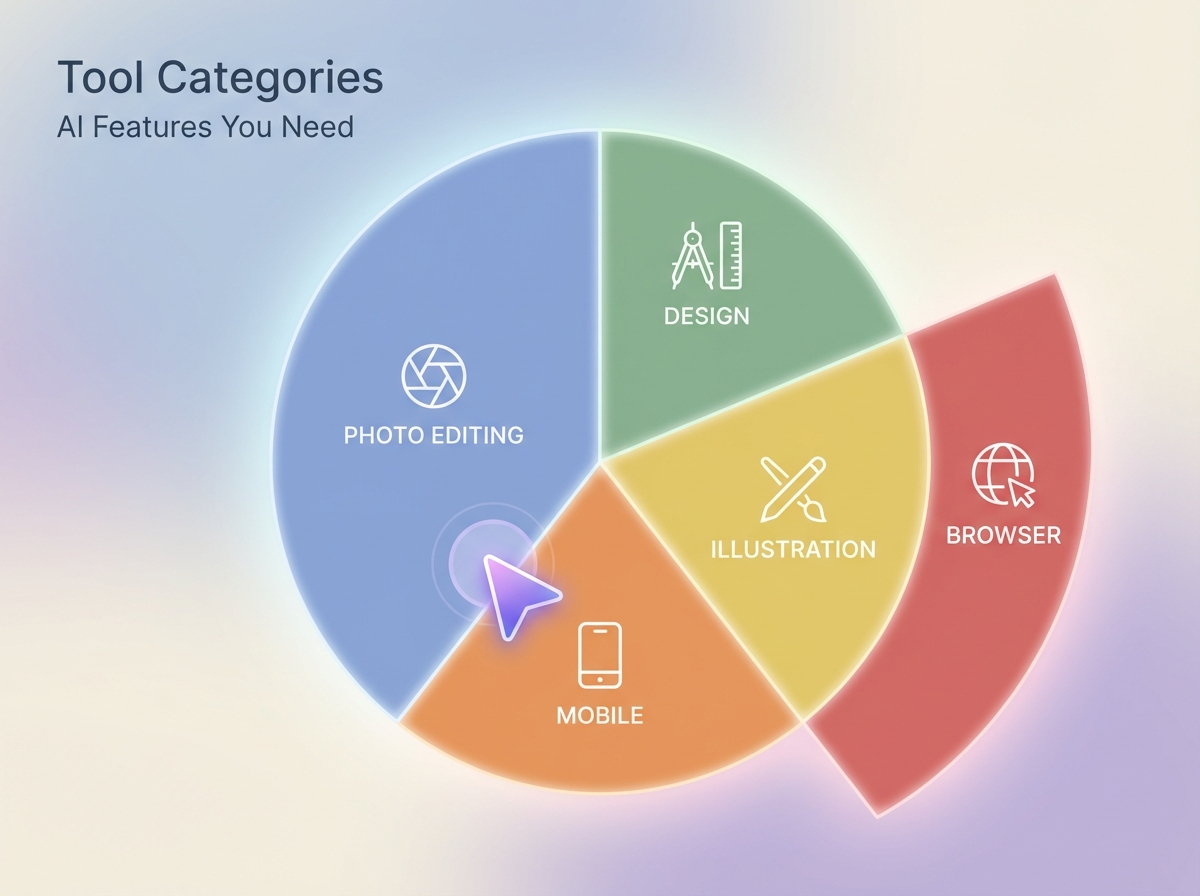
According to the answers you have chosen, here is a decision matrix for you:
| If Your Answers Are… | Start With | Why |
| Photo editing + Advanced + Desktop + No AI needed | Affinity | Professional-grade, now free, closest to Photoshop |
| Photo editing + Advanced + Desktop + AI is a bonus | Affinity + GIMP | Affinity for main work; GIMP for plugin extensibility |
| Photo editing + Intermediate + Desktop | Affinity | Modern UI, shorter learning curve than GIMP |
| Windows + Beginner + Desktop + No AI needed | Paint.NET | Loads in seconds offline, zero learning curve, no ads |
| Mac (Paid tool) + Photo editing + Any level | Pixelmator Pro | Apple-native, $49.99 one-time, AI tools built in |
| Photo editing + Beginner + Browser | Photopea or Pixlr E | No install, Photoshop-like interface, free |
| Digital art / Illustration + Any level | Krita | Built for illustration; 200+ brushes, animation support |
| Social media / Marketing + AI needed + Any level | Canva (free tier) | Best free AI (background removal); template-driven |
| Social media / Marketing + No AI + Beginner | Canva | Easiest interface, massive template library |
| General design + Advanced + Browser | Photopea | Photoshop interface in a browser; PSD support |
| RAW photography workflow (like Lightroom) | Darktable | RAW processing and photo cataloging, fully free |
| Mobile + Photos | Snapseed | Google-made, fully free, RAW support on mobile |
| Mobile + Design / Templates | Canva mobile | Template library + basic free AI on mobile |
| Browser only + PSD compatibility is critical | Photopea | Best PSD support of any free browser-based tool |
| Need AI editing beyond what free tools offer | Luminar Neo | $119 one-time, no subscription, advanced AI tools |
The Top Free Alternatives for Photoshop
According to the answers you selected, you might have gotten the picks that would suit you the best for your editing journey. We have written down the experience with these tools and the features that they offer in detail below, so you can check out the one you were presented or check out more alternatives.
1. Affinity
Affinity has become the talk of the town since Canva acquired Serif (the parent company behind Affinity) in March 2024 with a deal of $500 million.
With Canva itself having a very good product for beginner to advanced level designers, nobody was ready for the news of October 2025. On 30th October, Affinity became free for everyone.
Affinity Photo became Affinity combining Affinity Photo, Affinity Designer and Affinity Publisher. So, they made a software for designers, for photographers, and anyone who wanted to get into editing.
- The app is available for everyone at no-cost, making it one of the best free alternatives to photoshop. All you need is a Canva account to sign in and you can start learning or working.
- It is a professional grade editor that supports non-destructive RAW editing, PSD files, CMYK (Cyan, Magenta, Yellow, and Key) output for print work, HDR tone mapping, frequency separation, batch processing and even live filters.
- You can download Affinity on your Windows or Mac and starting on your projects right after logging in.
- While the Affinity (as a whole Suite) isn’t available on iPad yet, you can download Affinity Photo 2, Designer 2, and Publisher 2 from App store for free. Their website does say they are working on an iPad version too, so we may see an all-in-one app soon.
- Affinity might seem a lot to beginners at first but Affinity has a YouTube Channel and a blog with tutorials for beginners and tips and tricks too.
- They also have a very active Discord community where you can get help from other users.
- It still does not support bulk cataloguing features so if you are looking for something that can help you to manage large photo libraries, you should checkout Darktable once.
- Affinity also supports AI features like generative fill, background removal and generative expand but they are locked behind the paywall.
- You need to purchase a Canva Pro subscription, a go-to app, for about $120 that renews every year to access the AI features.
So if Photoshop has been your go to app and now you feel like you need to switch. Affinity is the closest free replacement for it. Even if you want the AI features, the subscription would still cost less than photoshop.
2. GIMP - GNU Image Manipulation Program
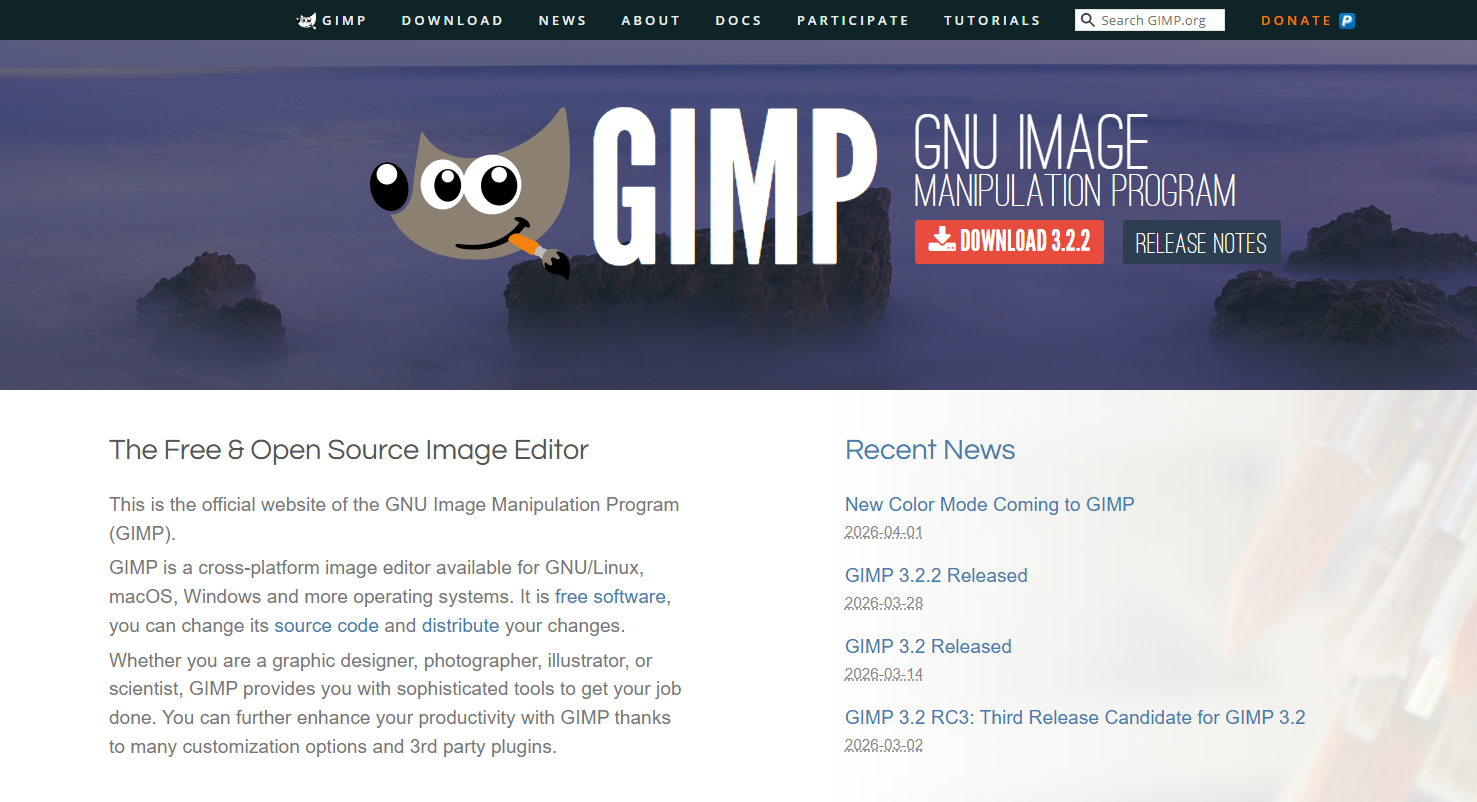
GIMP is a well-known and widely used tool out there that can be a great alternative to Photoshop. It is open-source and free photo editing software. It has been around for so long, so people usually ask, “Is GIMP as good as Photoshop?”
The GIMP interface was clunky and was difficult to browse through but then in March 2025, GIMP 3.0 was released after almost seven years of development. If you tried GIMP before, you might want to check it once again.
- It is installable on Windows, macOS and Linux, and GIMP now runs natively on Wayland on Linux too.
- While the interface is much cleaner now, it still takes a little time to learn through and get comfortable.
- The greatest addition in GIMP 3.0 was introduction of non-destructive editing for most filters. So, you don’t have to “Undo” anymore to make changes, you can go back and tweak adjustments like Curives, Hue-Saturation and Levels.
- Along with non-destructive editing, GIMP 3.0 also supports multi-layer selection, which allows users to transform multiple layers at once.
- Even with the upgrade, GIMP still lacks CMYK support in native editing mode but it allows you to import and export CMYK in JPEG, TIFF and PSD formats.
- Text handling is where GIMP lags, even with the 3.0 upgrade. While it has improved over the time, if you have used apps like Affinity or Photopea, you might face trouble in precise typography.
- If the file you are working on is too large, you may still experience slow performance.
- There are no native AI features in GIMP, but there are a lot of plugins created by the community that you can install and use for basic AI-assisted tasks.
So, while it might not be the perfect alternative, it has evolved massively over the years. If you are ready to invest some time in learning it and are not looking for complex AI editing tasks, it is a very powerful tool.
3. Photopea
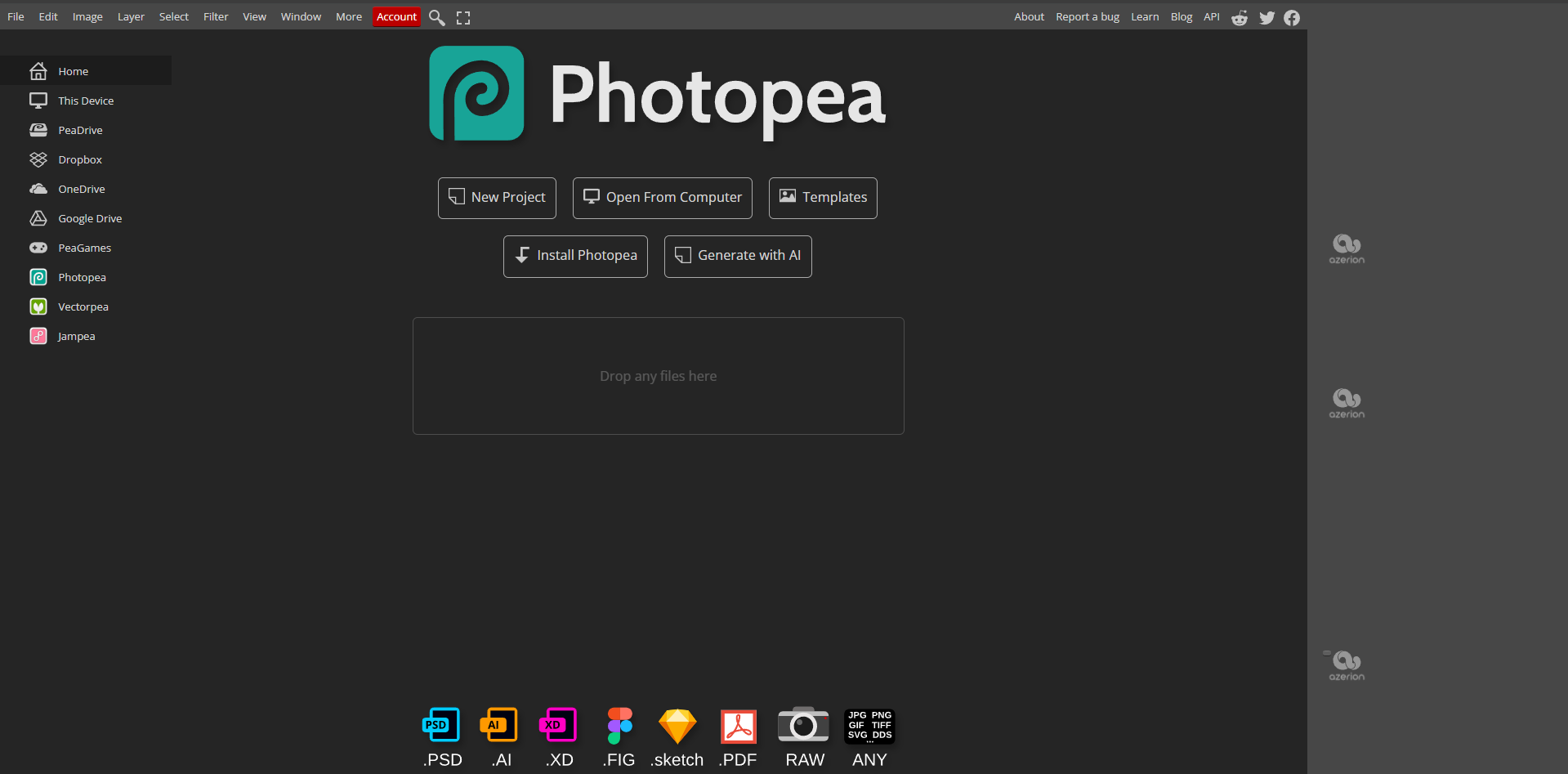
Affinity and GIMP are great, but they need you to download and install the applications on your device. It might not be feasible for some students or designers with older laptops to download this software.
In another case, what if your device crashes or you want to work from another remote computer, you can’t install software on someone else’s laptop.
Keeping the prices of Photoshop and the flexibility of working of the software, Ivan Kutskir created Photopea, an online alternative to Photoshop that works in your browser. The app is completely free for everyone to use and thus has become favorite of many.
- All you need is an internet connection to access it on any device,
- The shortcuts and interface are quite similar to those of Photoshop, so if you are switching for some time or permanently, you can get hands-on very quickly.
- Photopea supports a large range of file formats like PSD, AI, PDF, RAW, XCF (GIMP), Sketch and XD. So whatever tool you have used before, you might just be able to work on the same project using Photopea.
- There are smart objects, layer styles and blend modes too so your workflow remains non-destructive in app.
- You can also connect it to Cloud like Google Drive, Dropbox, OneDrive or PeaDrive to access your files anywhere.
- Photopea actually has good AI tools in the free version itself. It can help you with background removal, content-aware generative fill, object removal and even text to image generation. You can use all these for free but you might face ads sometimes.
- You cannot use it offline, so if your workplace gets cut off from the internet, this might not be an ideal application.
- It can feel a little slow on very large files or complex projects. Users sometimes face issue on accessing the brushes or saving the current version of their edits.
- While the AI is natively free for everyone, it is not quite advanced like Photoshop at generation so the output might not be what you actually want for the image generation or generative fills.
- While people question if Photopea is actually safe to use because it is free, it is not something to worry about. You do not need to connect to any cloud storage. It is safe to use for personal and professional work.
From quick edits to intermediate editing, Photopea can help you with everything. If you are not a fan of ads, you can purchase their pro version, which costs around $5/month or switch to Affinity or GIMP.
4. Krita
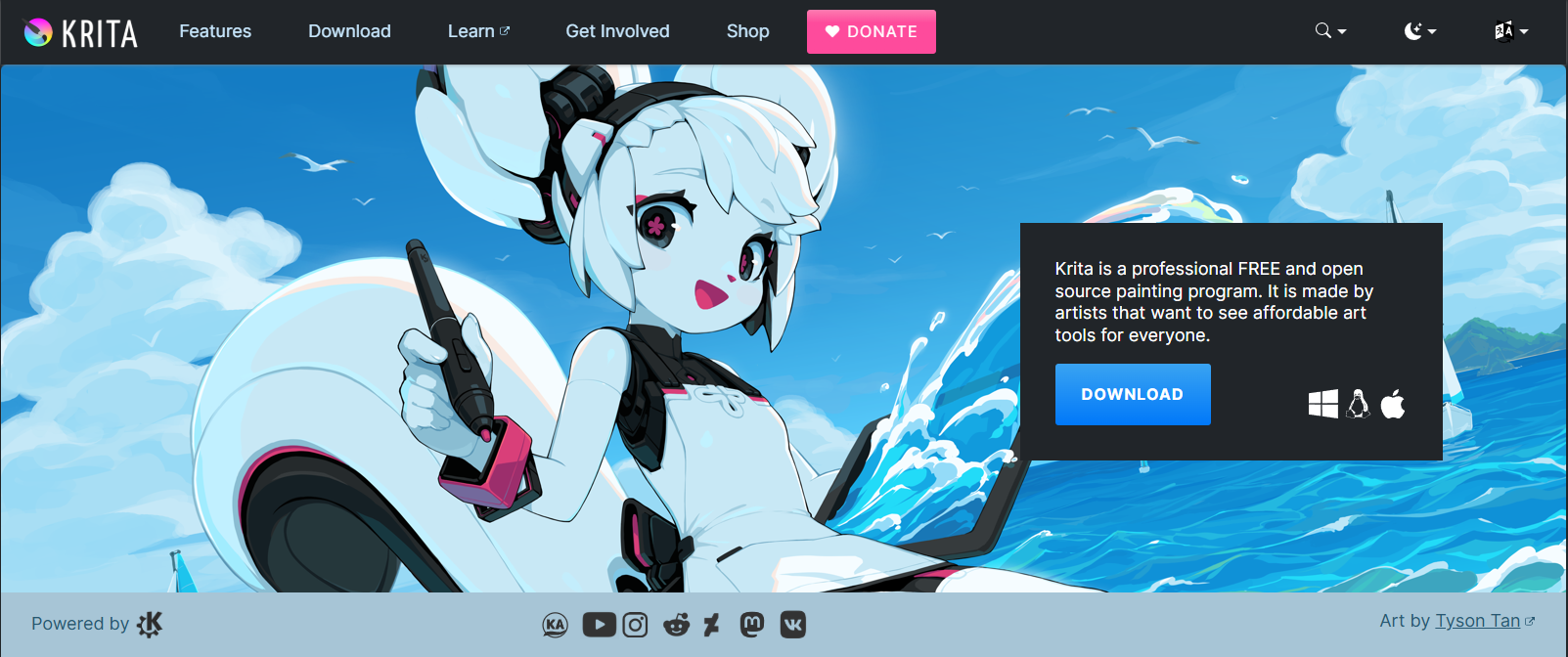
We got editors and animators covered but this one is the free Photoshop alternative for digital artists. If you are someone who enjoys drawing or painting or you are a digital artist, you definitely should check out Krita.
Krita is always making its software better, and Wayland users can use the just-launched Krita 5.3 and Krita 6.0 on March 24, 2026, this one being one of the biggest releases in years.
Krita 5.3 is best for artists and other users but Wayland users can use HDR painting of Krita 6.0 if they feel experimental. The later version is still in beta, so it might have possible bugs in workflows.
- Krita is free and open source. It is available on Windows, macOS and Linux. The Android version is still in beta and works best with tablets at the moment.
- It has over 200 customizable brushes with more than 10 brush families and a custom brush engine that allows you to create an infinite number of brush types.
- The 5.3 update has a major update in their text tool; it was built again from scratch. Artists can now edit text directly on the canvas and even flex it into different shapes making it easier for comic book artists to create their work.
- With the new update comes better brush stabiliser, real-time recording, and a frame-by-frame animation.
- The app is not really a photo editors and does not support retouching photos or working with RAW files. Though artists looking for alternative tool to Photoshop might finally be able to make the switch.
- Krita has a huge artist-focused community and very active too. Whether you are just starting out or want to meet fellow artists, this might be one of the most welcome community.
If you want to edit your photos or want to work on complex graphics, Krita isn’t for you. But for any artists who saw digital art looking like actual art, Krita might have been behind it.
Also Read: How to Create a Portfolio as Digital Artist
5. Canva
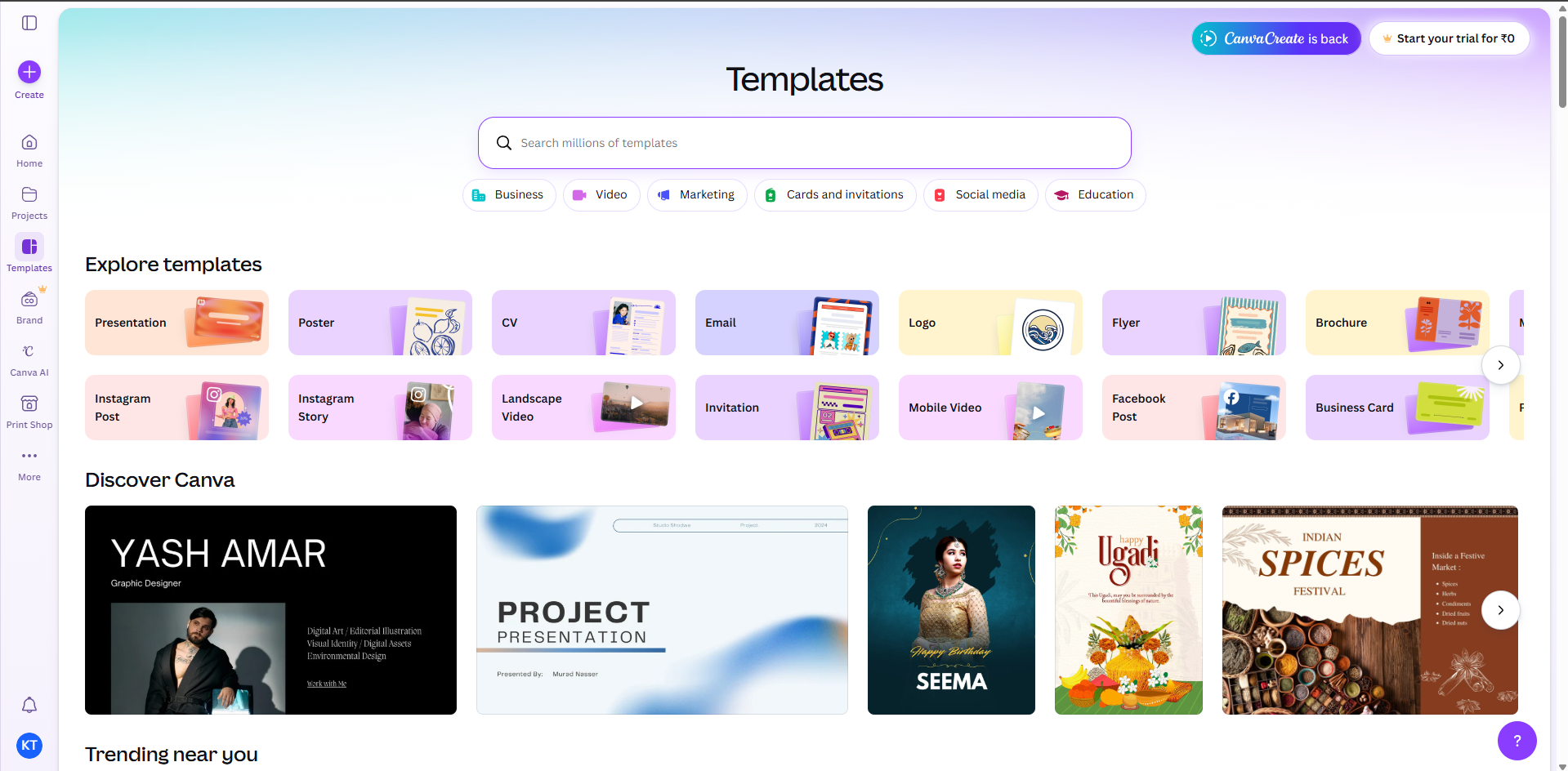
Now, we are moving towards Photoshop alternatives for marketers, social media managers, or anyone who wants some ready-made templates where they can insert photos or videos.
Canva, as the app, is not meant to resemble Photoshop but rather provide an alternative that is easier to work with on devices like phones and tablets too.
- Canva is not as high-powered and granular for editing. It is not layer-based so while Photoshop will let you fix even the smallest pixel, that’s not what Canva is for.
- They have a lot of templates in their library, ranging from presentations, social media graphics, carousels, resumes, flyers, flipbooks, logos and literally anything you can ask for.
- Canva has a free plan that lets you create as many designs as you want and you can add and use free elements too.
- If you are looking for batch editing, background removal, adding text, using stickers on images and even making a slideshow, Canva can help you with that.
- You also get limited monthly access to Magic Studio AI tools that includes background removal, Magic Write and image generation too. It is limited to only few uses on free version and might have watermarked outputs during download.
- The unlimited AI access would require you to have the pro plan which costs around $15/month or $120 per year.
- In 2025, Canva launched its own Design Model, an AI that would let you have access to some layer-based editing features to work in your design, though not as powerful as Photoshop.
- In March 2026, Canva also added Magic Layers, which convert any flat image into an editable multi-layer design.
I have used Canva a lot, especially to add texts or remove backgrounds and I totally would use it to create social media posts and workplace presentations and designs. When it comes to making colour changes or making adjustments or wanting granular control, I would not reach out for Canva.
Also Read: How to Share Your Canva Design
6. Pixlr
Pixlr mainly offers two versions: Pixlr X and Pixlr E. It provides something for everyone, from beginners to anyone wanting to work on complex projects. Both of them are free to start and run entirely on your browser. They have also expanded to include more tools that allow you to remove backgrounds, batch edit, or design with AI.
- Pixlr X works for simple edits and Pixlr E is for advanced work and also resembles Photoshop quite closely.
- Pixlr E supports PSD files and also has options for layers, blend modes and masks which gives a familiar experience to that of Photoshop.
- You can use their AI background removal feature on the free plan and it gives you output with no watermarks. People who just want to make PNG pictures and stickers, or convert their PSD file to PNG, can use this too.
- The free version comes with some limitations. You can only save five images per day and you have to face ads throughout the editor. If you have to work on multiple files or have a lot iterations to work on, the daily cap of downloads can be a bummer.
- A bit more advanced features like generative fill, AI image generation and background replacement is behind a paywall.
The app started with more customisations on the free tier buit lately a lot of features have been moved behind paid plans. Overall, Pixlr is a decent pick and good for beginners who might want to experience Photoshop on a browser, but then there are other options to go towards as well.
7. Darktable
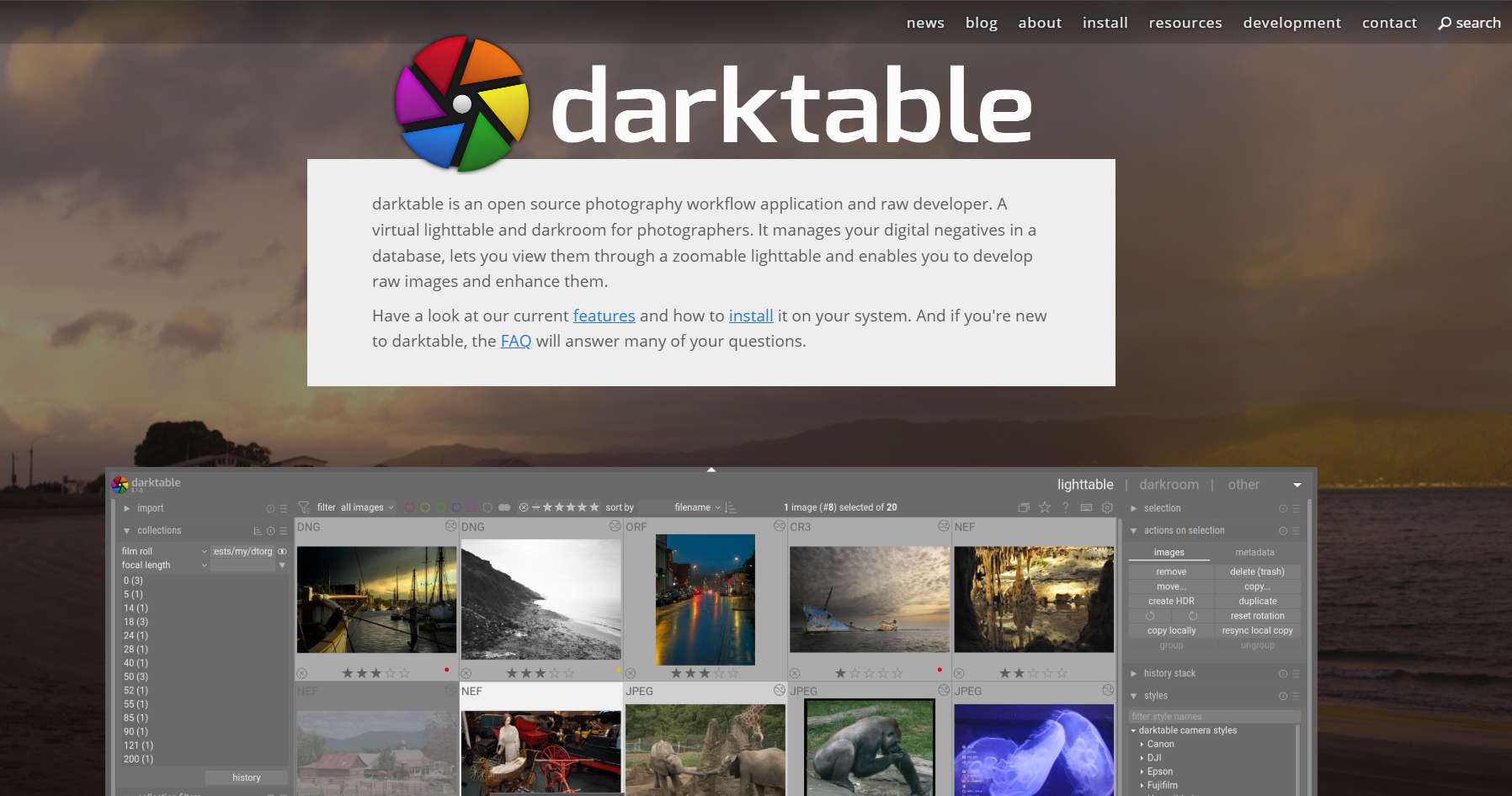
Darktable is best for photographers working with RAW images. It is closer to Adobe’s Lightroom than Photoshop. When you open it for the first time, the experience can become a little overwhelming as it does not have templates or simple edit buttons.
- It is free and open source and available for all desktop systems.
- There are two modes: the Lighttable for managing or cataloguing your photo library and the Darkroom for editing.
- Each edit is saved as an instruction file, so you can go back to old edits you made and make new adjustments.
- In the Darkroom, you can adjust and correct your image. There are options to control exposure, color correction, tone mapping, noise reduction, sharpening, masks and much more.
- Photographers can have massive control over their photos with the tone mapper options that darktable has to offer. The four tone mapper include Filmic RGB, AgX, Sigmoid and Base curve.
- Darktable does not have any AI features so all the edits have to be done manually.
If you are working with RAW photographs and color accuracy is what you’re looking for, Darktable can give you a lot of control which other tools would not. Just give a bit of time to understand things in the interface.
8. Snapseed
When people look for free Photoshop alternatives, tools on phones often get side-eyed. That’s when Snapseed comes with its features.
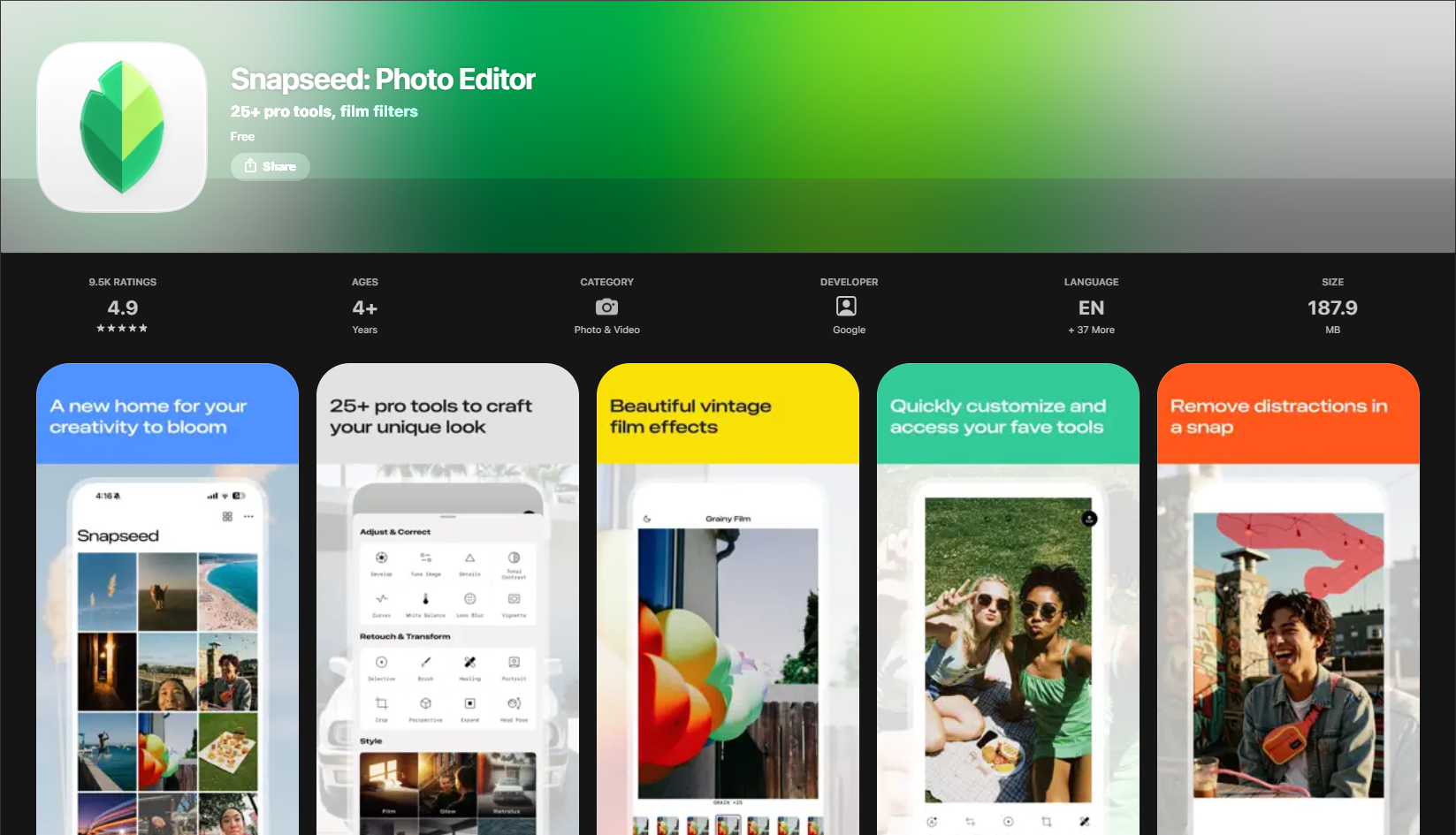
Snapseed is one of the most powerful mobile editing tools, developed by Google, capable of giving out results that are at the same level as any professional tool on a desktop. This is one of the best free photo editors you will come across for editing images.
- Anyone who wants to edit photos on the go, photographers, social media managers and content creators, can easily use it.
- Version 3.0 was launched in June 2025 with a full redesign for iOS and iPadOS. There is a new, clean interface with the addition of film-inspired filters and a Faves tab to store all the essential tools a click away.
- In October 2025, Version 3.5 was released, adding features like one-touch object masking to isolate the object or work on it specifically. A dedicated color panel with HSL controls per color range was also included in this release.
- Snapseed supports RAW and JPEG files both with more than 25 editing tools to work on your photos and adjustments with 8 control points.
- All the editing you do is saved as a step so you can move to certain step and edit or delete that without affecting the later ones.
- There are no AI features included in Snapseed.
You can easily use Snapseed to make adjustments and then use apps like Canva on your mobile to add texts, make carousels and make great edits for social media.
9. Paint.NET
If you use Windows and are looking for an alternative to GIMP that is faster, Paint.NET is your tool. It was released in 2004 and the latest update was in March 2026. It is free to download but you have to manually install the updates too.
- It is available only on Windows.
- It has all the basic features a beginner might need to experiment and understand editing. It has layers, blend modes, curves, levels, hue and saturation. The interface is easier to understand so working on images become easy.
- There is no native RAW support, CMYK or layer masks.
- There are no AI tools in Paint.net but there are some plugins that can help with basic AI editing.
- A big con with Paint.NET is you cannot edit the texts you place on the image and so it can become frustrating.
Overall, it is a good tool. But, if you really want to get into photography or editing, you should spend some time on one of the other tools like Affinity or GIMP.
10. Pixelmator Pro (One-time payment)
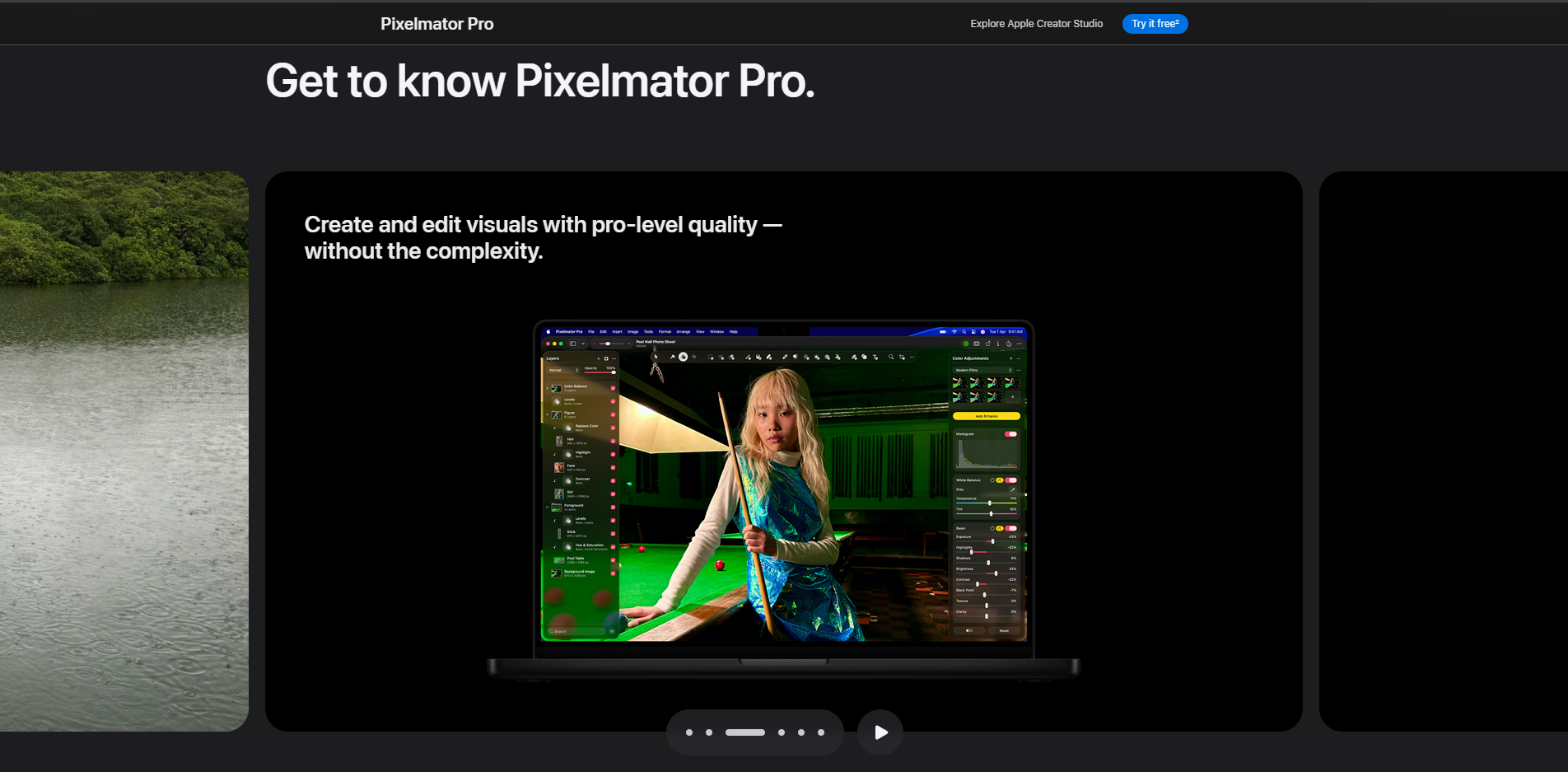
If you use Mac, Pixelmator Pro deserves its own conversation. Apple acquired ir in 2025 and the version 4 was released in January 2026, making it the closest thing to a native Apple alternative to Photoshop.
- It is available on Mac and iPad only so if you have hybrid system you might want to look at another tool.
- There is no monthly subscription, you can purchase the software at $49.99 from the Mac App Store. It is also available as part of Apple Creator Studio which is at $12.99 a month for the bundle so you can get it too.
- It is a non-destructive editor with layers, masks, vector tools and also RAW support, so it’s actually a good one for both photographers and designers.
- As it is natively for Apple ecosystem, the work becomes seamless between Mac and iPad.
- The AI tools are provided along with the one-time subscription too. You can features like background removal, ML Super Resolution to upscale images and intelligent color correction.
- It isn’t able to match Photoshop at generative fill yet but the other features outweigh for the price you get Pixelmator Pro at.
The app is priced less than a month of Adobe’s plan for lifetime access. Mac users can get native experience of Photoshop without having to learn any other tools. If you are looking for any paid alternative of Photoshop, Pixelmator Pro would be the strongest recommendation on the list.
11. Luminar Neo (One-time payment)
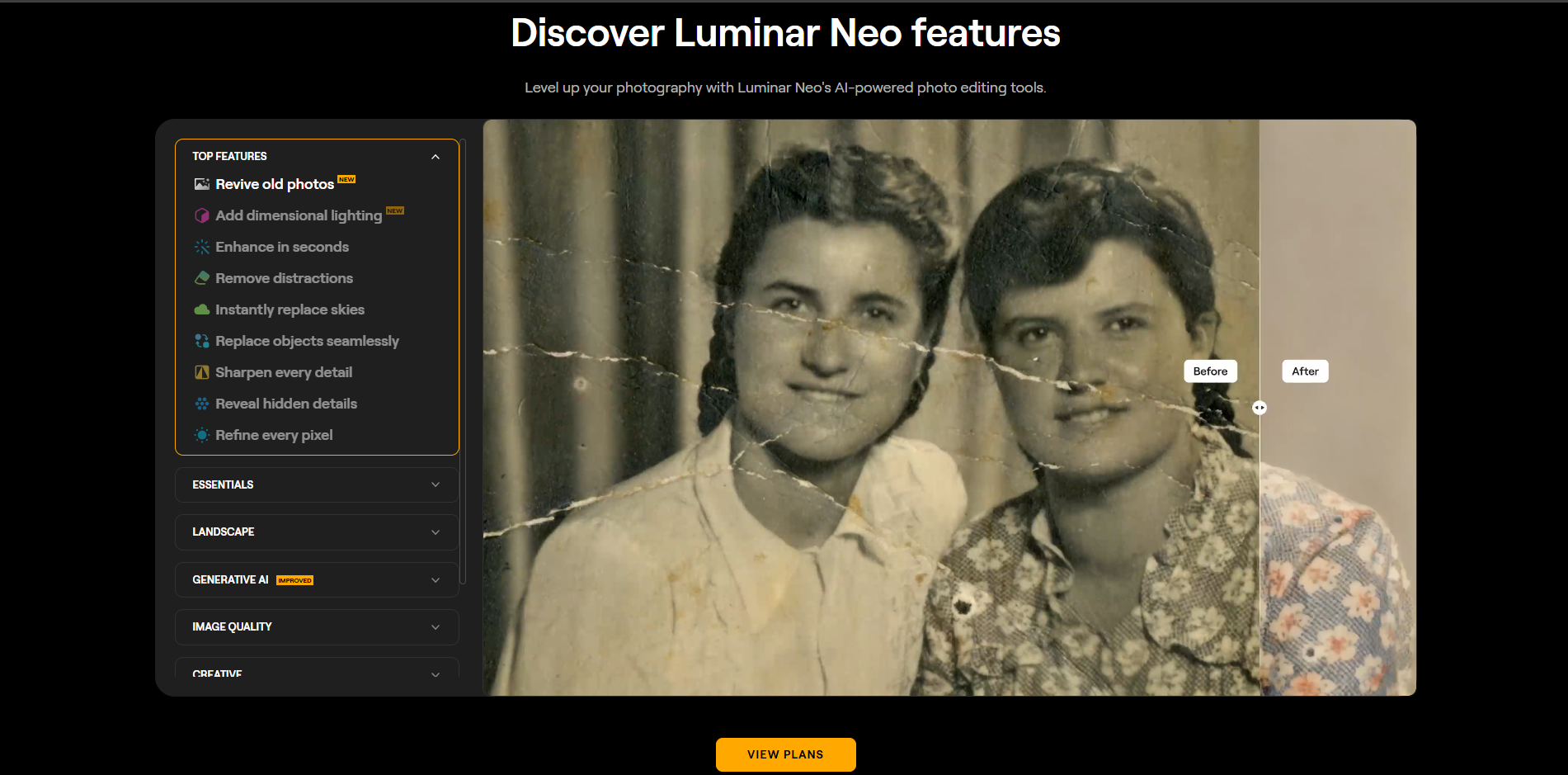
If you need an AI editor for your process and other photo editing apps aren’t reaching the bar you want it to, Luminar Neo might be the app you should try.
This one is not free, you have to pay a one-time fee to get the software, but they do have a 7-day free trial and also a 14-day cashback guarantee.
- They offer three different license options which starts at $119. At this price you get the license and software for lifetime but you only get updates for the first year.
- With the license, you get access to AI features for a year too after which you have to renew at a special price for the tools.
- It has very good AI features which aren’t forced at you like that of Photoshop. It has Sky AI, Enhance AI, portrait retouching and atmospheric tools which you can use to edit the photos.
- You can manipulate and edit the images in three-dimensional space across your image. This does give you granular control over your object, the background and lets you add virtual light sources too.
- Photo Restoration feature allows you to upscale any old or damaged photos, this means you can fix any defects, discoloration or fades.
- Luminar is one of the tools with advanced AI features and it lets you enhance photos or part of photos too.
- Till January 2026, their Generative tools like GenErase, GenSwap and GenExpand were included in lifetime license too but now needs an upgrade or active subscription for it.
Luminar might not be a photoshop replacement if you are working with layers but it has some of the best AI-powered features for your photos.
A quick comparison of all the photoshop alternatives
Here, let me give you the comparison overall to check everything at once!
| Tool | Price | Platform | PSD | RAW | Free AI? | Skill Level | Best For |
| Affinity | Free | Win / Mac / iPad | ✅ | ✅ | Paid | Intermediate – Pro | Photography, design |
| GIMP | Free / Open Source | Win / Mac / Linux | ✅ | Plugin | Plugin | Intermediate – Pro | Advanced editing |
| Photopea | Free (ads) | Browser | ✅ | ✅ | Basic | Intermediate | Browser / PSD edits |
| Krita | Free / Open Source | Win / Mac / Linux | ✅ | ❌ | None | All levels | Digital art / Illustration |
| Canva | Free / $15/mo | Browser / App | ❌ | ❌ | BG Removal using plugins or with watermark | Beginner | Social media, marketing |
| Pixlr | Free (ads) | Browser / App | Partial | ❌ | Mostly paid | Beginner - Intermediate | Quick edits |
| Darktable | Free / Open Source | Win / Mac / Linux | ❌ | ✅ | None | Intermediate – Pro | RAW / Photo workflow |
| Snapseed | Free | iOS / Android | ❌ | ✅ | Basic AI healing | Beginner - Intermediate | Mobile photograph |
| Paint.NET | Free | Windows only | Partial | ❌ | None | Beginner | Quick offline edits on Windows |
| Pixelmator Pro | Paid - $49.99 one time payment | Mac/iPad | ✅ | ✅ | Built-in | Beginner - Pro | Mac-native photo editing |
| Luminar Neo | Paid - starts from $119 | Win/Mac | ❌ | ✅ | Advanced AI tools | Beginner - Pro | AI-first editing |
Also Read: How to Share Your Design Files Quickly for Free
Common Mistakes to Avoid when Choosing a Free Photoshop Alternative
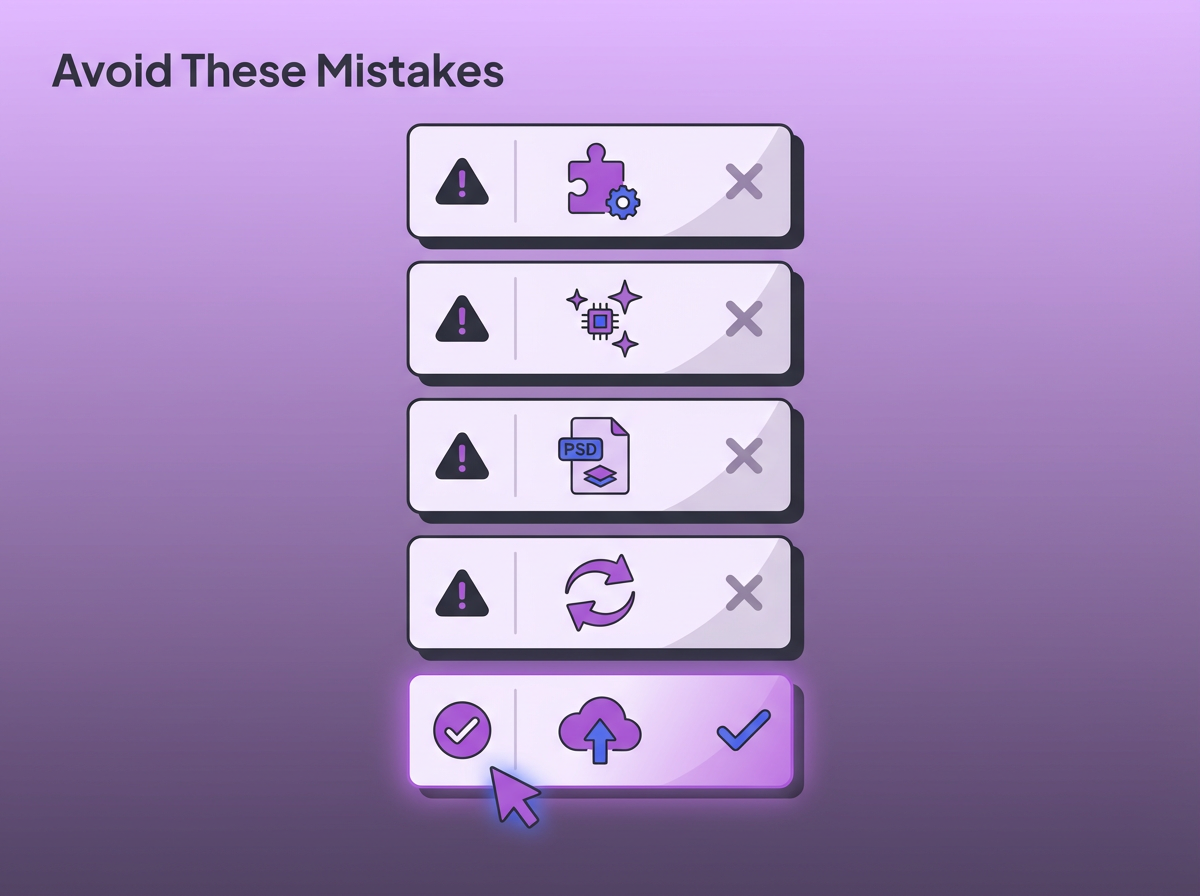
Moving to GIMP before looking at other alternatives, as it is listed first on Every Listicle
Most listicles out there have put GIMP as the top alternative and while it is quite a good tool, there are many better modern-day alternatives that will give you even some AI features or are simply easier to work with. It is always good to check out what other tools also have to offer.
Making an Assumption that when a tool is advertised “Free”, it means everything is free
Tools like Affinity, Photopea, Pixlr or even Canva are free to download and work around with most features. You do hit a paywall as soon as you start wanting to use the AI features.
Again, the Generative AI apps like ChatGPT, Claude and Gemini can help here but that would be for anyone who isn’t looking for complex editing.
Expecting the basic tier of tools to replace Photoshop’s AI Features
Photoshop’s AI features are extremely advanced. It isn’t that other tools can’t replace it, but they might not be free. You don’t genuinely need to spend $314/year, but you can look at the paid version of alternatives too, which might fit in your budget.
Not testing the compatibility of PSD files if you are switching from Photoshop
If you have been working with Photoshop and PSD files, and you are looking to switch, you need to check which apps actually support PSD files. Otherwise, you might not be able to edit the old projects.
Expecting One Tool to do everything
The alternatives in the lists are great but they lack a few things, some may have steep learning curve, others might not have AI features at all.
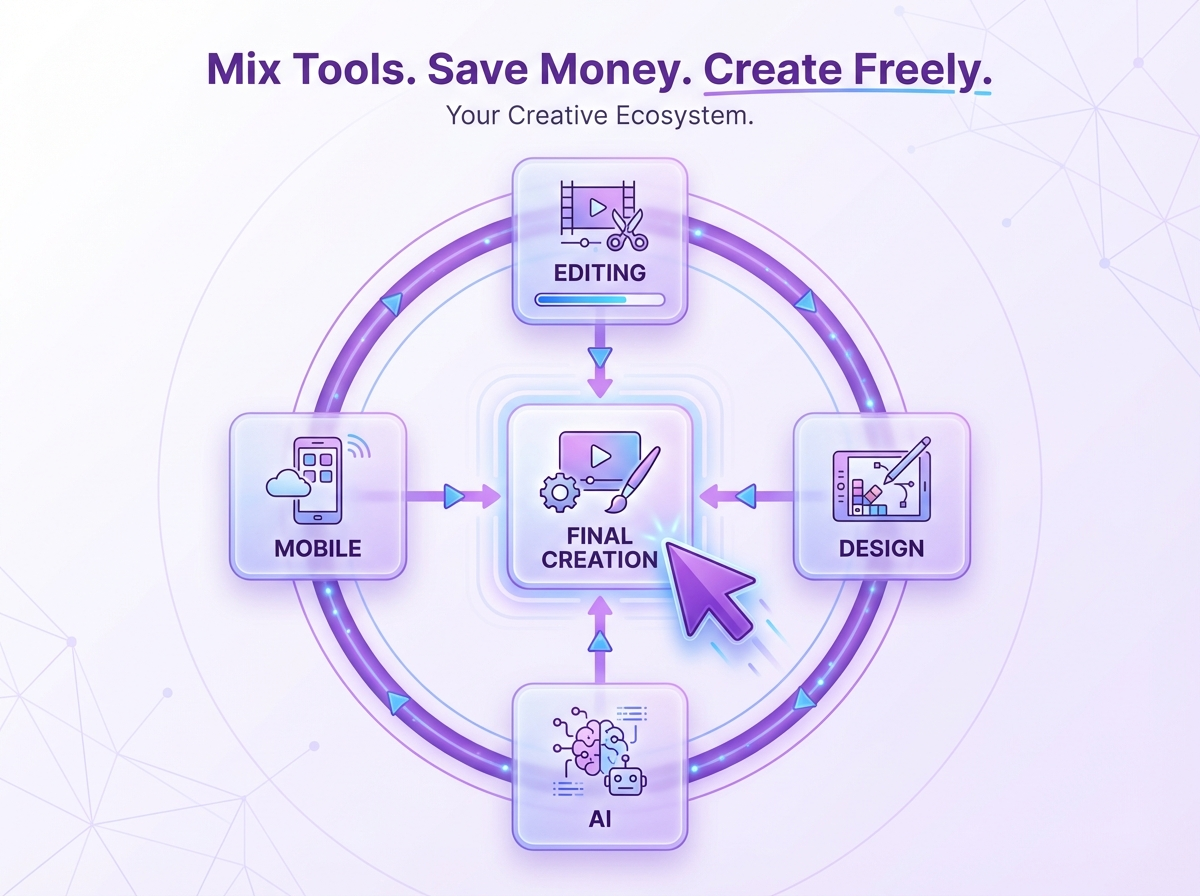
If you need all these features, you can look at the free versions of 1-2 tools to manage everything you need. It is important you see that the file format you use is compatible with all of them.
Not Backing Up or Saving your files properly
Whether you end up using one of the alternatives or choose Photoshop, it is always a good idea to save your design files somewhere. You don’t want to lose all the hard work you put into your projects.
Switching too frequently between tools
Testing out tools is a good practice, and you will know which one is the best for you. But if you are just switching because the learning curve is difficult, you will hit the same problem in most tools.
Rather than that, look for how-to guides online or join communities where other artists and editors like you can guide you as well.
Choosing the Right Tool Based on Your Work Style
We looked through a decision framework, and I gave you the options based on the answers you gave. Here, I will also quickly break down the software you can use according to your profession or work.
Instead of just asking “What is the best free Photoshop alternative?” Maybe you can answer the question “What tool matches the way I work?”
For Graphic Designers
If you work with a lot of layouts, branding or detailed composition, you would be looking for control. Tools like Affinity and Photopea can be a good fit here as they have support for layers and help you create non-destructive projects.
While you might not need AI specifically, these tools provide AI features with an upgraded paid tier.
For Photographers
Photographers don’t generally need vector graphics or layered image editing like graphic designers. Darktable gives deep control over lighting and colour, and gives you experience where you can still do pixel-perfect editing but not have to touch Photoshop.
Luminar Neo is a great alternative that has great AI features that can be used to edit and upscale all the photos.
For Illustrators and Digital Artists
If you have to pick up your brushes for your work, Photoshop or the alternatives are not exactly what you need. Krita is the best app for this.
It has workflows that make you feel like you’re working just on your iPad or drawing tablet.
For Social Media Managers and Marketers
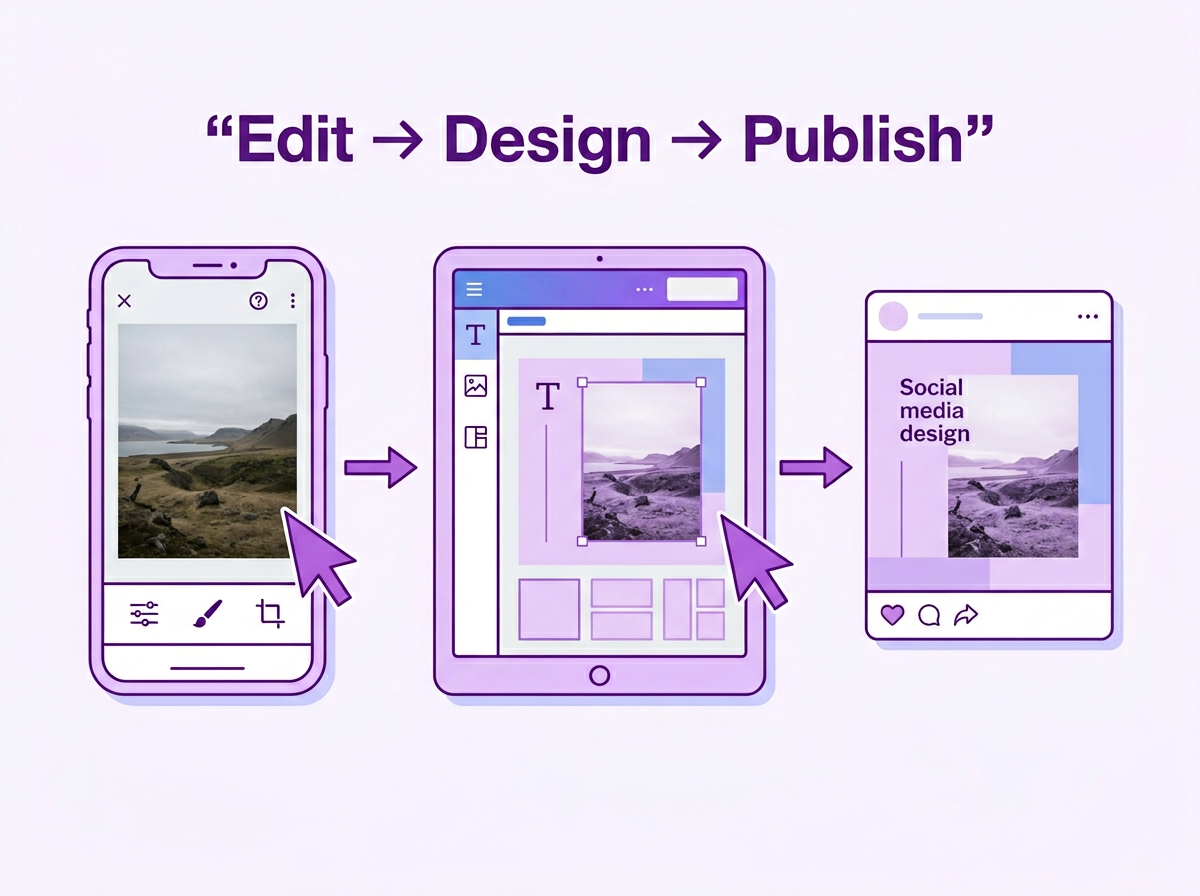
As I talked before, a game-changer combination can be Canva and Snapseed. Snapseed will make photo editing very quick, and then you can upload these photos to Canva to use in the templates.
This pair can be game changer for any on-the-go editing needed. Once created, you can share these images online easily with anyone.
For Content Creators
Content creators make videos, edit photos, make carousels, and so much more. They can use a mix of the tools again.
For their pictures, they can just use Snapseed to make edits and upload. Logos, thumbnails, and carousels can be made using Canva.
Photopea also supports basic video editing capabilities, so that would be a good option too.
Your Next Step After Photoshop
Since Photoshop launched, the industry has evolved, and right now, many people have moved towards alternatives that save them money while also providing AI features. It is now in your hands to check out the tools we suggested and let us know what you think about them.
All of these tools are free, and you don’t even need a credit card to get started. You can now create and share your designs, art, portfolios and much more with everyone without spending much time. All the best on your editing journey.
FAQs: Best Free Photoshop Alternatives For Beginners in 2026
Is GIMP Really as Good as Photoshop?
GIMP has been around for a very long time. It is open source and has a large community as well. With the upgrade and launch of GIMP 3.0, it has become much closer to Photoshop. Once you put in some time and learn through the curve, it can become a good alternative. It just doesn’t have any native AI support.
Can GIMP Open RAW Files?
Not natively/ GIMP does not have a built-in RAW processor. You can get around this by using it alongside a free RAW developer like Darktable or RawTherapee, which process the RAW file first and hand it off to GIMP for further editing. Some plugins also add basic RAW support directly, but the two-tool workflow is what most GIMP users rely on.
What Free Software Can Open and Edit PSD Files?
Affinity, Photopea and GIMP all open PSD files. Photopea handles them most reliably in the browser, including complex layers and smart objects. Affinity and GIMP can open most PSDs but may drop some advanced layer effects depending on how the file was built.
What is the Best Free Photoshop Alternative for Mac?
Affinity is the strongest free option it is professional-grade, fully free, and available for Mac. If you want something with built-in AI tools and are happy to pay a one-time fee, Pixelmator Pro at $49.99 is Apple-native, Apple-owned since 2025, and integrates directly with macOS and iPad. For browser-based editing on Mac, Photopea works on any device with no install needed.
What is the Best Free Photoshop Alternative for Windows?
Affinity is one of the strongest alternative to Photoshop here. For browser-based editing on Windows, Photopea needs no installation at all. If you are ready to invest some learning time and want professional-level tools, GIMP 3.0 is the most powerful free option on Windows.
Can You Get Photoshop Legally for Free?
There are no free permanent options for Photoshop. The free version of Photoshop is only available for a 7-day trial and then you are charged for the same.
Is Affinity Actually Free Now?
Yes! Starting in October 2025, Affinity became free for everyone. They have AI features which are not accessible in the free version. For that, you need a Canva subscription.
Which Free Photoshop Alternatives Have AI Editing?
Canva lets you use the AI features in the free version, but it is only downloadable with a watermark. Photopea has some AI features in the free version, but upgraded versions also include features like generative fill. GIMP supports AI editing via plugins, so if you find an open-source plugin for free, you can connect it to GIMP . Most of the Generative fill, object removal, object addition and fixers are behind paywalls for all software and applications.
What Is the Best Free Photoshop Alternative for Beginners?
You can use different tools to find the best one for you, but Canva is good if you want to work with templates. If you are using a browser, you can opt for Pixlr X or Photopea and finally, Affinity Photo should be your choice if you can invest learning time; all the basic and advanced editing features are included, except AI tools.