
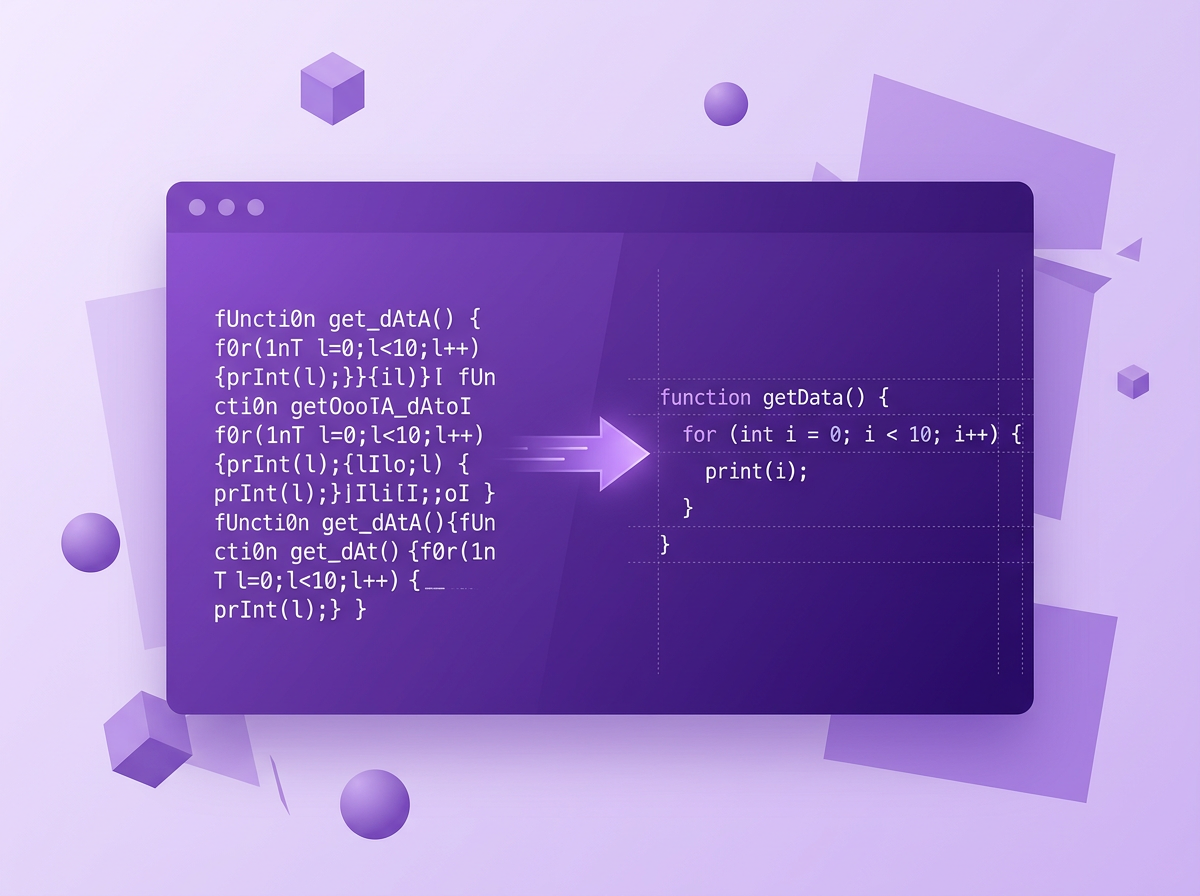
- What is coding font?
- What Makes a Font Good for Coding? The Criteria That Actually Matter
- Quick Checklist for Everything to Look for in Your Fonts:
- Best Coding Fonts according to Use Case
- Best Programming Fonts for Visual Studio Code (VS Code)
- Best Coding Fonts for Terminal & NeoVim
- Best Programming Fonts for JetBrains IDEs (IntelliJ, PyCharm, WebStorm)
- Best Coding Fonts for Presentations, Pair Programming & Screen Sharing
- Best Coding Fonts for Developers with Eye Strain or Accessibility Needs
- Best Coding Fonts for the Aesthetics-First Developer
- The Top Free Coding Fonts Compared
- FAQs: Best Coding Fonts in 2026
- What font do most programmers actually use?
- Should I use coding ligatures or not?
- Do programming ligatures affect performance?
- What font does VS Code use by default?
- What font size should I use for coding?
- What is the best coding font for VS Code specifically?
- Is JetBrains Mono better than Fira Code?
- What is the difference between Cascadia Code and Cascadia Mono?
- Are free coding fonts good enough, or do I need a paid one?
- What are the most common mistakes when choosing a coding font?
- How do I find out what font someone is using in their setup?
- Does font choice matter more for some programming languages?
- How to Find and Install the Best Coding Fonts
- The Ultimate Guide to Finding Your Font
Developers read far more code than they write.
According to Robert C. Martin, author of Clean Code, “The ratio of time spent reading versus writing code is well over 10 to 1.” Yet most developers still read in the default font they get.
With the wrong font, you cannot read certain characters. You surely don’t want that. It can take up a lot of your time debugging. You also get eye fatigue if you read a font that strains your eyes.
The right coding font does the opposite. It helps you in your workflow, and your eye health also remains better.
With this guide, we will showcase the best fonts that suit your editor, workflow, and screen. Most “best coding fonts” articles just list the same fonts for you to try and test them yourself
We will go through all the fonts that look best according to the editor, the operating system, and your setup. We will match the fonts as per the different categories.
You can jump to the use case you want to explore from the table of contents too.,
What is coding font?
A coding font is a monospaced typeface built for use in code editors and terminals. Every character takes up the same horizontal space, keeping your indentation consistent and making your code easy to scan. Good coding fonts ensure characters like 1, l, and I, and 0 and O look different from each other. If they look similar, you will never be able to find the errors and spend hours debugging.
What Makes a Font Good for Coding? The Criteria That Actually Matter
Picking a coding font isn’t just about what looks good in a screenshot. There are many other things that matter when you’re working on your code for hours, and if the font fails any of these, no amount of aesthetics will save it.
Here’s what you should look out for while choosing a font.
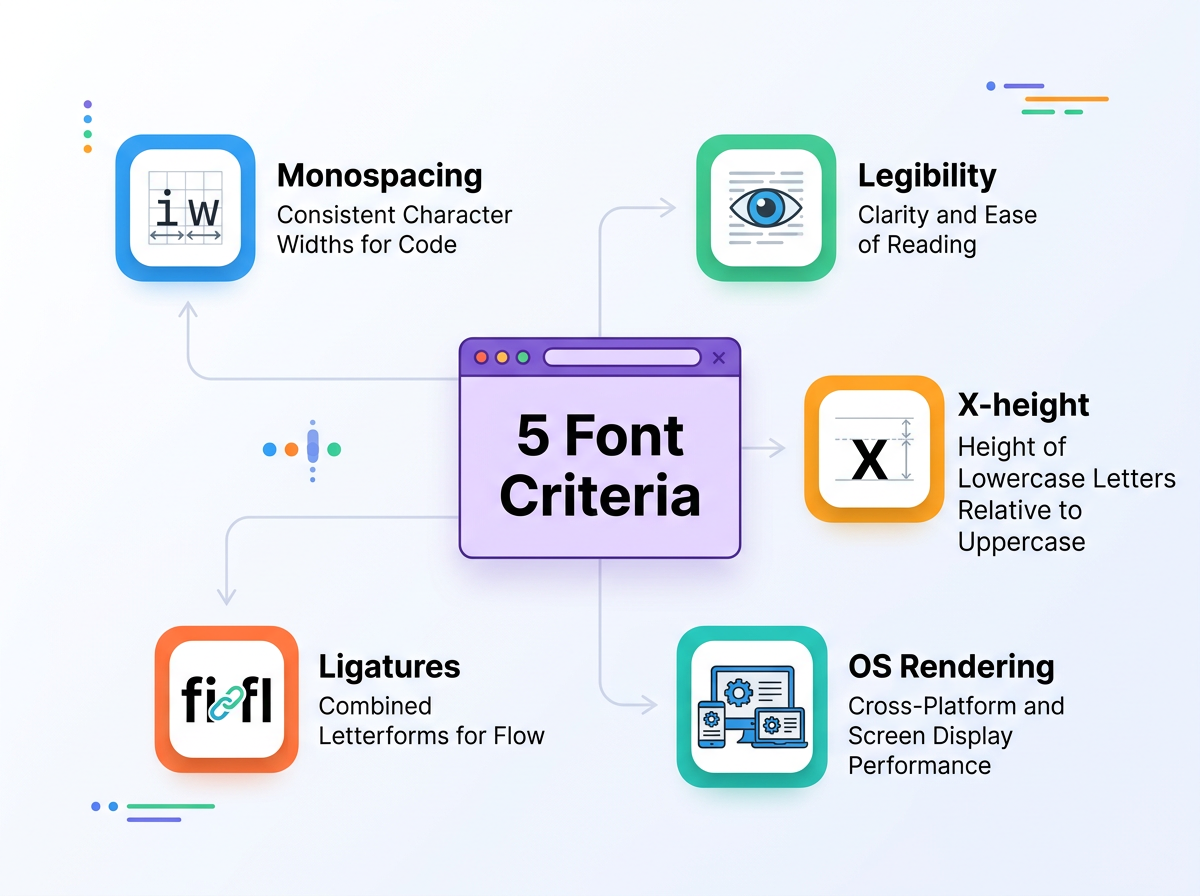
1. Monospaced font
Every coding font has to be monospaced. Monospacing means every character takes up the same horizontal space, keeping code aligned vertically.
Due to monospacing, the code remains aligned and indentation stays consistent too.
On larger codebases, the monospacing helps to easily scan nested structures and edit easily. With cleaner spacing and columns, your code doesn’t turn into a mess.
If you see in the picture below, you can see how each word takes the same space and is easy to read too!
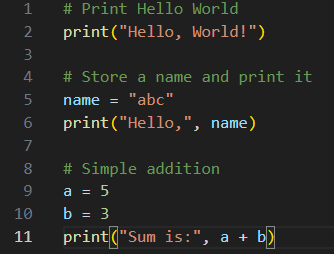
Not sure if the font you are using is monospaced? Just paste few lines of indented code or indent some lines and see if the columns stay aligned. If they are, your font is monospaced.
2. Character Disambiguation or Legibility
If you misread or mistype a single character in your code, you will have to spend a lot of hours debugging.
If you cannot find a typing mistake because the font you are using displays a few characters in the same way, your time is going to be wasted. When you write certain letters which might have a similar appearance, they should be legible in the code with a clear distinction from one another.
Always check for these characters when you are looking for a font in the editor:
1 l I |
0 O
{ ( [
: ;
Input these in your editor at the regular font size you use. If you get confused for even a moment, you should consider switching to another font because over time this is going to slow you down.
When I pasted these characters in my editor, this is what they looked like:
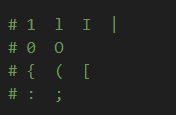
They all look different, and I can easily tell the difference between each. That is what matters.
3. X-height
X-height refers to the height of lowercase letters when compared to the uppercase. If the height is taller, lowercase letters are usually larger, which makes reading the font easier. If the x-height is small, increase the font size for better readability.
4. Ligatures
Ligatures turn multiple-character sequences into a single symbol or a single connected glyph.
For example:
- => becomes an arrow
- != becomes a not-equal to sign
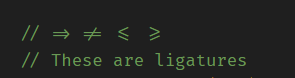
Some developers out there love ligatures because the signs define clear meanings for them. For others, this becomes confusing while reading or reviewing the code later.
To be fair, you have to experiment with it. Enable them and work with them for a few days to test out.
If they make your work easier, if you scan through and read the code easily with them, keep them enabled. If they cause you issues understanding the code, disable them.
You can do that easily as most codes let you do it in just one line.
If you’re working with very large files or on lower-powered systems, simpler fonts without heavy ligatures may also render slightly faster and feel more responsive.
5. OS Rendering: Test on Your System
Fonts do not look the same on every device. If you see a font online or if a font works fine on someone’s Mac, it does not mean it will look exactly the same on yours.
On macOS, fonts look heavier and softer because it applies its own anti-aliasing. While on Windows, fonts get sharper because it uses ClearType rendering, so one font may look different on both. On Linux, whether you’re on Ubuntu or another distro, rendering depends on your settings.
This means, don’t install just any font that you find on a coding fonts video or saw on an online editor; test it out on your machine and environment.
6. Weights, Italics and How They Work With Your Theme
This one gets overlooked easily when you’re choosing a font but it will make a difference when you start using it for a while.
The colour themes usually use bold and italic styles to separate different parts of code. So when you review and read the code, your eyes can separate parts of code visually. Keywords might be bold, comments italic, variable types in a different weight too.
If the font you are using comes in only one weight, you cannot visually separate your code while reading. Everything looks the same, and the theme loses its purpose.
Always look for a font that offers different weights and an italic variant, too. You need a proper italic variant, too, because some fonts just have the regular weight, just tilted one way, and you get unreadable words. A true italic variant just helps you read things better, especially in dark themes where comments and keywords need to be properly highlighted.
Quick Checklist for Everything to Look for in Your Fonts:
- Does everything look aligned properly? Even the indented code?
- Are you able to distinguish between characters 1, l, I and 0, O?
- Does the font feel comfortable even after working with it for over an hour?
- Are the bold and italics making a difference in readability or making no difference?
Always keep these criteria in mind when you start experimenting with coding fonts.
Best Coding Fonts according to Use Case
Best Programming Fonts for Visual Studio Code (VS Code)
VS Code is currently most widely used code editor and it is one the best environments to get good font experience. It is highly configurable in terms of fonts, ligatures or rendering. The settings remain consistent and it takes only a few seconds to write in settings.json to set up the environment. If you use Visual studio Code, you have a lot of options.
Well, a lot of options can also make it a lot confusing for developers to choose the best coding font for VS Code but here’s what you can work with for a good experience.
| Font | Ligatures | Price | Best If You… |
| JetBrains Mono | ✅ 142 ligatures | Free | Want one font that works well across every VS Code setup |
| Fira Code | ✅ 200+ ligatures | Free | Use operators heavily and want the widest ligature set available |
| Cascadia Code | ✅ + cursive italics | Free | Love a modern aesthetic and spend most of your time on dark themes |
| MonoLisa | ✅ Yes | ~$49 | Code 8+ hours a day and want wider spacing built in to reduce fatigue |
| Geist Mono | ❌ No ligatures | Free | Work in the Next.js or Vercel ecosystem and want something clean and minimal |
Recommended Pick: JetBrains Mono
JetBrains Mono is the easiest recommendation for anyone using JetBrains. Most users use 12-14px for the font size and JetBrains reads well at that with its taller x-height.
Due to this height, the lowercase letters are taller relative to most other fonts which keeps the fonts accessible even at smaller size.
It has strong character disambiguation and works well with dark themes too, so even when you try different themes, the font will be readable.
JetBrains Mono has 8 different weights with true italics and has support for 152 languages too. It is free and actively maintained too so you don’t have to worry about it being outdated anytime soon.
Download JetBrains Mono on your device:
- Visit the official website of JetBrains or search for JetBrains Mono Github to find official releases.
- Install the ZIP files
- Once extracted, go to ttf folder for both macOS or Windows
- Select all files of ttf, right click and click Install
- Your font will be installed
Once the font is installed, you can enable it on your Operating System by jumping to section: Installing the Font on Your System
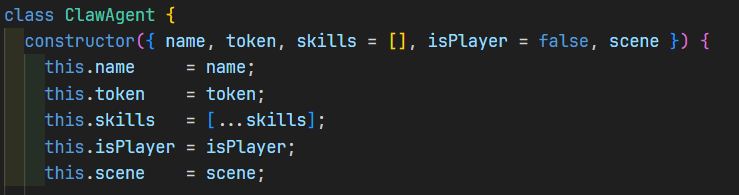
Once this is pasted, your fonts will update throughout the text editor. Here’s what it looks like in my VSCode.
Alternative Pick: Fira Code
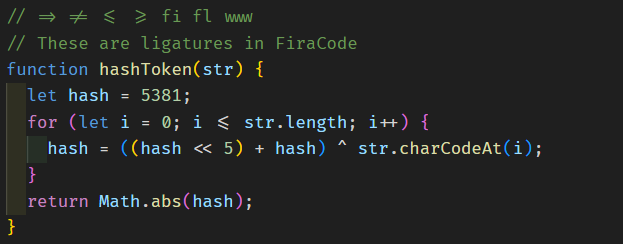
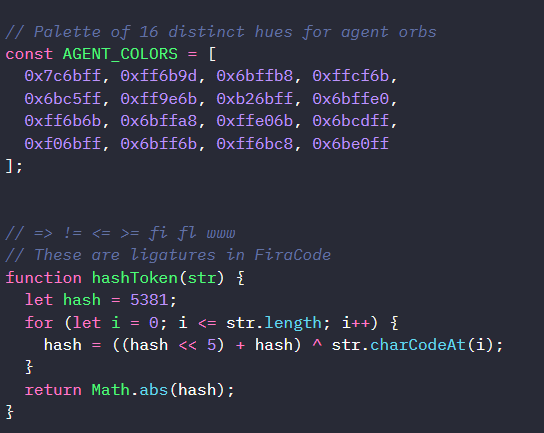
Fira Code is designed to combine frequently used multi-symbol sequences into a single sequence, improving readability and reducing scanning time. Fira Code features a wide range of ligatures, including traditional ligatures like ‘fi’ and ‘fl’, as well as unique ones like ‘www’.
If you have a MacBook or any 4k displays, it is worthy of noting that Fira Code also has a Retina variant for high-DPI displays.
To install FiraCode:
- Search for FiraCode on GitHub
- Install the ZIP file
- Extract the ZIP file and open the ttf folder
- Select all files, right click and install
You can jump to section of Installing Fonts on Your System to ethe nable it in your IDE.
Your fonts will be installed. The official documents of FiraCode recommends to right click on each file and unblock it before installing
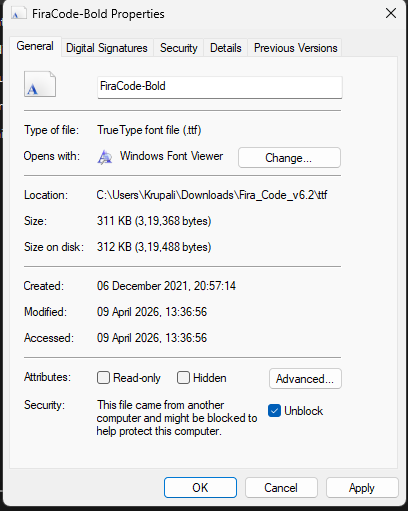
If you do not want that, you can also install using powershell using the command: choco install firacode.
Once saved, your text editor will have an updated view of the fonts. You can see in the following screenshot how different symbols are rendered when you use FiraCode, which might be useful if you like using Ligatures.
Best Coding Fonts for Terminal & NeoVim
Terminal environments need additional support for special symbols and icons unlike VS Code. If the font isn’t Powerline or Nerd Font compatible, you’ll see broken squares and question marks instead of Git status icons, folder glyphs and prompt symbols that tools like Oh My Zsh, Starship and Neovim file explorers rely on.
What are Nerd Fonts?
Nerd Fonts are a patched version of popular monospaced fonts. These have extra glyphs on top of normal character sets, including icons, folder icons, arrows, symbols and more. You do not switch to another font, but you just have more symbols for support. The Nerd Fonts community keeps the development of these packages active, so patched versions are updated regularly.
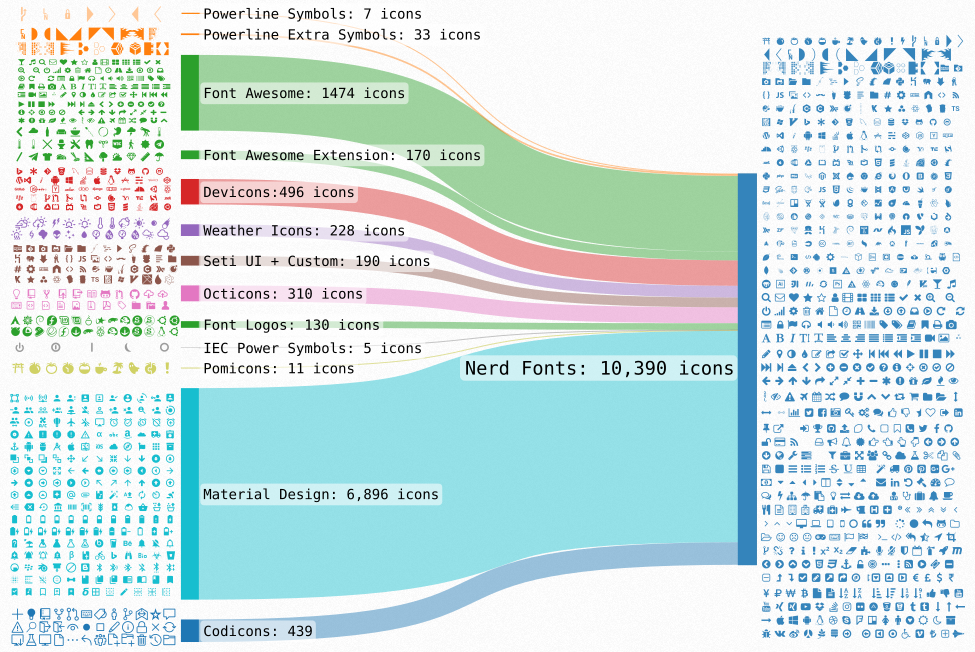
Ligatures on Terminals:
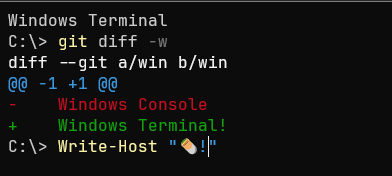
All terminals do not support ligatures same way. iTerm2 and Kitty handle them well but default macOS Terminal doesn’t support them at all. Windows Terminal works well with Cascadia Code and supports ligatures that’s why the pairing is quite popular too.
Here are some picks for Terminal and NeoVim users
| Font | Nerd Font Available | Ligatures | Best For |
| Hack | ✅ | ❌ | Clean, no-setup terminal use at any size |
| Iosevka | ✅ | ✅ | Dense codebases and power users who want more per line |
| JetBrains Mono NF | ✅ | ✅ | Consistency if you’re already using JetBrains Mono in your editor |
| Cascadia Code NF | ✅ | ✅ | Windows Terminal users specifically — it’s built for it |
Recommended picks: Iosevka or Hack
These two cover what terminal users usually want.
Iosevka
Iosevka is designed to be a slender monospaced typeface, optimized for programming with a variety of weights and styles available. It is for anyone who wants to fit more code on the screen. It is narrow in design so there are more characters but the font size remains the same.
If you spend most of your day on a terminal, you might just love this one. The only trade-off is that you might need to spend some time to configure it to look comfortable; it might look cluttered.
Hack
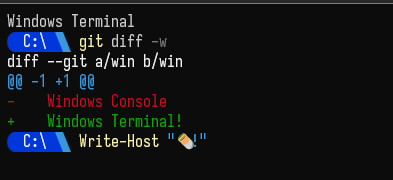
Hack, on the other hand, is tuned to be readable even at small sizes. It does not have ligatures but for anyone who doesn’t like ligatures, this one is very clean and sharp on all screen sizes. If you are looking to customize your terminal experience for the first time, Hack is a good starting point. It also has a strong developer community behind it, so you can find setup guides and configs easily.
JetBrains Mono for Terminal
If you want to experiment with JetBrains Mono, you can download the patched version of Nerd Font for on Windows, macOS or even Ubuntu. If you feel like configuring the same font on the terminal and editor for readability, this will be a perfect match.
Best Programming Fonts for JetBrains IDEs (IntelliJ, PyCharm, WebStorm)
If you are using any JetBrains IDE, you are probably already using the most compatible font for it. JetBrains Mono is the default font across all the IDEs. For other editors, there may be some flaws in default choices but for this one, you might just keep that one.
Here are some more options though if you feel like exploring
| Font | Ligatures | Best For |
| JetBrains Mono | ✅ 142 ligatures | Default choice — tuned for this environment |
| Fira Code | ✅ 200+ ligatures | Developers who want a broader ligature set or use both JetBrains and VS Code |
| Source Code Pro | ❌ No ligatures | Anyone who wants a clean, no-frills font with an excellent weight range |
Recommended Pick: JetBrains Mono
This is a recommended font for almost all editors. JetBrains Mono would look the best and support the best on JetBrains IDEs. The anti-aliasing IDEs render the font at all sizes very cleanly. With more than eight weight options and true italics, it works on default and other themes too. The character disambiguation is strong and there are more than 40 ligatures supported too.
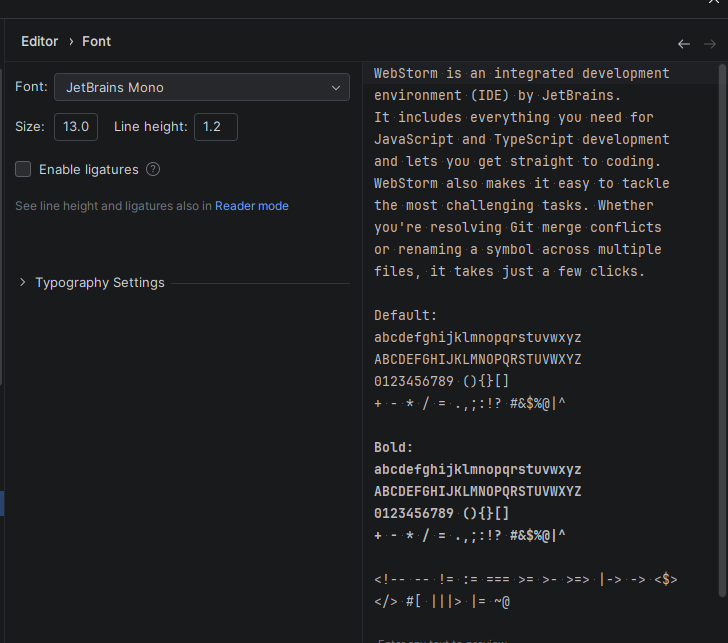
Here’s what a code looks like in the JetBrains IDE, WebStorm:
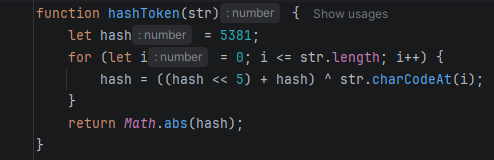
If you are facing any reading issues, first thing to look out for should be line height and font size and then look for a switch!
Best Coding Fonts for Presentations, Pair Programming & Screen Sharing
You might have a comfortable environment on your private system but as soon as you use a projector or share your screen, the readability for the people viewing might not be the same as in your environment. They cannot zoom in on your fonts and even ligatures may become troublesome to read the codebase.
For anyone reading it on a different screen, you need clearer character disambiguation, clearer weights and styles for the font.
The best thing to do even before changing the font is to fix a few things:
- Font size: If you use 13-14px, you should shift to 16-18px as they are much larger and easily visible to anyone who cannot zoom in on your screen.
- Line height: Shift the line height atleast 1.5 or above so that there is more space between lines and it is comfortable for reader to read through.
- Ligatures: Turn ligatures off because not everyone is comfortable with them. Even developers do not enjoy working with them sometimes. Presenting it to anyone specially if they are new to codebase can bring more confusion.
- Theme: Make sure the theme you choose has high contrast so the background and written code is clearly visible. Sometimes projectors don’t project original colors of the screen, at this moment high contrast can help distinguish.
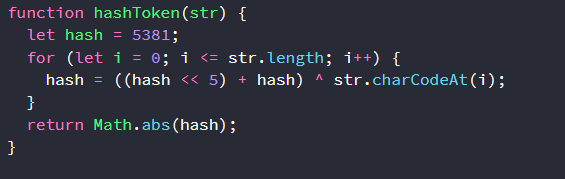
Recommended picks: Source Code Pro or IBM Plex mono
Both of these are very clean fonts and hold up well on large sizes. They are not very fancy or feature ligatures, but they are best for any screen and any audience and provide maximum clarity.
Best Coding Fonts for Developers with Eye Strain or Accessibility Needs
Many programmers experience eye strain by early afternoon or after a few hours of coding. During this, your font might be a problem. Sometimes it can be harder to read on screen, too, for people with weaker eyesight if the spacing and contrast of the theme aren’t well set. When you choose proper coding font, it can enhance readability and reduce headaches during long coding sessions.
Prioritise these few things to prevent eye strain:
Do not think about ligatures and aesthetics for a moment; think about how you can optimise a font to help you work for long hours without issues.
- Letter Spacing: Keep the letter spacing generous; more spacing can make it easier for the eyes to run through the words and read.
- Rounded, softer letterforms: Sharper fonts may strain the eye over longer sessions so consider switching to softer ones
- Adjust weights: Change the fonts to slightly bolder to make it easier for the eye to read and not have thin strokes.
- Strong disambiguation: While this matters for all use cases, misreading a character can become more troublesome if you’re tired, so choose a font which has clearer disambiguation.
Don’t forget the theme:
Font and theme work together more than most people realise. A well-spaced accessible font paired with a low-contrast theme will still cause fatigue. High-contrast dark themes like One Dark Pro, Catppuccin, and Tokyo Night amplify the legibility of your font. If you’re switching fonts to reduce eye strain, switch your theme at the same time and see what the combination does.
Recommended picks:
MonoLisa
MonoLisa was designed by Marcus Sterz for developers who sit in front of the editor for long hours. The core design decision was to make characters 7% wider than standard fonts.
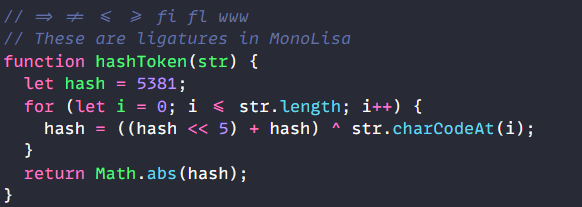
Wider characters allow for natural and open letterforms so your eyes don’t have to work to resolve each character. They also have angled starting and ending points which allows to read smoothly.
It comes with multiple weights, a cursive italic variant, more than 120 ligatures and solid rendering. It starts at $99 but they offer a trial version too. If you get to early afternoon and your eyes are done, you should get to the free trial.
JetBrains Mono
JetBrains Mono isn’t marketed as an accessibility font but it holds up well for long sessions. It has tall x-height, which makes reading at a smaller font size readable too. The spacing is also generous so that the text doesn’t look cramped. Pair it with line height of 1.6 and high contrast theme to get the overall setting more comfortable.
OpenDyslexic Mono
OpenDyslexic Mono adds a heavy bottom weighting to each character. Each letter has clear anchor point so they don’t seem flipped or rotated. The research on dyslexia fonts is mixed and some studies show the font helps, while others show there are no changes. The founder, Abelardo Gonzalez, created it to overcome his own reading challenges.
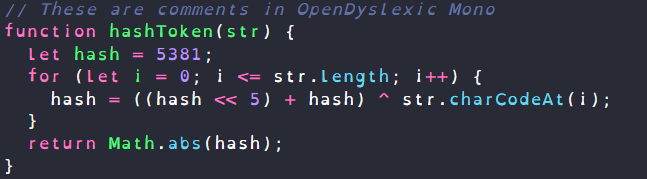
It is worth a try. It is free and open source, so you can test it out before thinking of making the switch.
Intel One Mono
Intel One Mono was built with and for maximum legibility to address developers’ fatigue and eyestrain and reduce coding errors. Frere Jones Type built it with the Intel Brand team and the VMLY&R marketing team. According to the Intel One Mono’s GitHub, A panel of low-vision and legally blind developers provided feedback at each stage of design.
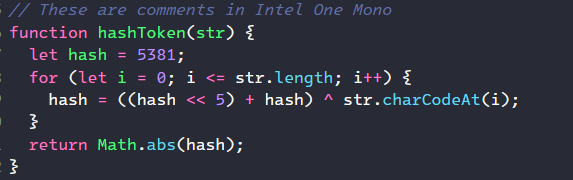
The font redesigns characters to improve the legibility of lowercase ‘e’ and uppercase ‘G’. The letter spacing is generous and the height of fonts is more pronounced than other coding fonts, which makes parsing easier.
Here’s a quick comparison of fonts for accesibility:
| Font | Key Feature | Price | | MonoLisa | Characters about 7% wider than average, designed specifically to reduce long-session fatigue | ~$99 | | JetBrains Mono | Tall x-height and generous spacing, best free option for eye strain | Free | | OpenDyslexic Mono | Heavy bottom weighting on each character to reduce letter confusion for dyslexic readers | Free | | Intel One Mono | Exceptionally tall x-height, wide apertures, strong disambiguation | Free | | — | — | — |
Best Coding Fonts for the Aesthetics-First Developer
We’ve got the best coding fonts recommendations for all use cases, but what if you want just good aesthetics? If you’ve spent a lot of time on your terminal colors, theme, prompts and vibe of your setup then you might want to pick a font that matches the aesthetics.
Here are some fonts with some different personalities. Some of them are paid, most of them are free! You can choose them according to your budget and how it matches the setup.
Recommended picks
Monaspace if you need free. Berkeley Mono if you want to explore a paid option.
Monaspace
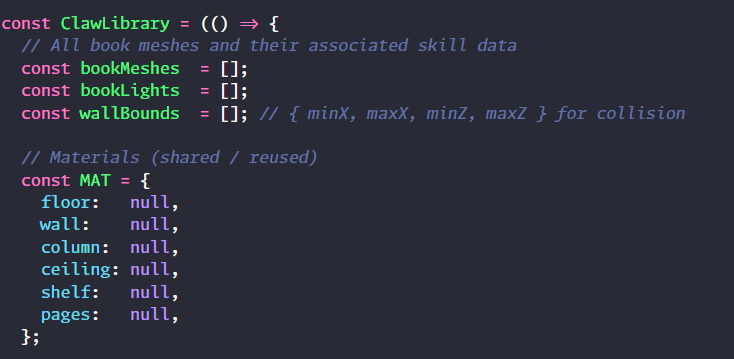
Monaspace is a GitHub’s free open-source family of five related monospace fonts. All of these fonts have a distinct personality but they are made to work together, so you can combine them and use them in different parts of the code. It also has a texture healing feature that adjusts character width so that when all fonts are used together, they do not look much different.
Berkeley Mono
Berkeley Mono is the font that a lot of developers go to when they want a good visual experience with fonts. It comes in four styles and costs about $75. The font is crafted deliberately with each spacing, weight and italics looking beautiful in the editor.
Some other fonts are:
- Operator Mono, which started the cursive italic trend. Comments and keywords are in cursive font while all others are in simple fonts. It is a paid font and costs around $200. It does seem quite expensive but no other font has come quite close to these yet.
-
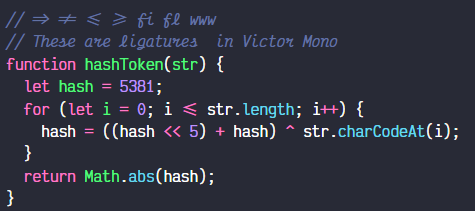
Victor Mono is free alternative to Operator. It has distinctive italics and carrying the resemblance of Operator, it has shown up in quite a few developer setup throughout 2025 and in 2026.
-
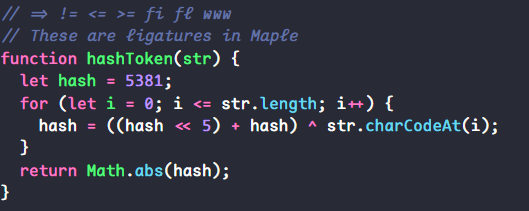
Maple Mono is another alternative, it is newer, rounder and softer than most coding fonts. If you need a change from the mechanical feel of other fonts, it’s worth a check.
-
Martian Mono: A development studio, Evil Martians, that creates tools for developers and designers developed Martian Mono. They have a font named Martian Grotesk and Mono was created to pair with it.
If you keep switching between coding and documenting, the pairing can create visual consistency. It has strong, slightly condensed character with spacing and clear disambiguation. It has become quite popular in 2025 and 2026.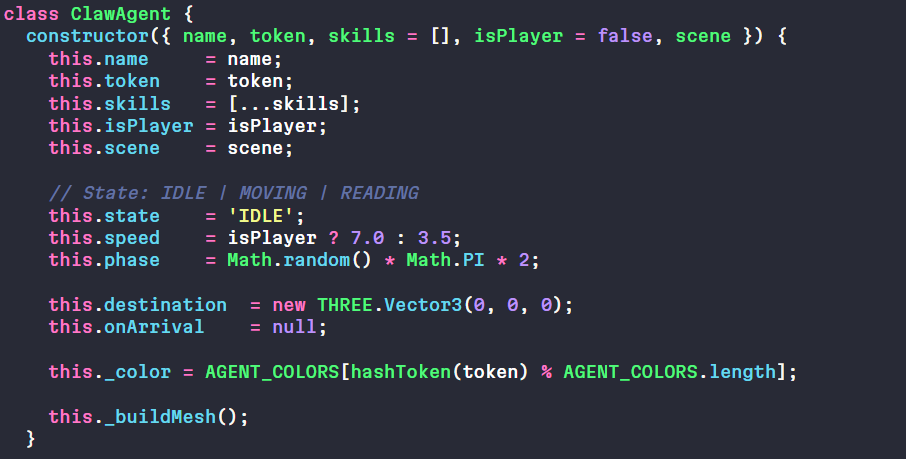
- SF Mono is Apple’s native monospace and is default in Xcode and Terminal on macOS. It renders beautifully and is very clean. It does not have ligatures though and is only available for Apple systems.
-
Comic Code is carefully engineered to give a distinctive look. It is exactly how it sounds but still very legible.

Here’s a quick cheat sheet for you to pair the fonts properly with the themes
| Font | Theme |
| JetBrains Mono | One Dark Pro |
| Cascadia Code | Catppuccin |
| Fira Code | Dracula |
| Berkeley Mono | Tokyo Night |
| Victor Mono | Night Owl |
| Monaspace Neon | GitHub Dark |
The Top Free Coding Fonts Compared
If you want to see everything side by side before deciding, here it is. All fonts below are free and actively maintained.
| Font | Ligatures | Nerd Font | Weights | Best For | OS Rendering |
| JetBrains Mono | ✅ 142 | ✅ | 8 | General use, JetBrains IDEs, long sessions | All platforms |
| Fira Code | ✅ 200+ | ✅ | 5 | VS Code, heavy ligature users | All platforms |
| Cascadia Code | ✅ + cursive | ✅ | 6 | Windows Terminal, VS Code dark themes | Best on Windows |
| Iosevka | ✅ Extensive | ✅ | 9+ | Terminal, dense codebases, power users | All platforms |
| Hack | ❌ | ✅ | 4 | Terminal, small sizes, minimal setups | All platforms |
| Source Code Pro | ❌ | ❌ | 7 | Presentations, clean setups, screen sharing | All platforms |
| IBM Plex Mono | ❌ | ❌ | 7 | Professional setups, screen sharing | All platforms |
| Inconsolata | ❌ | ✅ | 3 | Minimalists who want something lightweight | All platforms |
| Geist Mono | ❌ | ❌ | Variable | Next.js/Vercel ecosystem, clean geometric look | All platform |
Free vs Paid Fonts: Is it actually worth spending money on a font?
To be fair, most developers never spend money on font. There are some excellent fonts out there, like JetBrains Mono, Fira Code and Cascadia Code, which are professionally designed, are good for a lot of editors and are actively maintained too. So if you want better readability, accessibility or just aesthetics, these fonts would work.
Paying only makes sense in two situations. One, it would be if you have been spending most of your time on your editor and want something different but only yours. Two, you are a designer who also codes and you want aesthetic precision of a premium font.
If this is for you, you can check out these fonts:
| Font | Price | What You Get Over Free Alternatives |
| MonoLisa | ~$99-$200 | Wider characters, fatigue-reduction focus, unique letterforms |
| Berkeley Mono | ~$75 | Exceptionally refined craftsmanship, strong personality, 4 styles |
| Operator Mono | ~$200 | Cursive italic variant, prestige factor, wide weight range |
Honestly though, you should start with JetBrains Mono then experiment with other fonts and maybe make a decision to move to paid font after all experimentation.
FAQs: Best Coding Fonts in 2026
What font do most programmers actually use?
It depends on the environment, but JetBrains Mono is used by a lot of programmers because it is free, well-maintained and also a good font for all use cases. Fira Code is very popular amongst developers who use ligatures as it supports a lot of them. Consolas still shows up on a lot of systems as it is default for Windows. If we talk about terminal users, they usually gravitate towards Hack or Iosevka.
Should I use coding ligatures or not?
It totally depends on the context. Some developers find it intuitive and useful and for others it hinders the process of reading the code. So maybe try enabling them for a few days and if they just fade in background for you, continue using them.
Do programming ligatures affect performance?
Mostly, it does not affect performance anywhere. Current GPU text rendering pipelines handle ligatures with no measurable impact on performance. The only situation where you might notice any difference is on very large files on an older or lower-powered machine. Performance is not a reason to avoid ligatures. Whether you like how they look is the only reason that matters.
What font does VS Code use by default?
VS Code defaults to different fonts depending on your operating system.
- On Windows: Consolas
- On macOS: Menlo
- On Linux it falls back system default
None of these are bad fonts, but they were never designed specifically for code. If you have never changed your font, any of the picks in this guide will be a noticeable upgrade.
What font size should I use for coding?
For most setups, 13–14px is the standard starting point.
- On a 13” laptop at 1080p, 14px with a line height of 1.6 works well.
- On a larger 1440p or 4K monitor, you can go slightly smaller to 12–13px because the higher pixel density keeps characters sharp.
- On a MacBook with a Retina display, 13px at 1.5 line height is a comfortable default.
These are starting points, though. You can adjust until your eyes stop working hard to read.
What is the best coding font for VS Code specifically?
JetBrains Mono for most people as it reads the best for smaller or large font size and also has good weight range. Its ligature support is also good in VS code.
Here’s how you can set it up on VS Code:
“editor.fontFamily”: “JetBrains Mono”,
“editor.fontLigatures”: true,
“editor.fontSize”: 14,
“editor.lineHeight”: 1.6
Is JetBrains Mono better than Fira Code?
JetBrains has taller x-height which makes the readability better even at smaller font sizes and the weight range integrates better with syntax highlighting themes. If you want more ligatures, like if you work with languages like Rust, Haskell or any other language with heavy operator use, Fira Code might handle it better.
What is the difference between Cascadia Code and Cascadia Mono?
Both are made by Microsoft and ship with Windows Terminal. Cascadia Code includes programming ligatures. Cascadia Mono is the same font with ligatures removed entirely. Both come in Nerd Font versions too. If you want ligatures, use Cascadia Code otherwise Mono.
Are free coding fonts good enough, or do I need a paid one?
Most widely used fonts are free in 2026. JetBrains Mono, Fira Code and Cascadia Code are free to use, professionally developed and the teams are actively developing them. Some paid fonts have great aesthetics if you want to consider them for daily use. If you’ve customised a lot of things on your setup, you might want to opt for a paid one; otherwise, free ones work the best.
What are the most common mistakes when choosing a coding font?
1. Testing out the browser preview instead of checking the font you want to use on your editor. The font rendering differs significantly.
2. Not testing fonts on various themes. You might be using one theme right now but in the future might want to switch to something else.
3. Judging on aesthetics before disambiguation. A font can look very good but still make 1 and l look similar.
4. Ignoring the line height. Sometimes the font might be fine but you haven’t adjusted the line height which might make a difference in the readability.
How do I find out what font someone is using in their setup?
There is this browser extension called WhatFont which can help you find the identify the fonts on webpages but sadly it doesn’t support images. If someone has shared their setup, you can ask them directly. If you found the image somewhere else on the internet, you can screenshot it and ask on Twitter or Reddit.
Does font choice matter more for some programming languages?
It can. Some languages are operator-heavy, where you might want to use more ligatures. Like Rust uses ->, =>, |> constantly. If you have languages like that, you might want to use fonts with more ligature support. If there is no or light use of operators, you can use other fonts where disambiguation is more distinctive.
How to Find and Install the Best Coding Fonts
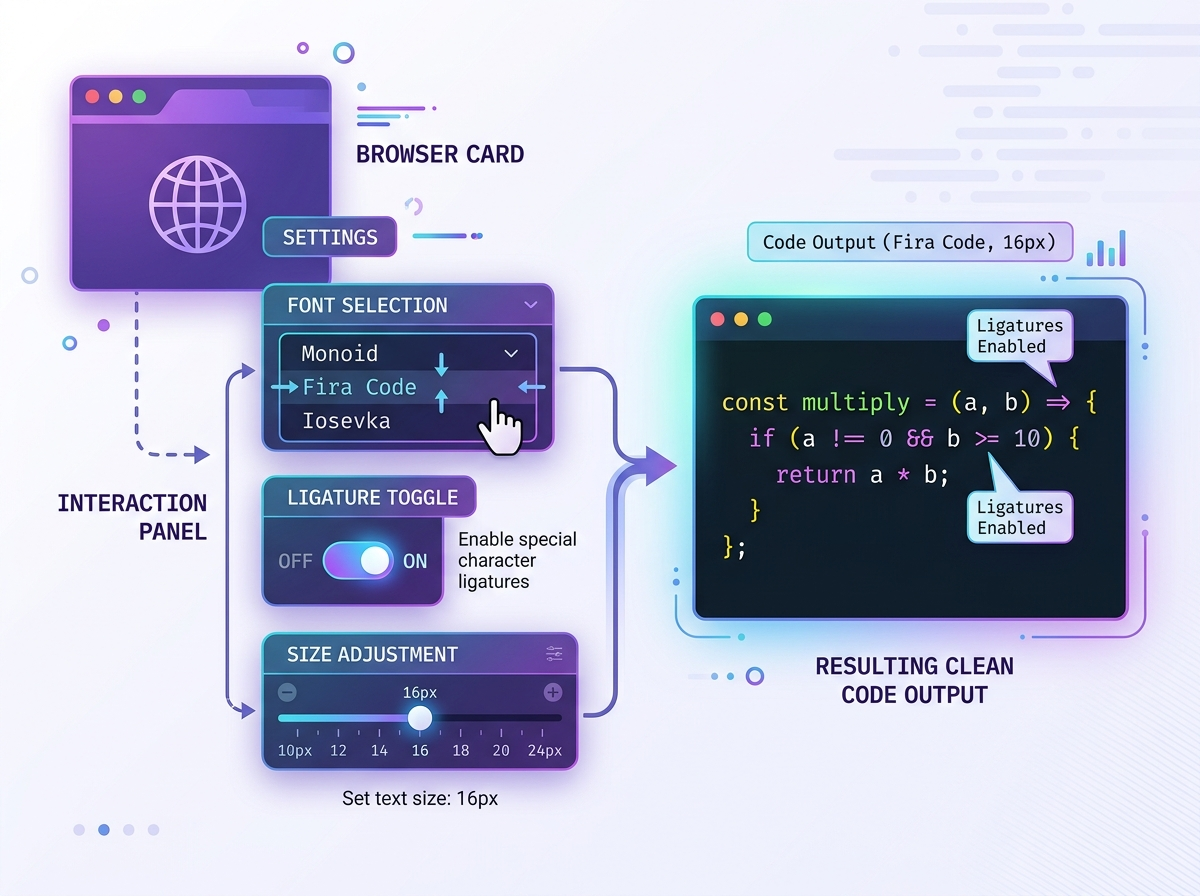
Fonts like Fira Code, JetBrains Mono, Cascadia Code, Hack and Iosevka can be found easily on GitHub. They have official releases on their GitHub pages.
If you want to download fonts for terminal, you can visit Nerd Fonts. Every major coding font has a Nerd Font version available which is pre-patched with extra glyphs you might need for terminal prompts or Neovim plugins.
If you want to research coding fonts before downloading anything, programmingfonts.org lets you preview over 50 options using your own code snippet. You should always test on your system but you can narrow down the list using the tool.
Google Fonts also has a handful of coding fonts including Source Code pro, Inconsolata, Roboto Mono and Geist Mono. It can be useful if you are building any website that displays code and need easy CDN delivery.
Installing Fonts on macOS
- Download the .ttf or .otf file from whichever source you’re using.
- Double-click the file and Font Book will open automatically.
- Click Install Font
It’ll be immediately available across every application on your system.
Installing Fonts on Windows
- Download the font file
- right-click it and select Install for all users rather than just Install.
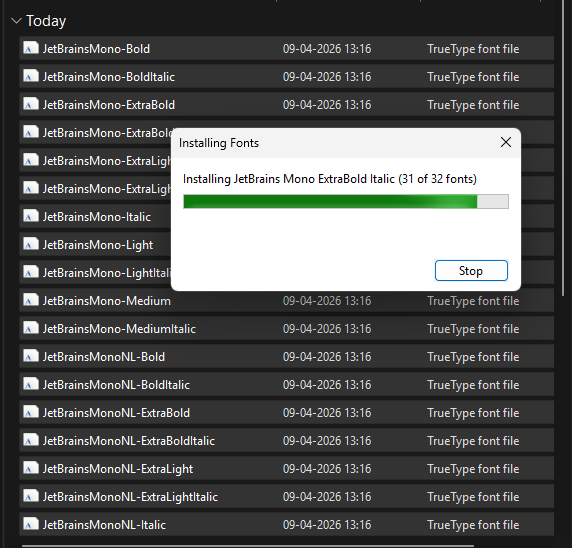
The distinction matters as installing for all users ensures the font is available in editors that run with elevated permissions, which some do.
If you install for your user only and your editor runs as administrator, it won’t see the font.
Installing Fonts on Linux
Copy the font files into ~/.local/share/fonts/ and then run this in your terminal:
Now in terminal input:
fc-cache -fv
That refreshes the font cache and makes the font available system-wide. This works on Ubuntu, Debian, Arch and most other distros.
Setting up Coding Fonts in VS Code
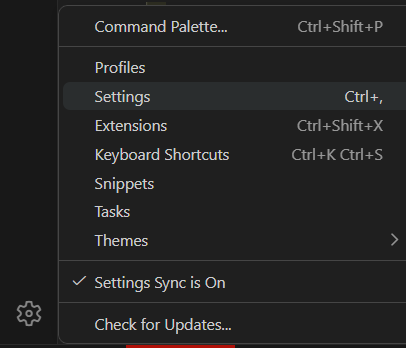
Once the font is installed on your system, open VS Code settings with Cmd/Ctrl + , and search for “font family”. The font family field is where you input the font name exactly as it appears in your font manager/ JetBrains Mono needs the space between JetBrains and Mono, for example.
Or open your settings.json directly with Cmd/Ctrl + Shift + P → “Open User Settings JSON” and add your configuration there:
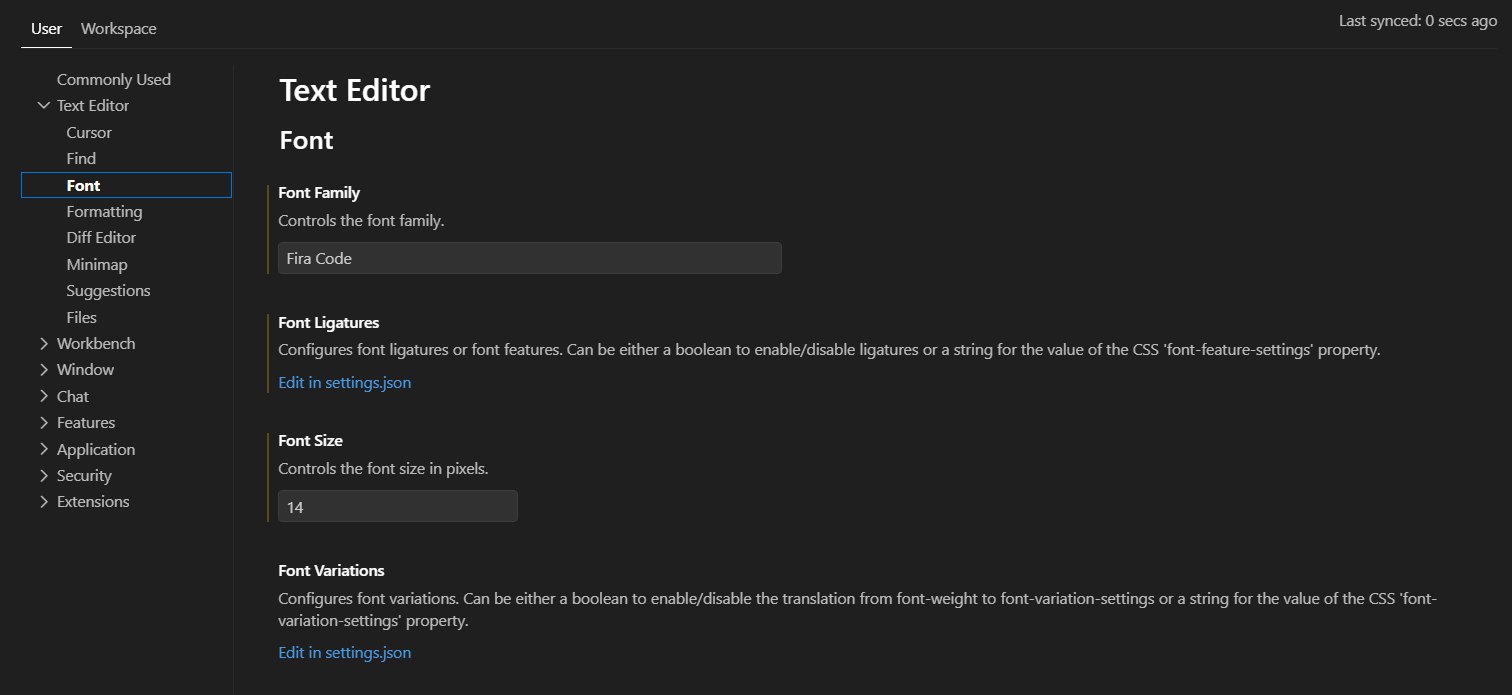
“editor.fontFamily”: “JetBrains Mono”,
“editor.fontLigatures”: true,
“editor.fontSize”: 14,
“editor.lineHeight”: 1.6
The change applies immediately across all open files.
Setting up Fonts in a JetBrains IDE
Go to Settings → Editor → Font. Change the font family field to your chosen font, set your size and line height, and check the Enable Ligatures box if you want them. Everything applies instantly, no restart needed.
Setting up Fonts on Terminal (Windows Terminal)
Open your settings.json and update:
“fontFace”: “Cascadia Code”,
“fontSize”: 14
If you’re using a Nerd Font version, replace the font name accordingly.
Setting up Coding Fonts on Neovim (GUI clients like Neovide)
Add this to your config:
vim.o.guifont = “JetBrains Mono:h14”
You can adjust the size (h14 → h16 or h18) depending on your screen.
The Ultimate Guide to Finding Your Font
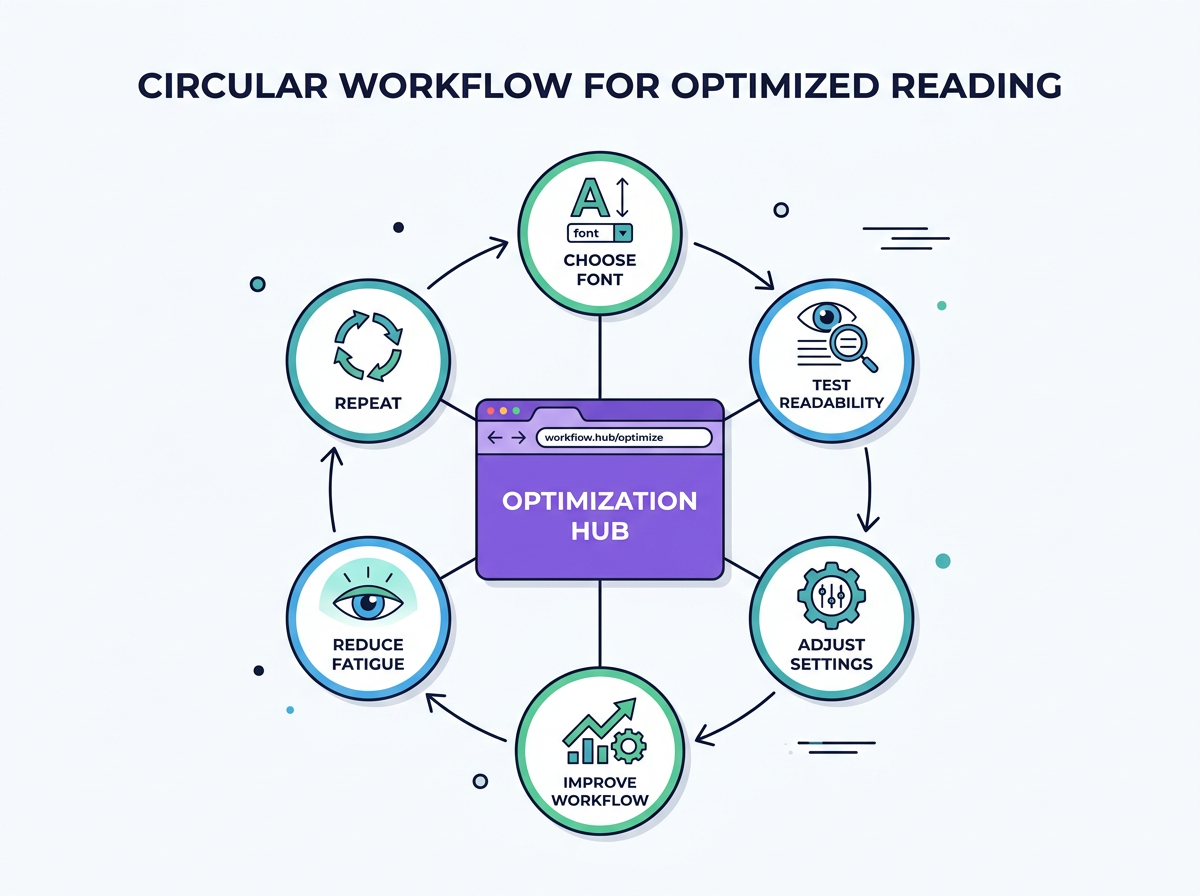
Font choice doesn’t take more than ten minutes to change and costs nothing for most options on this list. Yet most developers stick to the default ones. But here’s a quick version of everything we covered:
| Use Case | Start With |
| VS Code | JetBrains Mono or Fira Code |
| Terminal / Neovim | Iosevka or Hack (Nerd Font version) |
| JetBrains IDEs | JetBrains Mono |
| Presentations / screen sharing | Source Code Pro or IBM Plex Mono |
| Eye strain / long sessions | MonoLisa or JetBrains Mono + line height 1.6 |
| Aesthetics-first | Monaspace (free) or Berkeley Mono (paid) |
| Next.js / Vercel ecosystem | Geist Mono |
| macOS native | SF Mono |
These are some of the recommended ones but you can choose others from the list above. Before choosing the font always look for character disambiguation.
If anything still confuses you, start with JetBrains Mono. It works across all editors, all OS and every use case. Then you can experiment with more fonts on programmingfonts.org to choose further in future.