

- What Does File Compression Mean?
- Method 1: Compress a File Using Built-In Windows Tools
- Method 2: Compress Multiple Files Into One ZIP Archive
- Method 3: Compress Files Using Third-Party Software
- Share Files using Tiiny Host
- How to Unzip files from a compressed folder
- Common Mistakes to Avoid
- Best Practices for File Compression on Windows
- FAQs: How to Zip a File on Windows
File compression is a useful skill for anyone using Windows. It makes it easier to email documents, upload files to websites, save space, and share several files at once. This speeds up the process and keeps things organised.
This guide shows you how to compress files on Windows. It starts with built-in tools and then covers advanced options using third-party software. By the end, you’ll know which method best fits your needs.
What Does File Compression Mean?
File compression reduces the size of one or more files by storing their data more efficiently. On Windows, this usually creates a ZIP file, which combines files and reduces their total size.
Compression helps you:
- Share files more easily via email or cloud services
- Save disk space
- Organize multiple files into a single archive.
Read: How to Compress a File on Mac
Method 1: Compress a File Using Built-In Windows Tools
Windows has built-in file compression tools. You don’t need extra software. For most people, this is the quickest and easiest way to compress files.
How to Compress a single File or Folder
Create a ZIP file
- Open File Explorer
- Navigate to the file or folder you want to compress.
- Right-click the item
Once you select the folder, you will have two ways to compress the files:
On Windows 11:
- Select Compress to
- Then select ZIP file
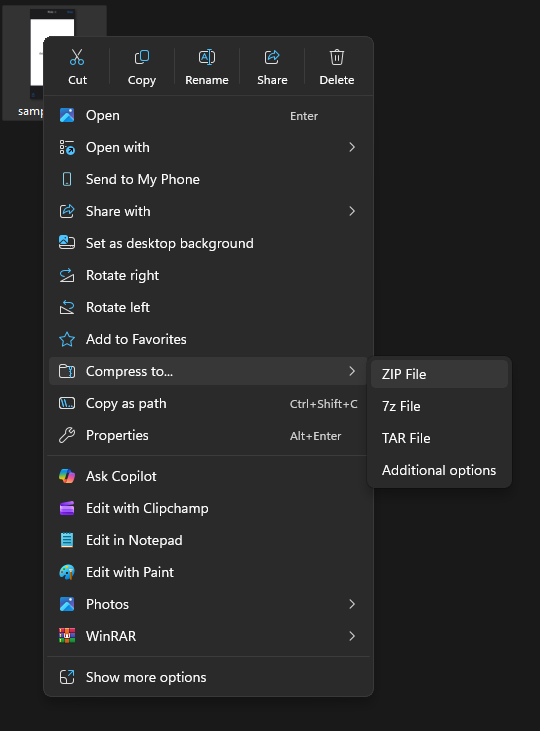
Alternative or if you have older version of Windows:
- Select Send to (Go to ‘Show more options’ if you cannot see the option)
- Click the Compressed (zipped) folder.
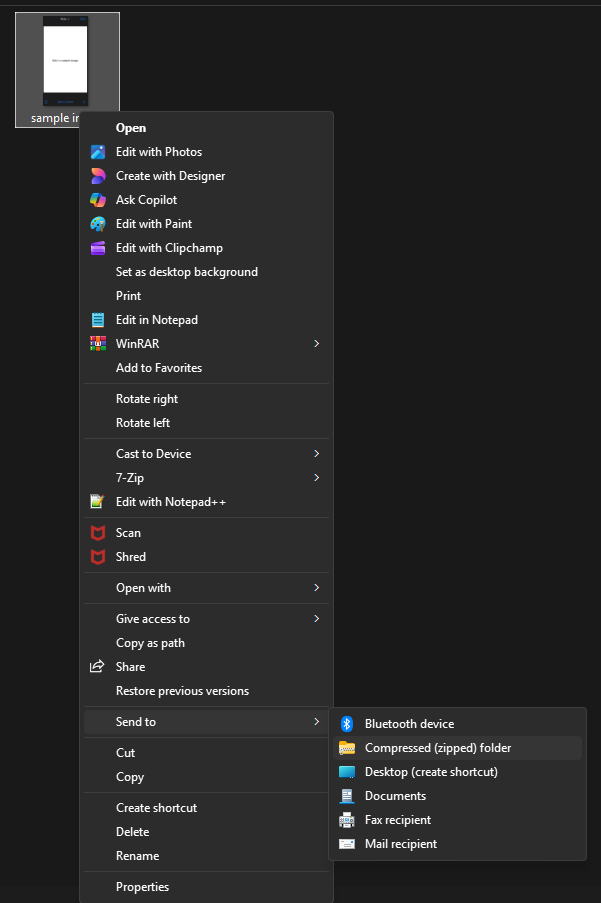
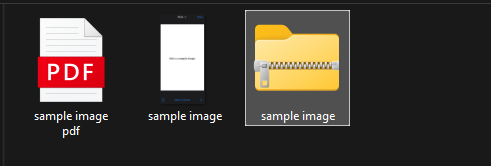
Windows will create a ZIP file in the same place as your original file or folder.
Method 2: Compress Multiple Files Into One ZIP Archive
If you want to send or save several files at once, Windows lets you combine them into one compressed file. This makes sharing and managing all the content easy.
Steps to Compress Multiple Files
- Hold Ctrl and select individual files (or folders)
- Right-click one of the selected items
- Choose Send to → Compressed (zipped) folder
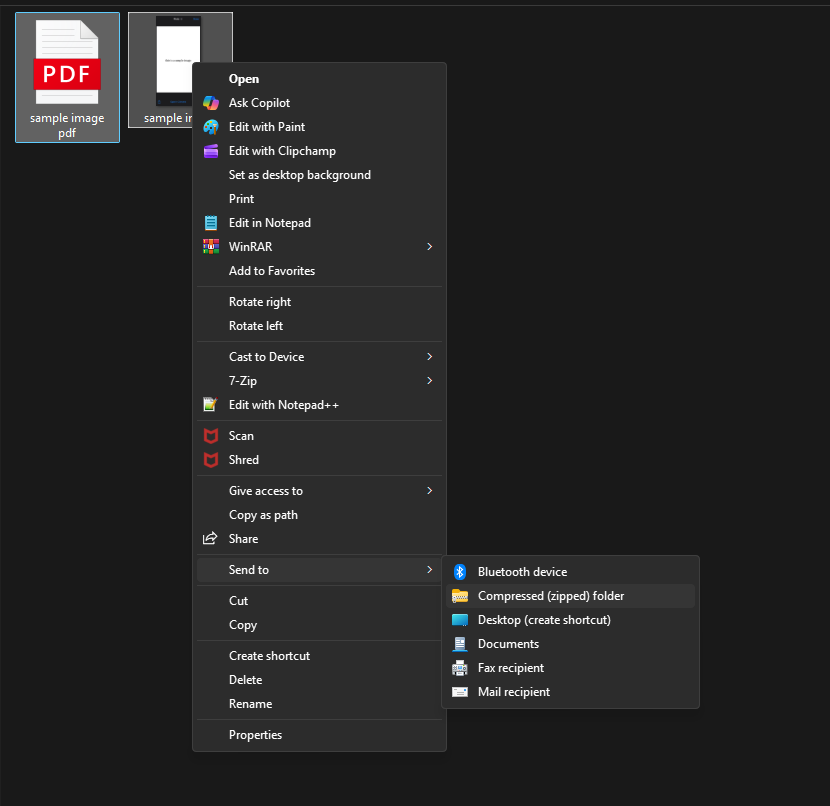
or if you use Windows 11, you can select Compress to -> ZIP file
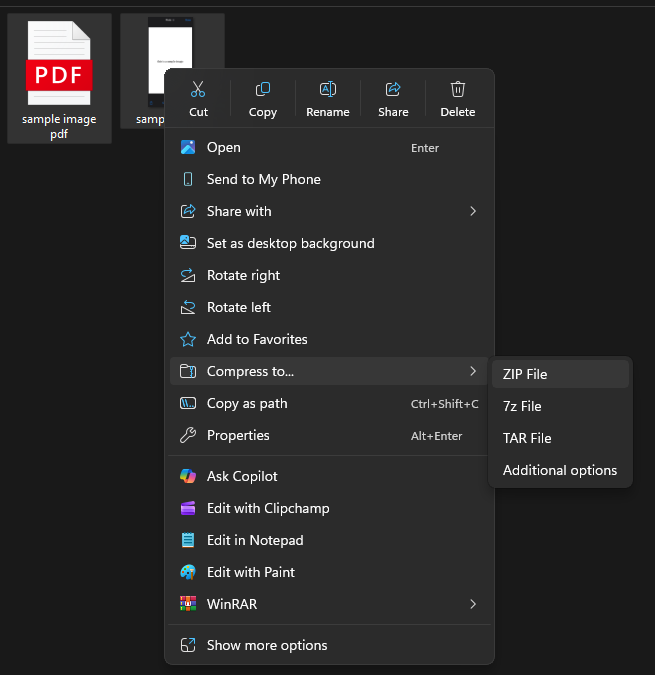
Windows will create a single folder containing all the files you selected. This method works well for when you want to have all website assets in one place, or want to save multiple photos together and share the photos.
How can I Rename the ZIP File?
As your ZIP file has many other files, it is a good idea to rename and give it a name which can be understood by anyone who receiver or opens it.
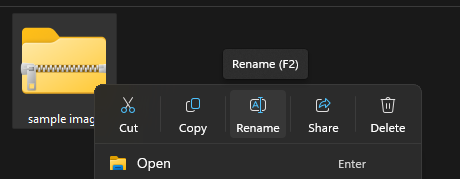
- Right-click the ZIP file.
- Choose Rename
- Enter your preferred name.
Method 3: Compress Files Using Third-Party Software
Built-in Windows compression works well, but it has limitations. If you need stronger compression, password protection, or support for other file formats, third-party tools or additional software work better. These tools offer features like strong password protection and smaller file sizes. You can use additional software if you work with formats like .RAR or .7z, or if you need encryption for sensitive files.
Share Files using Tiiny Host
You can upload and share files using Tiiny host without having to turn it into a zip file format. This makes it easy to share the files online. Tiiny Host also lets you password-protect your files and view analytics for them.
You can upload existing ZIP files or upload files online as they are. It is very easy to do the same too.
- Visit Tiiny Host
- Upload all the pictures.
- You can write a ‘link-name’ to get a customised subdomain.
- Log in or sign up and hit publish!

How to Unzip files from a compressed folder
- Double-click the ZIP file.
- Click Extract All to extract files from compressed folder
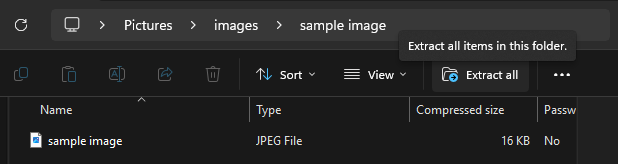
- Choose a destination folder
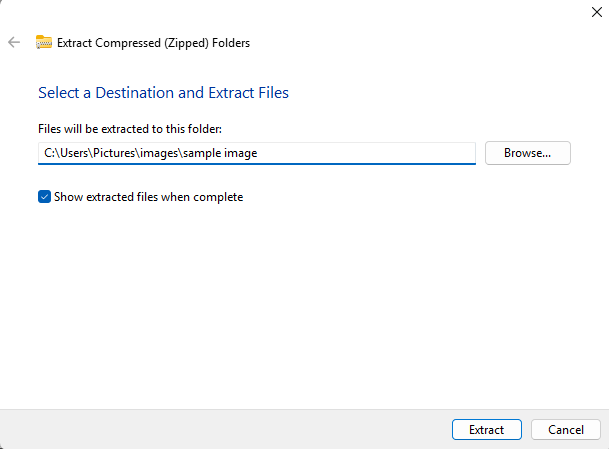
- Click Extract
Windows will return the files to their original state in the destination location you have selected.
Common Mistakes to Avoid
- Compressing already compressed files, it won’t result in more size reduction as these files have been made smaller earlier.
- Forgetting to rename ZIP files clearly. It can create confusion if you share the folder with someone else.
- Sending large ZIP files via email without checking size limits. While you ZIP your files to make them smaller and sent them easily, sometimes the ZIP files may still be over limit and you cannot send large files online beyond certain limits. So, always check that.
- Using ZIP files for sensitive data without encryption
Best Practices for File Compression on Windows
- Group related files before compressing
- Use descriptive names for ZIP archives.
- Verify file contents before sharing.
- Test extraction after compression
- Use third-party tools like Tiiny Host for security-sensitive files. You can turn on password-protection and also use tracking links to take care of your files.
Knowing these methods helps you compress files quickly, safely, and share them easily.
FAQs: How to Zip a File on Windows
Does Compression Affect File Quality?
For most files, compression doesn’t lower the quality. Documents, spreadsheets, and code files remain the same after compression. However:
- Images and videos already compressed (JPEG, MP4) may not shrink much.
- Compression won’t improve quality; it only makes files smaller.
What file types can be compressed on Windows?
You can compress almost any file type, like documents, images, videos, folders, and code files. But files that are already compressed may not get much smaller.
Can I password-protect a ZIP file using Windows?
No, Windows’ built-in compression can’t add a password. You can use tools like Tiiny Host to password-protect while sharing.
Does compressing files make them upload faster?
Yes. Smaller files upload faster, especially on slower internet connections.
Are ZIP files safe to send via email?
ZIP files are usually safe to send, but some email providers might block them if they have executable files. Alternatively, you can use tools like Tiiny Host and share the files with just a link.
Why is my ZIP file not much smaller than the original?
Some file types, such as MP4 videos or JPEG images, are already compressed and cannot be reduced significantly.