

- Transfer Photos from Phone to Laptop Without Installing Any Apps
- Transfer Pictures from Phone to Laptop Using Cloud-Based Apps
- Transferring iPhone Photos to Mac
- Transferring through other Wireless Methods
- Transfer Photos Using a USB Cable
- FAQs: How to Transfer Photos from Phone to Laptop
If you want to quickly send photos from your phone to your laptop, there are several easy ways to do it. These methods let you share pictures with family or friends, or just clear up space on your phone.
Here’s how you can transfer your photos in just a few minutes.
Transfer Photos from Phone to Laptop Without Installing Any Apps
A simple way to move photos and videos from your phone to your laptop, without cables or extra apps, is to use Tiiny Host. It works with all devices, including iPhone, Android, Mac, and PC.
In a few steps, you can upload your pictures, download them to your laptop, or share them directly with anyone if you want. You can also use Tiiny Host to transfer photos from a laptop to a phone.
Import Photos Using Tiiny Host:
- Visit Tiiny.host from your device
- Select all the images or videos you want to upload.
- Once added, hit publish
- Log in or sign up if you haven’t
- Your website will be live, where all your photos are available.

You can also add a link-name to get a customized subdomain. To get these pictures on your laptop, just open the link and view them on a bigger screen. You can also search for them and download them directly.
You can also create a shared project with your friends or family if you all want to upload pictures and keep them in one place. It can also be useful to share any project or office assets.
Transfer Pictures from Phone to Laptop Using Cloud-Based Apps

Use Google Cloud Services to Transfer Photos
Google Photos, one of the photo transfer apps, is compatible with both Android and iOS devices, and you can connect your accounts. You have to download the Google Photos App on your phone to transfer via Google Cloud or upload it to Google Drive.
Using Google Photos
- Download Google Photos from the Play Store or App Store
- Once that is done, you have to turn on Back Up & Sync for the photos.
- On your laptop, you can see the synced photos and download them.
Using Google Drive
- Open the Google Drive application on your phone.
- Create a new folder or choose an existing folder.
- Click on Upload –> “File Upload.”
- Select the Files you want to upload.
- Your files will now be uploaded.
Google Cloud is a great way to share photos. The only downside of Backup and Sync with Google Photos is that all photos are synced, and some of the ones you don’t want may end up in your account.
Transferring iPhone Photos to Mac
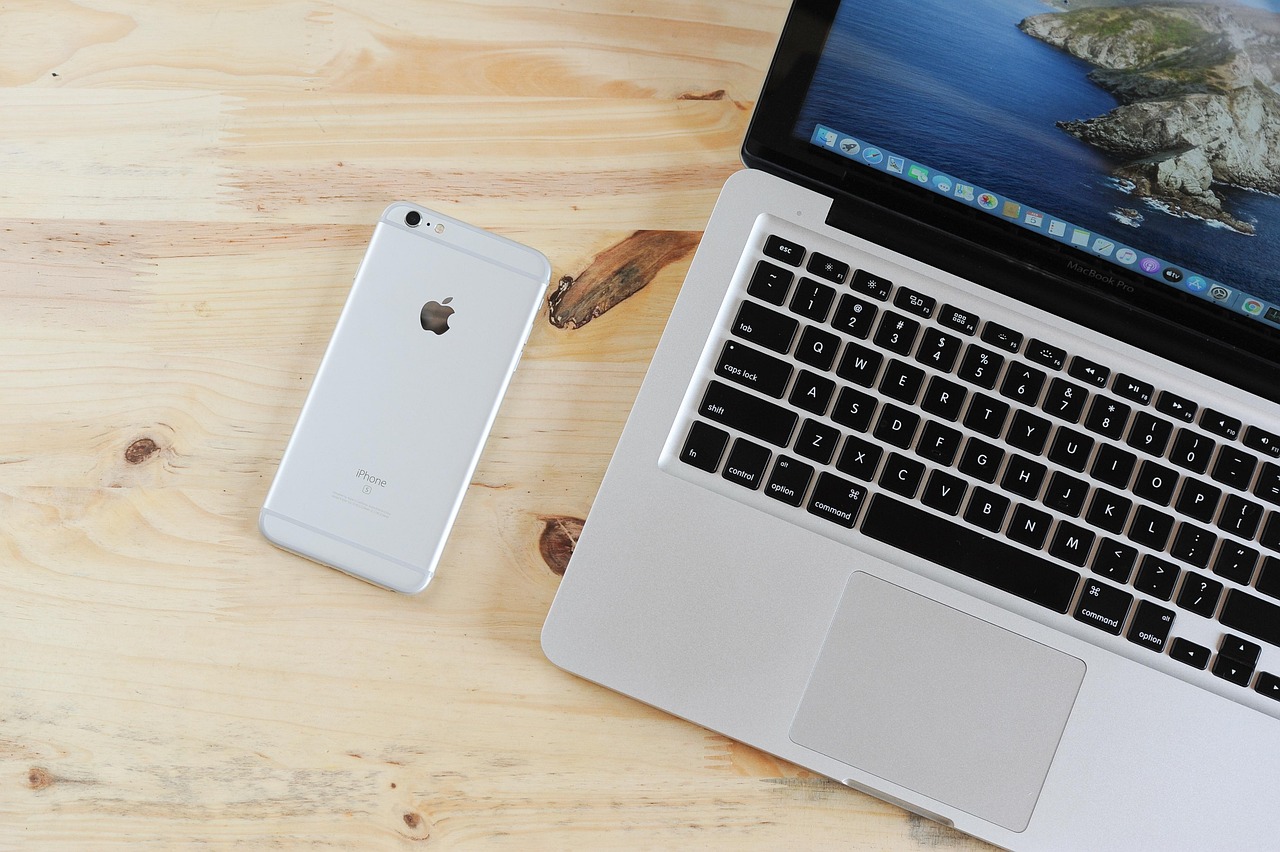
If you use Apple Devices, you can sync your photos directly to iCloud using the same Apple ID. If iCloud storage is full, you will have to purchase additional storage, as iCloud syncs all your device’s files to other Apple devices. If the storage is full, you can airdrop your file from your iPhone to your Mac Computer.
Transfer using iCloud Photos
- Enable iCloud Photos on your iPhone.
- On a Mac, the photos from your iPhone sync directly.
- On Windows, install iCloud for Windows to access your photo library.
Transfer through AirDrop
- On your Mac, open Control Center → AirDrop.
- Set visibility to Everyone or Contacts Only.
- On your iPhone, open Photos and select your images.
- Tap Share → AirDrop.
- Choose your Mac to transfer instantly.
Transferring through other Wireless Methods
Transfer Photo Using Bluetooth
Bluetooth was widely used for file transfers in the past, and you can still use it if you only have one or two images to share. On top of that, iPhones do not support photo transfer via Bluetooth to non-Apple devices, so that may cause issues.
Through Microsoft OneDrive or Dropbox
OneDrive app and Dropbox are great alternatives to Google Cloud if needed. You can upload the images to these cloud-based apps, store them, and download them later on your desktop.
Transfer Photos Using a USB Cable
Android Phone to Windows PC
- Connect your mobile device with a USB cable.
- Unlock your device to make the USB connection.
- Tap the USB notification and select File Transfer / MTP.
- On Windows File Explorer, open your device under This PC.
- Navigate to the pictures folder.
- Copy and paste the selected photos into any folder on your laptop.
iPhone to Windows (USB via Photos App)
- Connect your iPhone to a Windows desktop with a Lightning cable or a C-type cable
- Tap Trust This Computer on the iPhone.
- Open the Windows Photos app.
- Select Import → From a USB device.
- Choose your destination folder and start importing.
FAQs: How to Transfer Photos from Phone to Laptop
When should I use Tiiny Host instead of a USB cable?
Use Tiiny Host when you need a fast, wireless, cross-platform solution or when you want your photos presented cleanly via a shareable link. USB cables are still best for very large file sets and offline transfers.
Does uploading through Tiiny Host reduce image quality?
Your uploaded images retain their original quality unless you manually compress them before upload.
What if my phone doesn’t appear when I plug it into my laptop?
Common causes include:
- Using a charge-only cable
- Not unlocking the phone.
- Not selecting the correct USB mode.
- Missing Apple driver support for iPhones on Windows